
Personal Details
The Personal Details product integration displays details about the user.
Overview
The Personal Details product integration displays details about the user.
Vendors
The Personal Details product integration is currently supported by the RESTful API (generic) and PeopleSoft vendors.
User Experience
The following section describes information relating to the user experience for the Personal Details product integration.
User Activities
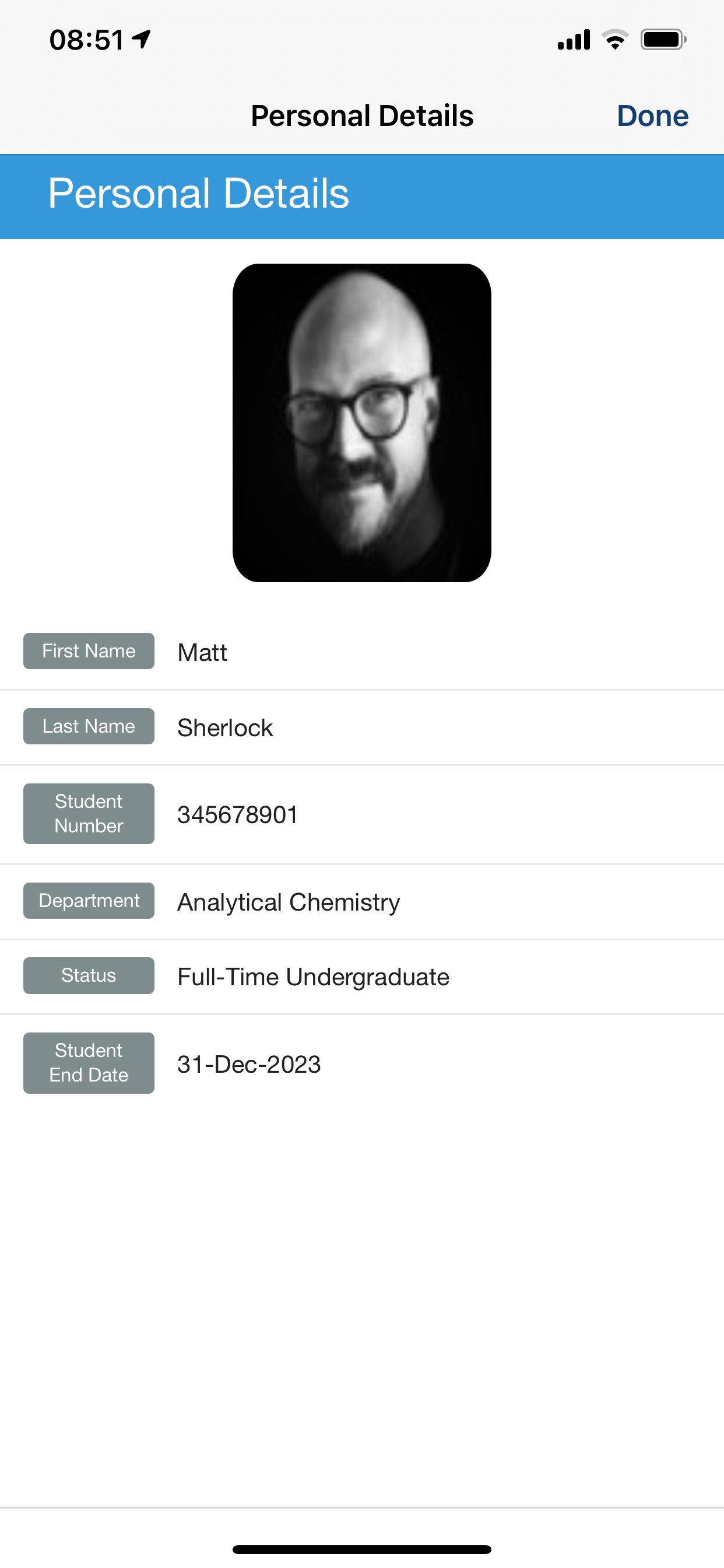
Students can view their personal details along with an (optional) picture.
Authentication
There is no need for additional user authentication except for the API authentication.
Offline Support
Personal Details data is stored on the user’s device for offline viewing. While internet access is required in order to log into the app, when the user is logged in, if they then go offline, they can still access their Personal Details through the app.
Screenshots
Technical Overview
The following section describes technical information for the Personal Details product integration.
Prerequisites
The following prerequisites are required for the ID Card product integration.
RESTful API Vendor
In order to retrieve the data, you need to create an API with the following requirements:
- The API is in the format:https://www.mydomain.com/getUserDetails.
- The API receives as a query parameter a user parameter that receives the user's identifier as configured in the API configuration. For example:https://www.mydomain.com/getUserDetails?user=username
- The API returns a JSON response with the following structure:{ "photo": "http://..photo.png", "name": "Jane Doe", "age": "26", ... }
To display an image, it must be returned in the API under the key photo.
PeopleSoft Vendor
- The IDP should return the end user's PeopleSoft ID attribute. In CMAuth, this attribute can have any name in the IDP attributes response (from SAML/OAuth/LDAP) but needs to be mapped in the Additional Mappings section of the CMAuth integration profile.
- The attribute is then configured in the User Input Identifier field in the PeopleSoft API Configuration section of the PI configuration page (see "Configuration", below).
- The new mapping of the authentication token requires users to log out and log in to the app.
Configuration
To configure the Personal Details product integration, select Add Product Integration from the Product Integrations main menu option.
Select Personal Details.
The following table describes the configuration options available on this page.
| Configuration Option | Description | Mandatory | Data Type | Default | Example |
|---|---|---|---|---|---|
| Manage Integration | |||||
| Enable Product Integration | Select to enable the product integration on the user's campusM app. | No | Checkbox | Unselected | |
| Product Integration Description | A description of the product integration for internal use | Yes | String | ||
| Screen Title | The title that appears in the top header of the service | No | String | Registration Status | |
| Vendor– This section defines the structure of the APIs used in this product integration. | |||||
| Vendor Name | Defines to which vendor the integration connects. | Yes | Drop-down list | API | |
| RESTful API Configuration This section contains the API details to define the RESTful API structure. You can test the API configuration. See Testing API Product Integration Configuration. | |||||
| Base URL to retrieve the information | The URL for the API | Yes | URL | https://{HOST} | |
| Parameter Input Option | The parameter input option. Possible values: Username, Token Property, and Constant. It is sent as the path parameter | . | Yes | Drop-Down list | Token Property |
| Token Property Name | Enter the property name to be retrieved from the token ({ USERNAME, MAIL, GIVEN_NAME, SURNAME, FULL_NAME } or as named in the integration profile) | No | String | USERNAME | |
| Constant Value | The value when the User Identifier is set to Constant | No | String | ||
| Authentication Type | Authentication type against the web service. The options are the following:
|
No | Object | No Auth | |
|
PeopleSoft API Configuration |
|||||
| Base URL to retrieve the information | This is the full domain and path of the PeopleSoft query, minus the query parameters. | Yes | URL | ||
|
User Input Identifier
|
|||||
| Parameter Input Option | Either Username, Token Property (from CMAuth) or Constant (for a static value). | Yes | Drop-down list | Username | |
| Token Property Name | Only used if Parameter Input Option is Token Property. | No | String | ||
| Constant Value | Only used if Parameter Input Option is Constant. | No | String | ||
|
API Authentication
|
|||||
| Authentication Type | Authentication type against the web service. The options are the following:
|
Yes | Drop-down list | ||
|
Show Advanced Settings |
Controls the display of Advanced Settings, below. |
No |
Checkbox |
Unchecked |
|
|
Advanced Settings |
|||||
|
Unique Prompt Name |
For PeopleSoft, to determine the type of identifier being passed. This complements the prompt field value, which is determined by the User Identifier. |
No |
String |
EMPLID |
|
|
Row Number |
The PeopleSoft query may return more than one row. Set the row number to be used for all query responses. |
No |
Integer |
1 |
|
| General | |||||
| Enable Picture | Select to display a picture of the user | No | Boolean | False | |
| Fields | The fields to be displayed on the page | No | Array | ||
| Code | The key this field returns in the API response | Yes | String | name | |
| Label | The label to display on the page | Yes | String | Name | |
| Look and Feel | |||||
| Primary Theme Color | Select a color for the main elements on the page | No | Color Picker | #444444 | |
| Secondary Theme Color | Select a color for the secondary elements on the page | No | Color Picker | #6f8ea4 | |
| Text/Labels | |||||
| Page Title | Shown at the top of the page. To hide a page title, enter noHeader. | No | String | Personal Details | |
| Error Message | The text to be displayed when there is an error reaching the API | No | String |
There was an error retrieving the data |
|
| Import/ Export Configuration You can configure product integration and then export it to another campusM environment, for example, from sandbox to production or from preview to production. | |||||
| Export | Create a JSON file with all product integration configurations. | No | |||
| Import | Use this option to load configuration from JSON of an exported product integration. | No | |||
Page tags: article:topiccontent:Documentationproduct:campusmlang:english
