
Holds
The Holds product integration allows students to view information related to their university holds.
Overview
The Holds product integration allows students to view information related to their university holds.
Vendors
The Holds product integration currently supports the following vendors:
- Ellucian Banner (XE)
- Ellucian Colleague (Custom) ERP Systems
- Ellucian Colleague (Web API)
- Oracle PeopleSoft
- RESTful API
User Experience
The following section describes information relating to the user experience for the Holds product integration.
User Activities
- Students select the Holds tile and their holds information is displayed.
- The total number of holds is displayed for students on the Holds live tile.
Authentication
The Holds product integration requires the user's identifier from the vendor's system. This is obtained with token-based authentication attributes.
The connection to the vendor is handled as part of the generic API Configuration component (in App Manager, in the product instance). This is found under the Vendor section on the configuration page.
Offline Support
No offline support is provided, since the data would not be current, and it is preferable to have no data rather than potentially inaccurate data.
Holds End-User Interface
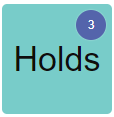
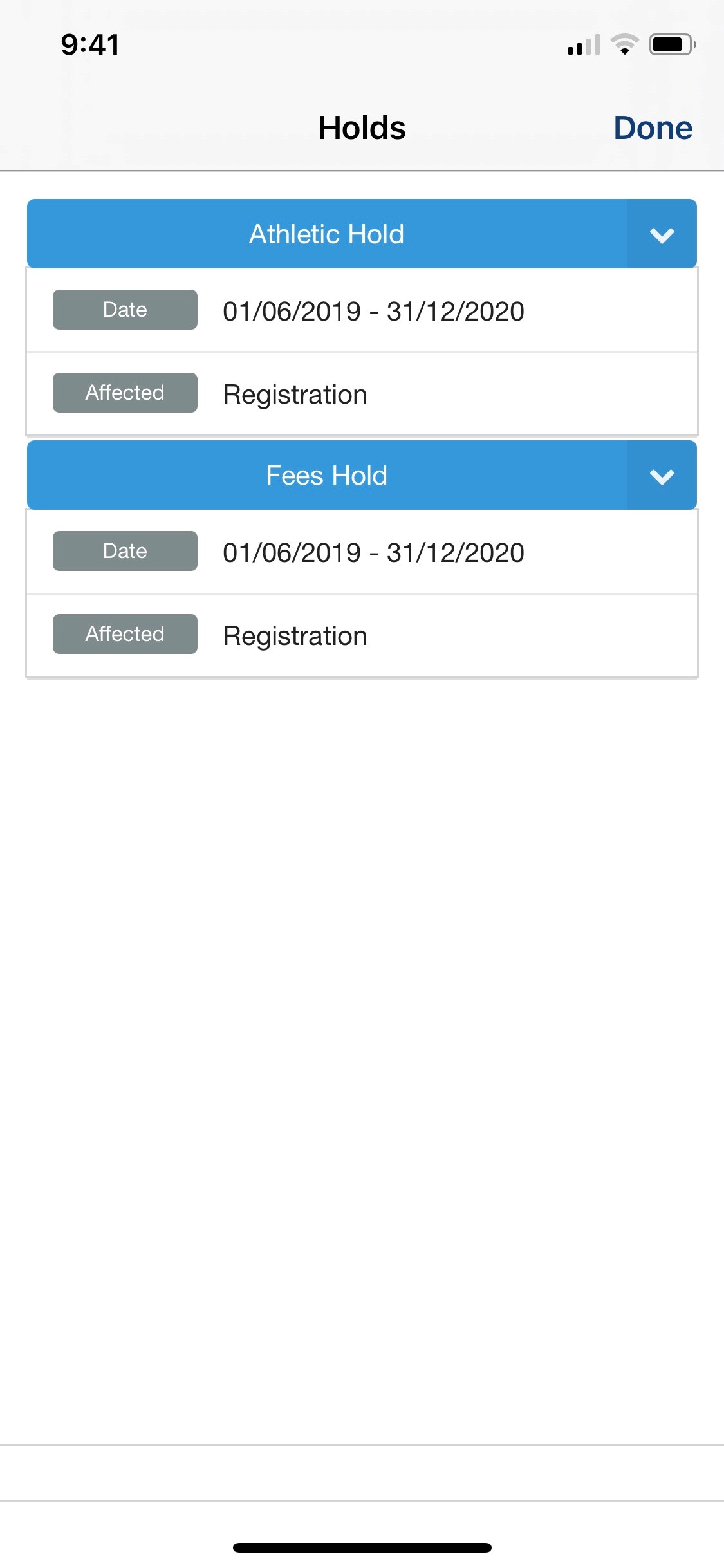
The following are the two components of the Holds user interface, as seen by the student. The Holds tile shows that the student has three holds. When the student selects the tile, the Holds page opens and displays details about their holds.
Technical Overview
This section describes technical information for the Holds product integration.
Prerequisites
The following prerequisites are required to configure the Holds product integration:
- User identifier mapping
- If you have CMAuth configured, map the relevant vendor ID in the integration profile (Additional Mapping), for example:bannerId=employeeID, where employeeID is the relevant user attribute on the vendor’s backend system.
- If you have LDAP configured, verify that the relevant attribute is returned as an attribute from the LDAP response.
- Map the relevant user ID in the integration profile for the app profile.
Required Format
Select one of the following links to learn about the required format for that vendor:
- Ellucian Banner 9 Vendor(Also referred to as "Banner XE")
- Ellucian Colleague (Custom) Vendor
- Ellucian Colleague (Web API) Vendor
- Oracle PeopleSoft
- RESTful API
Ellucian Banner 9 (XE) Vendor
- campusM uses the following API call to fetch the Holds data:
https://{host}/StudentApi/api/students/{userId}/holds
- The following is an example of a JSON response for the Holds API:
[
{
"fromDate":"2019-06-01",
"holdTypeCode":"AT1",
"holdTypeDescription":"Athletic Hold1",
"processAffectedDescription": [
"Registration"
],
"reason":"contact ext.2540",
"toDate":"2020-12-31"
},
{
"fromDate":"2019-06-01",
"holdTypeCode":"AT2",
"holdTypeDescription":"Athletic Hold2",
"processAffectedDescription": [
"Registration"
],
"reason":"contact ext.2540",
"toDate":"2020-12-31"
}
]
Ellucian Colleague (Custom) Vendor
- campusM uses the following API call to fetch the Holds data:
https://{host}/ColleagueApi/students/0938734/holds
- The following is an example of a JSON response for the Holds API:
[
{
"Type":"SA",
"Description":"Student Accounts Hold"
}
]
- A direct connection to the Ellucian Colleague (custom) API is required. Any middleware or client-specific implementation causes the API response to deviate from what the cloud platform is expecting.
Ellucian Colleague (Web API) Vendor
- campusM uses two API calls to fetch the grades data:
- The first call is because the Colleague Web API authenticates via a session token:
https://{HOST}/colleagueApi/session/proxy-login
- The second call is to retrieve all holds for the student:
https://{HOST}/colleagueApi/students/{username}/restrictions
Oracle PeopleSoft
- Create a PeopleSoft query that meets the following requirements:
- The API call must be in the following format:
GET https://{host}/PSIGW/RESTListeningConnector/ExecuteQuery.v1/PUBLIC/{query name}/JSON/NONFILE
E.g.https://satest.academyart.edu/PSIGW/RESTListeningConnector/ExecuteQuery.v1/PUBLIC/AAC_CM_STUDENT_TERMS/JSON/NONFILE
- These are the query parameters that need configuring:
isconnectedquery: N
maxrows: 0
prompt_uniquepromptname: USER_ID
prompt_fieldvalue: {USER_ID value as a Token Property}
json_resp: true
RESTful API
- campusM uses the following API call to fetch the Holds data:
https://<BASE_URL>/<PATH>?userId=<USER_ID>
- The following is an example of a JSON response for the Holds API:
[
{
"fromDate": "2019-01-01",
"reason": "this is a reason",
"processAffectedDescription": ["desc1", "desc2"],
"toDate": "2020-01-01",
"holdTypeCode": "code",
"holdTypeDescription": "description"
}
]
Configuration
The following table describes the configuration options available for the Holds product integration.
Note that while the majority of these fields are not mandatory, they are displayed with their default values unless otherwise stated.
| Configuration Option | Description | Mandatory | Data Type | Default | Example |
|---|---|---|---|---|---|
| Manage Integration | |||||
| Enable Product Integration | Select to enable the product integration on the user's campusM app. | No | Checkbox | Unchecked | |
| Product Integration Description | A description of the product integration for internal use | Yes | String | ||
| Screen Title | Appears in the top header (of the integration, in the app). | No | String | Holds | |
| Vendor | |||||
| Vendor Name | Defines to which vendor the integration connects | Yes | Drop-down list | Colleague | |
| API Configuration - for Banner XE and Colleague (Custom) This section contains the API details to define the API structure. You can test the API configuration. See Adding a Product Integration. | |||||
| Base URL to retrieve the information | The URL for the API server | Yes | URL | https://{HOST} | |
| Parameter Input Option | The parameter input option for Banner ID or Ellucian Colleague (custom). Possible values: Username, Token Property, and Constant. It is sent as the path parameter. | Yes | Drop-Down list | Token Property | |
| Authentication Type | Select one of the following options:
|
Yes | Drop-down list | ||
| API Configuration - for Colleague (Web API) and Oracle PeopleSoft | |||||
| URL to retrieve the information | The URL for the API server. | Yes | URL | https://{HOST} | |
| URL Query Parameters | Any query parameters required. | No | Parameter | ||
| URL Path Parameters | Any path parameters required. | No | Parameter | ||
| General Headers |
Any additional headers required. Note- when using the Colleague Web API , we require one to be configured: Header Key: X-CustomCredentials Header Value: colleaguewebapitoken The Header Key can be changed if your Colleague server accepts a different key name, but the Header Value cannot be changed. |
Yes | Header | ||
| Authentication Type | Select one of the following options, according to your Colleague server setup:
|
No | Drop-down list | No Auth | |
| Parameter Input Option |
The parameter type for Colleague ID required for the Colleague Web API. Possible values: Username, Token Property, and Constant. Typically this is the user's "username" attribute. |
Yes | Drop-down list | Username | |
| Token Property Name |
If "Token Property" is selected for Parameter Input Option, enter the property name to be retrieved from the token ({ USERNAME, MAIL, GIVEN_NAME, SURNAME, FULL_NAME } or as named in the integration profile). |
Yes (if Token Property) | String | username | |
| Web API - for Colleague (Web API) only | |||||
| Proxy ID | Required to fetch the session token. | Yes | String | ||
| Proxy Password | Required to fetch the session token. | Yes | String | ||
| Token Expiry | The time in hours to store a web API session token for, up to a maximum of 24 hours. | No | Integer | 1 | |
| Holds Page | |||||
| More Details Button Link | This will redirect the user out of the campusM app to the target URL | No | Checkbox | Selected | |
| More Details Page URL | Specify the external URL of the vendor website | Mandatory if More Details Button Link was selected | String | ||
| Open More Details Link Externally | Determines whether the link opens in-app or in the user's external browser | No | Checkbox | Unselected | |
| Input Date Format | The format of the dates coming back from the API | No | Date format | YYYY-MM-DD | |
| Display Date Format | The format in which to display time throughout the integration | No | Time format |
hh:mm hh:mm a |
|
| Additional Fields | |||||
| Code | The code as returned in JSON | Yes | String | ||
| Label | The label for this field | Yes | String | ||
| Display if empty | Select to display the field even when it has no data | No | Boolean | False | |
| Live Tile | Live Tile | Live Tile | Live Tile | Live Tile | Live Tile |
| Enable Live Tile |
Select to enable holds Live Tile |
No | Boolean | False | |
| Badge Color | No | Color Picker | #4d194c | ||
| Look and Feel | |||||
| Primary Theme Color | Used for the Screen Title header and other header elements. | No | Color Picker | #444444 | |
| Secondary Theme Color | Used for the Grade block headers. | No | Color Picker | #6f8ea4 | |
| Text / Labels | Enter replacement text for the default titles and labels | No | String | ||
| Holds Page Title | The page title | No | String | Holds | |
| Affected Text | Used for the Affected block header | No | String | Affected | |
| Date Label | Used for the Date block header | No | String | Date | |
| More Details Button Link | If the more details button link is enabled, this controls the text user sees | No | String | Go to website | |
| No Data Message | This message will appear when there is no holds data for the user | No | String | No holds found | |
| Service Failure Message | This message will appear when the integration is unable to reach or process the service call correctly. | No | String | The page is having trouble fetching your holds – please try again shortly | |
| Import/ Export Configuration You can configure product integration and then export it to another campusM environment, for example, from sandbox to production or from preview to production. | |||||
| Export | Create a JSON file with all product integration configuration. | No | |||
| Import | Use this option in order to load configuration from JSON of an exported product integration. | No | |||
Page tags: article:topiccontent:Documentationproduct:campusmlang:english
