
Task Board
The Task Board product integration shows the user their assigned tasks. The following vendors are currently supported: RESTful API.
Overview
The Task Board product integration shows the user their assigned tasks. The following vendors are currently supported: RESTful API. Users can also create their own tasks, if user created tasks are enabled. Tasks from the Task Board that have a date and/or time are automatically synced to the campusM Calendar.
User Experience
The following section describes information relating to the user experience for the Task Board product integration.
User Activities
The user can view their assigned tasks, mark them as completed, create their own tasks (with reminders), mark tasks as favorite, and filter their task list.
Screenshots
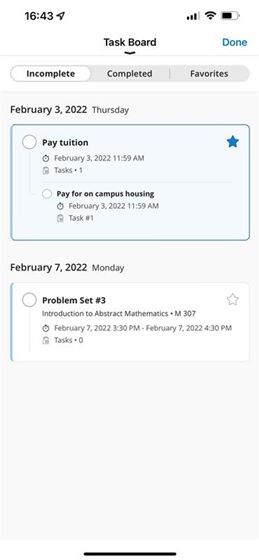
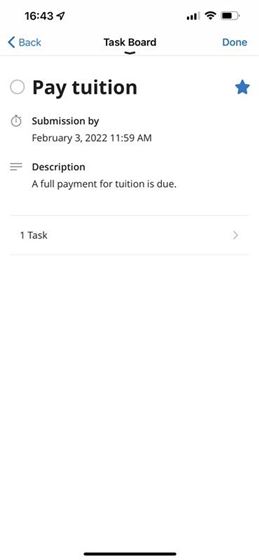
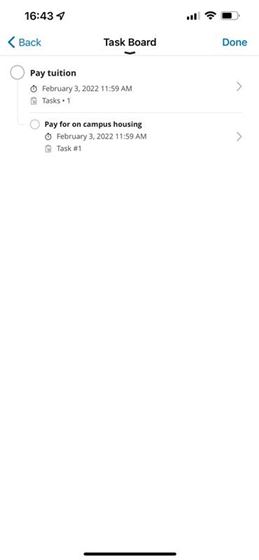
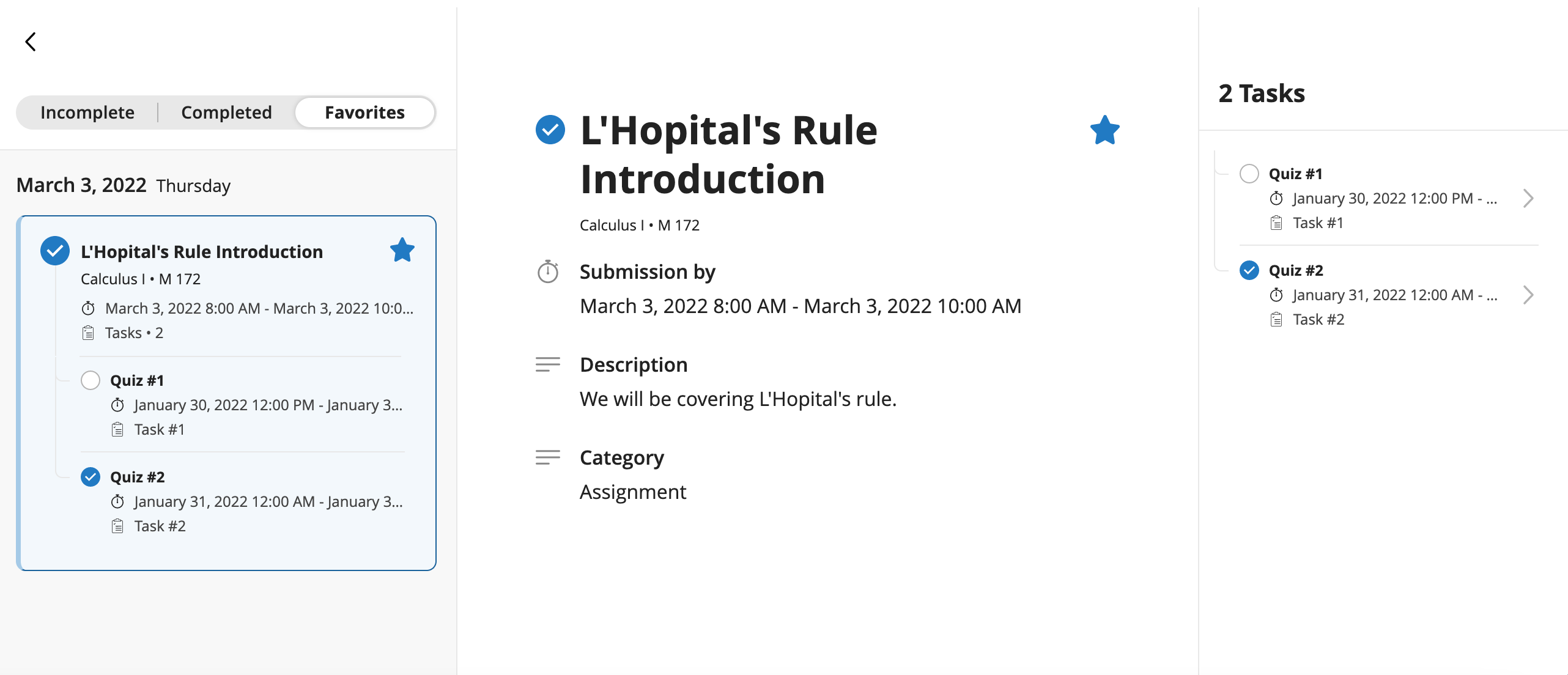
The following is an example of the Task Board page:
Mobile view examples:
|
|
|
Web view example:
Technical Overview
The following section describes technical information for the Task Board product integration.
Configuration Vendor
The Task Board may also be configured directly on the configuration page (by selecting Configuration as the vendor).
RESTful API
RESTful APIs often have API authentication set. You can set this within the configuration page.
There are several options:
- No Auth
- Basic
- Bearer Token
- API Key
- OAuth
You also need to configure the user identifier that is used in each of the RESTful API calls. The user identifier specifies which specific user the API call is being made for. This can be set as either a query parameter or a path parameter and pulls from our CMAuth token. For more information on our CMAuth tokens, see Managing Token Based Authentication.
RESTful API uses two requests:
This request gets a single user's tasks. All tasks must be returned with this endpoint.
GET https://{Base URL}/taskBoardGetTasks
Expected Response:
Note the breakdown of mandatory fields.
- Mandatory
- taskId
- title
- isComplete
- isFavorite
- Optional Basic Fields
- parentTaskId (Note: This is necessary if the task is a subtask of another task)
- courseName
- courseId
- startDate
- dueDate
- Additional Optional Fields Examples (these can be whatever fields you want)
- description
- category
If an attribute has no value, don ’t include it in the response.
{
"tasks": [
{
"taskId": "1efasdfe",
"parentTaskId": "",
"title": "Problem Set #3",
"courseName": "Linear Algebra",
"courseId": "M323"
"startDate": "2002-02-09T15:30:00Z",
"dueDate": "2022-02-09T17:30:00Z",
"isComplete": false,
"isFavorite": true,
"description": "Do problems: 23 and 28 from section 1.2, 4 and 13 from section 1.3",
"category": "Problem Set",
},
...
]
}
This request updates the task completed or task is a favorite indicator for the given set of tasks.
GET https://{Base URL}/taskBoardUpdate?updateType={type to update - needs to be either "favorite" or "complete"}&userIdentifier={user identifier}&taskIds={comma separated list of task id's}&updatedValues={comma separated list of updated values}
Example: https://{Base URL}/taskBoardUpdate?updateType=favorite&userIdentifier=miri&taskIds=1a,2a&updatedValues=1,1
Expected Response:
Both fields are mandatory.
{
"error": false,
"errorMsg": ""
}
Configuration
| Configuration Option | Description | Mandatory | Data Type | Default | Examples and Notes |
|---|---|---|---|---|---|
| Manage Integration | |||||
| Enable Product Integration | Select to enable the product integration on the user's app. | No | Checkbox | Unselected | |
| Product Integration Description | A description of the product integration for internal use. | Yes | String | ||
| Screen Title | The title that appears in the top header of the service. | No | String | Task Board | |
| Vendor | |||||
| Vendor Name | Defines to which vendor the integration connects. | Yes | Drop-down list | Configuration, RESTful API | |
|
Vendor Configuration This section contains the details when configuring the tasks directly on the Configuration page. |
|||||
| Task Title | The title of the task | Yes | String | ||
| Description | Optional plain-text description for this task | No | String | ||
| Due Date | Choose a due date for this task. This will make the task appear in the campusM Calendar. | No | Date | ||
| Start Time | Start time in 24-hour format (e.g. 10:00). Requires a Due Date. | No | Date | ||
| End Time | End time in 24-hour format (e.g. 14:00). Requires a Due Date. | No | Date | ||
| Roles | Choose the role(s) that this task will be exposed to. Leaving this blank will expose the task to all users. | No | Dropdown, Multiselect | ||
| Subtasks | Click Add Subtask to add a subtasks, with the same fields as a regular task. | No | |||
|
RESTful API Configuration This section contains the RESTful API details to define the API structure. You can test the API configuration. See Testing API Product Integration Configuration. |
|||||
| URL to retrieve the information | The URL for the Web service. | Yes | URL | ||
| URL Query Parameters | The parameters sent as part of the query. | No | String | ||
| URL Path Parameters | The parameters sent as part of the path. | No | String | ||
| General Headers | Add (key, value) for additionally needed headers. | No | String | ||
| Authentication Type | Authentication type against the web service. The options are the following:
|
Yes | Drop-down list | ||
|
Tasks Code |
The code of the field in the API. | Yes | String | tasks | |
| Task ID Code | The code of the field in the API. | Yes | String | taskId | |
| Parent Task ID Code | The code of the field in the API. | Yes | String | parentTaskId | |
| Title Code | The code of the field in the API. | Yes | String | title | |
| Course Name Code | The code of the field in the API. | Yes | String | courseName | |
| Course ID Code | The code of the field in the API. | Yes | String | courseId | |
| Start Date Code | The code of the field in the API. | Yes | String | startDate | |
| Start Date Format | The format of the date. | Yes | String | yyyy-MM-DD'T'HH:mm:ss.SSS'Z' | |
| Due Date Code | The code of the field in the API. | Yes | String | dueDate | |
| Due Date Format | The format of the date. | Yes | String | yyyy-MM-DD'T'HH:mm:ss.SSS'Z' | |
| Time Zone | Time zone the API dates are given in. | No | Drop-down list | UTC | |
| Complete Code | The code of the field in the API. | Yes | String | isComplete | |
| Favorite Code | The code of the field in the API. | Yes | String | isFavorite | |
| Update Error Code | The code of the field in the API. | Yes | String | error | |
| Update Error Message Code | The code of the field in the API. | Yes | String | errorMsg | |
| Additional Field - Code | The code of the field in the API. | No | String | ||
| Additional Field - Label | The label for the attribute. | No | String | ||
| Additional Field - Display Field | The option to display or hide this field. | No | Boolean | true | |
|
Additional Field – Field is a Link |
The option to specify the field as link. |
No |
Boolean |
false |
|
|
Additional Field – Link Text |
The text to show for the link. |
No |
String |
||
| General | |||||
| Time zone | Time zone the dates are formatted to. | No | Drop-down list | UTC | |
| Open Link Instead of Task Details Section | Option to enable link outs when selecting tasks instead of directing to the task details page. | No | Boolean | false | |
| API Attribute to Use for Link | The code of the field in the API. | No | String | link | |
| User Created Tasks | |||||
| Enable User Created Tasks | Option to allow users to create their own tasks. | No | Boolean | true | |
| Notification Settings | |||||
| Notification Title | The title for the notification. | No | String | Reminder for: {reminder title} | The information in the placeholder brackets {} is automatically populated when the user creates the task. |
| Notification Body | The body of the notification. | No | String | This is your reminder for {reminder title}. This reminder was set from {product integration screen title}. | The information in the placeholder brackets {} is automatically populated when the user creates the task. |
| Reminder Field Label | Text that displays for the Reminder field. | No | String | Remind me | |
| Clear Date Button Label | Text that displays for the Clear Date button. | No | String | Clear | |
| Select Date Button Label | Text that displays for the Select Date button. | No | String | Select | |
| Text/Labels | |||||
| Subtask Label | The label for a singular subtask. | No | String | Subtask | |
| Subtasks Label | The label for multiple subtasks. | No | String | Subtasks | |
| Show All Button Label | The label for the button to show more tasks. | No | String | Show all | |
| Show Less Button Label | The label for the button to show less tasks. | No | String | Show less | |
| No Due Date for Task Label | The label for the group of tasks that do not have due dates. | No | String | No Due Date | |
| Incomplete Label | The label for the Incomplete view option. | No | String | Incomplete | |
| Complete Label | The label for the Complete view option. | No | String | Complete | |
| Favorites Label | The label for the Favorites view option. | No | String | Favorites | |
| Submission By Label | The label for the Submission By field for the task details. | No | String | Submission by | |
| Create Parent Task Form Title | The title displayed at the top of the user created task form. | No | String | Create a Task | |
| Create Subtask Form Title | The title displayed at the top of the user created task form. | No | String | Create a Subtask | |
| Edit Parent Task Form Title | The title displayed at the top of the user created task form. | No | String | Edit Task | |
| Edit Subtask Form Title | The title displayed at the top of the user created task form. | No | String | Edit Subtask | |
| Edit Button Text | The text for the edit button that displays on user created tasks. | No | String | Edit | |
| Add Subtask Button Text | The text for the Add button when adding a subtask to a user created task. | No | String | Add | |
| Save Button Text | The text for the Save button when saving a user created task. | No | String | Save | |
| Title Field Placeholder | The Title placeholder for the form field. | No | String | Add a title | |
| Due Date Form Entry Label | The label for the form field. | No | String | Add due date | |
| Select Date Button Label | The button label that appears when selecting a date. | No | String | Select | |
| Clear Date Button Label | The button label that appears when clearing a date. | No | String | Clear date | |
| Change Due Date Label | Label for Change Due Date. | No | String | Change due date | |
| Select Due Date Label | Label for Select Due Date. | No | String | Select due date | |
| Start Date Form Entry Label | The label for the form field. | No | String | Add start date | |
| Change Start Date Label | Label for Change Start Date. | No | String | Change start date | |
| Select Start Date Label | Label for Select Start Date. | No | String | Select start date | |
| Course Name Form Entry Label | The label for the form field. | No | String | Add course name | |
| Course Name Form Field Title | The title for the form field. | No | String | Course Name | |
| Course ID Form Entry Label | The label for the form field. | No | String | Add course ID | |
| Course ID Form Field Title | The title for the form field. | No | String | Course ID | |
| Add Details Form Entry Label | The label for the form field. | No | String | Add details | |
| Add More Details Form Entry Label | The label for the form field. | No | String | Add more details | |
| Description Field Placeholder | The description placeholder for the form field. | No | String | Add a description | |
| Add Subtask Form Entry Label | The label for the form field. | No | String | Add a subtask | |
| Title for the Settings Section | Title for the Settings section. | No | String | Settings | |
| Delete Task Button Text | The text for the Delete button when deleting a user created task. | No | String | Delete task | |
| Delete Subtask Button Text | The text for the Delete button when deleting a user created subtask. | No | String | Delete subtask | |
| Title for Task Deletion Confirmation | Title for task deletion confirmation. | No | String | Delete | |
| Message for Task Deletion Confirmation | Message for task deletion confirmation. | No | String | Are you sure you would like to delete this item? | |
| Cancel Deletion Button Text | Cancel Deletion button text. | No | String | No | |
| Confirm Deletion Button Text | Confirm Deletion button text. | No | String | Yes | |
| No Tasks Message | The message to display when the view the user has selected has no tasks available. | No | String | It seems you have no tasks. | |
|
Loading Tasks Message |
The message to display when the user ’s tasks are loading. |
No |
String |
It seems you have no tasks. |
|
| Service Failure Message | Message to display when there is an error retrieving the data. | No | String | Unable to reach the service at this time. Please try again later. | |
| Show in Task Board label | Label for the "Show in Taskboard" link in calendar events stemming from the Task Board feed | No | String | Show in Task Board | |
|
Import/ Export Configuration You can configure product integration and then export it to another campusM environment, for example, from sandbox to production or from preview to production. |
|||||
| Export | Create a JSON file with all product integration configurations. | No | |||
| Import | Use this option to load configuration from JSON of an exported product integration. | No | |||
Page tags: article:topiccontent:Documentationproduct:campusmlang:english
