
List
The List product integration displays list of items. It is possible to display a brief view of the items in the campusM home page. The items can be linkable to external URLs.
Overview
The List product integration displays list of items either configured in the App Manager or received from a REST API. It is possible to display a brief view of the items on the home page. The items can be linkable to external URLs.
For more information, watch List (5:10 min).
Vendors
The List product integration is supported currently by the RESTful API vendor or by basic App Manager configuration.
User Experience
The following section describes information relating to the user experience for the List product integration.
User Activities
- Users can view lists of items in the live tile (home page) and view the full list after clicking the tile.
- The user can view a filter page (optional) and select a filter to display the lists for that filter.
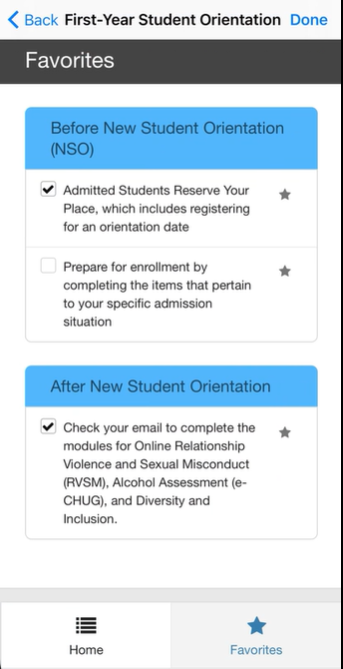
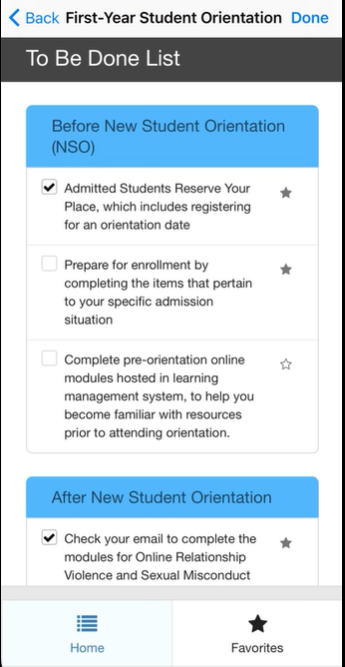
- The user can treat the list as a checklist and view the progress of each list.
- The user can mark items as favorites and view them in the Favorites tab.
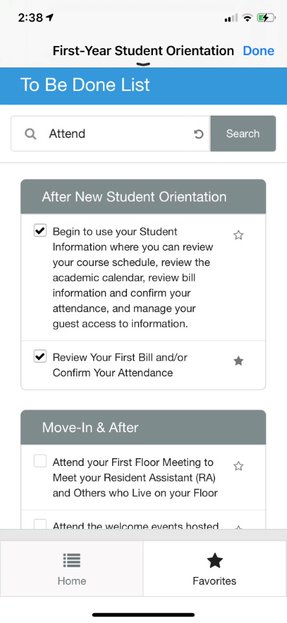
- The user can search items via a search bar.
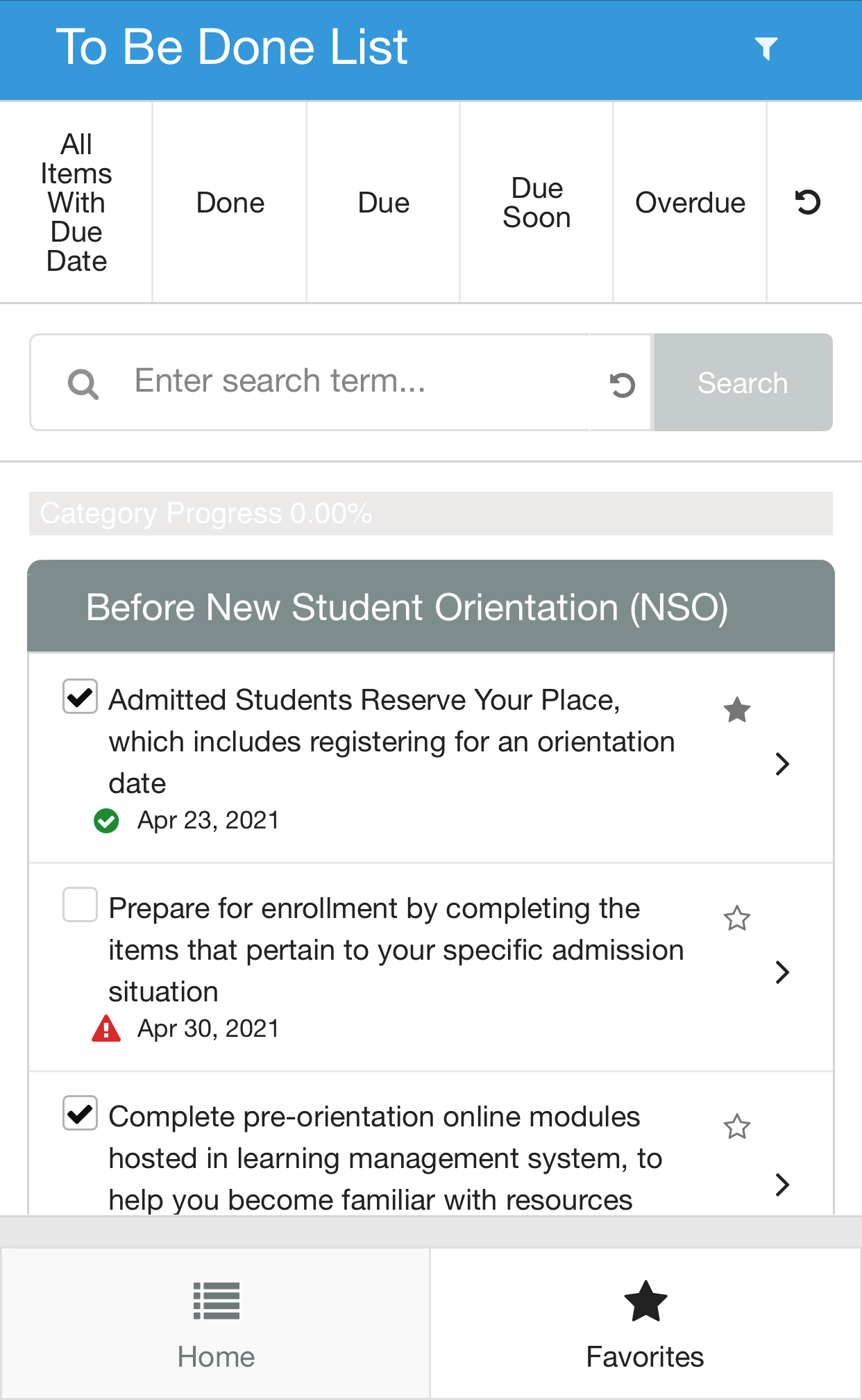
- The user can filter items by due date (when enabled) such as, done, due, overdue, etc.
Authentication
When using the REST API vendor, the connection to the vendor is handled as part of the generic API Configuration under the Vendor section. The first part of the API Configuration details the URL to which to connect and any parameters that are required. The second part relates to the API Authentication for the URL, which is vendor-specific, and could also be specific to the vendor instance the client is running.
Offline Support
No offline support is available.
Screenshots
The following is an overview of the List product integration user interface for reference when configuring it:
|
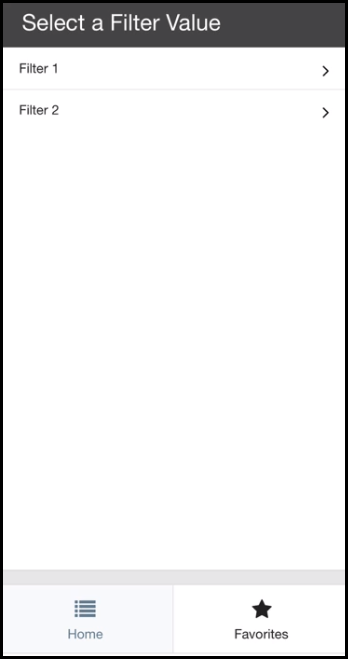
Select Filter (the preliminary filtering page is not mandatory)
|
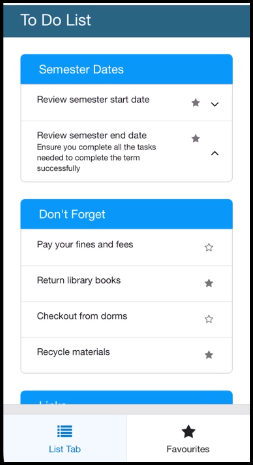
To Do List with Favorites Selected
|
|
|
|
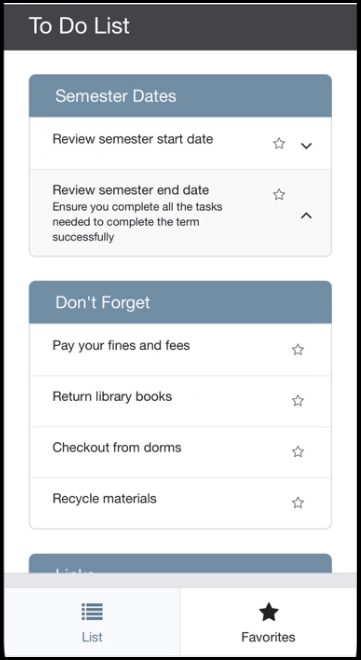
To Do List Without Favorites Selected
|
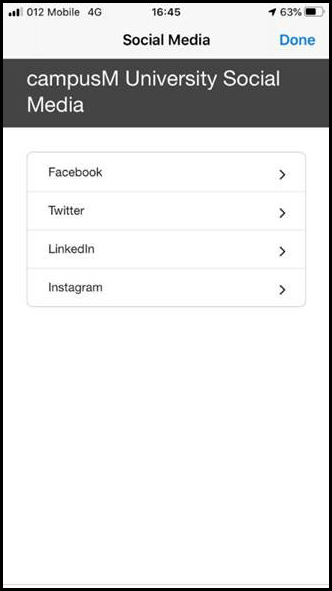
Links Without Favorites
|
|
|
|
Favorites with Checkboxes
|
To Do List with Checkboxes
|
|
|
| To Do List with Searchbar | |
|
|
Live Tile
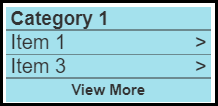
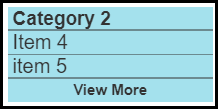
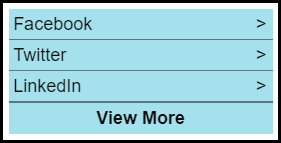
A 1*2 live tile displays the first few items in the list. Items can be configured to link to external URLs.
| First Category | Second Category | Only One Category, Without Category Title |
|
|
|
"hoverBorderColor": null,
"borderColor": null
Technical Overview
RESTful API
In order to retrieve the data via a RESTful API, you may create an API that applies the following requirements:
- The API receives as a query parameter a user parameter that receives the user's identifier as configured in the API configuration.
- The API is in the format:https://www.mydomain.com/getListData?user=username
- The API returns a JSON response with the following structure:{ "categories": [ { "categoryTitle": "Semester Dates", "filter": "Filter 1", "action": "description", "itemsArray": [ { "itemTitle": "Review semester start date", "description": "Make\nsure you are aware\n\nof the key dates at the stג€¦luding\norientation week, online training and\nmore" "image": "https://exampleImage.png" }, { "itemTitle": "Review semester end date", "description": "Ensure you complete all the tasks needed to complete the term successfully" "image": "https://exampleImage.png" } ] }, { "categoryTitle": "Don't Forget", "filter": "Filter 1", "action": "none", "itemsArray": [ { "itemTitle": "Pay your fines and fees" "image": "https://exampleImage.png" }, { "itemTitle": "Return library books" "image": "https://exampleImage.png" }, { "itemTitle": "Checkout from dorms" "image": "https://exampleImage.png" }, { "itemTitle": "Recycle materials" "image": "https://exampleImage.png" } ] }, { "categoryTitle": "Links", "filter": "Filter 2", "action": "URL", "itemsArray": [ { "itemTitle": "Facebook", "url": "https://www.facebook.com" "image": "https://exampleImage.png" }, { "itemTitle": "Instagram", "url": "https://www.instagram.com" "image": "https://exampleImage.png" }, { "itemTitle": "Google", "url": "https://www.google.com" "image": "https://exampleImage.png" }, { "itemTitle": "Twitter", "url": "https://www.twitter.com" "image": "https://exampleImage.png" }, { "itemTitle": "Linkedin", "url": "https://www.linkedin.com" "image": "https://exampleImage.png" }, { "itemTitle": "Buzzfeed", "url": "https://www.buzzfeed.com" "image": "https://exampleImage.png" } ] } ] }
| Field Name | Type | Description | Mandatory Yes/No |
|---|---|---|---|
| categories | Array | The array of categories | Yes |
| categoryTitle | String | The title of the category | Yes |
| filter | String | The title of the filter | Yes unless Enable Preliminary Filters Page is not enabled |
| action | String (one of 3 options: "URL", "description" or "none") | The action for the items in the category | Yes |
| itemsArray | Array | The array of items per category | Yes |
| itemTitle | String | The title of the item | Yes |
|
description |
String | The description of the item. | Yes when the category action is "description" |
| url | String | The URL for the item to link to | Yes when the category action is "url" |
| image | String | The URL for the image for the given item that displays on the live tile | No |
| dueDate | String | The due date for the item. Must use DD/MM/YYYY formatting. | No |
| isFavorite | Boolean | Is this item a favorite | No |
| isChecked | Boolean | Is this item checked | No |
The lists can also be configured directly on the configuration page by selecting Configuration as the vendor.
In order to update the selections via an API, you may create an API that applies the following requirements:
- The API is a POST request in the format:https://www.mydomain.com/updateSelection
- The body of the request must be in the following structure:
Sample Response
{
"category": "category title",
"item": "item title",
"add": true,
"type": "favorites",
"userId": "userId"
}
| Field Name | Type | Description | Mandatory Y/N |
|---|---|---|---|
| category | String | The category title | Yes |
| item | String | The item title | Yes |
| add | boolean | True for adding, false for removing | Yes |
| type | String | Either "favorites" or "checkbox" | Yes |
| String | The user's identifier as configured in the API configuration. | Yes |
The API returns a JSON response of the following structure:
Sample Response
{"status": "success"}
| Field Name | Type | Description | Mandatory Y/N |
|---|---|---|---|
| status | String | The status of the request. | Yes |
PeopleSoft
The PeopleSoft vendor requires the RESTListeningConnector listener.
The PeopleSoft vendor only returns Description items. It doesn't support Image URLs or External URLs (see when the vendor is set to Configuration).
The URL passed to the Product Integration needs to include the full path to the query, i.e. https://PEOPLESOFT_HOSTNAME/PSIGW/RESTListeningConnector/ExecuteQuery.v1/PUBLIC/QUERY_NAME/JSON/NONFILE (assuming your query follows this URL pattern).
We expect and set a number of query parameters by default. These are:
-
- isconnectedquery (set to N)
- maxrows (set to 0)
- prompt_uniquepromptname (set in the Configuration, below)
- prompt_fieldvalue (set to the User Identifer Value from the Configuration, below)
- json_resp (set to true)
The expected response structure is as follows. Row attributes must include DUE_DATE(if due dates are enabled in the configuration),ITEM_TITLE, and COMMENT_INFO:
{ "status": "success", "data": { "query": { "numrows": 6, "queryname=": "AAC_CM_TODO_TILE", "rows": [ { "attr:rownumber": 1,
"DUE_DATE": "01-01-2022",
"ITEM_TITLE": "Title",
"COMMENT_INFO": "Comment Info",
// other attributes } ] } } }
DUE_DATE must always be in the DD/MM/YYYY format, just like the RESTful API vendor.
Configuration (Categories and Items)
The lists may also be configured directly on the configuration page (by selecting Configuration as the vendor).
Product Integration Configuration
To configure the List product integration, select Product Integrations > Add Product Integration and select List.
The following table describes the configuration options available on this page.
| Configuration Option | Description | Mandatory | Data Type | Default | Example |
|---|---|---|---|---|---|
| Manage Integration | |||||
| Enable Product Integration | Select to enable the product integration on the user's app. | No | Checkbox | Unchecked | |
| Product Integration Description | A description of the product integration for internal use | Yes | String | ||
| Screen Title | The title that appears in the top header of the service | No | String | Registration Status | |
| General | |||||
| Enable Preliminary Filters Page | Select to enable the preliminary filters page | No | Checkbox | Unchecked | |
| Enable Favorites | Select to enable favorites | No | Checkbox | Selected | |
| Enable Checklist | Select to enable checklists | No | Checkbox | Unchecked | |
| Checklist Progress Bar – Controls for displaying the progress of completion for each of the lists. | |||||
| Enable Progress Bar | Enables or disables the progress bar for each individual list. | No | Checkbox | Unchecked | |
| Text - "Progress" | The text inside the progress bar, next to the value. | No | String | Progress | |
| Progress Bar Type | Determines how the progress is formatted. Either a percentage value, i.e. "40%", or a fraction, i.e. "4 of 10". | No | Array | Percentage (%) | |
| Categories Progress Bar | |||||
| Enable Progress Bar | Enables or disables the progress bar for each category. | No | Checkbox | Unchecked | |
| Text - "Progress" | The text inside the progress bar, next to the value. | No | String | Progress | |
| Progress Bar Type | Determines how the progress is formatted. Either a percentage value, i.e. "40%", or a fraction, i.e. "4 of 10". | No | Array | Percentage (%) | |
| Due Dates Configuration | |||||
| Enable Due Dates | Select to enable due dates. | No | Checkbox | Unchecked | |
| Due Date Display Format | The format in which to display the due date. | No | String | ll | |
| Due Soon Popup | Choose the number of days before the due date to display popup reminder. | No | Number | 7 | |
| Due Soon Popup Title Label | No | String | You have items due soon. | ||
| Due Soon Popup Button Label | No | String | Show me | ||
| All items With Due Date Label | No | String | All items With Due Date | ||
| Done Items Label | No | String | Done | ||
| Due Items Lable | No | String | Due | ||
| Overdue Items Label | No | String | Due Soon | ||
| Done Icon Color | No | Color Code | #178932 | ||
| Due Soon Icon Color | No | Color Code | #e6c100 | ||
| Overdue Icon Color | No | Color Code | #db2828 | ||
| Enable Searchbar | Select to enable searchbar. | No | Checkbox | Unchecked | |
| Vendor– This section defines the structure of the APIs used in this product integration. | |||||
| Vendor Name | Defines to which vendor the integration connects. | No | URI | https://myDomain.com | |
|
RESTful API Configuration This section contains the RESTful API details to define the API structure. |
|||||
| Base URL to retrieve the information | No | URI | https://myDomain.com | ||
| User Input Identifier | |||||
| Parameter Input Option | Choose a parameter input option that matches your needs. i.e. Select 'Username' to use the username attribute associated with the end- user. | No | Object | Username | |
| Token Property Name | Enter the property name to be retrieved from the token ({ USERNAME, MAIL, GIVEN_NAME, SURNAME, FULL_NAME } or as named in the integration profile). | No | String | USERNAME | |
| Constant Value | The value when the User Identifier is set to Constant. | No | String | ||
| API Configuration This section contains the API details to define the API structure. You can test the API configuration. See Testing API Product Integration Configuration. | |||||
| Base URL to retrieve the information | The URL for the API. | No | URL | https://myDomain.com | |
| User Input Identifier | |||||
| Parameter Input Option | The parameter input option. Possible values: Username, Token Property, and Constant. It is sent as the path parameter. | No | Drop-down list | Usrename | |
| Token Property Name | Enter the property name to be retrieved from the token ({ USERNAME, MAIL, GIVEN_NAME, SURNAME, FULL_NAME } or as named in the integration profile) | No | String | USERNAME | |
| Constant Value | The value when the user identifier is set to Constant | No | String | ||
| API Authentication | |||||
| Authentication Type | Authentication type against the web service. The options are the following:
|
No | Array | No Auth | |
|
PeopleSoft API Configuration |
|||||
| Base URL to retrieve the information | This is the full domain and path of the PeopleSoft query, minus the query parameters. | Yes | URL | ||
| User Input Identifier | |||||
| Parameter Input Option | Either Username, Token Property (from CMAuth) or Constant (for a static value). | Yes | Drop-down list | Username | |
| Token Property Name | Only used if Parameter Input Option is Token Property. | No | String | ||
| Constant Value | Only used if Parameter Input Option is Constant. | No | String | ||
| API Authentication | |||||
| Authentication Type | Authentication type against the web service. The options are the following:
|
Yes | Drop-down list | ||
|
Show Advanced Settings |
Controls the display of 'Advanced Settings', below. |
No |
Checkbox |
Unchecked |
|
|
Advanced Settings |
|||||
|
Unique Prompt Name |
For PeopleSoft, to determine the type of identifier being passed. This complements the prompt field value, which is determined by the User Identifier. |
||||
| Categories and Items – Only visible if the Vendor Name is set to Configuration. | |||||
| Categories | |||||
| Category Title | The title for this category | No | String | Category 1 | |
| Filter | The title of the filter to which this category belongs | No | String | Filter 1 | |
| Action | The action for this category – External URL, description, or none. | No | Object | None | |
| Items | |||||
| Item Title | No | String | Item 1 | ||
| Image URL | The URL for the image for the given item that displays on the live tile – if this field is not populated, the image block does not display on the live tile. | No | URI | ||
| Description | The description for this item. | No | String | Description 1 | |
| External URL | The URL for this item to link to. | No | URI | https://www.link.here | |
| Due Date | Please enter a date in the format DD/MM/YYYY. Leave empty if there is no due date. | No | String | 23/04/2021 | |
| Caching Location | The location where favorites and checkbox selections are cached. | No | Object | Device (local storage) | |
| Cache Expiry | The number of days the cached data is saved in the database. | No | Number | 365 | |
| Live Tile | |||||
| Enable Live Tile | Select to enable list Live Tile. | No | Checkbox | Selected | |
| Show Category Title | No | Checkbox | Selected | ||
| Flip Through Categories | No | Checkbox | Selected | ||
| Flip Rate | No | Number | 1 | ||
| Look and Feel | |||||
| Primary Theme Color | Select a color for the main elements on the page. | No | Color Picker | #444444 | |
| Secondary Theme Color | Select a color for the secondary elements on the page. | No | Color Picker | #6f8ea4 | |
| Text/Labels | |||||
| Page Title | No | String | To Do List | ||
| Favorites Page Title | No | String | Favorites | ||
| Filter Page Title | No | String | Select a Filter Value | ||
| Home Label | No | String | Home | ||
| Favorites Tab Label | No | String | Favorites | ||
| Search Bar Text | No | String | Enter search term... | ||
| Search Button Text | No | String | Search | ||
| No Search Results Text | No | String | No Results | ||
| View More Button Label | The label for the View More button on the live tile. | No | String | View More | |
| No Favorites Message | No | String | You have no favorites saved | ||
| Error Message | No | String | Something went wrong. Please try again later. | ||
Page tags: article:topiccontent:Documentationproduct:campusmlang:english

