
Timetable
The Timetable product integration enables students, lecturers, and other users of the app to view their schedule or list of calendar events for the day, week, month, and year through the app using their mobile devices or PCs.
Overview
The Timetable product integration allows students, lecturers, and other users of the app to view their schedule or list of calendar events for the day, week, month, and year through the app using their mobile devices or PCs.
Note that this product integration requires Ex Libris teamwork. Please submit a Support ticket for full configuration. See more information in the Configuration section.
For more information, watch Timetable Part 1(3:16 min) and Timetable Part 2(5:27 min).
Vendors
Timetable feeds can be retrieved with Celcat, Ellucian Banner, Ellucian Colleague (custom), MyTimetable (Semestry), Oracle PeopleSoft, Databee Exams Manager, Google Calendars, Microsoft Graph API (Calendars) and RESTful APIs.
All-Day and Multi-Day events in the calendar are fully supported only for the RESTful API and Microsoft Graph API vendors.
It is possible to have multiple Timetable feeds, which can have different formats (for example, two MyTimetable feeds and one Banner feed) with different configurations accordingly.
The user can configure whether the feeds are blended or not.
User Experience
The following section describes information relating to the user experience for the Timetable product integration.
User Activities
- Users can see their events from multiple Timetable feeds.
- Users can select specific Timetable feeds to view.
- Users can see a list of events in a daily, weekly, or monthly view.
- Users can see the following details about a specific event: Start Time, End Time, Location information, etc.
- Users can select the option to display a blended view.
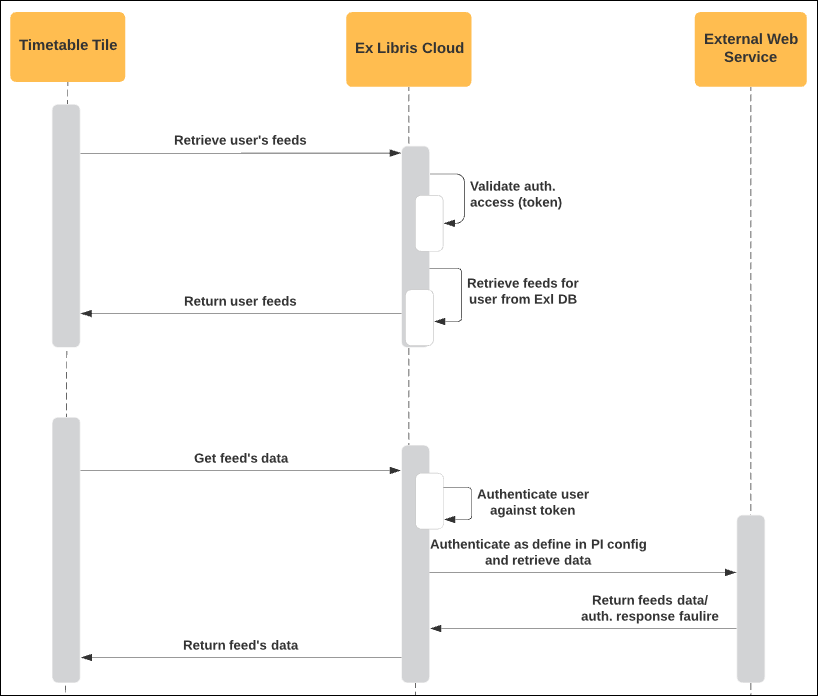
User Flow Diagram
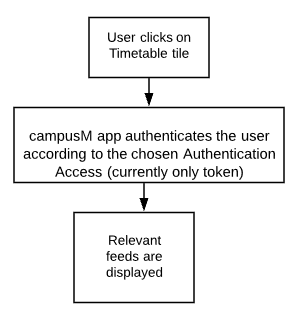
The following diagram describes the workflow to display the user's feeds:
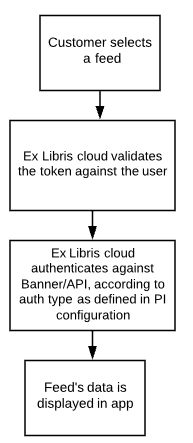
The following diagram describes the workflow to display the user feed's data:
Authentication
Users do not need to fill in their authentication credentials at any stage. See the authentication workflow that occurs behind the scenes in the Technical Flow Diagram section.
Offline Support
If the user is logged into the app when they go offline, the last timetable information received by the app is cached, and the user can see this data in the calendar. The calendar can be opened offline from the navigation bar at the bottom of the app. If the homepage was cached before the user went offline, tiles in the homepage can also be used to access the calendar.
Screenshots
The following is an overview of the Timetable product integration user interface for a reference when configuring it.
Blended Calendar View
This section describes the legacy calendar feature for mobile platforms. For information about the React Native UI, see Feature Focus – My Calendar.
Web Calendar View
Two views are available for the web calendar:
- Week view – Lists the activities scheduled for the selected week, in an Agenda-type view. Select an item in the list to open additional details.
- Month view – Shows the month as a grid, with the scheduled for each day listed in the square representing that day. Select a day in the calendar grid to view details about the scheduled activities of that day in a pane on the right. Select an item in the list to open additional details.
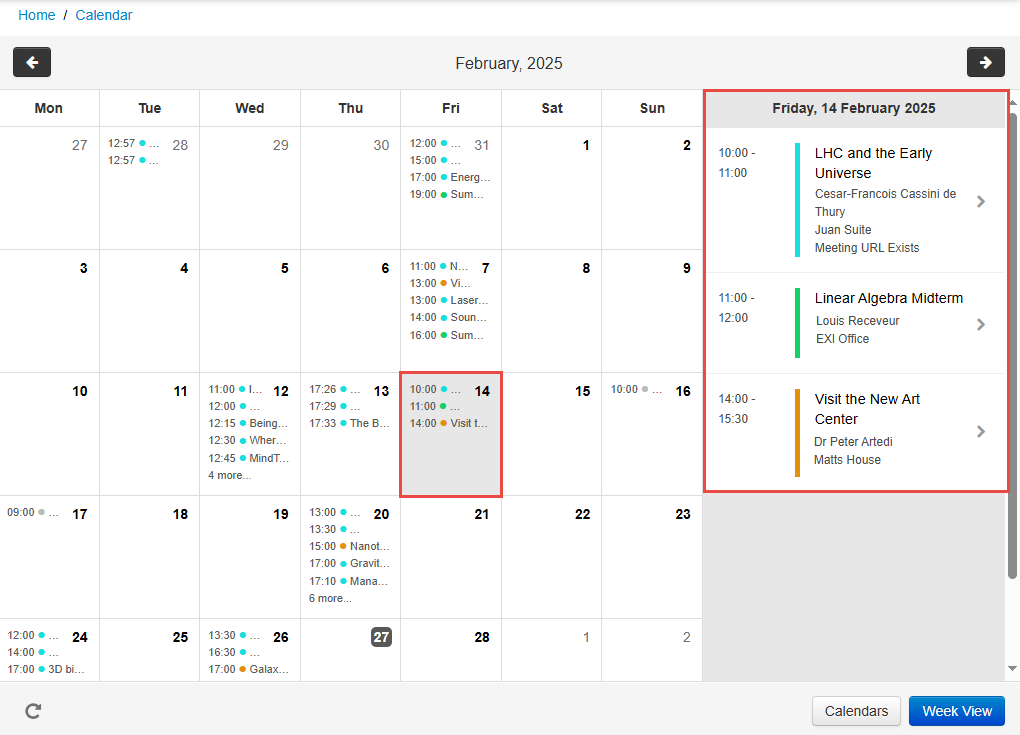
- At the bottom right, select the Week View/Month View button.
- At the bottom right, select the Calendars button. A list of the available timetable feeds opens.
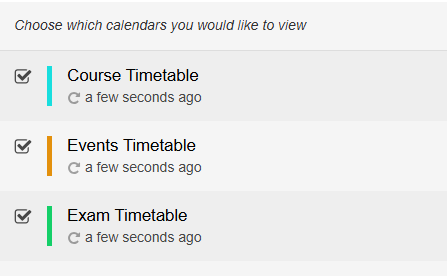
- Select the checkbox of each timetable you want to display in the calendar.
- Use the browser's Back button to return to the calendar.
Technical Overview
Prerequisites
- The eventRef field of every event must be unique in order for the integration to work properly.
- CMAuth configured Profile Registration Authentication (App Manager > App Settings > Profile Registration Authentication)
- CMAuth configured Authentication Access (App Manager > App Settings > Authentication Access)
- Timetable feeds should be provided by one of the following:
- CelCat APIs
- Ellucian Banner APIs
- Ellucian Colleague (custom) APIs
- Ellucian Colleague (Web API)
- MyTimetable APIs
- Oracle PeopleSoft APIs
- Databee Exams Manager
- Google Calendar
- Microsoft Graph API (Calendars)
- RESTful API which provides timetable feed in one of the following formats:
- JSON
- XML
- iCal
Required Format
Select one of the following links for the required format for that vendor:
- Required Format for Celcat Vendor
- Required Format for Oracle PeopleSoft Vendor
- Required Format for RESTful API Vendor
- Required Format for Banner Vendor
- Required Format for My Timetable (Semestry) Vendor
- Required Format for Ellucian Colleague (Custom) Vendor
- Required Format for Ellucian Colleague (Web API) Vendor
- Required Format for Databee Exams Manager Vendor
- Required Format for Google Vendor
- Required Format for Microsoft Graph API (Microsoft Calendar)
For all attendance timetables, the Location Code (locCode) value must not exceed 100 characters in length.
Celcat Vendor
campusM uses the following Celcat APIs:
GET /api/students – The parameters and headers passed into this API are all set within the configuration page.
GET /api/events?studentId={{user_input_identifier}} – This returns the timetable data for the user.
Oracle PeopleSoft Vendor
The table below includes the relevant fields from PeopleSoft. Ensure that you are using the correct fields when building the query.
The Timetable query is prompted by USER_ID, START, and END, and returns the class/course meeting information:
|
Internal campusM Field Name |
PeopleSoft Field Name |
|---|---|
|
eventRef |
Concat of fields from CLASS_TBL & CLASS_MTG to create a unique non-changing reference value. This value is then used to return the attendees in the retrieve attendees integration |
|
desc1 |
Concat SUBJECT-CATALOG_NBR-CLASS_SECTION-DESCR from CLASS_TBL |
|
desc2 |
Concat SUBJECT-CATALOG_NBR-CLASS_SECTION-CAMPUS_EVENT_NBR from CLASS_TBL and CAMPUS_MTG |
|
desc3 |
Concat SUBJECT-CATALOG_NBR-CLASS_SECTION from CLASS_TBL |
|
start |
Concat MEETING_DT+MEETING_TIME_START from CAMPUS_MTG |
|
end |
Concat MEETING_DT+MEETING_TIME_END from CAMPUS_MTG |
|
teacher_name |
from CLASS_INSTR |
|
teacher_email |
from EMAIL_ADDRESSES |
|
loc_code |
FACILITY_ID from CAMPUS_MTG |
|
loc_add1 |
ROOM from FACILITY_TBL |
|
Descr |
DESCR from BLDG_TBL |
campusM uses the following API:
Get https://{URL for Timetable PeopleSoft Query}
isconnectedquery=n
maxrows=0
prompt_uniquepromptname=USER_ID,START,END
prompt_fieldvalue={example: ExampleStudentUsername,2020-04-06,2020-04-13}
json_resp=true
The parameters and headers passed into this API are all set in the configuration page. Note that USER_ID, START, and END should be added to the configuration page as separate query parameters. The back end handles concatenating these together for prompt_uniquepromptname and generates the value for prompt_fieldvalue, which are the actual query parameters used in the request for PeopleSoft, as seen in the example above. The names used for USER_ID,START, and END are flexible, e.g.,USER_ID could be EMPLID instead, etc., but all other parameters are expected to be the exact names listed here, i.e.,isconnectedquery,maxrows, and json_resp. The "Prompt Param" configuration field should only be checked true for USER_ID,START, and END. Another important thing to note is that query-parameter order matters, so you must have them in the correct order in the configuration.
The response must use the following format. campusM expects the names of the row attributes to match those in this example.
{
"status": "success",
"data": {
"query": {
"numrows": 2,
"queryname=": "CAMPUSM_TIMETABLE",
"rows": [
{
"attr:rownumber": 1,
"EVENT_REF": "9",
"DESC1": "Multiplatform Content Creation",
"DESC2": "COM",
"DESC3": "COM-200-01",
"START": "2020-04-06T12:00:00-0700",
"END": "2020-04-06T14:50:00-0700",
"TEACHER_NAME": "Dianne Dianne",
"TEACHER_EMAIL": "do_not_reply@campus.edu",
"LOC_CODE": "ANM1-259",
"LOC_ADD1": "259",
"LOC_ADD2": "79 New"
},
{
"attr:rownumber": 2,
"EVENT_REF": "25",
"DESC1": "Multiplatform Content Live",
"DESC2": "COM",
"DESC3": "COM-210-01",
"START": "2020-04-06T15:40:00-0700",
"END": "2020-04-06T18:30:00-0700",
"TEACHER_NAME": "Dianne Dianne ",
"TEACHER_EMAIL": "do_not_reply@campus.edu",
"LOC_CODE": "ANM1-259",
"LOC_ADD1": "259",
"LOC_ADD2": "79 New"
}
]
}
}
}
RESTful API Vendor
campusM expects the following RESTful API:
Example GET request:https://someHostName/serviceName/username?StartDate=[startdate]&EndDate=[enddate]
Path parameters, query parameters, and API authentication can be customized in the product integration configuration. For more information, see Configuration for RESTful API Vendor.
- JSON Expected Format
{ "events": [ { "eventRef": "ref 1", "desc1": "Quantum mechanics exam 1", "desc2": "Exam Timetable", "desc3": "Some other description", "start": "2020-07-27T07:00:00.000Z", "end": "2020-07-27T07:00:00.000Z", "isAllDay": false, "teacherName": "Faculty invigilator", "teacherEmail": "buckleym@example.ac.uk", "locCode": null, "locUrl": null, "locAdd1": "Great Hall", "locAdd2": "Senate building", "locAdd3": null, "locAdd4": null, "locPostCode": null, "locWorkTel": null, "attendanceExclude": false, "campus": "London", "meeting": true, "meetingURL": "https://www.google.com/", "meetingURLDesc": "This is a meeting url description" }
- XML Expected Format
<root> <events> <eventRef>ref 1</eventRef> <desc1>Quantum mechanics exam 1</desc1> <desc2>Exam Timetable</desc2> <desc3>Some other description</desc3> <start>2020-07-27T07:00:00.000Z</start> <end>2020-07-27T07:00:00.000Z</end> <isAllDay>false</isAllDay> <teacherName>Faculty invigilator</teacherName> <teacherEmail>buckleym@example.ac.uk</teacherEmail> <locCode/> <locUrl/> <locAdd1>Great Hall</locAdd1> <locAdd2>Senate building</locAdd2> <locAdd3/> <locAdd4/> <locPostCode/> <locWorkTel/> <attendanceExclude>false</attendanceExclude> <campus>London</campus> <meeting>true</meeting> <meetingURL>https://www.google.com/</meetingURL> <meetingURLDesc>This is a meeting url description</meetingURLDesc> </events> </root>
- Attributes Mapping for JSON/XML Fields
Attributes Mapping External Field Name Internal CampusM Field Name Description Mandatory Yes/No Data Type Default Example Event Reference eventRef A unique ID for the event yes String max 100 chars - "EVENT12345" eventRef should include only alphanumeric chars and '.', '-', ':'
Primary Description desc1 The primary description of the Event/Course/Exam yes String - "Quantum mechanics exam 1" Secondary Description desc2 The secondary description of the Event/Course/Exam no String - truncated after 2000 chars - "Exam Timetable" Tertiary Description desc3 Tertiary description - Any additional details of the event type. It is displayed on the detail page of the calendar, below the primary description. no String - truncated after 2000 chars - - Start Date start The start date/time - the format for this is configurable in the configuration area. yes String - "2019-08-13T07:00:00.000Z" End Date end The end date/time. The format for this is configurable in the configuration area. (It does not have to contain the timezone information). yes String - "2019-08-13T07:00:00.000Z" Is All Day isAllDay Whether or not the event is an all-day-event
Note: events that occur over multiple dates will be shown as All-Day events in the campusM calendar regardless of this value.
no Boolean (true/false) false true Lecturer Name teacherName The name of the teacher no String - Lecturer Email teacherEmail The email of the teacher - Clicking the email allows the user to send an email no String - "buckleym@example.ac.uk" Location Reference locCode Clicking the location links the user to campus maps. This must be a unique identifier for the location to which you want to link in campus maps. The data type can be any string, and must be set as the location reference for the position in the App Manager. no String - Location Reference locUrl A URL that can be sent in the response. It can be a campusM URL scheme / standard HTTP link (overrides locCode as the location reference link) no String - Location Name locAdd1 A description of the location of the event no String - "Great Hall" Additional Location Information locAdd2 An additional description of the location no String - "Senate building" Additional Location Information locAdd3 An additional description of the location no String - Additional Location Information locAdd4 An additional description of the location no String - Location Post Code locPostCode If this field is populated, the location name will be treated as the first line of an address rather than a room name no String - Location Work Telephone Number locWorkTel Contact number of the event location or organizer no String - Attendance Exclude Flag attendanceExclude A flag that defines whether or not to exclude the event from attendance monitoring. If this is not specified, all events have attendance monitoring enabled. Note that this is only relevant when campusM Attendance has been deployed. no Boolean (true/false) false true Campus Name campus If there are multiple campuses, this field can be used to distinguish between different timezones no String - Meeting meeting A flag that indicates if a meeting link will be included no Boolean false Meeting URL meetingURL The URL for the meeting for the event no String - Meeting URL Description meetingURLDesc The description for the meeting URL no String - - iCal Expected Format:BEGIN:VCALENDAR BEGIN:VEVENT DTSTART:20200428T180000 DTEND:20200428T210000 CREATED:20200226T165202Z UID:8568585558096800-1588107600 SUMMARY:Linear Algebra DESCRIPTION:This is a math course URL:https://www.hostName.edu/event/r-a-d-free-9-hour-womens-self-defense/2020-04-28/ LOCATION:Hammond Peregrine Hall 300\, 2330 173rd Street\, Hammond\, IN\, 46323\, United States GEO:41.5805562;-87.4723704 ORGANIZER;CN=John Smith:MAILTO:jsmith@host1.com X-MEETING:true X-MEETING-URL:https://google.com/ X-MEETING-URL-DESC:This is a great description X-PROPERTY-LOCATION-WORK-PHONE:207-123-4567 END:VEVENT END:VCALENDAR
- Attributes Mapping for iCal Fields
Attributes Mapping External Field Name Internal CampusM Field Name Description Mandatory Yes/No Data Type Default Example SUMMARY Primary Description, Event Reference The primary description of the Event/Course/Exam. In addition, 'Events Reference' will consist of this field (together with few others). yes String SUMMARY Primary Description, Event Reference DESCRIPTION Secondary Description, Event Reference The secondary description of the Event/Course/Exam. In addition, 'Events Reference' will consist of this field (together with few others). no String - truncated after 2000 chars DESCRIPTION Secondary Description, Event Reference DTSTART Start Date, Event Reference The start date/time - the format for this is configurable in the configuration area. In addition, 'Events Reference' will consist of this field (together with few others). yes String - yyyymmddThhmmssZ DTSTART Start Date, Event Reference DTEND End Date, Event Reference The end date/time. The format for this is configurable in the configuration area. (It does not have to contain the timezone information). In addition, 'Events Reference' will consist of this field (together with few others). yes String - yyyymmddThhmmssZ DTEND End Date, Event Reference ORGANIZER Lecturer Name The name of the teacher no String ORGANIZER Lecturer Name ORGANIZER Lecturer Email The email of the teacher - Clicking the email allows the user to send an email no String ORGANIZER Lecturer Email URL Location Reference A URL that can be sent in the response. It can be a campusM URL scheme / standard HTTP link (overrides locCode as the location reference link) no String URL Location Reference GEO Location Latitude and Location Longtitude The latitude (before ';') and longtitude (after ';'') for the location coordinates no Decimal GEO Location Latitude and Location Longtitude LOCATION Location Name A description of the location of the event no String - "Great Hall" - Error Handling
If there is an error in the response because timetable data does not exist for the user, the response is the following:
HTTP Status Code should be ‘404 Not Found ’
The response contains the following text:timetable_not_found
- iCal
iCal is required according to the iCal standard format. Customized event attributes can be added as additional iCal properties in the iCal feed. For the additional properties ’ required configuration, see the Configuration section.
Banner Vendor
campusM uses the following Banner APIs:
- https://<hostName>:<portNumber>/StudentApi/api/students/<BANNER_ID>/class-schedules?term=<term>
Banner ID – username or an attribute from the token.
Term – a term code according to the dates range given in the request from the Application.
This API returns a list of courses for the student of the given Banner ID during the given term code.
- https://<hostName>:<portNumber>/StudentApi/api/terms
This API returns a list of all the available terms for all the students with the information of each term.
MyTimetable (Semestry) Vendor
campusM uses the following MyTimetable API by default:
GEThttps://<hostName>:<portNumber>
path:api/v0/timetable
If Fetch by Timetable ID is enabled in the instance configuration, the following endpoint is used:
path:api/v0/timetables/{id}
Where the ID is the same as the requestedAuth header value mentioned below.
Query parameters:
- startDate
- endDate
- excludeResourceTimetables
Headers:
- apiToken
- requestedAuth
For example:
URL:https://mytimetable-test.exlibris.com/api/v0/timetable?startDate=2020-02-01&endDate=2020-02-29&excludeResourceTimetables=true
headers:{apiToken=[10341155-2adf-46ee-92ec-c298c7b32187], Content-Type=[application/json], Accept=[application/json], requestedAuth=[aaa@gmail.com]}
Ellucian Colleague (Custom) Vendor
The following Ellucian Colleague (Custom) APIs are available for the Timetable product integration:
POST https://<hostName>:<portNumber>
path:/ColleagueApi/students/timetable
Body:
{
"studentId": "123456",
"startDate": "08/01/2020",
"endDate": "12/01/2020"
}
Timetable integration Ellucian Colleague (Custom) implementation:
- The Ellucian Colleague (custom) vendor configuration is retrieved with the calType in the request coming from the application.
- The body is built with information from the user identifier and from the request (start+end dates).
- The courses information is received.
- Event items are created.
Ellucian Colleague (Web API) Vendor
campusM uses several API calls to fetch the timetable data:
- The first is to authenticate the Colleague Web API via a session token:
- https://{HOST}/colleagueApi/session/proxy-login
- The second call is to retrieve all relevant terms for the student:
- https://{HOST}/colleagueApi/terms
- The third call is to retrieve the grades data for the active term. This re-uses any available session token or re-authenticate with the proxy-login API:
- https://{HOST}/colleagueApi/students/{username}/academic-credits
- The fourth call is to retrieve the sections data (which contains the Timetable meetings). This also re-uses any available session token or re-authenticate with the proxy-login API:
- https://{HOST}/colleagueApi/qapi/sections
Google Calendar Vendor
Currently, campusM supports Public Google Calendars. campusM uses the following Google Calendar APIs:
GET https://www.googleapis.com/calendar/v3/calendars/events
Additional information on this endpoint can be found here.
Prerequisites to be completed by the customer:
- Steps that must occur in the Google Developer Console prior to setting up the Product Integration
- Navigate to the Google Developer Console
- From the left menu, select Library
- Search for calendar
- Select Google Calendar API
- Select ENABLE
- Select + CREATE CREDENTIALS > API Key. The "API Key created" page appears.
- Note the API key
- Select CLOSE. The newly created credential appears under API Keys.
- Prerequisites for the Product Integration Configuration page:
- Have the API Key from the steps above
- Get the calendar ID
- In the Google Calendar interface, from the left, locate My calendars or Other calendars
- Hover over the calendar you need and select the settings icon. A menu appears.
- Select Settings
- Scroll to the Integrate calendar section until you see Calendar ID with the relevant value below
- Copy this value to the product integration configuration page
Microsoft Graph API (Calendars)
You will first need to configure Microsoft Azure (Graph) for the Timetable Product Integration. See here for more information.
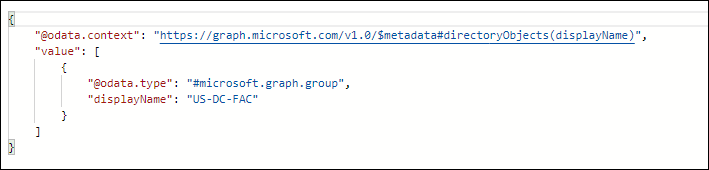
The following is the required JSON format for Microsoft Graph API:
The list of roles returned in the displayName field can be returned separated by a delimiter that can be configured in the Roles PI configuration.
For example, in the following response, the delimiter is a hyphen (-).
The list of roles provided by the Microsoft Graph API will be acquired by using the following Microsoft Graph API services:
- https://login.microsoftonline.com/{t...th2/v2.0/token(in order to generate the token that will be used in the second service)
- https://graph.microsoft.com/v1.0/use...eTime=END_TIME(in order to get the response which contains the roles list from above)
Technical Flow Diagram
Databee Exams Manager Vendor
campusM uses the following Databee API:
GET/api/personaltt/?event={{eventid}}&unique={{studentID}} – The parameters and headers passed into this API are all set within the configuration page. This returns the timetable data for the user.
Configuration
To use the Timetable product integration, configure the following components:
- Timetable Product Integration instances - an instance for each feed.
- To be done by Ex Libris: Application Server, Authentication Access, Web Service Endpoints, 'Calendar' Menu Entry.
Configuring a Timetable Product Integration Instance
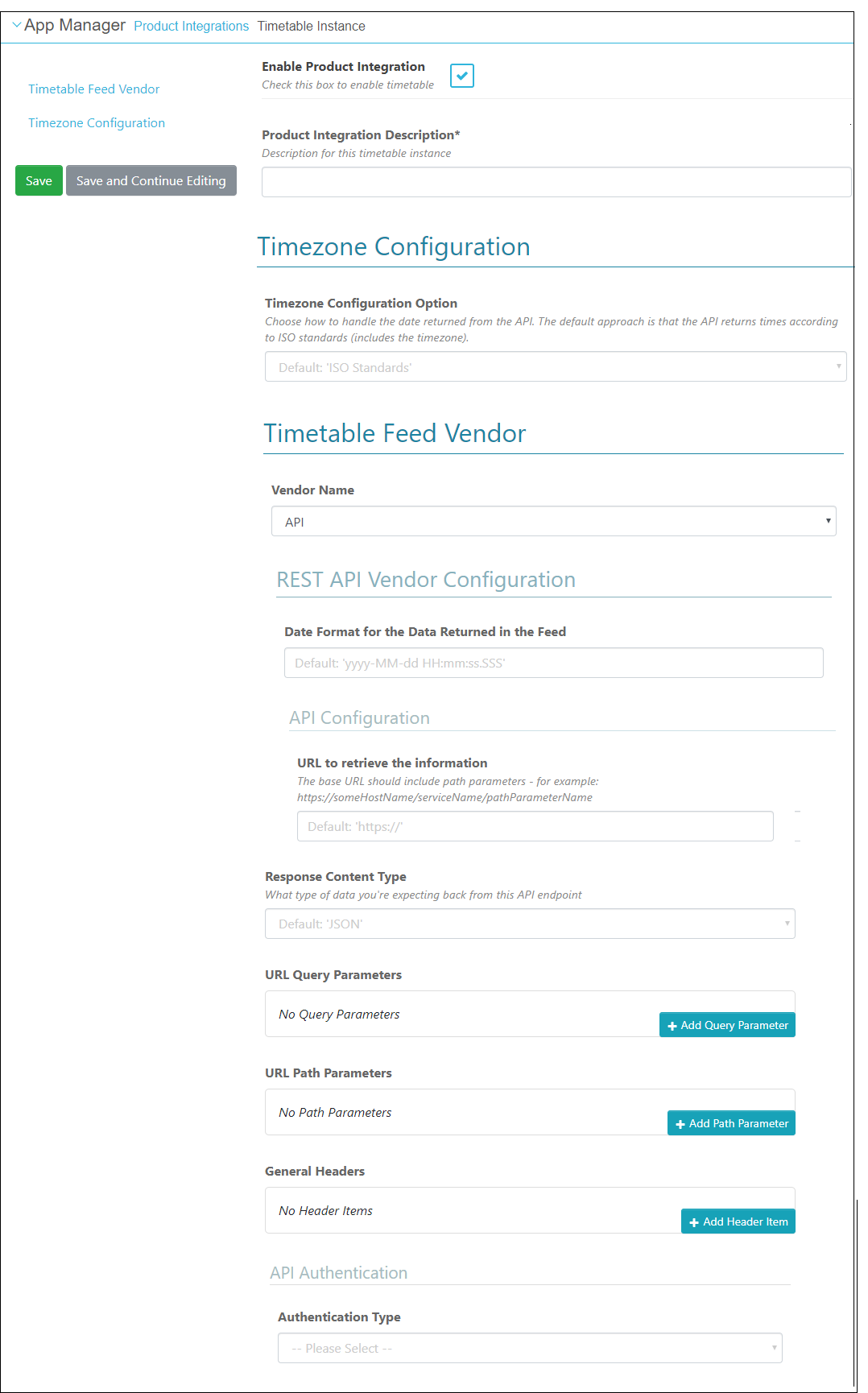
To configure a Timetable product integration instance (feed), select Add Product Integration Instance from the Product Integrations main menu option and select TIMETABLE.
The Timetable configuration page appears as the following:
General Configuration
| Configuration Option | Description | Mandatory | Data Type | Default | Example |
|---|---|---|---|---|---|
| Manage Integration | |||||
| Enable Product Integration | Select to enable the product integration | Yes | Checkbox | False | |
| Product Integration Description | A description of the product integration for internal use | Yes | String | ||
| Vendor | |||||
|
Select one of the following links to see the configuration options for that vendor:
|
|||||
| Timezone Configuration | |||||
| Timezone Configuration Option | Sets how the date should be handled that is returned from the API | Yes | Drop-down | ISO Standards | |
| Select Timezone | If you selected "Single Timezone" for the Timezone Configuration Option, then this field will specify which timezone to use | Yes | Drop-down | UTC | |
| Field Name | If you selected "Multiple Timezones" for the Timezone Configuration Option, then this field will specify which attribute in the response indicates the location | Yes | String | ||
| Field Value | If you selected "Multiple Timezones" for the Timezone Configuration Option, then this field will specify what value should indicate the specific timezone | Yes | String | ||
| Timezone | If you selected "Multiple Timezones" for the Timezone Configuration Option, then this field will specify what timezone should be used | Yes | Drop-down | ||
| General | |||||
| Display calendar based on roles |
If this is checked, the app will display the calendar only for the selected roles |
No | Checkbox | False | |
| Roles | Select the App Role(s) that this calendar will be visible to | No | Search and Select | False | |
| Use Location URL? | If this is checked, the app will use the location URL specified in the PI data feed, over the location reference value (used to deep link to a position within the maps component) | No | Checkbox | False | |
| Enable Notifications | Determines the default mobile notification behavior for users who have not configured otherwise in their app settings. When enabled, a push notification will be sent to a user's mobile device 15 minutes before a scheduled event. When disabled, no notification will be sent prior to the event. Note that this setting is not applicable to attendance calendars, as their notification settings can be found in the Attendance section of App Manager. | No | Checkbox | True | |
| Import/Export Configuration | |||||
| Export | Creates a JSON file with the product integration configuration | No | |||
| Import | Use this option in order to load configuration information from JSON of an exported product integration | No | |||
Configuration for Celcat Vendor
The following table describes the configuration options available for the Celcat vendor:
| Configuration Option | Description | Mandatory | Data Type | Default | Example |
|---|---|---|---|---|---|
| Vendor | |||||
| Vendor Name | Celcat | Yes | Drop-down | ||
| Base URL to retrieve the information | This is the base URL for the Celcat API | Yes | String | https://myDomain.com | |
| Parameter Input Option | Sets the type of User Input Identifier that is needed | Yes | Drop-down | ||
| Token Property Name | This is a type of User Input Identifier that can be used | Yes, if the Parameter Input Option selected was "Token Property" | String | ||
| Constant Value | This is a type of User Input Identifier that can be used | Yes, if the Parameter Input Option selected was "Constant" | String | ||
| Authentication Type | Sets the API authentication type | No | Drop-down | ||
| API Code | This is required to authenticate with Celcat | Yes | String | ||
| Username Resource Type | Sets the supported Celcat resource type that matches the campusM username attribute | Yes | Drop-down | ||
| Timetable ID | Sets the Celcat ID of the timetable to fetch events from | Yes | Integer | ||
| Start of Academic Timetable Year | Sets the first month of the academic year; the feed needs to know this | Yes | Drop-down | ||
Configuration for RESTful API Vendor
The following table describes the configuration options available for the RESTful API vendor:
| Configuration Option | Description | Mandatory | Default | Example |
|---|---|---|---|---|
| Vendor Name | Select API | Yes | ||
| Date Format | The date format for the data returned in the feed | Yes, but default is provided | yyyy-MM-dd HH:mm:ss:SSS | |
| URL to retrieve the information | The URL for the Web service | Yes | https:// | |
| Response Content Type | The Web service ’s response content type | Yes | JSON | |
| URL Query Parameters | The parameters sent as part of the query | No | For https://someHostName/serviceName?username={user}, the query parameter is username. | |
| URL Path Parameters | The parameters sent as part of the path | No | For https://someHostName/serviceName/username, the path parameter is username. | |
| General Headers | Add (key, value) for additional needed headers | No | ||
| Authentication Type | Select one of the following options:
|
No | ||
| Time Zone Configuration | Select an option to determine how to take into account the time zone when handling the time returned from the API. The following options are available:
|
No |
If the Response Content Type is configured to be iCalendar, additional fields appear. The following table describes the configuration options available for iCalendar:
| Configuration Option | Description | Mandatory | Data Type | Default | Example |
|---|---|---|---|---|---|
| Teacher Email Property Name | The property name for the email of the teacher | No | String | - | X-PROPERTY-TEACHER-EMAIL |
| Location Code Property Name |
The property name for the location code (Click on the location will link out the user to campus maps. This must be a unique identifier for the location you want to link to in campus maps. The data type can be any string, and must be set as the location reference for the position in the App Manager) |
No | String | - | X-PROPERTY-LOCATION-CODE |
| Location Image Property Name | The property name for the location image | No | String | - | X-PROPERTY-LOCATION-IMAGE |
| Location Address No. 2 Property Name | The property name for the location secondary address | No | String | - | X-PROPERTY-LOCATION-ADDRESS-2 |
| Location Work Phone Number Property Name | The property name for the contact number of the event location or organizer | No | String | - | X-PROPERTY-LOCATION--WORK-PHONE |
| Location Post Code Property Name | The property name for the location post code | No | String | - | X-PROPERTY-LOCATION-POST-CODE |
| Location URL Property Name | The property name for the URL that can be sent in the response. can be a campusM URL scheme / standard HTTP link | No | String | - | X-PROPERTY-LOCATION-URL |
| Location Latitude Property Name | The property name for the latitude for the location Coordinates | No | String | - | X-PROPERTY-LOCATION-LATITUDE |
| Location Longitude Property Name | The property name for the longitude for the location Coordinates | No | String | - | X-PROPERTY-LOCATION-LONGITUDE |
| Attendance Exclude Property Name | The property name for the flag that defines whether or not to exclude the event from attendance monitoring. If this is not specified all events will have attendance monitoring enabled. Note that this is only relevant when campusM Attendance has been deployed. | No | String | - | X-PROPERTY-ATTENDANCE-EXCLUDE |
| Meeting Property Name | The property name for the meeting indicator | No | String | - | X-MEETING |
| Meeting URL Property Name | The property name for the meeting URL | No | String | - | X-MEETING-URL |
| Meeting URL Description Property Name | The property name for the meeting URL description | No | String | - | X-MEETING-URL-DESC |
Configuration for Banner API Vendor
The following table describes the configuration options available for the Banner API vendor:
| Configuration Option | Description | Mandatory | Data Type | Default | Example |
|---|---|---|---|---|---|
| Enable Product Integration | Select to enable the product integration on the user's campusM app | No | Check box | Yes | |
| Product Integration Description | A description of the product integration for internal use | Yes | String | ||
| Vendor Name | Banner | Yes | Drop-down | ||
| Base URL to retrieve the information | URL for the webservice. Should be in the following format: https://<hostName>:<portNumber>/StudentApi/api/students/<BANNER_ID>/class-schedules | Yes | URL | ||
| User Input Identifier | Select a parameter input option for Banner ID. Possible values: Username, Token Property, and Constant. | Yes | Drop-down | For https://someHostName/serviceName/username, the path parameter is username | |
| Authentication Type |
Authentication type against the web service |
No | Drop-down | No Auth | |
| Exclude By Term Code | Enter one or more term codes, or partial codes, to exclude. Use '%' for a wildcard sequence, e.g. "%5" will exclude any term code ending in 5, while "5" will exclude any term code that includes a 5 anywhere in it. | No | String | ||
| Enable Events Before Start of Term | When enabled, calendar events that begin before the start of their term will appear in their correct time. | No | Checkbox | False | |
| Exclude by Term Description | Enter one or more term descriptions, or partial descriptions, to exclude. Use '%' for a wildcard sequence, e.g. "%Test" will exclude any term description ending with "Test", while "Test" will exclude any term description that includes "Test" anywhere in it. | No | String | ||
| Time Zone Configuration | Select an option to determine how to take into account the time zone when handling the time returned from the API. The following options are available:
|
No | Drop-down | ||
| General | |||||
| Use Location URL? | If this is checked, the app will use the location URL specified in the PI data feed, over the location reference value (used to deep link to a position within the maps component) | No | Checkbox | Unselected | |
| Display Location Description | Select to display the location description in the UI | No | Checkbox | Unselected | |
| Display Campus Description | Select to display the campus description in the UI | No | Checkbox | Unselected | |
| Display Room Description | Select to display the room number in the UI | No | Checkbox | Unselected | |
Configuration for MyTimetable (Semestry) API Vendor
The following table describes the configuration options available for the MyTimetable (Semestry) API vendor:
| Configuration Option | Description | Mandatory | Data Type | Default | Example |
|---|---|---|---|---|---|
| Enable Product Integration | Select to enable the product integration on the user's campusM app | No | Check box | Yes | |
| Product Integration Description | A description of the product integration for internal use | Yes | String | ||
| Vendor Name | Select MyTimetable | Yes | Drop-down | ||
|
Fetch by Timetable ID |
The timetable ID sent to MyTimetable is the same as the configured 'User Input Identifier'. | No | Checkbox | Unchecked | |
| Base URL to retrieve the information | The base URL for the MyTimetable API (including port) | Yes | URL |
https://someHost.com:portNumber https://myColleagueHost:5555 |
|
| Parameter Input Option | Select the source for your user identifier to send as the requestedAuth header on the MyTimetable API. Possible values: Username, Token Property, and Constant. | Yes | Drop-down | For https://someHostName/serviceName/username, the path parameter is username | |
| Authentication Type |
The authentication type for connecting to the web service Select one of the following options:
|
No | Drop-down | No Auth | |
| "fetchBy" Query Param Value |
If this is not required, please leave blank. |
No | String | hostKey | |
| "type" Query Param Value |
If this is not required, please leave blank. |
No | String | studentset | |
| Event Reference Start Time Format |
To ensure the event reference is unique, we append the event's start date to the event ID. Specify the date string format, using Java's DateTimeFormatter pattern letters. Using dashes as a separator ("kebab-case") is preferred. |
No | String | YYYY-MM-dd-HH-mm | |
| Unify Events With Multiple Locations |
If enabled, events that have multiple locations are treated as single events. If disabled, a new event is created for each location. |
No | Checkbox | Unchecked | |
| Display All Lecturers |
If enabled, all lecturers assigned to an event are displayed. Otherwise, only the first lecturer is shown. |
No | Checkbox | Unchecked | |
| Map Activity Type Description |
If enabled and available in the event response, displays the description of the event's activity type. |
No | Checkbox | Unchecked | |
| Timezone Configuration Option | Select an option to determine how to take the timezone into account when handling the time returned from the API. The following options are available:
|
No | Drop-down | ||
| Allow Joint Activities | If enabled and available in the event response, it determines the eventIDs according to the child activity IDs only. | No | Checkbox | Unchecked | |
| Take Description From Notes | If enabled, it uses the notes field from the event as the description in the timetable. Otherwise, the description will be left blank. | No | Checkbox | Unchecked |
Configuration for Ellucian Colleague (Custom) Vendor
The following table describes the configuration options available for the Ellucian Colleague (Custom) vendor:
| Configuration Option | Description | Mandatory | Data Type | Default | Example |
|---|---|---|---|---|---|
| Enable Product Integration | Select to enable the product integration on the user's campusM app | No | Check box | Yes | |
| Product Integration Description | A description of the product integration for internal use | Yes | String | ||
| Vendor Name | Ellucian Colleague (custom) | Yes | Drop-down | ||
| Base URL to retrieve the information | URL for the webservice. | Yes | URL |
https://someHost.com:portNumber https://myColleagueHost:5555 |
|
| User Input Identifier | Select a parameter input option for Banner ID. Possible values: Username, Token Property, and Constant. | Yes | Drop-down | For https://someHostName/serviceName/username, the path parameter is username | |
| Authentication Type | Authentication type against the web service | No | Drop-down | No Auth | |
| Time Zone Configuration | Select an option to determine how to take into account the time zone when handling the time returned from the API. The following options are available:
|
No | Drop-down |
Configuration for Ellucian Colleague (Web API) Vendor
The following table describes the configuration options available for the Ellucian Colleague (Custom) vendor:
| Configuration Option | Description | Mandatory | Data Type | Default | Example |
|---|---|---|---|---|---|
|
Enable Product Integration |
Select to enable the product integration |
Yes |
Checkbox |
Unchecked |
|
|
Product Integration Description |
A description of the product integration for internal use |
Yes |
String |
||
|
Vendor |
|||||
|
Vendor Name |
Colleague (Web API) |
Yes |
Drop-down |
||
|
URL to retrieve the information |
The URL for the API server. The protocol, hostname, and optionally port (if required) are needed. |
Yes |
String |
https://{Host} |
|
|
URL Query Parameters |
Any query parameters required for the Colleague (Web API) server. Currently none. |
No |
Parameter |
||
|
URL Path Parameters |
Any path parameters required for the Colleague (Web API ) server. Currently none. |
No |
Parameter |
||
|
General Headers |
Any additional headers required for the Colleague (Web API) server. We currently require one, set as follows: Header Key: X-CustomCredentials Header Value: colleaguewebapitoken The header key can be changed if your Colleague server accepts a different key name, but the value is cannot be changed. |
Yes |
Header |
||
|
Authentication Type |
Select one of the following options, according to your Colleague server setup:
|
No |
Dropdown |
No Auth |
|
|
Parameter Input Option |
The parameter input option for Colleague ID required for the Colleague Web API. Possible values: Username, Token Property, and Constant. Typically, this is the user's "username" attribute. |
Yes |
Drop-down |
Username |
|
|
Web API |
|||||
|
Proxy ID |
Required to fetch the session token. |
Yes |
String |
||
|
Proxy Password |
Required to fetch the session token. |
Yes |
String |
||
|
Token Expiry |
The time in hours to store a web API session token for up to a maximum of 24 hours. |
No |
Integer |
1 |
|
|
Start Of The Week |
The day that starts the week can vary in different locales. Please select from the list below if yours differs from the default. |
No |
Drop-down |
Monday |
|
|
Include Drops |
Include dropped credits when fetching grade records. |
No |
Boolean |
No |
|
|
Online Courses |
|||||
|
Display Online Courses |
No |
Checkbox |
Unchecked |
||
|
Text - "Online Meeting" |
No |
String |
Online Meeting |
||
|
Online Course Event Duration |
Events belonging to online courses often do not have meeting times set. Select the duration to use for these specific meetings. |
No |
Drop-down |
Display as 30-minute event |
|
|
Online Course Event Start Time |
Sets the start time for any course meetings that do not have meeting times set. |
No |
Drop-down |
08:00 |
|
|
Timezone Configuration |
|||||
|
Timezone Configuration Option |
Sets how the date returned from the API should be handled |
Yes |
Dropdown |
ISO Standards |
|
|
Select Timezone |
If you selected Single Timezone for the Timezone Configuration option, this field specifies which time zone to use |
Yes |
Dropdown |
UTC |
|
|
Field Name |
If you selected MultipleTimezones for the Timezone Configuration option, this option specifies which attribute in the response indicates the location |
Yes |
String |
||
|
Field Value |
If you selected MultipleTimezones for the Timezone Configuration option, this field specifies what value should indicate the specific time zone |
Yes |
String |
||
|
Timezone |
If you selected MultipleTimezones for the Timezone Configuration option, this field specifies which time zone to use |
Yes |
Dropdown |
||
|
General |
|||||
|
Use Location URL? |
If this is checked, the app will use the location URL specified in the PI data feed, over the location reference value (used to deep link to a position within the maps component) |
No |
Checkbox |
Unchecked |
|
|
Import/Export Configuration |
|||||
|
Export |
Creates a JSON file with the product integration configuration |
No |
|||
|
Import |
Use this option in order to load configuration information from JSON of an exported product integration |
No |
|||
Configuration for Oracle PeopleSoft Vendor
The following table describes the configuration options available for the Oracle PeopleSoft vendor:
| Configuration Option | Description | Mandatory | Data Type | Default | Example |
|---|---|---|---|---|---|
| Enable Product Integration | Select to enable the product integration on the user's campusM app | No | Check box | Yes | |
| Product Integration Description | A description of the product integration for internal use | Yes | String | ||
| Vendor Name | Oracle PeopleSoft | Yes | Drop-down | ||
| URL to retrieve the information | The URL for the Web service | No | https:// | ||
| URL Query Parameters | The parameters sent as part of the query. If it is prompt param, select this checkbox. | No | For:
https://host?isconnectedquery=N&maxrows=0&prompt_uniquepromptname=USERNAME,START,END&prompt_fieldvalue=STUDNT,2020-04-06,2020-04-13&json_resp=true The regular query parameter is maxrows. The prompt param is USERNAME and its value is STUDNT. |
||
| Authentication Type | Select one of the following options:
|
No | Drop-down | No Auth | |
| Time Zone Configuration | Select an option to determine how to take into account the time zone when handling the time returned from the API. The following options are available:
|
No | Drop-down |
Configuration for Databee Exams Manager Vendor
The following table describes the configuration options available for the Databee Exams Manager vendor:
| Configuration Option | Description | Mandatory | Data Type | Default | Example |
|---|---|---|---|---|---|
| Manage Integration | |||||
| Enable Product Integration | Select to enable the product integration on the user's campusM app | No | Checkbox | Yes | |
| Product Integration Description | A description of the product integration for internal use | Yes | String | ||
| Vendor | |||||
| Vendor Name | Databee Exams Manager | Yes | Drop-down | Vendor Name | |
| Base URL to retrieve the information | URL for the web service | Yes | URL | https://myDomain.com | |
| URL Query Parameters | The parameters sent as part of the query. | Yes |
This vendor uses the following parameters:
|
||
| General Headers | Add (key, value) for additional needed headers | Yes |
This vendor uses the following header as the API key:
|
||
| Timezone Configuration | |||||
| Time Zone Configuration Option | Sets how the date should be handled that is returned from the API | Yes | Drop-down | This vendor should use a single timezone configuration. | |
| Select Timezone | If you selected "Single Timezone" for the Timezone Configuration Option, this field specifies which timezone to use | Yes | Drop-down | UTC | |
| Import/Export Configuration | |||||
| Export | Creates a JSON file with the product integration configuration | No | |||
| Import | Use this option to load configuration information from JSON of an exported product integration | ||||
Configuration for Google Calendar Vendor
The following table describes the configuration options available for the Google Calendar vendor:
| Configuration Option | Description | Mandatory | Data Type | Default | Example |
|---|---|---|---|---|---|
| Manage Integration | |||||
| Enable Product Integration | Select to enable the product integration | Yes | Checkbox | False | |
| Product Integration Description | A description of the product integration for internal use | Yes | String | ||
| Vendor | |||||
| Vendor Name | Google Calendar | Yes | Drop-down | ||
| Calendar Type | Sets whether the Google Calendar is Public or Private. Currently, only Public calendars are supported. | Yes | Drop-down | Public | |
|
URL Query Parameters |
The parameters sent as part of the query |
Yes |
Set the following three query parameters.
|
||
|
URL Path Parameters |
The parameters sent as part of the path |
Yes |
Set the following path parameter. Parameter Name: calendarId Parameter Type: Constant Constant Value: This is the id specific to the Google Calendar you are trying to integrate with. The steps to grab this value can be found under the Google Calendar Vendor section of this page. |
||
| API Authentication | Select one of the following options:
|
Yes | For Public Google Calendars, an API Key is required. The Query Param Key is the actual string "key", but without the quotes. The Query Param Value comes from completing the prerequisites for this vendor. The steps to grab this value can be found under the Google Calendar Vendor section of this page. | ||
| Timezone Configuration | |||||
| Time Zone Configuration Option | Sets how the date should be handled that is returned from the API | Yes | Drop-down | ISO Standards | |
| Select Timezone | If you selected Single Timezone for the Timezone Configuration option, this field specifies which timezone to use | Yes | Drop-down | UTC | |
|
Field Name
|
If you selected Multiple Timezones for the Timezone Configuration option, then this field will specify which attribute in the response indicates the location | Yes | String | ||
| Field Value | If you selected Multiple Timezones for the Timezone Configuration option, then this field will specify what value should indicate the specific timezone | Yes | String | ||
| Timezone | If you selected Multiple Timezones for the Timezone Configuration option, then this field will specify what timezone should be used | Yes | Drop-down | ||
| General | |||||
|
Use Location URL?
|
If this is checked, the app uses the location URL specified in the PI data feed, over the location reference value (used to deep link to a position within the maps component) | No | Checkbox | ||
| Import/Export Configuration | |||||
| Export | Creates a JSON file with the product integration configuration | No | |||
| Import | Use this option to load configuration information from JSON of an exported product integration | ||||
Configurations for Microsoft Graph API Vendor
- This vendor supports events with multiple locations. Starting July 2025, campusM will support up to 4 locations per event from this vendor.
- Only the Default Calendar defined for each user will be displayed in campusM.
The following table describes the configuration options available for the Microsoft Graph API vendor:
| Configuration Option | Description | Mandatory | Data Type | Default | Example |
|---|---|---|---|---|---|
| Enable Product Integration | Select to enable the product integration on the user's campusM app. | No | |||
| Product Integration Description | A description of the product integration for internal use | Yes | |||
| Vendor Name | Select MS Graph APIs | Yes | |||
| Microsoft Graph APIs Configuration | |||||
| Delimiter | The separator between the different roles returned in the displayName field. For example, in the following response, the delimiter is a hyphen (-):
displayName: US-DC-FAC |
No | One of the following:
|
No delimiter | |
| Tenant | The tenant value in the path of the request can be used to control who can sign into the application. The allowed values are common for both Microsoft accounts and work or school accounts, organizations for work or school accounts only, consumers for Microsoft accounts only, and tenant identifiers such as the tenant ID | Yes | String | ||
| Client ID | The Application ID that the registration portal assigned your app | Yes | String | 6731..-..6914391e | |
| Client Secret | The application secret that you created in the app registration portal for your app. It should not be used in a native app, because client secrets cannot be reliably stored on devices. It is required for Web apps and Web APIs that have the ability to store the client secret securely on the server side | Yes | String | ||
| Grant Type | Must be client_credentials for the authorization code flow | Yes | String | client_credentials | |
| Scope | The scopes requested in this leg must be equivalent to or a subset of the scopes requested in the first (authorization) leg. If the scopes specified in this request span multiple resource servers, then the v2.0 endpoint returns a token for the resource specified in the first scope | Yes | String | https://graph.microsoft.com/.default | |
| User Input Identifier | |||||
| Parameter Input Option |
User input identifier for MemberOf API |
Yes | Input options | username | |
| Constant Value | Enter the constant value | ||||
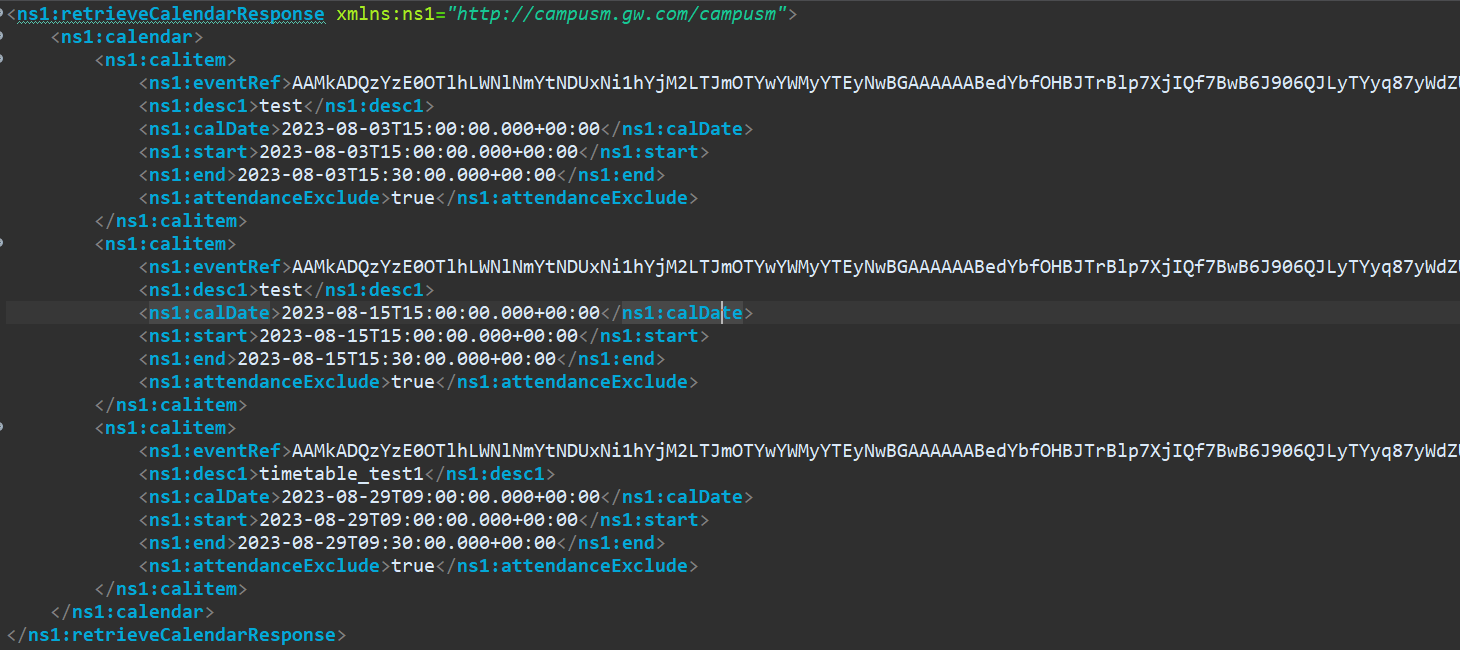
Getting Microsoft Calendar Event via campusM API with Sample GetTimetableMicrosoft Service Request
The request URL should be as follows:

For example:
Page tags: article:topiccontent:Documentationproduct:campusmlang:english
