
Print Credits
The Print Credits product integration allows users to manage their printing activities.
Overview
The Print Credits product integration enables users to manage their printing activities.
Vendors
The Print Credits product integration is supported by the Pharos Uniprint and PaperCut vendors.
User Experience
The following section describes information relating to the user experience for the Print Credits product integration.
User Activities
- Users can check their print credit balance.
- Users can add to their print credit balance.
- Users can track transactions, such as deposits and payments, both current and past.
Authentication
The Print Credits product integration requires the user's identifier from the vendor's system. This is obtained with the token based authentication attributes.
The connection to the vendor is handled as part of the generic API Configuration under the Vendor section. The first part of the API Configuration details the URL to which to connect and any parameters that are required. The second part relates to the API Authentication for the URL, which is vendor-specific, and could also be specific to the vendor instance the client is running.
Screenshots
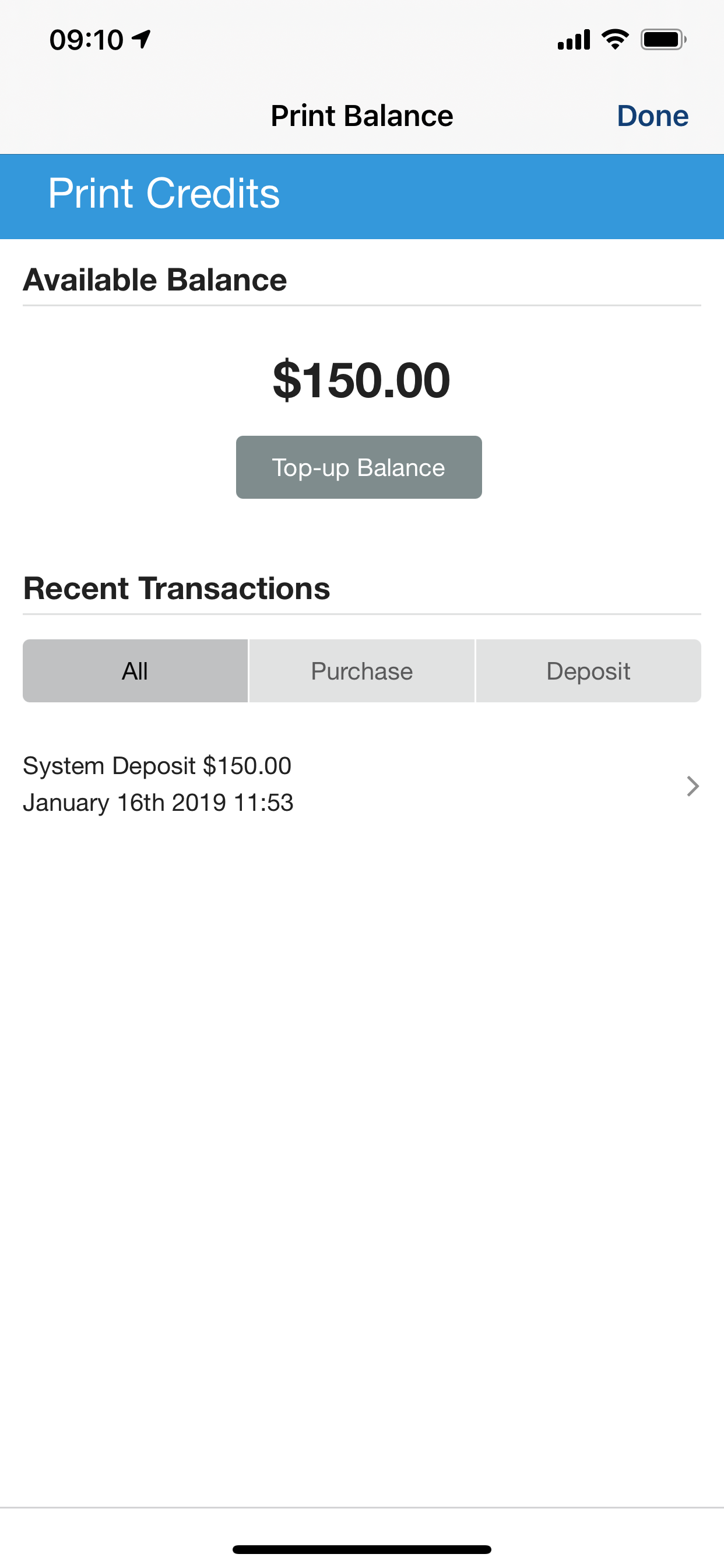
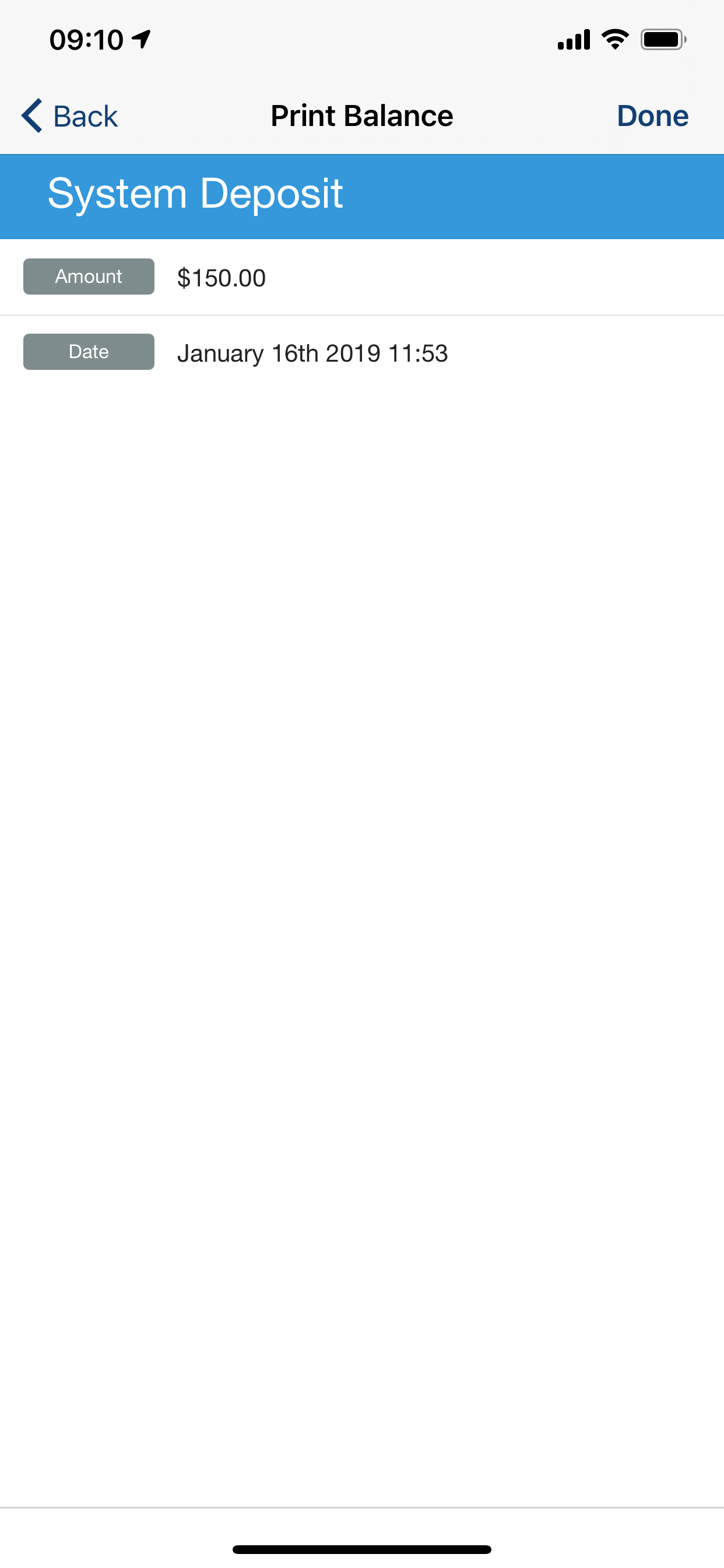
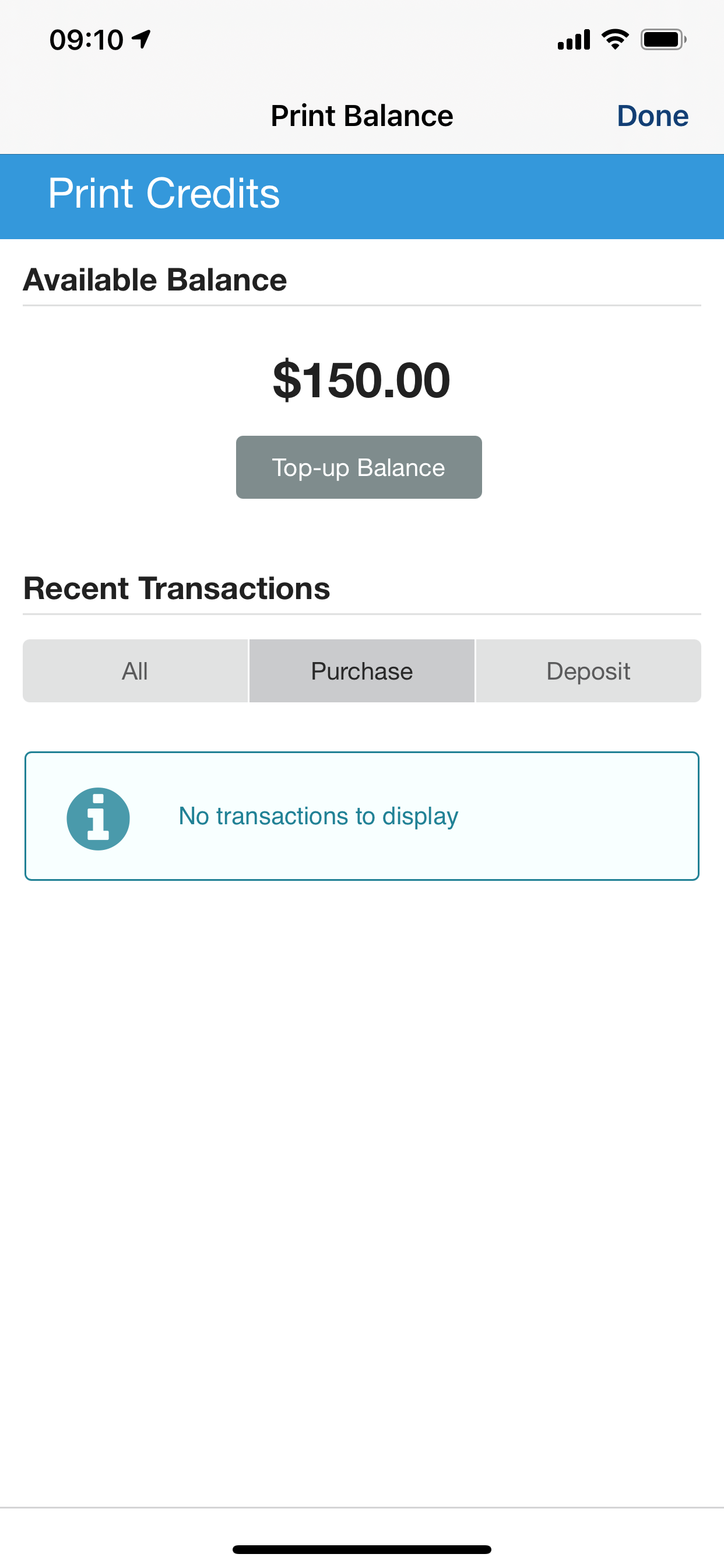
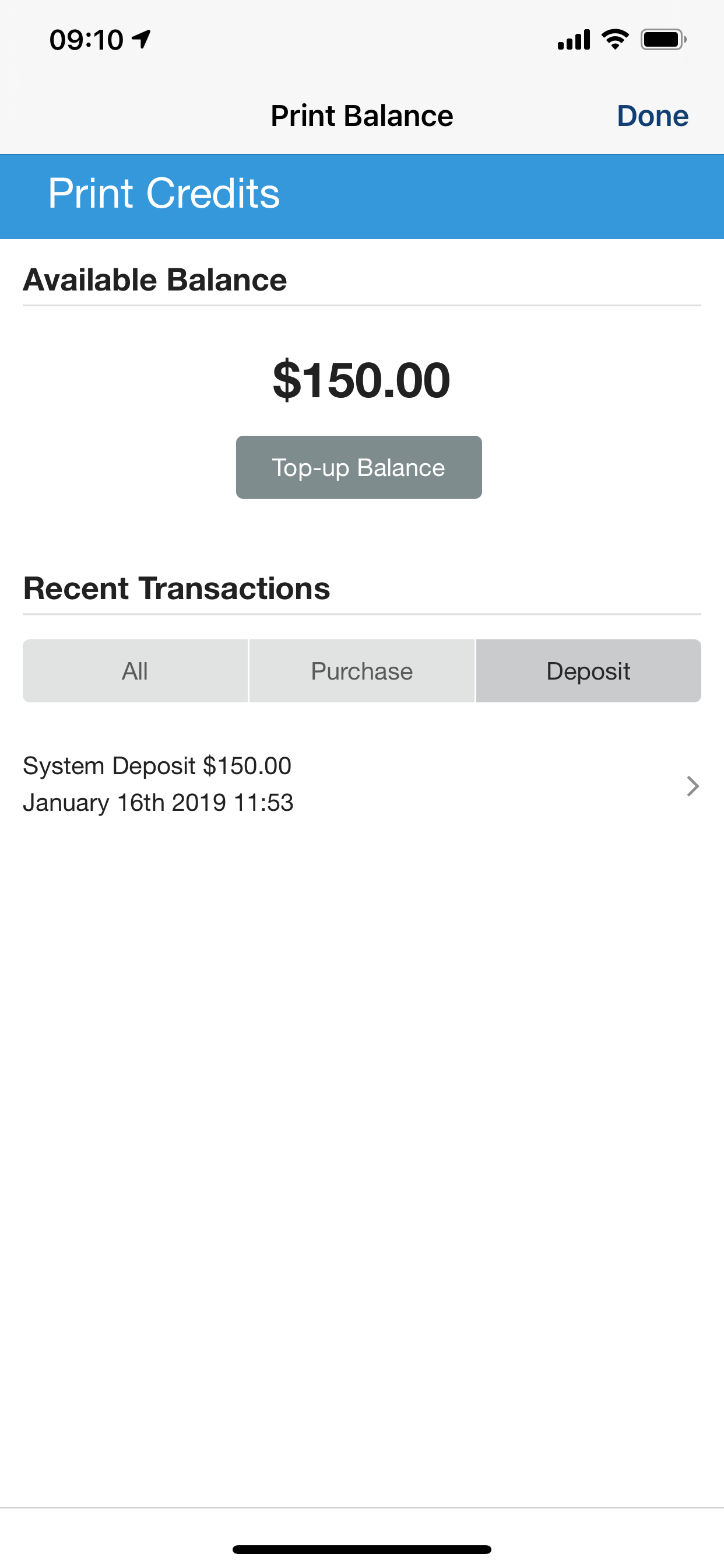
The following is an overview of the Print Credits product integration user interface for a reference when configuring it:
For Pharos Uniprint:
|
|
|
Print Credits Landing Page
|
Print Credits Transaction Page
|
|
|
|
Print Credits Available Balance
|
Print Credits Deposits
|
For the PaperCut vendor, only the balance is displayed.
Technical Overview
The following section describes technical information for the Print Credits product integration.
Prerequisites
The following prerequisites are required to configure the Print Credits product integration:
- User identifier mapping – If you have CMAuth configured, map the relevant vendor ID in the integration profile (Additional Mapping), for example:bannerId=employeeID, where employeeID is the relevant user attribute on the vendor ’s backend system. If you have LDAP configured, verify that the relevant attribute is returned as an attribute from the LDAP response.
- campusM IP addresses should be added to an allow list on the PaperCut/Pharos server. For more information refer to campusM Allowed List.
Pharos Uniprint
- Example hostname: https://{HOST}/pharosportlet/?netID={userId}
- Set the userId attribute as a URL Query, as as a Token Property whose token property name corresponds to the SAML attribute for the user's Pharos ID, for example,employeeID.
- The parameter name needs to match the value entered in the URL to retrieve the information field.
- The following is an example of a JSON response.
- Uniprint requires no Path Parameters or General Headers.
- Uniprint currently passes the end user's vendor ID as a URL Query Parameter. This needs to be set in the URL and added as a query parameter with a matching parameter name.
- The Uniprint instance that campus< accesses has "No Auth" currently, but in the future this could be different. Authentication will differ per client instance.
PaperCut
campusM calls PaperCut api.getUserAccountBalance to retrieve the PaperCut balance, with a token and the user.- Token – a specific token is required for each system. The token needs to be configured in PaperCut.
- User – the networkUser in PaperCut.
- LookUpUserNameByEmail – retrieves the networkUser in PaperCut according to email.
For more information about IPs Allowed Lists on PaperCut server refer to PaperCut Security documentation.
Configuration
Configuration for Pharos Uniprint Vendor
| Configuration Option | Description | Mandatory | Data Type | Default | Example |
|---|---|---|---|---|---|
| Enable Product Integration | Select to enable the product integration on the user's campusM app. | No | Check box | ||
| Product Integration Description | A description of the product integration for internal use | Yes | String | Print Credits | |
| Screen Title | Appears in the top header (of the integration, in the app). | No | String | Print Credits | |
| Primary Theme Color | Used for the Screen Title header and other header elements. | No | Hex code | #444444 | |
| Secondary Theme Color | Used for the Grade block headers. | No | Hex code | #6f8ea4 | |
| Page Title | This is shown at the top of the page | No | String | Print Credit | |
| Available Balance Header | This is shown at the top of the available balance section | No | String | Available Balance | |
| Top-Up Button Text | If the top-up button link is enables, this controls the text the user sees | No | String | Top-Up Balance | |
| Recent Transactions Header | This is shown at the top of the recent transactions section | No | String | Recent Transactions | |
| All Filter Text | This is used as a label for the filter | No | String | All | |
| Purchase Filter Text | This is used as a label for the filter | No | String | Purchase | |
| Deposit Filter Text | This is used as a label for the filter | No | String | Deposit | |
| Purchase Text | This is used as the text for the transaction description | No | String | Print Purchase | |
| Deposit text | This is used as the text for the transaction description | No | String | System Deposit | |
| Load More Text | The label for the load more button | No | String | Load more | |
| No Transactions Text | The label for the error message when there are no transactions to display | No | String | No transactions to display | |
| Error Message Text | The label for the error message when the service is inaccessible | No | String | There was an error accessing the service. | |
| Amount Label | The label for the amount in the transaction details page | No | String | Amount | |
| Date Label | The label for the date in the transaction details page | No | String | Date | |
| Show the top-up button link | This will redirect the user out of the campusM app to the target URL | No | Boolean | True | |
| Top-up page URL | The URL to redirect to in order to top up the balance | No | URI | https://www.google.com/ | |
| Enable transactions filter | This will enable filtering of the transactions by date | No | Boolean | False | |
| Display Transactions Period | The period of time to display the transactions from | No | Object | last7Days | |
| Load More Period | The period of time to load more transactions from | No | Object | 7DaysMore | |
| Input Date Format | The format of the dates coming back from the API | No | String | mm/DD/YYYY HH:mm:ss A | |
| Display Date Format | The format to display any dates in, throughout the integration | No | String | MMMM Do YYYY HH:mm | |
| Show Payment Amount | Choose if to display the payment amount in the purchase/deposit page | No | Boolean | True | |
| Show Payment Date | Choose if to display the payment Date in the purchase/deposit page | No | Boolean | True | |
| Vendor Name | Uniprint (Pharos) | Yes | Object | - | |
| URL to retrieve the information | The base URL should include path parameters | Yes | URI | n/a | https://mrm.newschool.edu/pharosportlet |
| Response Content Type | What type of data you're expecting back from this API endpoint. | No | String | JSON | |
| Response Object Type | What you expect as the top-level object from the API endpoint. | No | String | Object | |
| URL Query Parameters | Any additional query parameters required by the vendor. | No | Object | See Technical Overview | |
| URL Path Parameters | Any path parameters required by the vendor. | Yes | Object | See Technical Overview | |
| General Headers | Any additional headers required by the vendor. | No | Object | See Technical Overview | |
| API Authentication | Defines the authentication for this vendor. | Yes | Object | See Technical Overview | Basic |
Configuration for PaperCut Vendor
The following table describes the configuration options available for the PaperCut vendor.
| Configuration Option | Description | Mandatory | Data Type | Default | Example |
|---|---|---|---|---|---|
| Enable Product Integration | Select to enable the product integration on the user's campusM app. | No | Checkbox | ||
| Product Integration Description | A description of the product integration for internal use | Yes | String | PpaperCut | |
| Screen Title | Appears in the top header (of the integration, in the app). | No | String | PaperCut | |
| Vendor Name | PaperCut | Yes | Object | - | |
| Server | Enter the hostname or IP address of the server hosting the application server. If the protocol is not provided, it is assumed to be http. | Yes | String | https://myPaperCutHost.com | |
| Port | Enter the port number on which the application server is listening | No | Number | 9191 | 8991 |
| Token | Enter the authentication token as configured in PaperCut portal. See the PaperCut Security documentation. | Yes | String | ||
| Currency | Enter the account balance currency | No | String | $ | |
| User Identifier | Select the source for your user identifier to send in the body of the PaperCut API. Possible values: Username, Token Property, and Constant. | Yes | Drop-down list | ||
| Primary Theme Color | Used for the Screen Title header and other header elements. | No | Hex code | #444444 | |
| Secondary Theme Color | Used for the Grade block headers. | No | Hex code | #6f8ea4 | |
| Page Title | This is shown at the top of the page | No | String | Print Credit | |
| Available Balance Header | This is shown at the top of the available balance section | No | String | Available Balance | |
| Top-Up Button Text | If the top-up button link is enables, this controls the text the user sees | No | String | Top-Up Balance | |
| Recent Transactions Header | This is shown at the top of the recent transactions section | No | String | Recent Transactions | |
| All Filter Text | This is used as a label for the filter | No | String | All | |
| Purchase Filter Text | This is used as a label for the filter | No | String | Purchase | |
| Deposit Filter Text | This is used as a label for the filter | No | String | Deposit | |
| Purchase Text | This is used as the text for the transaction description | No | String | Print Purchase | |
| Deposit text | This is used as the text for the transaction description | No | String | System Deposit | |
| Load More Text | The label for the load more button | No | String | Load more | |
| No Transactions Text | The label for the error message when there are no transactions to display | No | String | No transactions to display | |
| Error Message Text | The label for the error message when the service is inaccessible | No | String | There was an error accessing the service. | |
| Amount Label | The label for the amount in the transaction details page | No | String | Amount | |
| Date Label | The label for the date in the transaction details page | No | String | Date | |
| Show the top-up button link | This will redirect the user out of the campusM app to the target URL | No | Boolean | True | |
| Top-up page URL | The URL to redirect to in order to top up the balance | No | URI | https://www.google.com/ | |
| Enable transactions filter | This will enable filtering of the transactions by date | No | Boolean | False | |
| Display Transactions Period | The period of time to display the transactions from | No | Object | last7Days | |
| Load More Period | The period of time to load more transactions from | No | Object | 7DaysMore | |
| Input Date Format | The format of the dates coming back from the API | No | String | mm/DD/YYYY HH:mm:ss A | |
| Display Date Format | The format to display any dates in, throughout the integration | No | String | MMMM Do YYYY HH:mm | |
| Show Payment Amount | Choose if to display the payment amount in the purchase/deposit page | No | Boolean | True | |
| Show Payment Date | Choose if to display the payment Date in the purchase/deposit page | No | Boolean | True |
Page tags: article:topiccontent:Documentationproduct:campusmlang:english
