
Retrieve Attendees
The Retrieve Attendees product integration allows lecturers to get a list of students who attend a specific event.
Overview
The Retrieve Attendees product integration allows lecturers to get a list of students who attend a specific event.
Vendors
Retrieve Attendees is currently supported by the following vendors:
- RESTful API
- Oracle Peoplesoft
User Experience
The following section describes information relating to the user experience for the Retrieve Attendees product integration.
User Activities
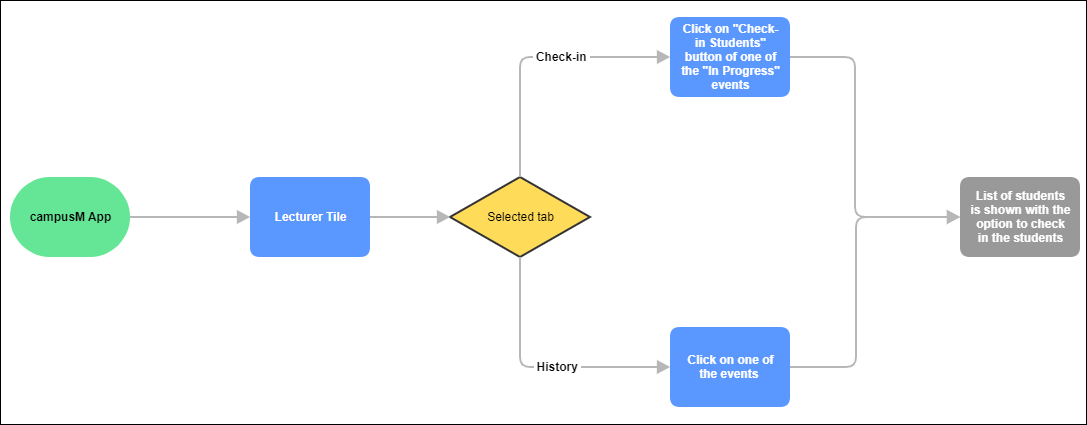
Staff users can choose to view a list of students who attend a specific event and confirm their attendance.
User Workflow Diagram
The following diagram illustrates the user workflow:
Authentication
Users of the Retrieve Attendees product integration are authenticated by the CMAuth authentication token, so that no separate login is required.
Offline Support
There is no offline support.
Prerequisites
For the Retrieve Attendees product integration to work:
- Attendance must be enabled and configured
Screenshots
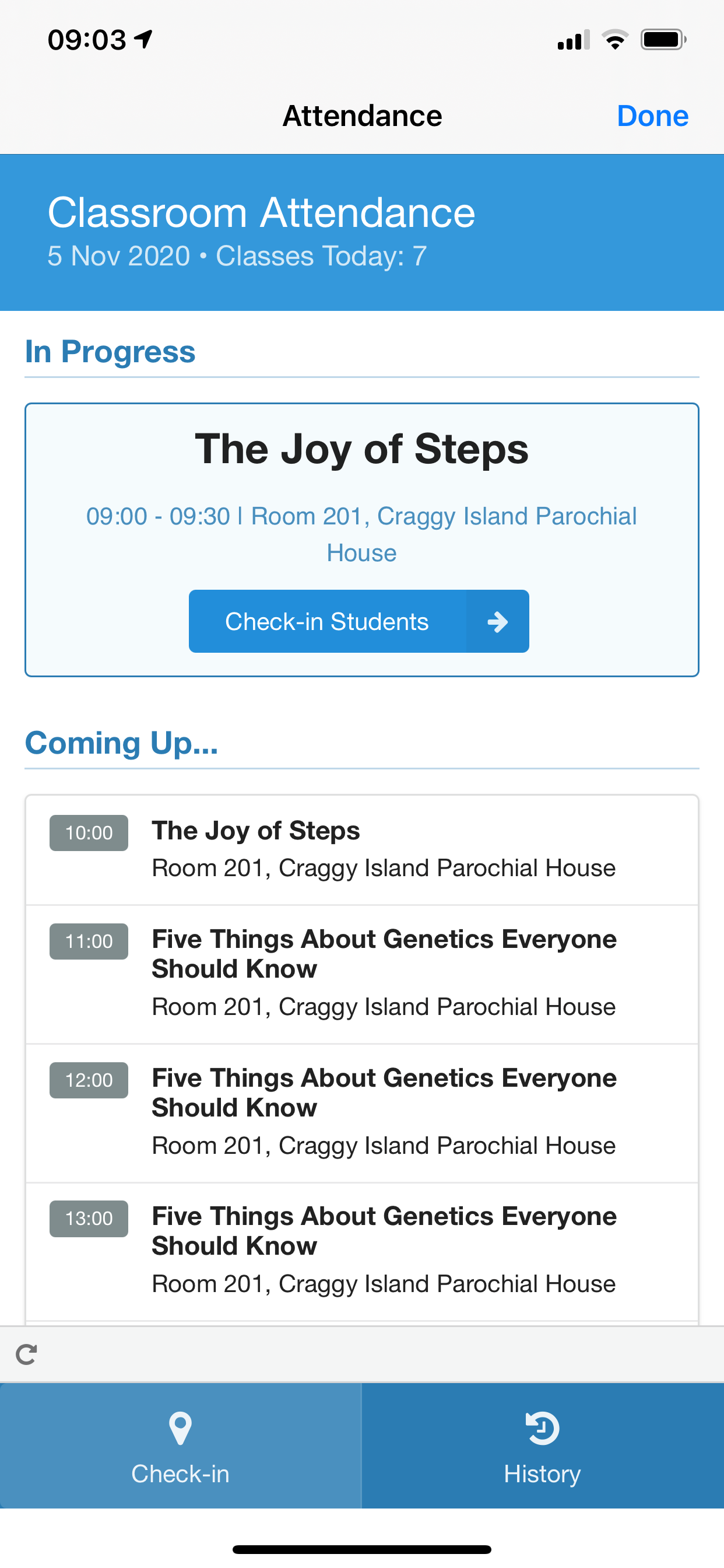
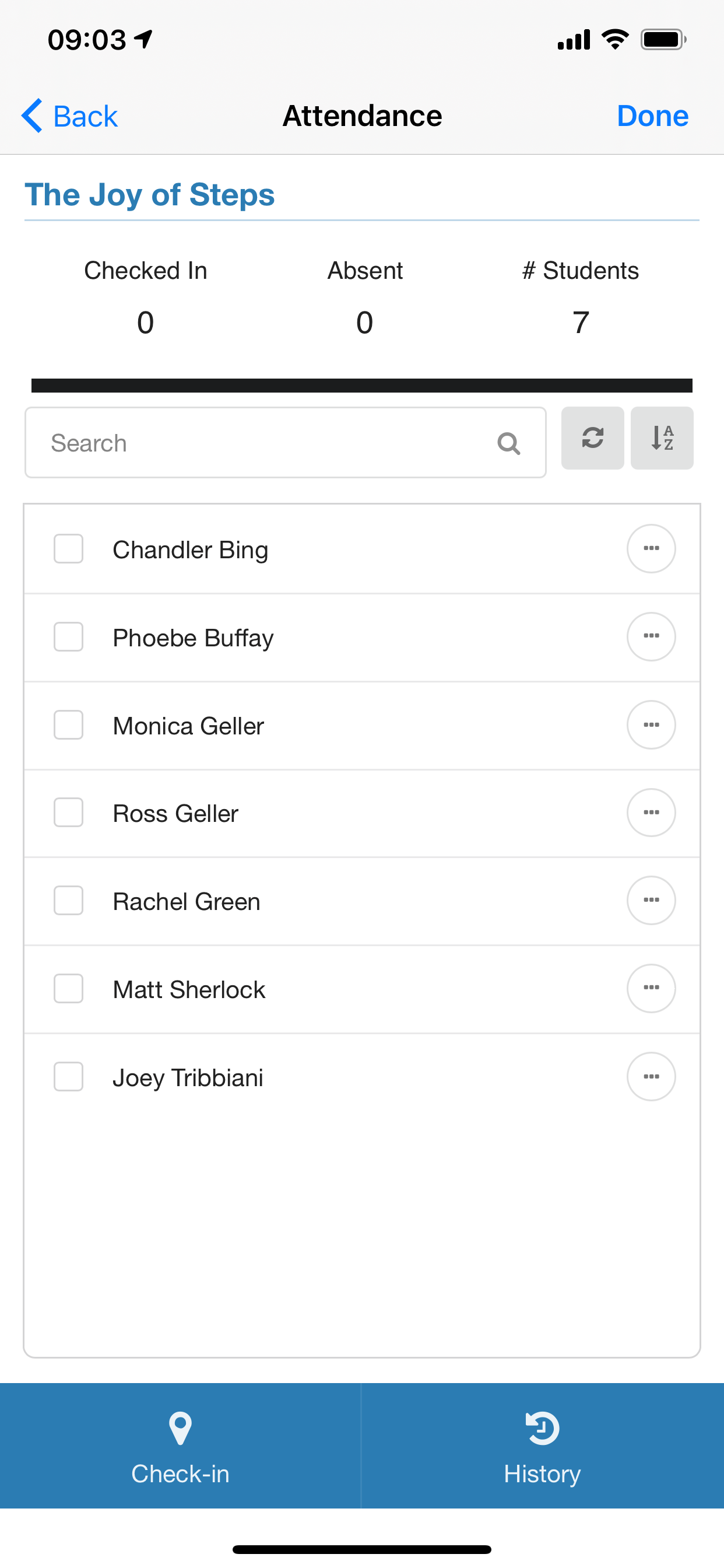
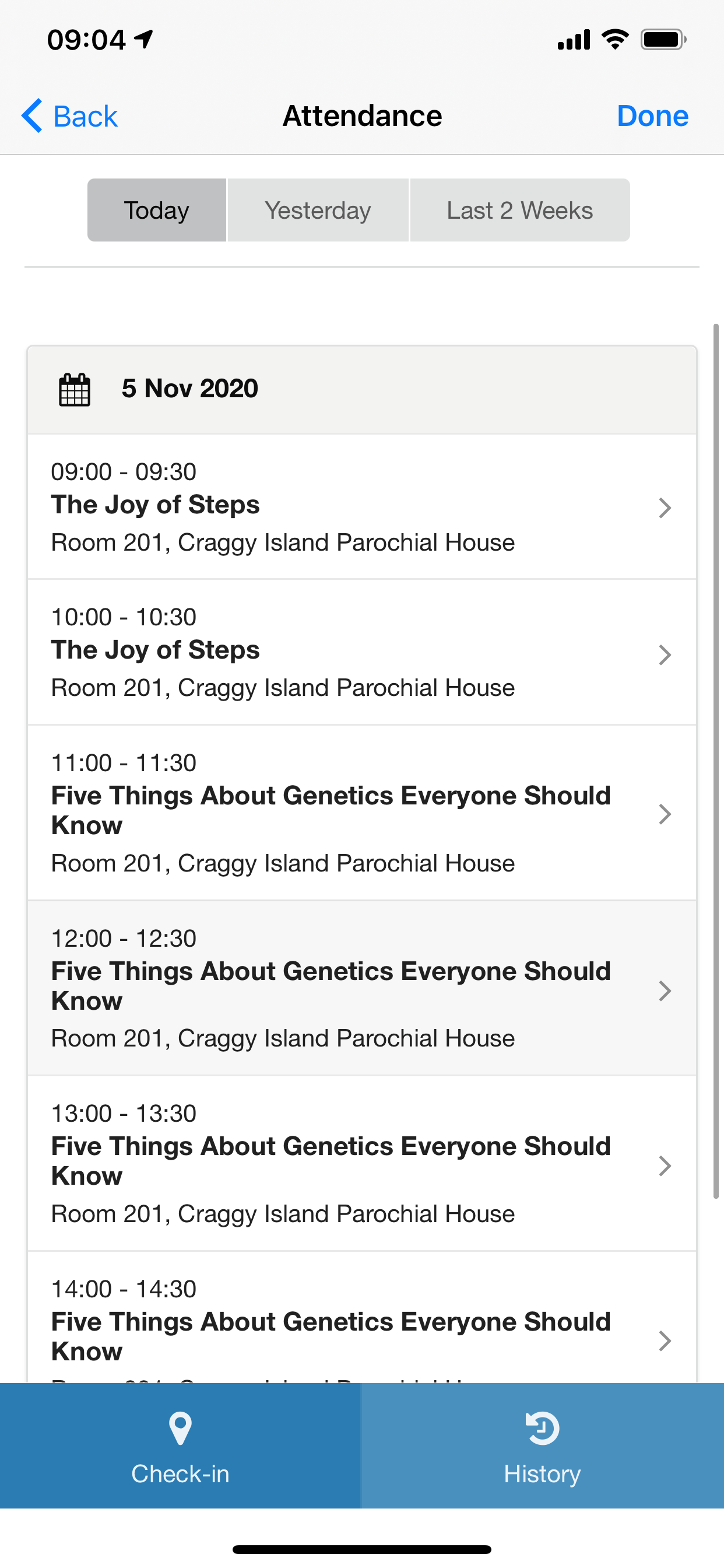
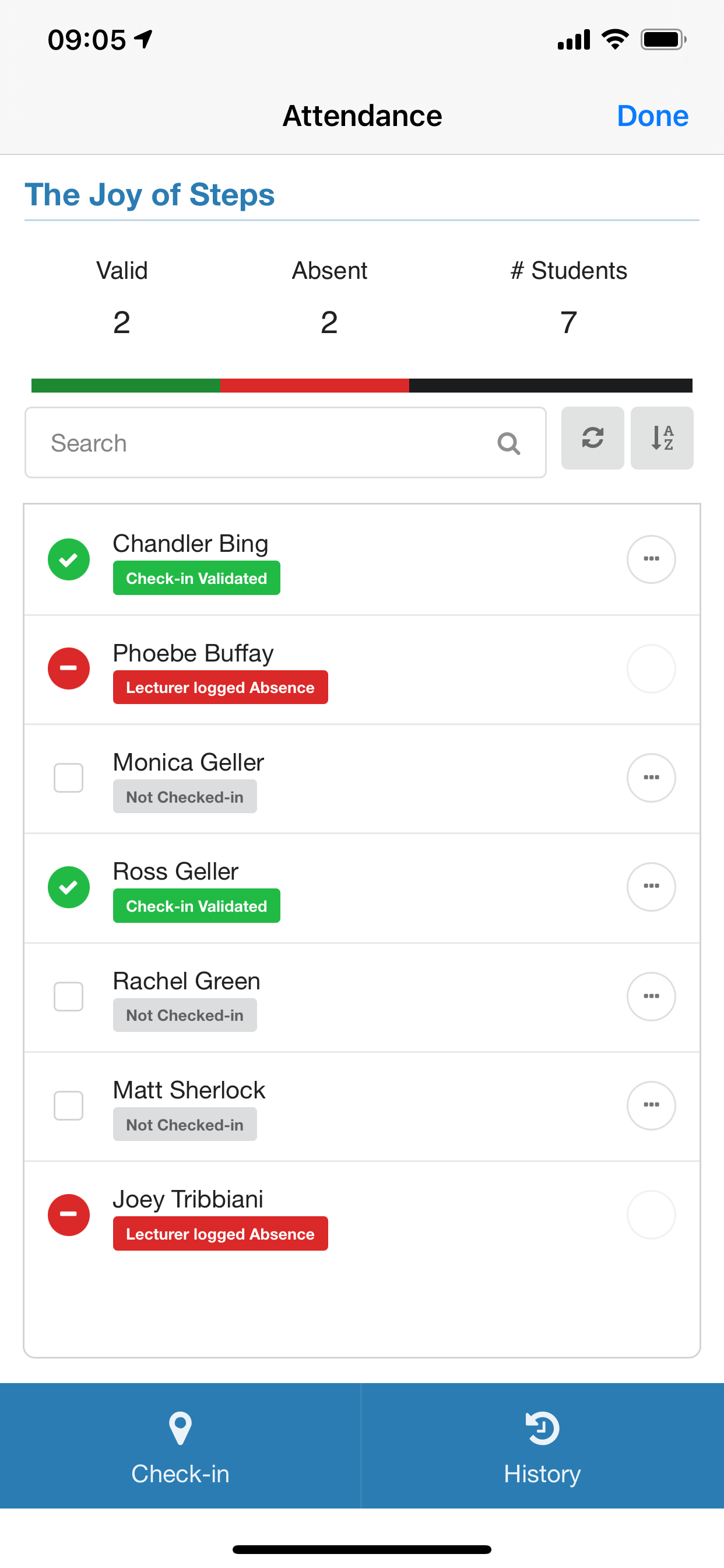
The following is an overview of the Retrieve Attendees product integration user interface for a reference when configuring it:
| Option I: Attendance Check-in tab - clicking Check-in Students | Attendees List of the Event: |
|
|
| Option II: Attendance History Tab: | Attendees List of the event after the Retrieve Attendees product integration is triggered: |
|
|
Technical Overview
The following section describes technical information for the Retrieve Attendees product integration.
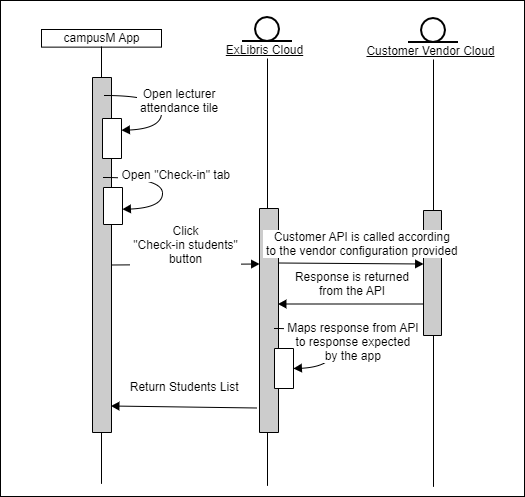
Technical Flow Diagram
The following diagram illustrates the technical workflow:
RESTful API Vendor
Create the API with the following requirements:
- The API receives an eventRef parameter (path/query parameter) or another user identification method.
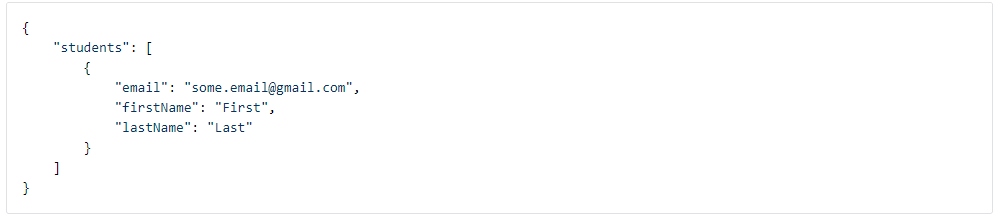
- The API returns a JSON response with the following structure:
Attribute Mapping for RESTful API
The following table describes the attribute mapping for the RESTful API vendor:
| Field | Description | Mandatory (Yes/No) | Data Type | Default | Example |
|---|---|---|---|---|---|
| The student's email | yes | String | - | some.email@gmail.com | |
| firstName | The student's first name | yes | String | - | Jane |
| lastName | The student's last name | yes | String | - | Doe |
Oracle PeopleSoft Vendor
Create a PeopleSoft query that returns a JSON response with the following structure:
{
"status": "success",
"data": {
"query": {
"numrows": 2,
"queryname=": "EXAMPLE_CAMPUSM_RETRIEVE_ATTENDEES",
"rows": [
{
"attr:rownumber": 1,
"EMAIL_ADDR": "exampleStudent1@gmail.com",
"LAST_NAME": "Smith",
"FIRST_NAME": "Elizabeth"
},
{
"attr:rownumber": 2,
"EMAIL_ADDR": "exampleStudent2@gmail.com",
"LAST_NAME": "Doe",
"FIRST_NAME": "Jane"
}
]
}
}
}
The parameters and headers passed into this API are all set in the configuration page.
Example Request:
GET https://{host}
Path: {the required path}, for example /PSIGW/RESTListeningConnector/ExecuteQuery.v1/PUBLIC/{query name}/JSON/NONFILE
The Required Parameters, e.g.:
- isconnectedquery: N
- maxrows: 0
- prompt_uniquepromptname: EVENT_REF
- prompt_fieldvalue:{eventRef value}
- json_resp: true
Basic Authentication
Attribute Mapping for Oracle Peoplesoft
The following table describes the attribute mapping for the Oracle Peoplesoft vendor:
| Internal campusM Field Name | Description | PeopleSoft Field Name | Mandatory (Yes/No) | Data Type | Default | Example |
|---|---|---|---|---|---|---|
| The student's email. | Concat EMPLID+@email.edu with EMPLID from NAMES | Yes | String | some.email@gmail.com | ||
| firstName | The student's first name. | FIRST_NAME from NAMES | Yes | String | Jane | |
| lastName | The student's last name. | LAST_NAME from NAMES | Yes | String | Doe |
Configuration
To configure the Retrieve Attendees product integration, from the Product Integrations main menu, select Add Product Integration Instance.
Select Retrieve Attendees. The following configuration page appears:
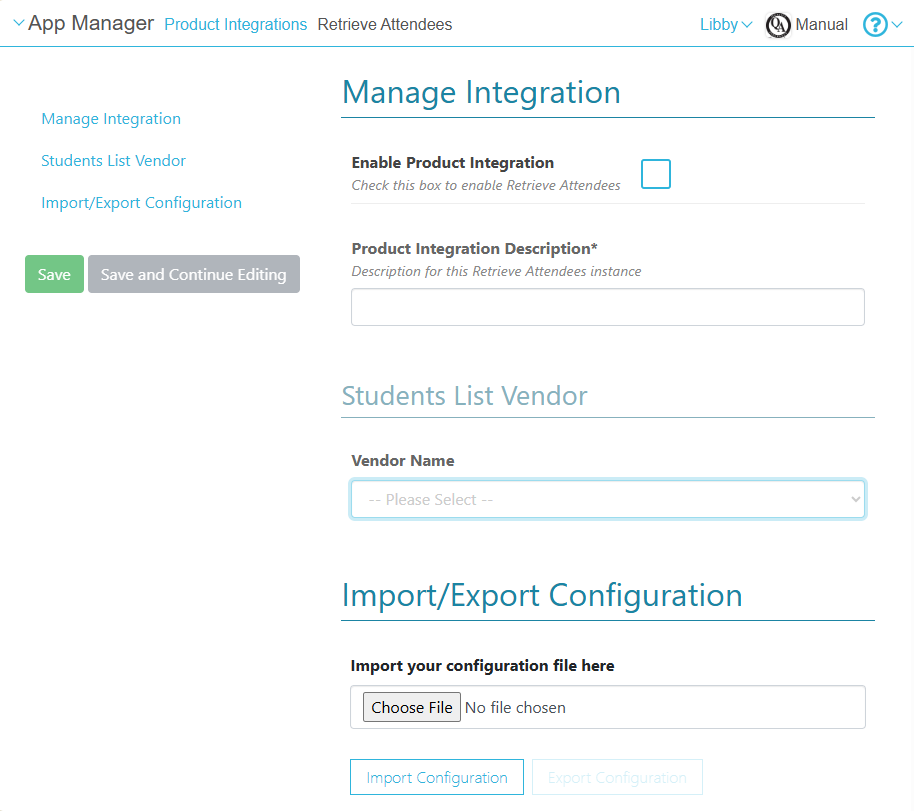
The following table describes the configuration options available on this page.
| Configuration Option | Description | Mandatory | Data Type | Default | Example |
|---|---|---|---|---|---|
| Manage Integration | |||||
| Enable Product Integration | Select to enable the product integration on the user's campusM app. | No | Checkbox | Unselected | |
| Product Integration Description | A description of the product integration for internal use | Yes | String | Retrieve Attendees | |
| Students List Vendor | |||||
| Vendor Name | Sets the vendor to use | Yes | Dropdown | RESTful API | |
| URL to retrieve the information | The URL for the Web service | Yes | URL | https://myDomain.com | |
| URL Query Parameters | The parameters sent as part of the query | No | Object | ||
| URL Path Parameters | The parameters sent as part of the path | No | Object | ||
| General Headers | Add (key, value) for additionally needed headers | No | Object | ||
| Authentication Type | Select one of the following options:
|
No | Object | ||
|
Import / Export Configuration You can configure product integration and then export it to another campusM environment, for example, from sandbox to production or from preview to production. |
|||||
| Import your configuration file here | To import the configuration settings from a JSON file of a previously exported product integration, select Choose File to choose the file to load. Then, select Import Configuration to import the settings. | No | |||
| Import Configuration | After selecting the JSON file to import, select this option to load the configuration settings from the file. | No | |||
| Export Configuration | To export the current settings of the product integration as a JSON file, select this option. | No | |||
Page tags: article:topiccontent:Documentationproduct:campusmlang:english
