
Registration Status
The Registration Status product integration allows students to view their registration status for a particular term.
Overview
The Registration Status product integration allows students to view their registration status for a particular term.
Vendors
The Registration Status product integration is currently supported by the Ellucian Banner (XE) and Oracle PeopleSoft vendors.
User Experience
The following section describes information relating to the user experience for the Registration Status product integration.
User Activities
Students can view their registration status for a particular term.
User Workflow
A single page application (SPA) with no redirects out of the page (or app).
Authentication
The Registration Status product integration requires the user's identifier from the vendor's system. This is obtained with the token based authentication attributes.
The connection to the vendor is handled as part of the generic API Configuration component (in App Manager, in the product instance). This is found under the Vendor section on the configuration page.
Offline Support
No offline support is provided, since the data would not be current and no data is preferable to inaccurate data.
Screenshots
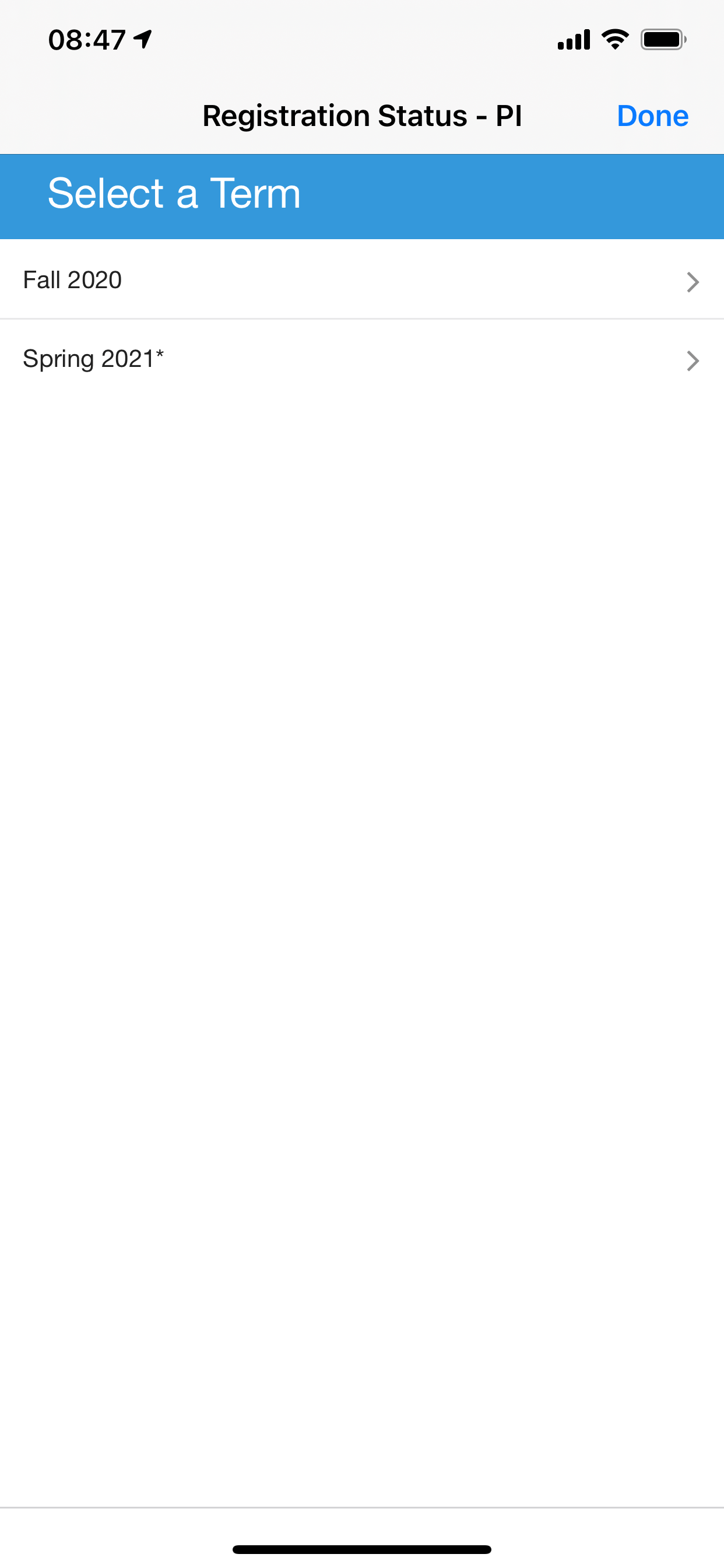
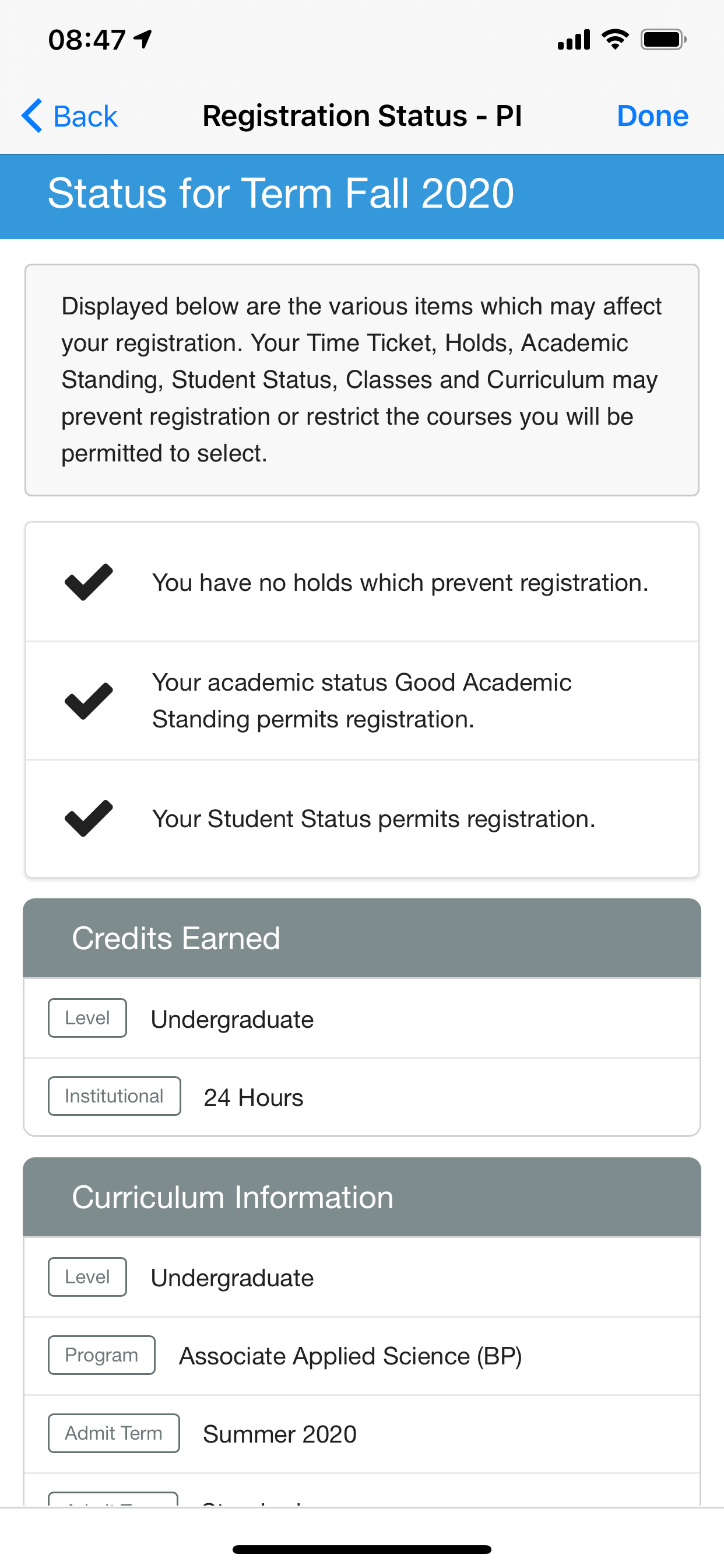
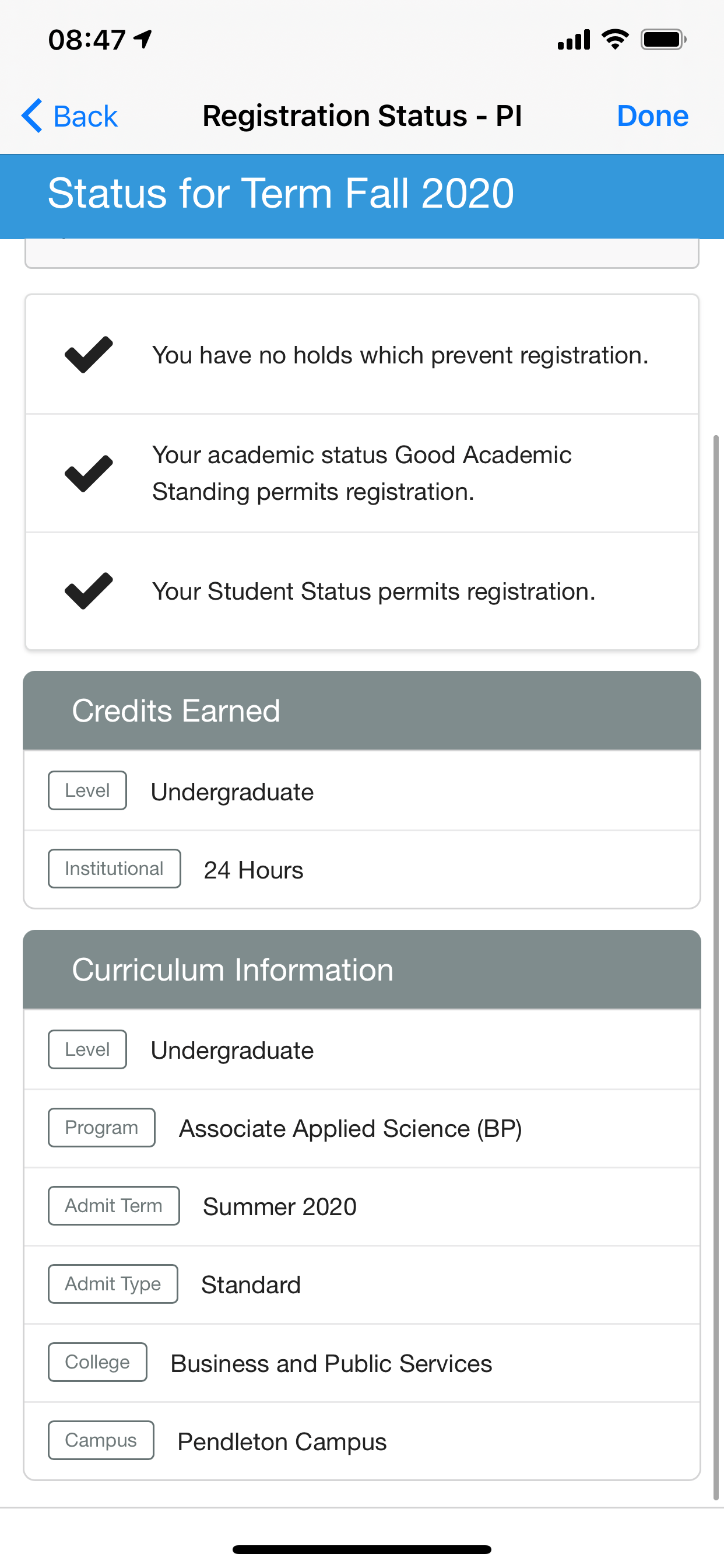
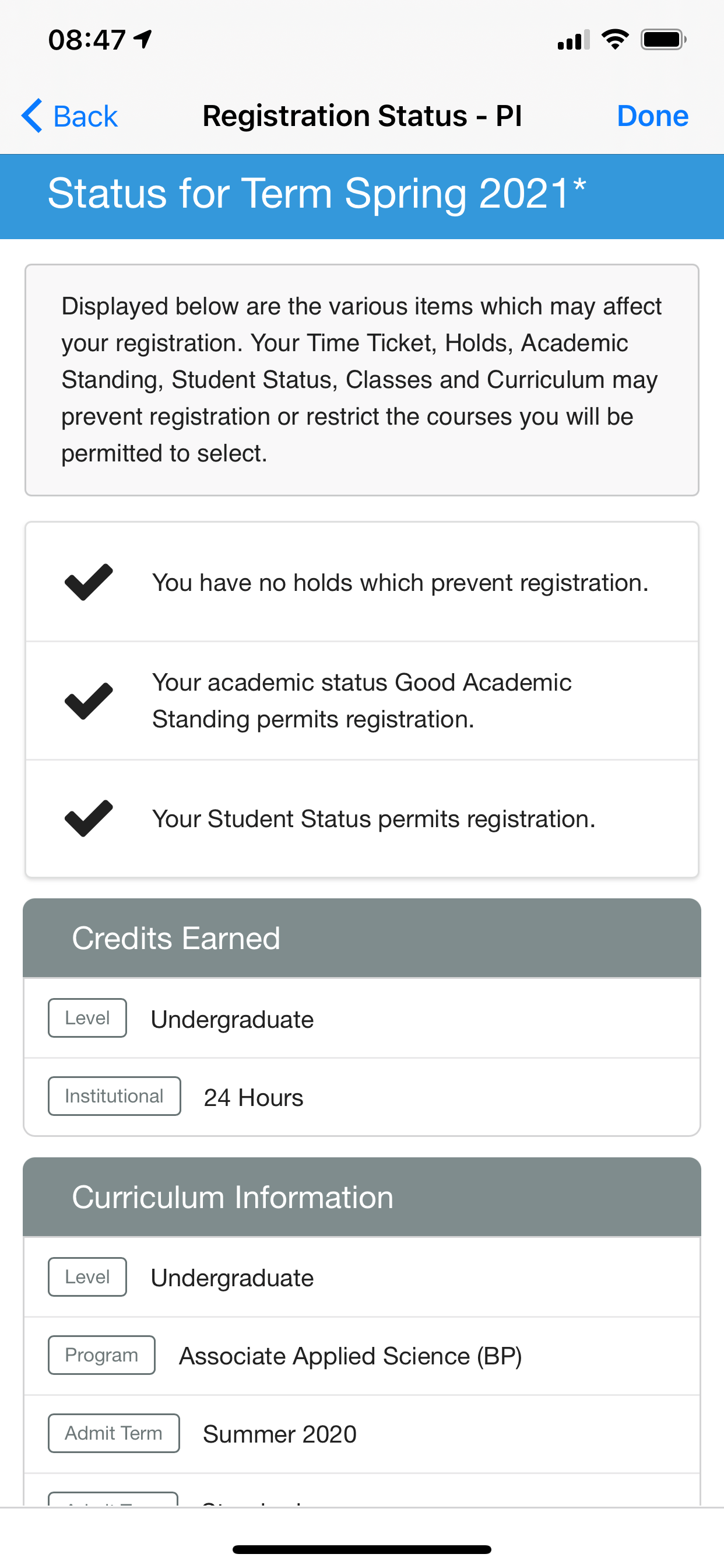
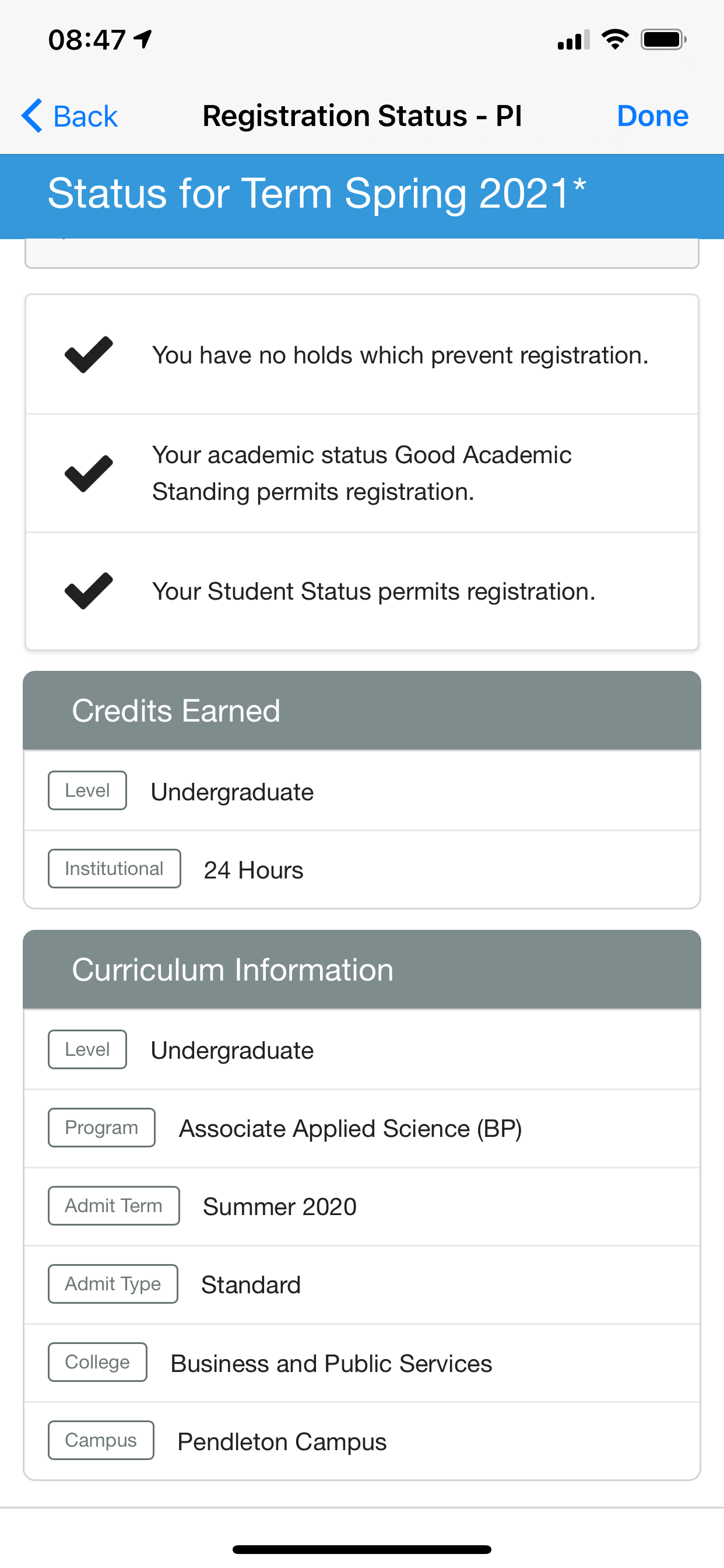
The following are examples of screenshots of the Registration Status product integration user interface for a reference when configuring it:
|
|
|
|
|
Technical Overview
The following section describes technical information for the Registration Status product integration.
Prerequisites
- Access to the client's API.
- Full advice on allowed lists can be found here -campusM Allow Lists.
- We recommend making the API public, even if it requires authentication to access.
- User identifier mapping.
- If you have CMAuth configured, map the relevant vendor ID in the integration profile (Additional Mapping). For example, bannerId=employeeID, where employeeID is the relevant user attribute on the vendor ’s backend system.
- If you have LDAP configured, verify that the relevant attribute is returned as an attribute from the LDAP response.
- campusM app test users with a valid vendor ID available through the SAML attributes (via CMAuth login). The ideal types of test users should include:
- A test user with no restrictions.
- A test user with one restriction.
- A test user with multiple restrictions.
- A test user that is not on the vendor's backend system (the vendor ID is typically a generic attribute name like "employeeID" - the user may have this populated, despite not being available through the vendor itself).
- The relevant vendor ID should be mapped in the Integration Profile for the app profile.
Required Format
Select one of the following links for the required format for that vendor:
- Required Format for Ellucian Banner XE (and Banner 9) Vendor
- Required Format for Oracle PeopleSoft Vendor
Ellucian Banner XE (and Banner 9) Vendor
- The Banner version is Banner 9.
- The vendor information for the App Manager instance is as follows:
- Example URL (to retrieve the information):https://{HOST}/StudentApi/api
- Only the generic endpoint provided above is required.
- Internally, we use the following API calls, appended to the URL above:
- /terms
- /registration-status
- API Authentication — the only type of authentication supported is Basic, though no authentication is also supported if needed.
Any quotes used above are to separate example values from the documentation - do not use quotes in the Vendor configuration itself, unless they're a part of a value.
- XE is an add-on to Banner that enables customers to extend it.
- For all integrations done prior to this product integration, Banner 9 and XE are interchangeable.
- If you have Banner 9 and the above endpoints enabled, this integration vendor works as expected, unless the output of those API calls have been customized or overridden in some fashion.
Oracle PeopleSoft
Example responses:
Student Terms
GET https://{host}/PSIGW/RESTListeningConnector/ExecuteQuery.v1/PUBLIC/AAC_CM_STUDENT_TERMS/JSON/NONFILEQuery
Required parameters, example.:
- isconnectedquery: N
- maxrows: 0
- prompt_uniquepromptname: USER_ID
- prompt_fieldvalue: {USER_ID value}
- json_resp: true
{
'data':
{
'query':
{
'numrows': 3,
'queryname=': 'AAC_CM_STUDENT_TERMS',
'rows':
[
{
'TERM_CODE': '0261',
'TERM_DESCRIPTION': '1984 Spring',
'TERM_ID': '0261',
'attr:rownumber': 1
},
{
'TERM_CODE': '0263',
'TERM_DESCRIPTION': '1984 Summer',
'TERM_ID': '0263',
'attr:rownumber': 2
},
{
'TERM_CODE': '2190',
'TERM_DESCRIPTION': '2021 Fall',
'TERM_ID': '2190',
'attr:rownumber': 3
}
]
}
},
'status': 'success'
}
Term Info
GET https://{host}/PSIGW/RESTListeningConnector/ExecuteQuery.v1/PUBLIC/AAC_CM_REGSTATUS_TILE/JSON/NONFILEQuery
Required parameters, example.:
- isconnectedquery: N
- maxrows: 0
- prompt_uniquepromptname: USER_ID
- prompt_fieldvalue: {USER_ID value}
- json_resp: true
Basic Authentication (Username and Password)
{
'data':
{
'query':
{
'numrows': 5,
'queryname=': 'AAC_CM_REGSTATUS_TILE',
'rows':
[
{
'ACAD_CAREER': 'GRAD',
'COURSE_CODE': 'PH-601-01',
'COURSE_NAME': 'Photography Concept',
'ENROLLMENT_STATUS': 'Enrolled',
'PLAN': 'Photography',
'PROGRAM': 'Master of Arts',
'STUDENT_ID': '00000575',
'TERM_CODE': '2130',
'attr:rownumber': 1
},
{
'ACAD_CAREER': 'GRAD',
'COURSE_CODE': 'PH-642-01',
'COURSE_NAME': 'Lighting on Location',
'ENROLLMENT_STATUS': 'Enrolled',
'PLAN': 'Photography',
'PROGRAM': 'Master of Arts',
'STUDENT_ID': '00000575',
'TERM_CODE': '2130',
'attr:rownumber': 2
},
{
'ACAD_CAREER': 'GRAD',
'COURSE_CODE': 'AAU-101-OL10',
'COURSE_NAME': 'Launchpad to Online Learning',
'ENROLLMENT_STATUS': 'Enrolled',
'PLAN': 'Photography',
'PROGRAM': 'Master of Arts',
'STUDENT_ID': '00000575',
'TERM_CODE': '2130',
'attr:rownumber': 3
},
{
'ACAD_CAREER': 'GRAD',
'COURSE_CODE': 'AAU-PH-OL1',
'COURSE_NAME': 'Launchpad to Online Learning',
'ENROLLMENT_STATUS': 'Dropped (was enrolled)',
'PLAN': 'Photography',
'PROGRAM': 'Master of Arts',
'STUDENT_ID': '00000575',
'TERM_CODE': '2130',
'attr:rownumber': 4
},
{
'ACAD_CAREER': 'GRAD',
'COURSE_CODE': 'AAU-102-OL6',
'COURSE_NAME': 'Launchpad to Onsite Learning',
'ENROLLMENT_STATUS': 'Enrolled',
'PLAN': 'Photography',
'PROGRAM': 'Master of Arts',
'STUDENT_ID': '00000575',
'TERM_CODE': '2130',
'attr:rownumber': 5
}
]
}
},
'status': 'success'
}
Prerequisites
The following prerequisites are required for the Registration Status product integration:
- Access to the client's API.
- Access is required from DEV DC03, as well as the Jerusalem and Wolverhampton offices.
This is in discussion currently as we do not have a standardized range of IPs available.
- We recommend making the API public, even if it requires authentication to access.
- Access is required from DEV DC03, as well as the Jerusalem and Wolverhampton offices.
- User identifier mapping
- If you have CMAuth configured, map the relevant vendor ID in the integration profile (Additional Mapping). For example,bannerId=employeeID, where employeeID is the relevant user attribute on the vendor ’s backend system.
- If you have LDAP configured, verify that the relevant attribute is returned as an attribute from the LDAP response.
- campusM app test users with a valid vendor ID available through the SAML attributes (via CMAuth login). The ideal types of test user should include:
- A test user no restrictions.
- A test user with one restriction.
- A test user with multiple restrictions.
- A test user that is not on the vendor's backend system (the vendor ID is typically a generic attribute name like employeeID).The user can have this populated, despite not being available through the vendor itself.
- The relevant vendor ID must be mapped in the Integration Profile for the app profile.
Configuration
To configure the Registration Status product integration, select Add Product Integration from the Product Integrations main menu option.
Select Registration Status and the following configuration page appears:
The following table describes the configuration options available on this page.
| Field Name | Description | Mandatory | Data Type | Default | Example |
|---|---|---|---|---|---|
| Manage Integration | |||||
| Enable Product Integration | Select to enable the product integration on the user's campusM app. | No | Checkbox | Unchecked | |
| Product Integration Description | Description for this Registration Status instance. Displayed in App Manager, but not in the app itself. | Yes | String | N/A | Registration Status |
| Screen Title | Appears in the top header (of the integration, in the app). | No | String | Registration Status | |
| Vendor – This section defines the structure of the APIs used in this product integration. | |||||
| Vendor Name | Defines which vendor the integration connects to. | Yes | Drop-down list | N/A | Colleague |
| API Configuration for BannerXE This section contains the API details to define the API structure. You can test the API configuration. See Testing API Product Integration Configuration. | |||||
|
Base URL |
Enter the base URL for the vendor API server. |
Yes |
String |
N/A |
|
|
User Identifier
|
The parameter input option for ID attribute required for the vendor, for example, the user's Banner ID required for identification in Banner. Possible values: Username, Token Property, and Constant. It is sent as the path parameter in the relevant API calls. |
Yes
|
Dropdown
|
||
| Parameter Input Option | The parameter input option for Banner ID. Possible values: Username, Token Property, and Constant. It is sent as the path parameter. | Yes | Dropdown | Token Property | |
|
API Authentication |
Authentication type against the web service. |
No |
Dropdown |
No Auth |
Basic Auth |
|
Terms Configuration For Banner XE only |
|||||
|
Exclude By Term Code
|
Enter one or more term codes, or partial codes, to exclude.
Include % in the code for a wildcard sequence, e.g.%5 excludes any term code ending in 5. Entering just 5 excludes any term code that includes a 5 anywhere in it.
|
No
|
List
|
%5
|
|
|
Exclude By Term Description
|
Enter one or more term descriptions, or partial descriptions, to exclude.
Use % for a wildcard sequence, e.g.%Test excludes any term description ending with Test. Entering just Test by itself excludes any term description that includes Term anywhere in it.
|
No
|
List
|
Non-Academic
|
|
|
API Configuration - for Oracle PeopleSoft |
|||||
|
Base URL |
Enter the base URL for the vendor API server. |
Yes |
String |
https://someHost.com:portNumber | |
|
URL Query Parameters |
Any query parameters required for the PeopleSoft vendor. See Required Format for details. |
Yes |
List |
||
|
URL Path Parameters |
Any path parameters required for the PeopleSoft vendor. Currently none. |
No |
List |
||
|
General Headers |
Any headers required for the PeopleSoft vendor. Currently none. |
No |
List |
||
| Authentication Type | Select one of the following options, according to your PeopleSoft server setup:
|
No | Drop-down list | Basic Auth | |
| General Configuration | |||||
|
Show the Credits Earned section |
Enables or disables whether or not the user can see the Credits Earned block. |
No |
Checkbox |
Checked |
Show the Credits Earned section |
|
Show the Curriculum Information section |
Enables or disables whether or not the user can see the Curriculum Information block. |
No |
Checkbox |
Checked |
|
| Show Holds Information | Enables or disables whether or not the user can see the Holds block. | No | Checkbox | Checked | |
|
|
Enables or disables whether or not the user can see the Registration Information block. | No | Checkbox | Unchecked | |
| Enable Link for More Information | Enables or disables whether or not the user can see the More Information button. | No | Checkbox | Unchecked | |
| More Information URL | The URL for the More Information button. | No | URI | https://myDomain.com | |
|
Past Terms (in days) |
Display past terms for the last number of days. |
No |
String |
0 |
|
|
Next Terms (in days) |
Display future terms for the next number of days. |
No |
String |
0 |
|
| Look and Feel | |||||
| Primary Theme Color | Select a color for the main elements on the page. | No | Color Picker | #444444 | |
| Secondary Theme Color | Select a color for the secondary elements on the page. | No | Color Picker | #6f8ea4 | |
| Text/Labels | |||||
|
Terms Page Header |
Displayed at the top of the Terms landing page, if enabled. |
No |
String |
Select a Term |
|
|
No Terms Message |
Displayed when the terms service returns a valid response, but there are no valid terms in it. |
No |
String |
No terms found. |
|
|
Unknown Terms Text |
Displayed any time a term is to be displayed, but there is no valid description for that term. |
No |
String |
Unknown Term |
|
|
Registration Status Page Header |
Displayed at the top of the selected Registration Status page, followed by the term description. |
No |
String |
Status for Term |
|
|
Registration Status Disclaimer |
Custom text to outline a student's registration and academic status. |
No |
String |
Displayed below are the various items which may affect your registration. Your Time Ticket, Holds, Academic Standing, Student Status, Classes, and Curriculum may prevent registration or restrict the courses you will be permitted to select. |
|
|
No Status Information Message |
Displayed when the status service returns a valid response, but there are no valid items in it. |
No |
String |
No status information found for this term. |
|
|
Credits Earned Header Text |
Shown if "Show the Credits Earned section" is true. This is displayed at the top of the block. |
No |
String |
Credits Earned |
|
|
Credits Earned "Level" Label |
Shown if "Show the Credits Earned section" is true. |
No |
String |
Level |
|
|
Credits Earned "Transfer Hours" Label |
Shown if "Show the Credits Earned section" is true. |
No |
String |
Transfer |
|
|
Credits Earned "Institutional Hours" Label |
Shown if "Show the Credits Earned section" is true. |
No |
String |
Institutional |
|
|
Credits Earned "Hours" Text |
Shown if "Show the Credits Earned section" is true. The suffix for displaying any value in hours. |
No |
String |
Hours |
|
|
Curriculum Information Header Text |
Shown if "Show the Curriculum Information section" is true. This is displayed at the top of the block. |
No |
String |
Curriculum Information |
|
|
Curriculum Information "Level" Label |
Shown if "Show the Curriculum Information section" is true. |
No |
String |
Level |
|
|
Curriculum Information "Program" Label |
Shown if "Show the Curriculum Information section" is true. |
No |
String |
Program |
|
|
Curriculum Information "Admit Term" Label |
Shown if "Show the Curriculum Information section" is true. |
No |
String |
Admit Term |
|
|
Curriculum Information "Admit Type" Label |
Shown if "Show the Curriculum Information section" is true. |
No |
String |
Admit Type |
|
|
Curriculum Information "College" Label |
Shown if "Show the Curriculum Information section" is true. |
No |
String |
College |
|
|
Curriculum Information "Campus" Label |
Shown if "Show the Curriculum Information section" is true. |
No |
String |
Campus |
|
|
Terms Service Failure Message |
This message appears when the integration is unable to reach or process the terms API correctly. |
No |
String |
The page is having trouble fetching academic terms - please try again shortly. |
|
|
Service Failure Message |
This message appears when the integration is unable to reach or process the registration status API correctly. |
No |
String |
The page is having trouble fetching your status - please try again shortly. |
|
| More Information Label | Shown if "Enable Link for More Information" is true. | No | String | Click here for more info | |
| Course Registration Title Label | Shown if "Show Course Registration Information" is true. | No | String | Course Registration | |
| Import/ Export Configuration You can configure product integration and then export it to another campusM environment, for example, from sandbox to production or from preview to production. | |||||
| Export | Create a JSON file with all product integration configuration. | No | |||
| Import | Use this option in order to load configuration from JSON of an exported product integration. | No | |||
Page tags: article:topiccontent:Documentationproduct:campusmlang:english
