
Gmail
The Gmail product integration displays a live tile with a count for unread emails and allows students to access their Gmail native app.
Overview
The Gmail product integration displays a live tile with a count for unread emails and allows students to access their Gmail native app.
Vendors
Version: v1
User Experience
The following section describes information relating to the user experience for the Gmail product integration.
User Activities
Users can view how many unread emails they have from the live tile.
Authentication
The Gmail product integration uses an OAuth Integration Profile (configured at App Settings > Integration Profile > Add Integration Profile). This must be configured before the product integration will work. See OAuth Integration Profile Configuration.
The following is the authentication workflow:
- The end user opens the Gmail tile.
- campusM requests a token from the Gmail token API.
- The user logs in to Gmail (if they have not already done so).
- If valid, Gmail sends a response with the user's access token.
- campusM sends the access token with every Gmail API request made.
Offline Support
No offline support is available.
Screenshots
The following is an example of the Gmail live tile for a reference when configuring it.
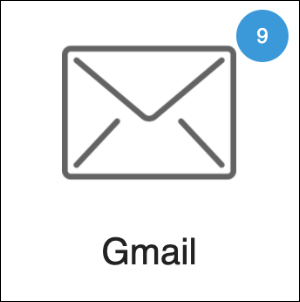
Live Tile
The Gmail live tile should work for any tile size. The badge always appears in the upper-right corner of the tile.
Technical Overview
The following section describes technical information for the Gmail product integration.
Prerequisites
The following are the prerequisites for the Gmail product integration:
- Complete the prerequisites in Google to set up OAuth, as described at OAuth 2.0 for Client-side Web Applications.
- It is required by Google that in the Integration Profile settings in campusM "Open in External Browser" is set to "Yes".
- The redirect URI should be formatted like the following:{{your_campusM_app_hostname}}/cmauth/oauth/callback, for example:https://my-app.name.com/cmauth/oauth/callback. This URL is not meant to be accessible. It is used by our cloud platform to complete the OAuth authentication flow.
- The required scope is:https://mail.google.com/
- It is advised that you register all of your campusM apps (typically Dev and Prod)
- Configure an integration profile for Gmail for the product integration. For more information, see OAuth Integration Profile Configuration.
- Verify with Ex Libris that Gmail is included as an app added to the allow list (googlegmail). This is necessary for deep linking on mobile devices. Links, including deep links, need to be added as an action (URL) from within the App Builder.
Configuration
To configure the Gmail product integration, first configure an authentication integration profile (subtype OAuth) that you then select in the product integration configuration section.
OAuth Integration Profile Configuration
You add and edit integration profiles from App Settings > Integration Profile > Add Integration Profile.
The following table describes the configuration options available on this page. All values are exactly as-is unless listed otherwise.
| Configuration Option | Description |
|---|---|
| Name | Anything unique that describes the integration profile |
| Description | A description of the profile (this is not a required field) |
| Type | Authentication |
| Subtype | OAuth |
| OAuth Client ID | The client ID from Gmail |
| OAuth Client Secret | The client secret from Gmail |
| Authorization Endpoint | https://accounts.google.com/o/oauth2/auth |
| Access Token Endpoint | https://accounts.google.com/o/oauth2/token |
| Token Endpoint Auth | Post |
| User Info Endpoint | https://gmail.googleapis.com/gmail/v1/users/me/profile |
| OAuth Scope | https://mail.google.com/ |
| Extract OAuth Tokens | Yes |
| Username Mapping | emailAddress |
| Mail Mapping | emailAddress |
| First Name Mapping | emailAddress |
| Last Name Mapping | emailAddress |
Product Integration Configuration
To configure the Gmail product integration, select Product Integrations > Add Product Integration and select Gmail.
| Configuration Option | Description | Mandatory | Data Type | Default | Example |
|---|---|---|---|---|---|
| Manage Integration | |||||
| Enable Product Integration | Select to enable the product integration on the user's campusM app. | Yes | Checkbox | Unselected | |
| Product Integration Description | A description of the product integration for internal use | Yes | String | Gmail | |
| Live Tile | |||||
| Enabled | This enables the live tile | Yes | Checkbox | Selected | |
| Badge Color | This sets the background color for the badges on the live tile | No | Hex Code | #FFFFFF | |
| Update Rate | This sets the frequency of updates from Gmail to the live tile (in minutes) | No | Integer | 30 | |
| Import/ Export Configuration You can configure product integration and then export it to another campusM environment, for example, from sandbox to production or from preview to production. | |||||
| Export | Create a JSON file with all product integration configuration | No | |||
| Import | Use this option in order to load configuration from JSON of an exported product integration | No | |||
Page tags: article:topiccontent:Documentationproduct:campusmlang:english
