The Blackboard product integration provides students with access to their Blackboard account.
Overview
The Blackboard product integration delivers user-specific Blackboard content to the campusM app. It also includes a customizable grid-style live tile that aggregates the same content on the app homepage.
Vendors
Not Applicable
The Blackboard product integration is an LMS / VLE type product integration, which means that it is found under this category when adding a new product integration. Blackboard is the vendor, just as Blackboard, D2L Brightspace, and Moodle are the other LMS / VLE vendors currently supported.
User Experience
The following section describes information relating to the user experience for the Blackboard product integration.
User Activities
Users can manage their Blackboard accounts, including various academic activities (courses, grades, assignments, and calendar events), check and update personal information, and receive system and course-level announcements. Users can also benefit from a live tile that provides a count for various types of academic information, including courses, grades, assignments, announcements, and calendar events. Additionally, users can view due dates for Blackboard assignments in campusM calendars.
Authentication
The Blackboard authentication uses an OAuth Integration Profile (configured at App Settings > Integration Profile > Add Integration Profile. This must be configured before the Product Integration will work. See Prerequisites.
The Blackboard API accepts Bearer Token authentication with the access token gained from the Integration Profile. This is not customizable.
The following is the authentication workflow:
The end user opens the Blackboard tile.
If the Live Tile is enabled, it requests a token immediately. If the Live Tile is not enabled, the main integration opens first before requesting a token (see next step).
campusM requests a token from the Blackboard token API.
The user logins into Blackboard, if they have not already done so.
If valid, Blackboard send a response with user's access token.
campusM sends the access token with every Blackboard API request made. It is automatically refreshed on expiry, unless the user has logged out of the campusM app or their Blackboard session.
Offline Support
No offline support is available.
Screenshots
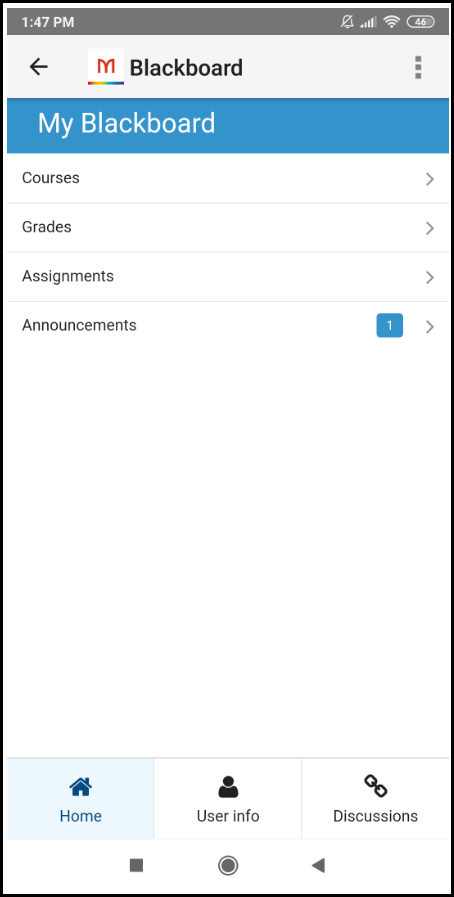
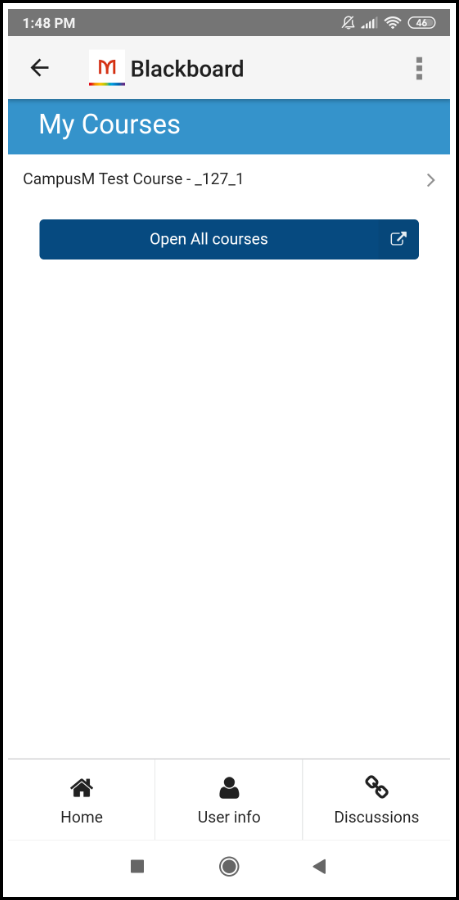
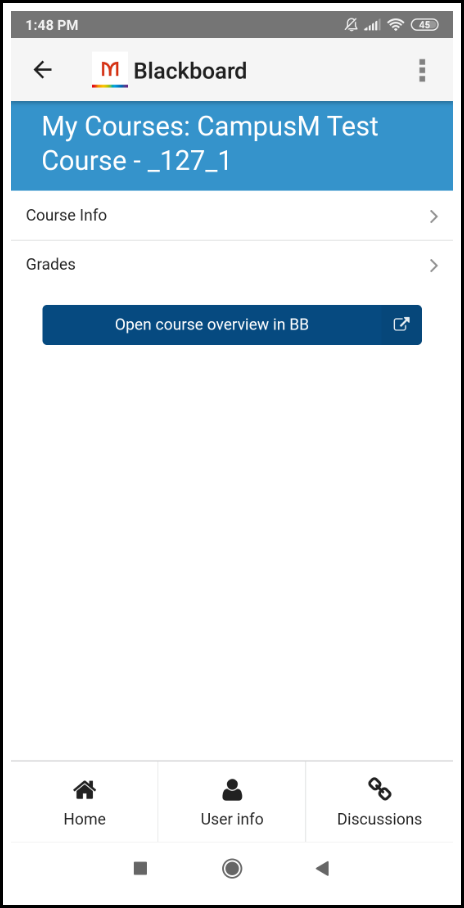
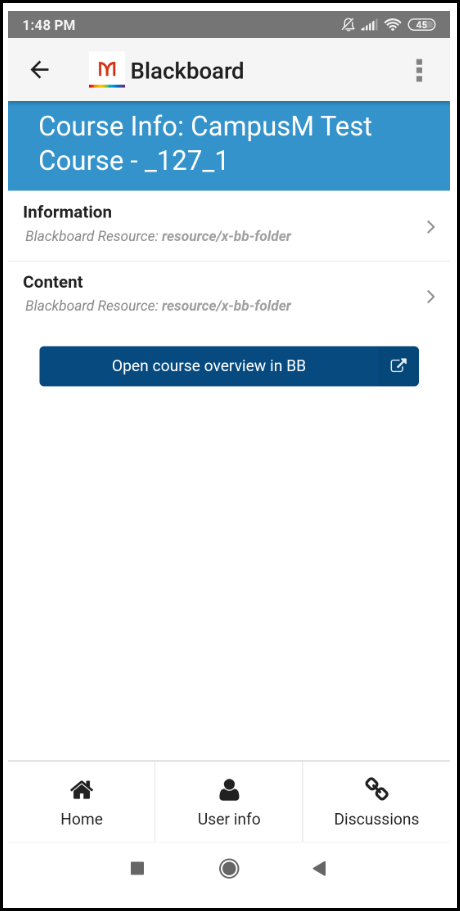
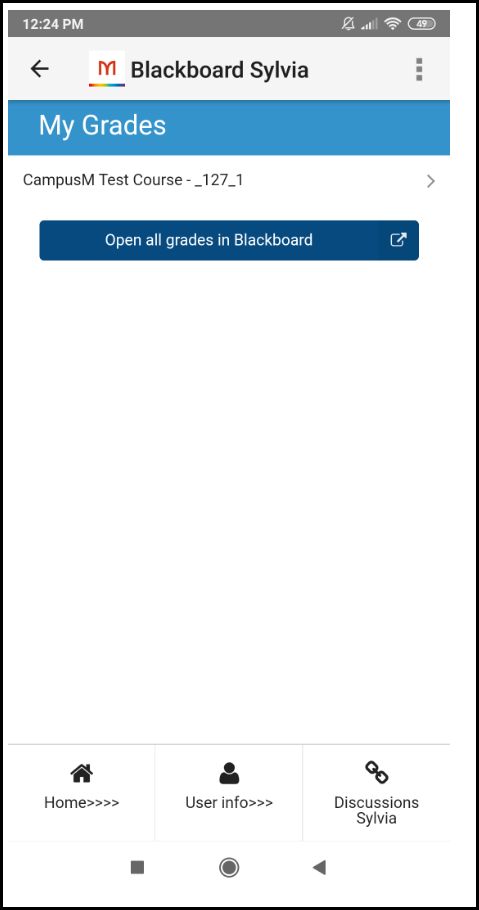
The following is an overview of the Blackboard product integration user interface for a reference when configuring it.
Homepage
Courses
Course Page
Course Info
Grades
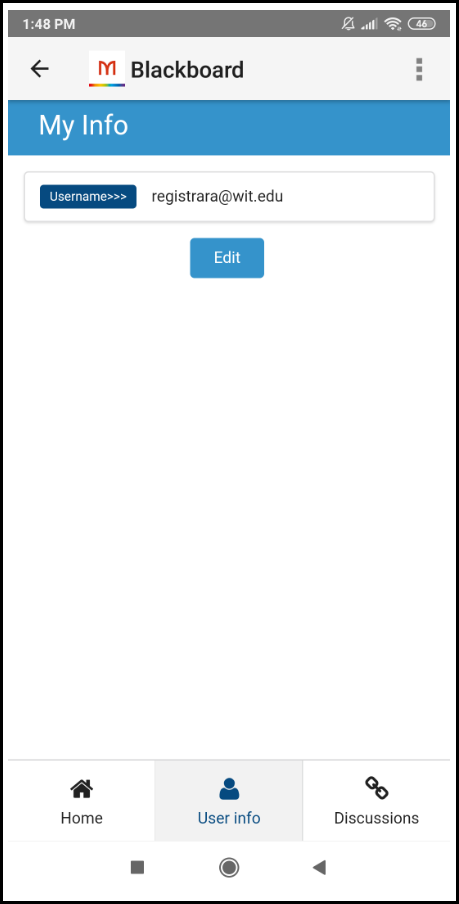
User Info
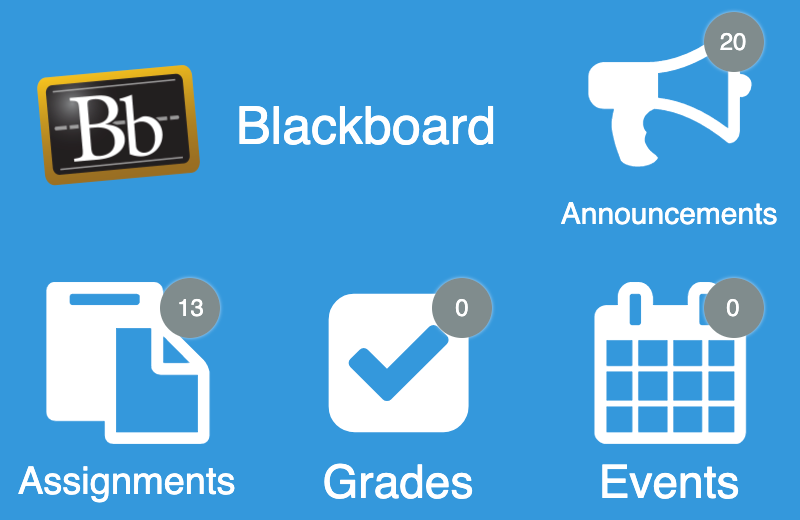
Example of 3 x 2 dimensions
By default, the live tile is designed to link to areas in main PI integration (shown in the screenshots above). Clicking Grades links you to the Grades view, for example. Areas of the live tile with no defined focus (the customizable header, if enabled, or any blank space on the tile) defer to the Action (URL) set in App Builder.
This setting is controlled by Enable Integration Deep Linking listed in the configuration. If disabled, the entire link defers to the Action (URL) defined in App Builder for the tile. This defaults to linking to the index page main PI integration, but this can be overridden.
Live Tile Configuration Rules
The Blackboard live tile is designed to work with the following sizes. The tile will attempt to display as many elements as possible regardless of the dimensions set, but we cannot guarantee the intended experience if you do not adhere to the following dimensions. The tile dimensions are set in the App Builder, while the widgets per row (and other details) are set in the Configuration page for this product integration.
1 wide x 1 high
This is a special case. The tile only displays one widget (the highest prioritized, enabled widget).
2 wide x 1 high
We recommend using 1 - 2 widget rows and using 1 - 3 widgets per row.
2 wide x 2 high
We recommend using 2 - 3 widget rows and using 1 - 3 widgets per row.
3 wide x 1 high
We recommend using 1 - 2 widget rows and using 2 - 4 widgets per row.
3 wide x 2 high
We recommend using 2 - 3 widget rows and using 2 - 4 widgets per row.
We also recommend keeping the header text and widget labels for the live tile short.
Technical Overview
The following section describes technical information for the Blackboard product integration.
Supported Versions
3300.0.0. or later for the full functionality
3100.7.0. or later for the functionality without grades
Prerequisites
The following must be done before you can configure the Blackboard product integration:
If you don't have a Group set up, select My Groups, and create a new Group. If you are asked whether you require the use of Premium APIs, say that you do not.
Once you have a Group, select My Applications and then register your application, as follows:
If you do not yet have any registered applications, select Register a REST or LTI application.
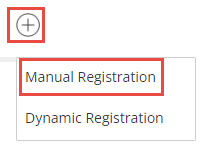
If you already have registered applications, on the right side of the page, select > Manual Registration.
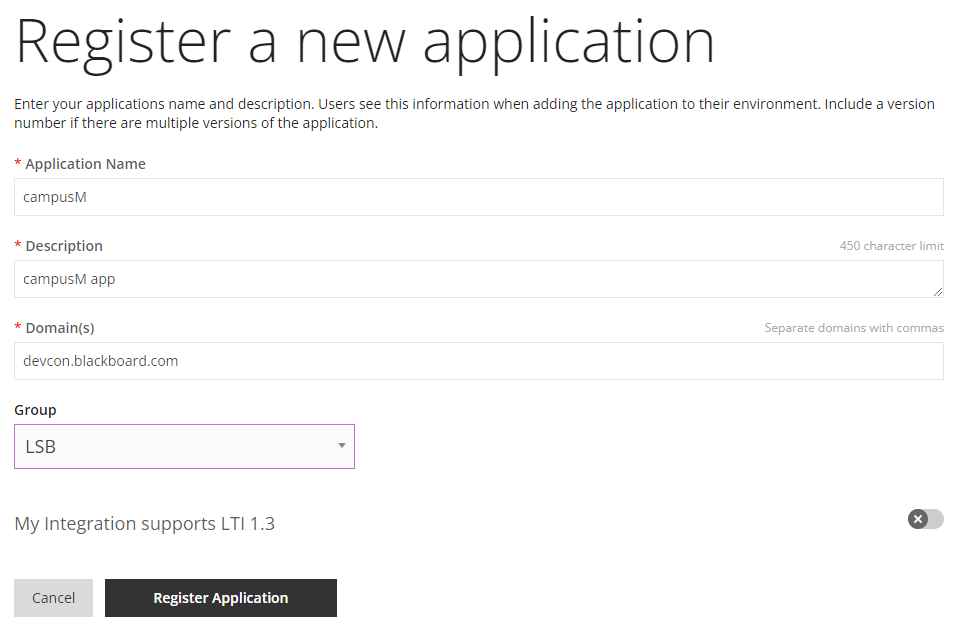
A registration form opens.
Fill in the fields as follows:
Application Name– Enter a name for the application, as appropriate in your environment.
Description – Enter a description of the application.
Domain(s)– List the Blackboard domains you want to use.
My integration supports LTI 1.3– This option does not need to be turned on, as this integration does not require LTI 1.3 support.
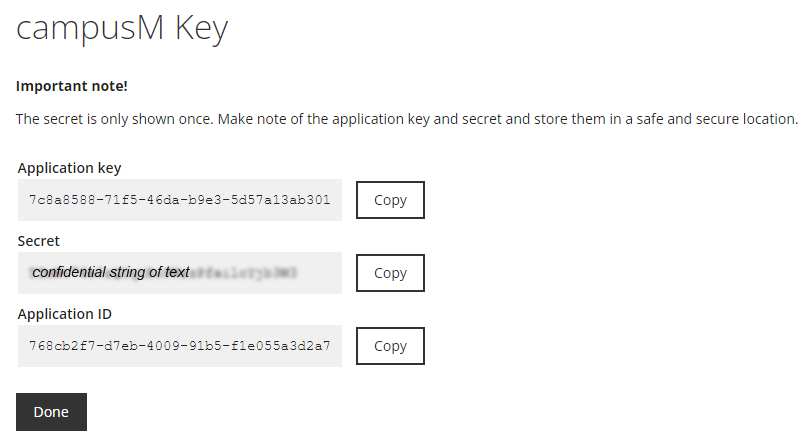
Select Register Application. The application is registered, and the Application key,Secret, and Application ID are shown.
Make a record of the Secret(it is only shown once). You will have to enter this value into the Client Secret field in the Integration Profile in the campusM App Manager.
The Application key(not the Application ID) is the value to enter into the Client ID field in the Integration Profile in the App Manager.
In your Blackboard administration settings, in the Admin Panel, enable Cross-Origin Resource Sharing (CORS; see the Cross Origin Resource Sharing article in the Blackboard help portal). This requires Blackboard administrator access.
Add an entry for each of your sandbox, preview, and production apps.
If your Blackboard domain is HTTPS, under Origin, enter the HTTPS URL, not HTTP as the Blackboard help portal states.
Provision the following headers in the CORS settings:Content-Type and Authorization(General Information > Allow Headers). These headers are case-sensitive and should be comma-separated.
In the campusM App Manager, configure an OAuth integration profile (App Manager > App Settings> Integration Profile). For a reference for filling in the form on that page, see OAuth Integration Profile Configuration.
Configuring an OAuth integration profile can be completed by anybody with App Manager access, but you may need a Blackboard administrator to provide some of the information required.
API Configuration
If the Blackboard instance requires basic authentication, add the username and password to the configuration by selecting Basic as the authentication type under API Authentication on the Blackboard configuration page (in App Manager).
The default is No Auth(see Configuration). The username and password are encoded and sent as the appropriate header with all service requests.
Configuration
To configure the Blackboard product integration, first configure an authentication integration profile (subtype OAuth) that you then select in the Product Integration configuration section. Fill out the fields as listed in the Integration Profile Configuration table. If a field is not listed in the table, you can leave it blank.
OAuth Integration Profile Configuration
You add and edit integration profiles from App Settings > App Settings > Integration Profiles > Add Integration Profile.
The following table describes the configuration options available on this page. All values are exactly as-is unless otherwise specified. For example, the OAuth Client Secret is always BLACKBOARD_CLIENT_SECRET.
Configuration Option
Description
Name
This can be anything, for example, Blackboard OAuth
Description
Optional internal description that admins can use to explain what the Integration Profile is used for
Type
Authentication
Subtype
OAuth
Open in External Browser
This option provides support for third-party authentications such as those of Google and Facebook. If set to Yes, the authentication runs on an external browser and not in the context of the application. This prevents the authentication from being blocked by the third-party authentication system (as it would be, for example, by Google ATM).
In order for this option to work, the Build Configuration of AppManager must be configured by customer support (the value of the Firebase Dynamic Associated Domain field in the Build Properties must not be campus.com). If you want to make use of this option, open a support case requesting that this field be configured as necessary.
OAuth Vendor
Select the OAuth vendor from the dropdown list. Available options are:
Facebook
Google
LinkedIn
Auth0
Custom
Select Custom to use any other third-party vendor whose API supports OAuth2.
OAuth Client ID
The client ID from your Blackboard Developer application; see Prerequisites, above
OAuth Client Secret
The client secret from your Blackboard Developer application; see Prerequisites, above
For the default product integration functionality:read offline
To enable users to edit their own personal information:read write offline(editing also needs to be enabled in Product Integration Configuration > User Information)
Logout URL
Specify the endpoint the app should call when the end-user logs out in order to verify they are also logged out from the authenticating service.
Token Verification Certificate
If the authenticating service signs the token with a custom certificate, enter the public certificate that should be used to verify that it was done on the actual service.
Extract OAuth Tokens
Selected
Username Mapping
The field from which to get the username (mandatory)
Mail Mapping
The field from which to get the email address of the user (mandatory)
First Name Mapping
The field from which to get the first name of the user (mandatory)
Last Name Mapping
The field from which to get the last name of the user (mandatory)
Additional Mappings
Optional. Add comma-separated keys that campusM should map from the external service information into the cmAuthToken, so that campusM can make use of them.
Use this field for keys that do not require encryption.
External keys that should be mapped to keys of the same name in campusM can simply be listed. For external keys that should be mapped to keys in campusM with other names, enter the keys as key=value pairs, where the key is the name in campusM and value is the original, external name.
Example:blackboardId=id,uuid,educationLevel
Additional Mappings (Encrypted)
Optional. Add comma-separated fields that campusM should map from the external service information into the cmAuthToken, so that campusM can make use of them.
Use this field for keys that require encryption.
External keys that should be mapped to keys of the same name in campusM can simply be listed. For external keys that should be mapped to keys in campusM with other names, enter the keys as key=value pairs, where the key is the name in campusM and value is the original, external name.
Example:blackboardId=id,uuid,educationLevel
Attributes to Persist
Optional. Add comma-separated fields that campusM should map from the external service information into the cmAuthToken, so that campusM can make use of them.
Use this field for keys whose values should be saved in the campusM database for future use.
External keys that should be mapped to keys of the same name in campusM can simply be listed. For external keys that should be mapped to keys in campusM with other names, enter the keys as key=value pairs, where the key is the name in campusM and value is the original, external name.
Example:blackboardId=id,uuid,educationLevel
Token Lifetime (min 2h):
Specify the time-to-live (TTL) of the token on our services. This generates an internal token that remains valid for the specified duration.
By default,Same value for native and web is selected, and this TTL is used both for mobile apps and the web app. When this checkbox is cleared, the TTL is only applied for mobile apps. In this case, an additional field,Token Lifetime (Web) is added to the configuration settings.
Token Lifetime (Web):
When the Same value for native and web checkbox is cleared, this field appears. Use it to specify the TTL of the token for the web app.
Product Integration Configuration
To configure the Blackboard product integration, select Product Integrations > Add Product Integration.
Select LMS/VLE and then select Blackboard. The following table describes the configuration options available on this page.
Configuration Option
Description
Mandatory
Data Type
Default
Example
Enable Product Integration
Select to enable the product integration on the user's campusM app.
Yes
Checkbox
Yes
Product Integration Description
A description of the product integration for internal use.
Yes
String
My Blackboard
Screen Title
The title that displays in the top header of the service.
No
String
Blackboard
Vendor
Integration Profile
The OAuth integration profile used by the end-user to authenticate with Blackboard.
Yes
String
Text/Labels
Text - "Redirecting..."
Displayed on the temporary redirect page, while the user is being redirected to Canvas.
Redirecting...
Text - "This page should automatically redirect you to the login screen. Click the button below to go there now."
Displayed on the temporary redirect page, while the user is being redirected to Canvas.
This page should automatically redirect you to the login screen. Click the button below to go there now.
Text - "Login"
Displayed on the temporary redirect page, while the user is being redirected to Canvas.
Login
Text - "Oops, something went wrong"
Displayed on the temporary redirect page, while the user is being redirected to Canvas.
Oops, something went wrong
Text - "Retry"
Displayed on the temporary redirect page, while the user is being redirected to Canvas.
Retry
API Configuration
URL to retrieve the information
The base URL for the Blackboard instance.
Yes
URI
https://myDomain.com/
Advanced Settings
Contains all the advanced API settings that may be required if access to Blackboard is behind a proxy server. If you do not need this, please scroll down to General.
No
Checkbox
No
URL Query Parameters
URL Query Parameters
A customizable list of query parameters to forward with all requests.
No
Array
Parameter Name
Enter the Parameter Name.
No
String
Parameter Type
Choose a parameter type that matches your needs; available options: ‘Username’, ‘Token Property’, Constant. For example, Select 'Username' to use the username attribute associated with the end-user.
No
String
Token Property Name
Enter the property name to be retrieved from the token ({ USERNAME, MAIL, GIVEN_NAME, SURNAME, FULL_NAME } or as named in the integration profile).
No
String
Constant Value
Option to add a constant value.
No
String
URL Path Parameters
URL Path Parameters
A customizable list of path parameters to forward with all requests.
No
Array
Parameter Name
Enter the path parameter name as specified in the base URL, for example - if the URL is: https://someHostName/serviceName/username then the parameter name is 'username’.
No
String
Parameter Type
Choose a parameter type that matches your needs; available options: ‘Username’, ‘Token Property’, Constant; i.e. Select 'Username' to use the username attribute associated with the end-user.
No
String
Token Property Name
Enter the property name to be retrieved from the token ({ USERNAME, MAIL, GIVEN_NAME, SURNAME, FULL_NAME } or as named in the integration profile).
No
String
Constant Value
Option to add a constant value.
No
String
General Headers
General Headers
A customizable list of general headers to forward with all requests.
No
Array
Header Key
Enter the header key.
No
String
Header Value
Enter the header value.
No
String
API Authentication
Authentication Type
Select one of the following options:
No Auth
Basic Auth
API Key
Bearer token
OAuth Using User App Authentication – select an OAuth integration profile (from the Integration Profiles configured in App Settings) and choose where the access token should be added, Header or URL.
OAUTH Using Client Credentials – select this if you are using a preliminary token call to get the access token.
No
String
No Auth
Basic Auth (appears if Authentication Type is set to ‘Basic’)
Username for Base64 basic authentication
This is encoded with the password and sent with the service request.
No
String
Password for Base64 basic authentication
This is encoded with the username and sent with the service request.
No
String
General
Text - "My Blackboard"
Displayed on the index page for this integration.
No
String
My Blackboard
Text - "Home"
This appears on the navigation bar at the bottom of the page if the navigation bar is visible.
No
String
Home
Text - "Failed to connect to Blackboard - please try again shortly."
Shown if no valid response is returned by the Blackboard API.
No
String
Failed to connect to Blackboard - please try again shortly.
Display Discussions Link
Enables or disables the showing of a custom URL to your Blackboard instance's Discussions page. This appears on the navigation bar at the bottom of the page.
No
Checkbox
Yes
Text - "Discussions"
This appears on the navigation bar at the bottom of the page. It is available for configuration if Display Discussions Link is selected.
No
String
Discussions
Discussions Link URL
URL for link out to the Discussions page. It is available for configuration if Display Discussions Link is selected.
No
String
Text - "All display items for Blackboard have been disabled in your PI configuration."
The fallback text if all the above options have been turned off, for any reason.
No
String
All display items for Blackboard have been disabled in your PI configuration.
Display Resource Types
Enables or disables displaying the type of content for any content item in the integration, for example, Blackboard Resource: resource/x-bb-document'.
No
Checkbox
Yes
Enabled Blackboard Web Link
Enables or disables a web app link out to Blackboard, as defined in the 'URL to retrieve the information', above. This is displayed on the index page.
No
Checkbox
Yes
Text - "Link out to Blackboard"
A button only for the web app that enables users to navigate directly to Blackboard.
No
String
Link out to Blackboard
Enable Deep Linking
Enables or disables deep links through to the native Blackboard app, from the main integration, when using this PI on a mobile device.
No
Checkbox
Yes
Additional Links
Enable API Web Links
Enables links to the Blackboard website for each content item, if returned by Blackboard. The native apps prefer deep links if enabled.
No
Checkbox
Yes
Always Prefer Web Links
If enabled, content items displayed in the PI on the native iOS and Android apps will prefer the API-based web links, instead of deep links. Has no effect if deep links are disabled.
No
Checkbox
No
Blackboard Google Play Store Page URL
This is required for the fallback behavior in all deep links to third-party apps.
Enables or disables the Courses list. Disabling this will not prevent API calls to the Courses API necessary for other functionality.
No
Checkbox
Yes
Filter Courses By Term
If enabled, will restrict the courses in the PI based on the term provided in 'Term ID Or Name For Filter'. Will also affect the display of items related to the restricted courses (Grades, Course Announcements, etc).
No
Checkbox
No
Term ID Or Name For Filter
Please enter a valid Blackboard term ID or term name. Term name matches are not guaranteed to be unique, while IDs are.
No
String
Text - "Courses"
Displayed on the index page for this integration, if Courses are enabled.
No
String
Courses
Sort Course List Alphabetically by Title (A-Z)
If enabled, sorts the course list alphabetically.
No
Checkbox
No
Course Availability
Course Availability Options
Controls course registration and content visibility.
No
Dropdown List
Display if both the course itself and the course registration are visible.
Course List Page
Text - "My Courses"
Header text for the course list page.
No
String
My Courses
Text - "Open all courses in Blackboard"
The text for the button that links to the Course Base in the native Blackboard app, if deep links are enabled.
No
String
Open all courses in Blackboard
Display Course Name
If all 'Display' options are unchecked, the integration displays the Course Name provided by the API, by default.
No
Checkbox
Yes
Display Course ID
Enables or disables the course ID, listed after the course name.
No
Checkbox
Yes
Text - "Unknown Course"
The fallback text if no name can be found.
No
String
Unknown Course
Text - "No available courses found."
The fallback text if no available courses can be found.
No
String
No available courses found.
Course Details Page
Display Title Prefix
If enabled, adds the prefix set below to the course name in the header for this page.
No
Checkbox
Yes
Text - "My Courses"
Displayed in the header bar, if Display Title Prefix is enabled.
No
String
My Courses
Text - "Open course overview in Blackboard"
The text for the button that links to the specific Course Overview in the native Blackboard app, if deep links are enabled.
No
String
Open course overview in Blackboard
Text - "Course Info"
The text for the item that links to the general course content.
No
String
Course Info
Text - "Grades"
The text for the item that links to the course grades.
No
String
Grades
Text - "Course Announcements"
The text for the item that links to the course announcements.
No
String
Course Announcements
Display Course ID
Wherever Course ID would be displayed on a page, excluding headers.
No
Checkbox
Yes
Display Course Name
Wherever Course Name would be displayed on a page, excluding headers.
No
Checkbox
Yes
Display Course Description
Shows or hides the course description, if returned by the API.
No
Checkbox
Yes
Text - "Course Description"
Label for the course description field.
No
String
Course Description
Display Course Term
If enabled, displays the course term, if returned by the API.
No
Checkbox
Yes
Text - "Term"
Label for the term field.
No
String
Term
Text - "No course details found."
The fallback text if the course has no detailed information.
No
String
No course details found.
Text - "No content found."
The fallback text if any page has no Blackboard content to display.
No
String
No content found.
Text - "Unknown Content"
The fallback text if no name can be found for a content item.
No
String
Unknown Content
Text - "Blackboard Resource"
The prefix for any resource type in a Blackboard content item.
No
String
Blackboard Resource
Text - "No filename given"
The fallback text if no name can be found for a file item.
No
String
No filename given
Text - "Unsupported Resource"
The prefix for any content items that lack a resource type.
No
String
Unsupported Resource
Text - "Your Blackboard course contents have not been made visible yet. Please try again later."
Displayed if the user does not have permission to view all of the course content.
No
String
Your Blackboard course contents have not been made visible yet. Please try again later.
Grades
Display Grades
Enables or disables the Grades list. Disabling this will not prevent API calls to the Grades API necessary for other functionality.
No
Checkbox
Yes
Text - "Grades"
Displayed on the index page for this integration, if Grades are enabled.
No
String
Grades
Grades Page
Text - "My Grades"
Shown at the top of the main Grades page.
No
String
My Grades
Text - "Open all grades in Blackboard"
The text for the button that links to the Grades view in the native Blackboard app, if deep links are enabled.
No
String
Open all grades in Blackboard
Text - "No grades found."
The fallback text if there are no grades available.
No
String
No grades found.
Text - "Grades available, but some grade column information may be missing."
Displayed when there is no grade column information found.
No
String
Grades available, but some grade column information may be missing.
Grade Details Page
Display Title Prefix
If enabled, adds the prefix set below to the course name in the header for this page.
No
Checkbox
Yes
Text - "My Grades"
Displayed in the header bar, if 'Display Title Prefix' is enabled.
No
String
My Grades
Display Name
If returned with the grades data.
No
Checkbox
Yes
Display Feedback
If returned with the grades data.
No
Checkbox
Yes
Text - "Open grades for this course in Blackboard"
The text for the button that links to the specific Course Grades in the native Blackboard app, if deep links are enabled.
No
String
Open grades for this course in Blackboard
Text - "No grades found for this course."
The fallback text if there are no grades for a particular course.
No
String
No grades found for this course.
Text - "Failed to retrieve grades data - please try again shortly."
Shown if no valid response is returned by the Blackboard API.
No
String
Failed to retrieve grades data - please try again shortly.
Assignments
Display Assignments
Enables or disables the Assignments list. Disabling this will not prevent API calls to the Assignments API necessary for other functionality.
No
Checkbox
Yes
Text - "Assignments"
Displayed on the index page for this integration, if Assignments are enabled.
No
String
Assignments
Assignments Page
Text - "My Assignments"
Shown at the top of the Assignments page.
No
String
My Assignments
Text - "Filter on assignment name"
Placeholder text in the filter widget near the top of the Assignments page.
No
String
Filter on assignment name
Text - "No assignments found."
The text if the user has no assignments.
No
String
No assignments found.
Announcements
Display Announcements
Enables or disables Announcements, from the Index page. Disabling this will not prevent API calls to the Announcements API necessary for other functionality.
No
Checkbox
Yes
Text - "Announcements"
Displays on the index page for this integration, if 'Display Announcements' is enabled.
No
String
Announcements
Display Course Announcements
Enables or disables displaying Course Announcements from the Announcements page. Disabling this does not prevent API calls to the Announcements API necessary for other functionality.
No
Checkbox
Yes
Display Course Announcements In Course Details
Enables or disables displaying Course Announcements on the Course Details page. Disabling this does not prevent API calls to the Announcements API necessary for other functionality.
No
Checkbox
Yes
Text - "System Announcements"
Displays as a tab on the Announcements page if 'Display System Announcements' is enabled.
No
String
System Announcements
Text - "Course Announcements"
Displays as a tab on the Announcements page if 'Display Course Announcements' is enabled.
No
String
Course Announcements
System Announcements Page
Text - "Announcements"
Displays at the top of the Announcements page.
No
String
Announcements
Sort Announcements
This list allows you to select how to order the announcements displayed on the page.
No
Array
By Date (descending)
Display System Announcement Title
If all 'Display' options are unchecked, the page displays the System Announcement Title provided by the API by default.
No
Checkbox
Yes
Display System Announcement Text
If returned with the announcements data.
No
Checkbox
Yes
Max Characters For The System Announcement Text Field
The user can still click on the announcement to view the full text.
No
Integer
100
Display Date Created
If returned with the announcements data.
No
Checkbox
Yes
Text - "No system announcements found."
The fallback text if there are no system announcements for the user.
No
String
No system announcements found.
Text - "Error fetching system announcements from Blackboard - please try again shortly."
Shown if no valid response is returned by the Blackboard API.
No
String
Error system fetching announcements from Blackboard - please try again shortly.
Course Announcements Page
Note: This applies to the Course Announcements Page under Course Details.
Text - "Course Announcements"
Shown at the top of the Course Announcements Page.
No
Sort Course Announcements
This list enables you to select how to order the announcements displayed on the page.Also applies to the Announcements Page, if Course Announcements are visible.
No
Array
By Date (descending)
Display Course Announcement Title
If all Display options are unchecked, the page displays the Course Announcement Title by default as provided by the API.Also applies to the Announcements Page, if Course Announcements are visible.
No
Display Course Announcement Text
If returned with the announcements data.Also applies to the Announcements Page, if Course Announcements are visible.
No
Max characters for the Course Announcement Text field
Users can click the announcement to view the full text.Also applies to the Announcements Page, if Course Announcements are visible.
No
Display Date Created
If returned with the announcements data.Also applies to the Announcements Page, if Course Announcements are visible.
No
Text - "No course announcements found"
Fallback text if there are no system announcements for the user.Also applies to the Announcements Page, if Course Announcements are visible.
No
Text - "Error fetching course announcements from Blackboard - please try again shortly."
Displays if no valid response is returned by the Blackboard API.
No
String
Error fetching course announcements from Blackboard - please try again shortly.
Text - "Open announcements for this course in Blackboard"
The text for the button that links to the Course Announcements for this course in the native Blackboard app, if deep links are enabled. Only shown when viewing Course Announcements from Course Details.
No
String
Open announcements for this course in Blackboard.
User Information
Display User Information
Enables or disables the User Info page. Disabling this will not prevent API calls to the Users API necessary for other functionality.
No
Checkbox
Yes
Text - "User Info"
This appears on the navigation bar at the bottom of the page.
No
String
User Info
User Info Page
Text - "My Info"
Shown at the top of the User Info Page
No
String
My Info
Text - "Open your profile in Blackboard"
The text for the button that links to the Profile view in the native Blackboard app, if deep links are enabled.
No
String
Open your profile in Blackboard
Display Username
If all Display options are unchecked, the page will display Username by default.
No
Checkbox
Yes
Text - "Username"
Label for the username field.
No
String
Username
Display 'Full Name' Section
Enables or disables the Full Name block of the User Info Page.
No
Checkbox
Yes
'Full Name' Section (available for configuration if Display 'Full Name' Section is selected)
Display Full Name
If enabled, displays the user's title, given, middle and family names where available, including any suffixes. If unchecked, defaults to the fields below.
No
Checkbox
Yes
Text - "Full Name"
Used as the label text regardless of how the name is displayed.
No
String
Full Name
Fields to Display
Title
Shows or hides the user's title, if returned by the API.
No
Checkbox
No
Text - "Title"
Displayed when editing the 'Title' field, if enabled and editable.
No
String
Title
Given Name
Shows or hides the user's given name, if returned by the API.
No
Checkbox
Yes
Text - "Given Name"
Displayed when editing the 'Given Name' field, if enabled and editable.
No
String
Given Name
Middle Name
Shows or hides the user's middle name, if returned by the API.
No
Checkbox
No
Text - "Middle Name"
Displayed when editing the 'Middle Name' field, if enabled and editable.
No
String
Middle Name
Family Name
Shows or hides the user's family name, if returned by the API.
No
Checkbox
Yes
Text - "Family Name"
Displayed when editing the 'Family Name' field, if enabled and editable.
No
String
Family Name
Suffix
Shows or hides the user's suffix, if returned by the API.
No
Checkbox
No
Text - "Suffix"
Displayed when editing the 'Suffix' field, if enabled and editable.
No
String
Suffix
(end of Fields to Display)
Edit Name
Allows the end-user to edit the name fields displayed in the integration.
No
Checkbox
No
Text - "Editing your name from this page has been disabled."
Shown when the user switches the My Info page to Edit Mode, if Edit Name is false.
No
String
Editing your name from this page has been disabled.
Display 'Contacts' Section
Enables or disables the Contacts block of the User Info Page.
No
Checkbox
Yes
'Contacts' Section (available for configuration if Display 'Contacts' Section is selected)
Display Home Phone
Shows or hides the user's home phone, if returned by the API.
No
Checkbox
Yes
Text - "Home Phone"
Displayed in both the My Info view and when editing the field, if enabled.
No
String
Home Phone
Display Mobile Phone
Shows or hides the user's mobile phone, if returned by the API.
No
Checkbox
Yes
Text - "Mobile Phone"
Displayed in both the My Info view and when editing the field, if enabled.
No
String
Mobile Phone
Display Email Address
Shows or hides the user's email address, if returned by the API.
No
Checkbox
Yes
Text - "Email Address"
Displayed in both the My Info view and when editing the field, if enabled.
No
String
Email Address
Edit Contacts
Allows the end-user to edit the contact fields displayed in the integration.
No
Checkbox
No
Text - "Editing your contact information from this page has been disabled."
Shown when the user switches the My Info page to Edit Mode, if Edit Contacts is false.
No
String
Editing your contact information from this page has been disabled.
Display 'Address' Section
Enables or disables the Address block of the User Info Page.
No
Checkbox
Yes
‘Address’ Section (available for configuration if Display 'Address' Section is selected)
Display Full Address
If enabled, displays the user's complete address, including zip or postal code (if provided). If unchecked, defaults to street, city, and zip or postal code.
No
Checkbox
Yes
Text - "Address"
Label for the Address block.
No
String
Address
Fields to Display
Street
Shows or hides the street, if returned by the API.
No
Checkbox
Yes
Text - "Street"
Displayed in both the My Info view and when editing the field, if enabled.
No
String
Street
Street #2
Shows or hides additional street information, if returned by the API.
No
Checkbox
No
Text - "Street #2"
Displayed in both the My Info view and when editing the field, if enabled.
No
String
Street #2
City
Shows or hides the city, if returned by the API.
No
Checkbox
Yes
Text - "City"
Displayed in both the My Info view and when editing the field, if enabled.
No
String
City
State, County or Province
Shows or hides the state, county or province, if returned by the API.
No
Checkbox
No
Text - "State, County or Province"
Displayed in both the My Info view and when editing the field, if enabled.
No
String
State, County, or Province
Zip or Postal Code
Shows or hides the zip or postal code, if returned by the API.
No
Checkbox
Yes
Text - "Zip or Postal Code"
Displayed in both the My Info view and when editing the field, if enabled.
No
String
Zip or Postal Code
Country
Shows or hides the country, if returned by the API.
No
Checkbox
No
Text - "Country"
Displayed in both the My Info view and when editing the field, if enabled.
No
String
Country
(end of Fields to Display)
Edit Address
Allows the end-user to edit the address fields displayed in the integration.
No
Checkbox
No
Text - "Editing your address information from this page has been disabled."
Shown when the user switches the My Info page to Edit Mode if Edit Address is false.
No
String
Editing your address information from this page has been disabled.
Text - "Editing is enabled, but no available fields are editable."
Shown in the case that the only fields left visible aren't editable.
No
String
Editing is enabled, but no available fields are editable.
Text - "Edit"
The text for the Edit button, if editing is allowed.
No
String
Edit
Text - "Cancel"
The text for the Edit button when Edit Mode is active.
No
String
Submit
Text - "Submit"
The text for the Submit button if the user has made changes to My Info.
No
String
Cancel
Text - "Failed to update My Info"
Displayed when updating My Info fails, or there is no valid response returned.
No
String
Failed to update My Info
Text - "Failed to connect to Blackboard - please try again shortly."
Shown if no valid response is returned by the Blackboard Users API.
No
String
Failed to connect to Blackboard - please try again shortly.
Calendar Events
Display Calendar Events
Enables or disables Calendar Events from the navigation bar. Disabling this does not prevent API calls to the Calendars API necessary for other functionality.
No
Checkbox
Yes
Text - "Calendars"
This displays on the navigation bar at the bottom of the page if the navigation bar is visible.
No
String
Calendars
Text - "ddd Do MMMM Y"
Determines the display of the current date in any Calendar view. The default formats the date as follows: Mon 1st January 2020.
No
String
ddd Do MMMM Y
24 Hour Time Format
Enable to display a 24-hour clock for any times displayed. If disabled, the integration displays times in a 12-hour format.
No
Checkbox
No
Text - "Error fetching calendars from Blackboard - please try again shortly."
Displays if no valid response is returned by the Blackboard Calendars API.
No
String
Error fetching calendars from Blackboard - please try again shortly.
Text - "Calendar service interrupted - click to try again."
Shown if the calendar service is interrupted for any reason.
No
String
Calendar service interrupted - click to try again.
Calendar List Page
Text - "My Calendars"
Displays at the top of the Calendar List Page.
No
String
My Calendars
Text - "Unknown Course"
Fallback text if no name is detected for a course.
No
String
Unknown Course
Text - "No calendars found."
The text displayed if no calendars are returned for the end-user.
No
String
No calendars found.
Text - "Open all due dates in Blackboard"
The text for the button that links to the Due Dates view in the native Blackboard app, if deep links are enabled.
No
String
Open all due dates in Blackboard
Course Calendar Page
Display Title Prefix
Displays at the top of the Course Calendar Page.
No
Checkbox
Yes
Text - "Calendars for"
If enabled, adds the prefix set below to the course name in the header for this page.
No
String
Calendars for
Text - "Unknown Calendar"
The fallback text if no name is found for a specific calendar, displayed both on this and on the calendar detail page.
No
String
Unknown Calendar
Text - "No calendars found."
The text displayed if no calendars are found for this course.
No
String
No calendars found.
Text - "Open course calendars in Blackboard"
The text for the button that links to the Calendars for this course in the native Blackboard app, if deep links are enabled.
No
String
Open course calendars in Blackboard
Calendar Events Page
Display Title Prefix
If enabled, adds the prefix set below to the subpage title in the title bar.
Checkbox
Yes
Display Title Prefix
Text - "My Calendar"
If enabled, adds the prefix set below to the calendar name in the header for this page.
No
String
My calendar
Text - "Filter on event title"
Placeholder text in the filter widget near the top of the Calendar Events page.
No
String
Filter on event title
Text - "Unknown Event"
The fallback text if no name can be found.
No
String
Unknown Event
Display Start Time
Enables or disables displaying the start of the event.
No
Checkbox
Yes
Display End Time
Enables or disables displaying the end of the event.
No
Checkbox
Yes
Display Event State
If enabled, indicates if an event is in the past, starting soon, or in-progress.
No
Checkbox
Yes
Duration Of Event Start - 'Starting Soon'
The number of minutes in the future up to which 'Starting Soon' events are scheduled.
No
Integer
60
Text - "Finished"
Text for the "Finished" event state.
No
String
Finished
Text - "Starting Soon"
Text for the "Starting Soon" event state.
No
String
Starting Soon
Text - "In-Progress"
Text for the "In-Progress" event state.
No
String
In-Progress
Display Location
Enables or disables the location of the event, if available.
No
Checkbox
Yes
Text - "No Events"
The text displays if the calendar has no events to display for the time period selected.
No
String
No Events
Calendar Event Details Page
Display Event Title
Enables or disables setting the event title at the top of the page.
No
Checkbox
Yes
Text - "Event Details"
To be displayed at the top of the panel if 'Display Event Title' is disabled.
No
String
Event Details
Display Start Time
Enables or disables displaying the end of the event, if available.
No
Checkbox
Yes
Text - "Start Time"
The label text if "Start Time" is enabled.
No
String
Start Time
Display End Time
Enables or disables displaying the end of the event, if available.
No
Checkbox
Yes
Text - "End Time"
The label text if "End Time" is enabled.
No
String
End Time
Display Location
Enables or disables displaying the event location, if available.
No
Checkbox
Yes
Text - "Location"
The label text if "Location" is enabled.
No
String
Location
Display Description
Enables or disables displaying the event description, if available.
No
Checkbox
Yes
Text - "Description"
The label text if "Display Description" is enabled.
No
String
Display Description
Display Type
Enables or disables displaying event type, if available.
No
Checkbox
Yes
Text - "Type"
The label text if "Display Type" is enabled.
No
String
Display Type
Display Calendar Name
Enables or disables displaying the calendar this event belongs to.
No
Checkbox
Yes
Text - "Calendar"
The label text if "Display Calendar Name" is enabled.
No
String
Display Calendar Name
Due Dates Calendar
Show Due Dates in Calendar
Enables Due Dates in the Calendar feed.
No
Checkbox
Yes
Due Label
The label text that appears before the name of the assignment in the calendar.
No
String
Due:
Date Format
The date format that appears in the event description.
No
String
EEE, MMM, d, yyy
Wed, Jul 4, 2021
Time Format
The time format that appears in the event description.
No
String
HH:mm
15:45
Due Date Event Description
The description of the event. Use %title, %date and %time to insert the relevant data for the specific event.
No
String
%title is due on %date at %time.
Philosophy Essay is due on Wed, Jul 4, 2021 at 15:45.
Link to Assignment Label
The text that appears in the calendar event, linking to the Canvas assignment itself.
No
String
Open Blackboard
Use Blackboard Ultra URLs
Controls whether the links to in the due date event description target Blackboard Classic or Ultra.
No
Checkbox
False
Live Tile
Enabled
Enables or disables the live tile.
No
Checkbox
Yes
Badge Color
The color applied to the "badge" on each of the live tile items that counts the content (except the header).
No
Color Code
#FFFFFF
Tile Error Background Color
Used when the tile displays an error.
No
Color Code
#AD0000
Update Rate
Frequency of updates from Blackboard to the live tile (in minutes). Has a minimum of 20 (minutes).
No
Integer
60
Enable Integration Deep Linking
Enables or disables links through to the main Blackboard PI from this live tile. If this is disabled, the tile falls back to the 'Action (URL)' property set on the tile from App Builder.
No
Checkbox
Yes
Live Tile Items
Show Live Tile Header
If disabled, the live tile header text will not be shown.
No
Checkbox
Yes
Show Live Tile Header Logo
If disabled, the header logo will not appear on the live tile.
No
Checkbox
Yes
URL for Header Logo
Displayed if 'Show Live Tile Header Logo' is enabled.
No
URI
Customise Live Tile Header Padding
If enabled, enables you to customize the blank space around the header block. All values have a minimum of 0.
No
Checkbox
No
The First Widget(s) Should Display on the Same Row As the Header
If disabled, the first widget row starts below the header.
No
Checkbox
Yes
Widgets Per Row
This sets the number of widgets to display per row. There is a minimum of 1 and a maximum of 5.
No
Integer
3
Show Announcements
If disabled, the announcements widget does not appear on the live tile. Counts system announcements by default.
No
Checkbox
Yes
Include Course Announcements
Only displayed if 'Show Announcements' is enabled. Enable to include all Course Announcements in the overall Announcements total.
No
Checkbox
Yes
Show Courses
If disabled, the courses widget will not appear on the live tile.
No
Checkbox
Yes
Show Assignments
If disabled, the assignments widget will not appear on the live tile.
No
Checkbox
Yes
Show Grades
If disabled, the grades widget will not appear on the live tile.
No
Checkbox
Yes
Displays a count of calendar events that have not yet finished. If disabled, the events widget does not appear on the live tile.
No
Checkbox
Yes
Always Display Widget Count
Always Display Widget Count
No
Checkbox
Yes
Prioritize Live Tile Items
Priority
The item at the top of the list denotes the first item that will appear on the live tile (after the header, if enabled), and so on.
If enabled, replaces all default icons with the icons listed in the following "URL for" fields.
No
Checkbox
No
URL for Announcements Icon
If enabled, displays instead of the default icon for the Announcements widget.
No
URI
URL for Courses Icon
If enabled, displays instead of the default icon for the Courses widget.
No
URI
URL for Assignments Icon
If enabled, displays instead of the default icon for the Assignments widget. Displays a blank space if the URL is missing or invalid.
No
URI
URL for Grades Icon
If enabled, displays instead of the default icon for the Grades widget. Displaces a blank space if the URL is missing or invalid.
No
URI
URL for Events Icon
If enabled, displays instead of the default icon for the Calendar Events widget. Displays a blank space if the URL is missing or invalid.
No
URI
Text/Labels
Live Title Header Text
Displayed if Show Live Tile Header is enabled. It is recommended to keep this text short.
No
String
Blackboard
Text - "Announcements"
Displayed underneath the Announcements widget, if enabled.
No
String
Announcements
Text - "Courses"
Displayed underneath the Courses widget, if enabled.
No
String
Courses
Text - "Assignments"
Displayed underneath the Assignments widget, if enabled.
No
String
Assignments
Text - "Grades"
Displayed underneath the Grades widget, if enabled.
No
String
Grades
Text - "Events"
Displayed underneath the Calendar Events widget, if enabled
No
String
Events
Text - "Error fetching courses from Blackboard"
Displayed if Blackboard doesn't return all of the required content needed for the live tile.
No
String
Error fetching courses from Blackboard
Look and Feel
Primary Theme Color
Select a color for the main elements on the page.
No
Color Code
#444444
Secondary Theme Color
Select a color for the secondary elements on the page.
No
Color Code
#6f8ea4
Use Basic Labels
If enabled, instructs all labels in this integration to use a lighter style.
No
Checkbox
No
Import/Export Configuration
You can configure product integration and then export it to another campusM environment, for example, from sandbox to production or from preview to production.
Import your configuration file here
To import the configuration settings from a JSON file of a previously exported product integration, select Choose File to choose the file to load. Then, select Import Configuration to import the settings.
No
Import Configuration
After selecting the JSON file to import, select this option to load the configuration settings from the file.
No
Export Configuration
To export the current settings of the product integration as a JSON file, select this option.

 > Manual Registration.