
Adding a Custom Header
Using custom HTML and JavaScript in your custom header may affect Encore's functionality. Before reporting any issues related to functionality, please ensure that you have disabled your custom header and verified the issue persists.
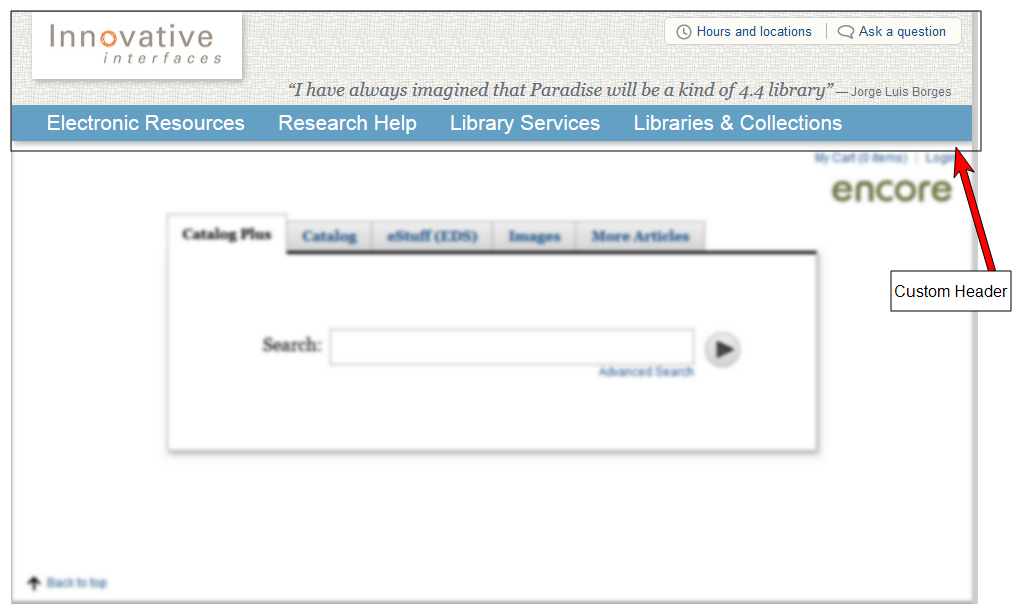
The Custom Encore Admin - Header page enables you to insert a custom Encore header for each language supported by your system. For example:
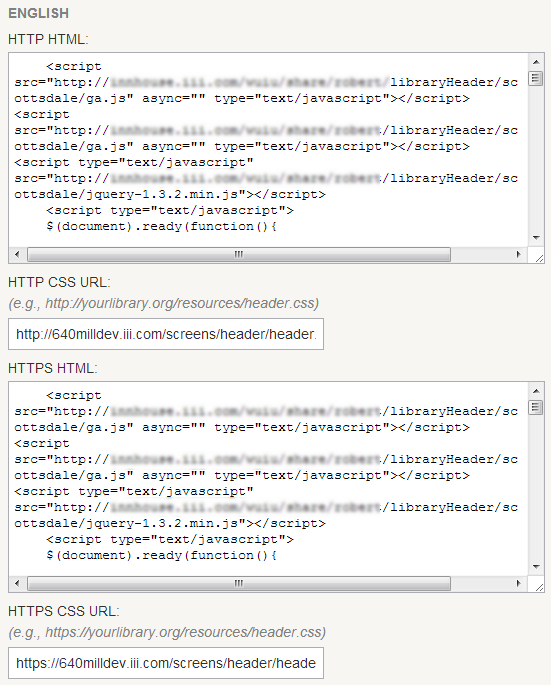
Each custom header implementation provides an input box for code describing the header to use on anonymous access pages and an input box for the secure pages seen by logged-in patrons. For example:
To add a custom header to your Encore installation:
- Log in to the Administration Application and choose Encore Customization.
- If your Encore has multiple contexts, choose the suite for the context that you want to edit from the Current suite drop-down list.
- In the subapplication list, choose Header.
- Create both standard and secure markup for the custom header, and then copy the markup into the corresponding custom header text boxes.
Secure Resource File URLs
The markup for the secure version of the header must include links only to secure resources, that is, links that specify https://.
- Create a CSS file for your custom header and specify its location in the CSS URL text boxes.
Secure CSS File URL
The specified CSS URL for the secure header must begin https://, for example:
https://qaserver.iii.com/screens/header/header.css
Every CSS selector must begin with #customEncoreHeader. Without this level of specificity, default Encore styles might be overwritten.
- To enable your custom header, select the Turn on custom changes radio button. To disable your custom header, select the Turn off custom changes radio button.
Example Header Code
 Example: Standard Header HTML
<div class="header">
<div class="subNav">
<ul>
<li><a class="hours">Hours and locations</a></li>
<li><a class="help">Ask a question</a></li>
</ul>
</div>
<div class="logo">
<a href="http://www.iii.com">
<img src="http://www.example.org/www/logo.png" alt="Innovative Interfaces"/>
</a>
</div>
<div class="quote">
<span class="quoteText">“I have always imagined that Paradise will be a kind of library”</span>
<span class="quoteAuthor">— Jorge Luis Borges</span>
</div>
</div>
<div class="mainNav">
<ul>
<li><a href="#">Books and More</a></li>
<li><a href="#">Research Tools</a></li>
<li><a href="#">Programs and Events</a></li>
<li><a href="#">Library Services</a></li>
<li><a href="#">About Us</a></li>
</ul>
</div>
Example: Secure Header HTML
<div class="header">
<div class="subNav">
<ul>
<li><a class="hours">Hours and locations</a></li>
<li><a class="help">Ask a question</a></li>
</ul>
</div>
<div class="logo">
<a href="http://www.iii.com">
<img src="https://www.example.org/www/logo.png" alt="Innovative Interfaces"/>
</a>
</div>
<div class="quote">
<span class="quoteText">“I have always imagined that Paradise will be a kind of library”</span>
<span class="quoteAuthor">— Jorge Luis Borges</span>
</div>
</div>
<div class="mainNav">
<ul>
<li><a href="#">Books and More</a></li>
<li><a href="#">Research Tools</a></li>
<li><a href="#">Programs and Events</a></li>
<li><a href="#">Library Services</a></li>
<li><a href="#">About Us</a></li>
</ul>
</div>
Example: Custom Header CSS
#customEncoreHeader {
   margin-bottom: 5px;
}
#customEncoreHeader .header {
   background: #fcfbf5 url(header-bg.png) repeat-x top left;
   padding: 0 20px 5px 20px;
   position: relative;
}
#customEncoreHeader .subNav {
   position: absolute;
   top: 5px;
   right: 10px;
   font-size: 13px;
   background-color: #fcfbf5;
   padding: 5px;
   border-radius: 5px;
   -webkit-border-radius: 5px;
   border: 1px solid #d4d4d4;
}
#customEncoreHeader .subNav li {
   border-left: 1px solid #b2b2b2;
   display: inline-block;
   padding: 0 10px;
}
#customEncoreHeader .subNav li:first-child {
   border-left: none;
   padding-left: 5px;
}
#customEncoreHeader .subNav a {
   padding-left: 22px;
   padding-bottom: 5px;
   cursor: pointer;
}
#customEncoreHeader .subNav .hours {
   background: url(clock.png) no-repeat top left;
}
#customEncoreHeader .subNav .help {
   background: url(talkbubble.png) no-repeat top left;
}
#customEncoreHeader .logo {
   background-color: #fff;
   width: 210px;
   box-shadow: 2px 3px 5px #b2b2b2;
   -webkit-box-shadow: 2px 3px 5px #b2b2b2;
}
#customEncoreHeader .logo img {
   padding: 10px 15px;
}
#customEncoreHeader .quote {
   text-align: right;
   color: #646e77;
}
#customEncoreHeader .quote .quoteText {
   font-size: 18px;
   font-family: Georgia, serif;
   font-style: italic;
}
#customEncoreHeader .mainNav {
   background-color:#64a0c4;
   box-shadow: 2px 3px 5px #b2b2b2;
   -moz-box-shadow: 2px 3px 5px #b2b2b2;
   padding: 0 20px;
}
#customEncoreHeader .mainNav li {
   display: inline-block;
}
#customEncoreHeader .mainNav a {
   color: #fff;
   font-family: Arial Narrow, Arial;
   text-decoration: none;
   padding: 5px 15px;
   font-size: 22px;
   display: block;
}
#customEncoreHeader .mainNav a:hover {
   background-color: #4386c6;
}
