
Configuring Custom Links
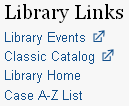
The Library Custom Links option on the Settings page enables you to specify custom links that appear in the header or footer of your Encore implementation.
When editing custom links for the first time, be sure to enter all of the links you want to appear in Encore, that is, all existing links plus the new links. Changing these values replaces all previous links.
To configure custom links:
- Log in to the Administration Application and choose Encore Customization.
- Choose the suite you want to edit from the Current suite drop-down list.
- In the subapplication list, choose Other.
- The Library Custom Links box shows you the current settings for each language on your system. To change the current settings, choose EDIT. The Library Links editing page opens.
- On the Library Links page, you can edit a link's text or URL directly in the text box.
- To create a new link, choose add another and enter the link text and URL.
- Select the corresponding check box for each link you want to Display in header and/or Display in footer.
Custom Link Limits
You can create as many links as you want in the administration application, but Encore displays only a set number of links in the header and in the footer. The admin application enables you to specify which links to Display in header and which links to Display in footer for each language.
The limit for links displayed can range from zero to six. The default limit is six links. Contact Innovative to change this limit.
The system accepts custom link URLs up to 300 characters in length.
- To remove a link, choose the delete icon (trash can).
- When you have specified all the links you want, choose SAVE. You can choose Discard changes to revert to the previous settings.
