
Adding Custom JavaScript
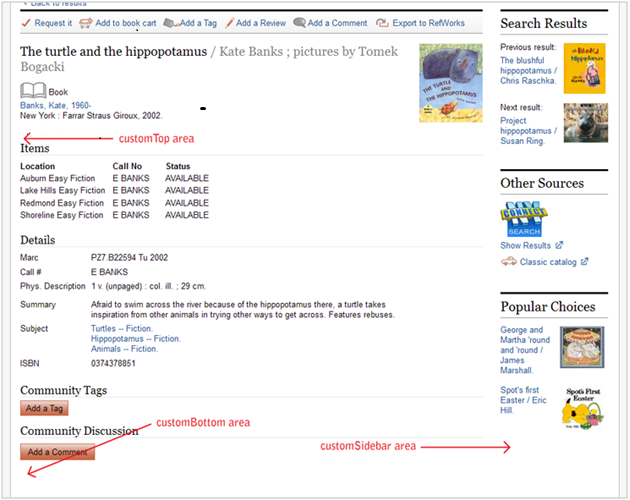
The JavaScript Customization utility (accessed through the Administration Application) enables you to insert javascript that adds custom content to the record detail page in Encore. There are three empty div elements on the page for your custom content. The element IDs are:
- customTop
- customBottom
- customSidebar
To add custom content to the record display page:
- Log in to the Administration Application and choose Encore Customization.
- Choose the suite you want to edit from the Current suite drop-down list.
- In the subapplication list, choose JavaScript.
- Enter your custom content code into a text editor, such as Notepad.
For example, code for an AddThis button might look like the following:
<!-- AddThis Button BEGIN -->
<div class="addthis_toolbox addthis_default_style">
   <a class="addthis_button_facebook"></a>
   <a class="addthis_button_twitter"></a>
   <a class="addthis_button_email"></a>
   <a class="addthis_button_print"></a>
   <a class="addthis_button_compact"></a>
</div>
<script
   type="text/javascript"
   src="http://s7.addthis.com/js/250/addthis_widget.js#pubid=xa-4e553f8943eb9d91">
</script>
<!-- AddThis Button END -->
- Use javascript to insert the AddThis markup into the record display page.
The AddThis code consists of markup and javascript. In this example, the javascript inserts the widget's markup into the customTop area of the record display page:
<script type="text/javascript">
(function() {
   var targetDiv = document.getElementById("customTop");
      if (targetDiv) {
         targetDiv.innerHTML = '<div class="addthis_toolbox addthis_default_style ">' +
            '<a class="addthis_button_facebook"></a>' +
            '<a class="addthis_button_twitter"></a>' +
            '<a class="addthis_button_email"></a>' +
            '<a class="addthis_button_print"></a>' +
            '<a class="addthis_button_compact"></a>' +
            '</div>';
}
})();
</script>
<script
    type="text/javascript"
    src="http://s7.addthis.com/js/250/addthis_widget.js#pubid=xa-4e553f8943eb9d91">
</script>
JavaScript Size
Custom JavaScript is limited to 5000 characters.
- Copy and paste the custom javascript into the customization application, and then choose SAVE:
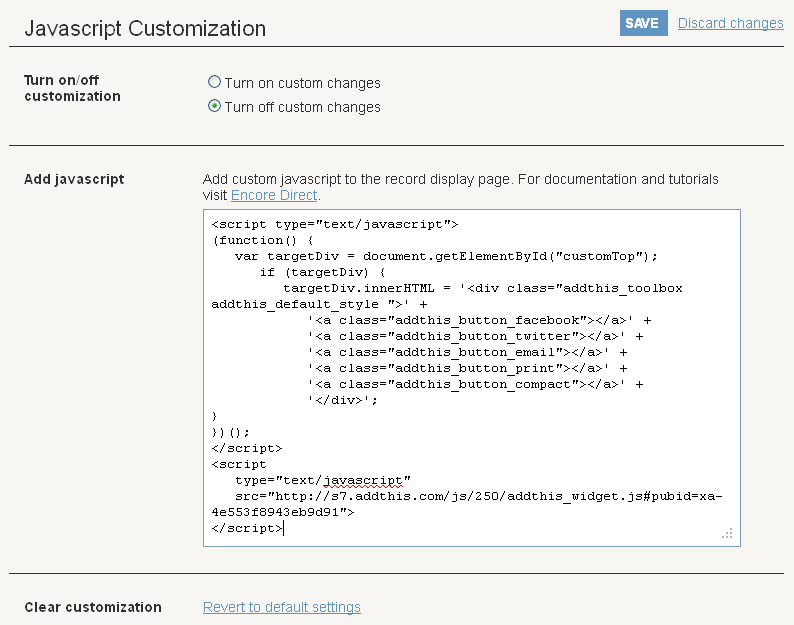
- When you are ready for the custom content to appear in Encore, select the Turn on custom changes radio button, and then choose SAVE.
- Refresh the encore suite by entering the following URL in address box of your browser:
http://<your encore server>/iii/encore/refreshSuite
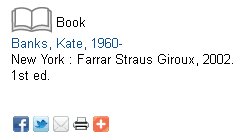
Our example AddThis buttons appear in the customTop area, just below the ratings stars:
- To remove your custom javascript, click the Revert to default settings link. After the system clears the javascript box, select the Turn off custom changes radio button, and then choose SAVE.
- Refresh the encore suite by entering the following URL in address box of your browser:
http://<your encore server>/iii/encore/refreshSuite
You can turn off javascript customization for a single session by adding the following text to the Encore URL:
&stopcustom=true
Use &stopcustom=false to restore the custom javascript in your session.
