
Moodle
The Moodle product integration allows students, lecturers, and other users to view their Moodle information, including course content and grades, on the campusM app.
Overview
The Moodle product integration allows students, lecturers, and other users to view their Moodle information, including course content and grades, on the campusM app.
User Experience
The following section describes information relating to the user experience for the Moodle product integration.
User Workflow Diagram
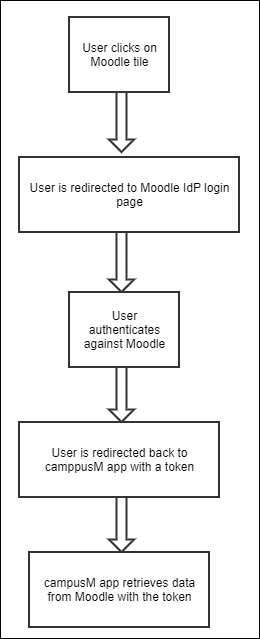
The following diagram displays the user workflow:
Authentications
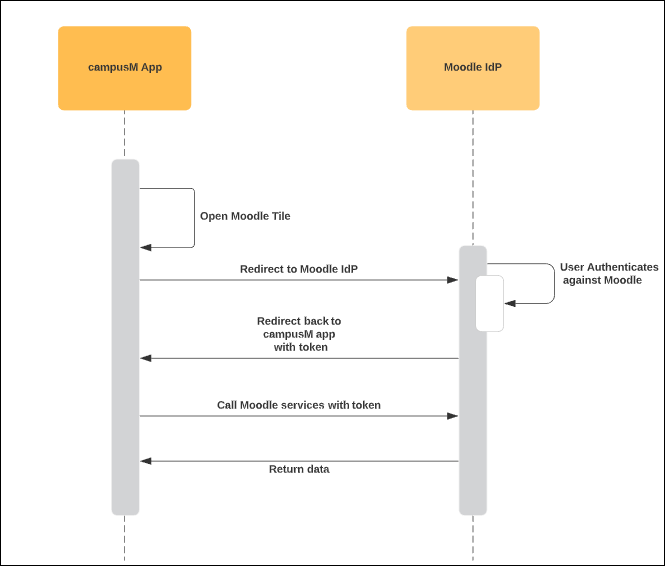
See the user Workflow Diagram for a description of the authentications process.
Offline Support
No offline support is available.
Moodle Live Tile
The Moodle produce integration offers two types of tiles that display on the homepage: live and static. The live tile displays active information relating to your courses while the static tile has fixed information. For information on configuring the Moodle live tile, see Live Tile in the Configuration section.
The recommended size of the live tile is 2X3.
The Moodle Live Tile is not available for the web version.
Screenshots
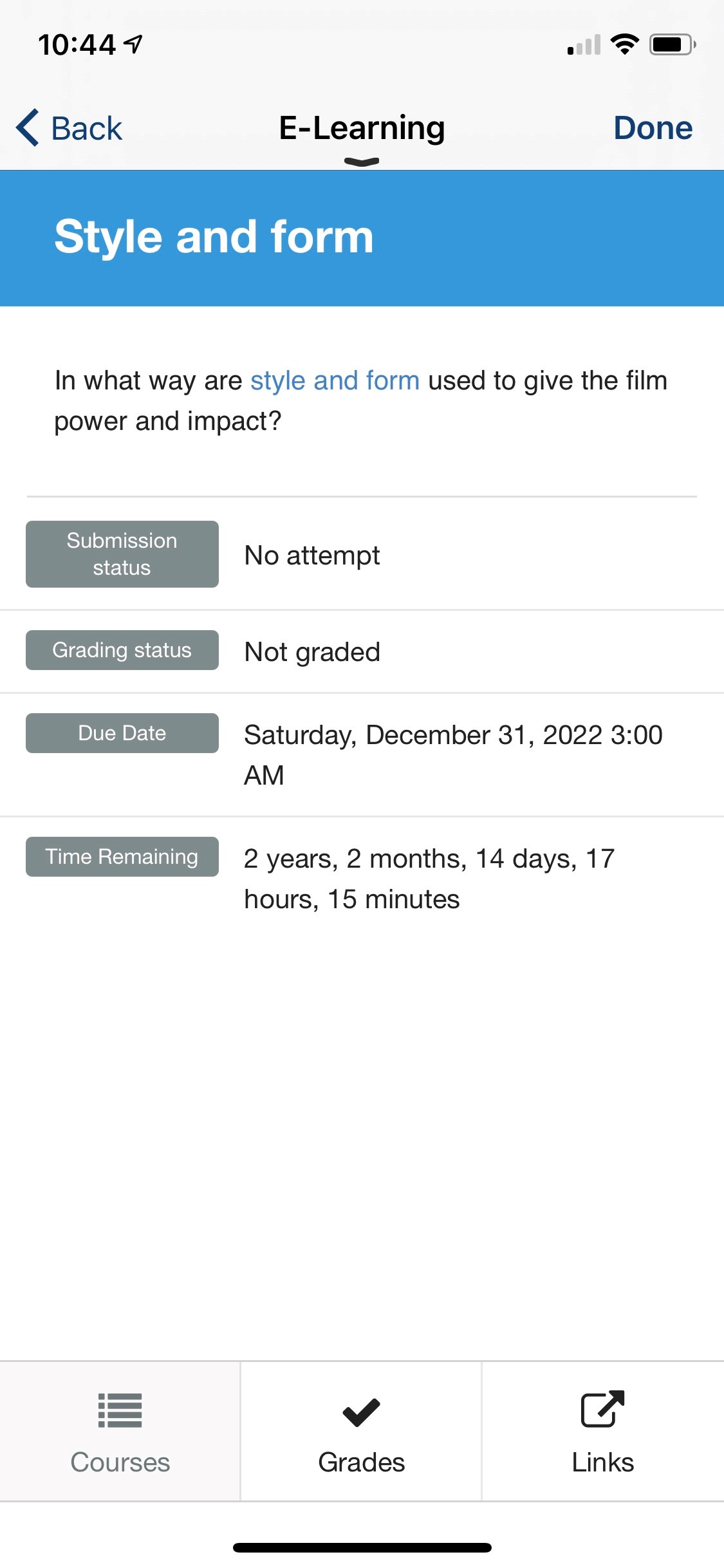
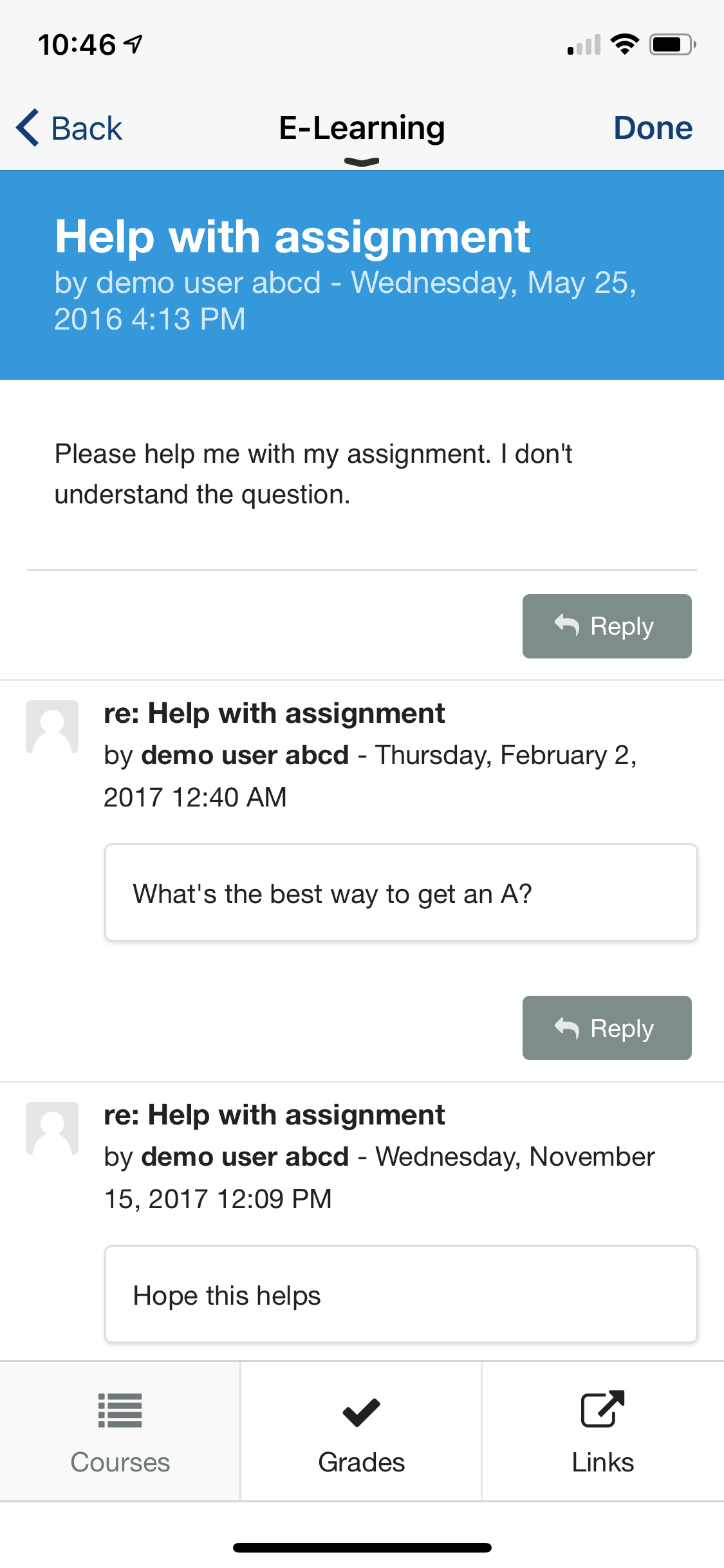
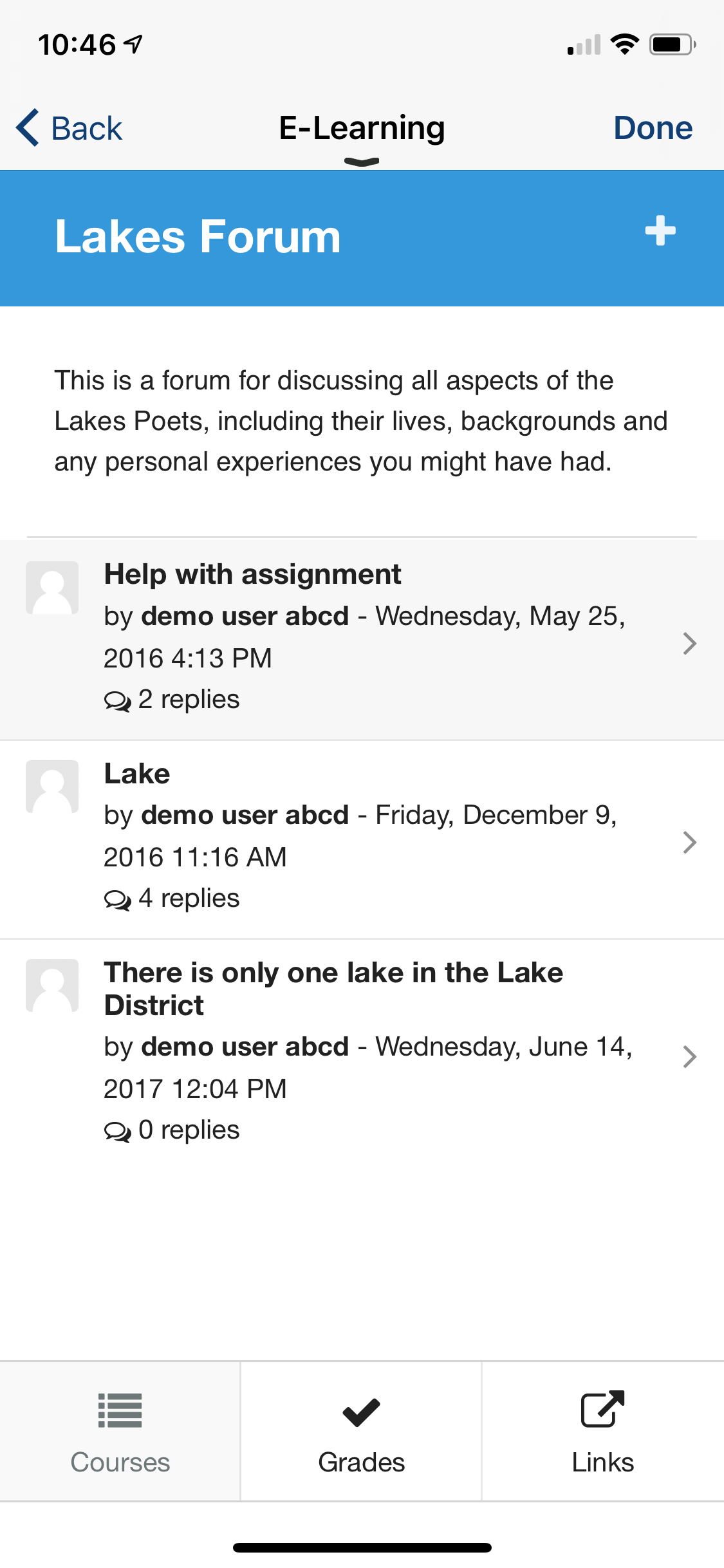
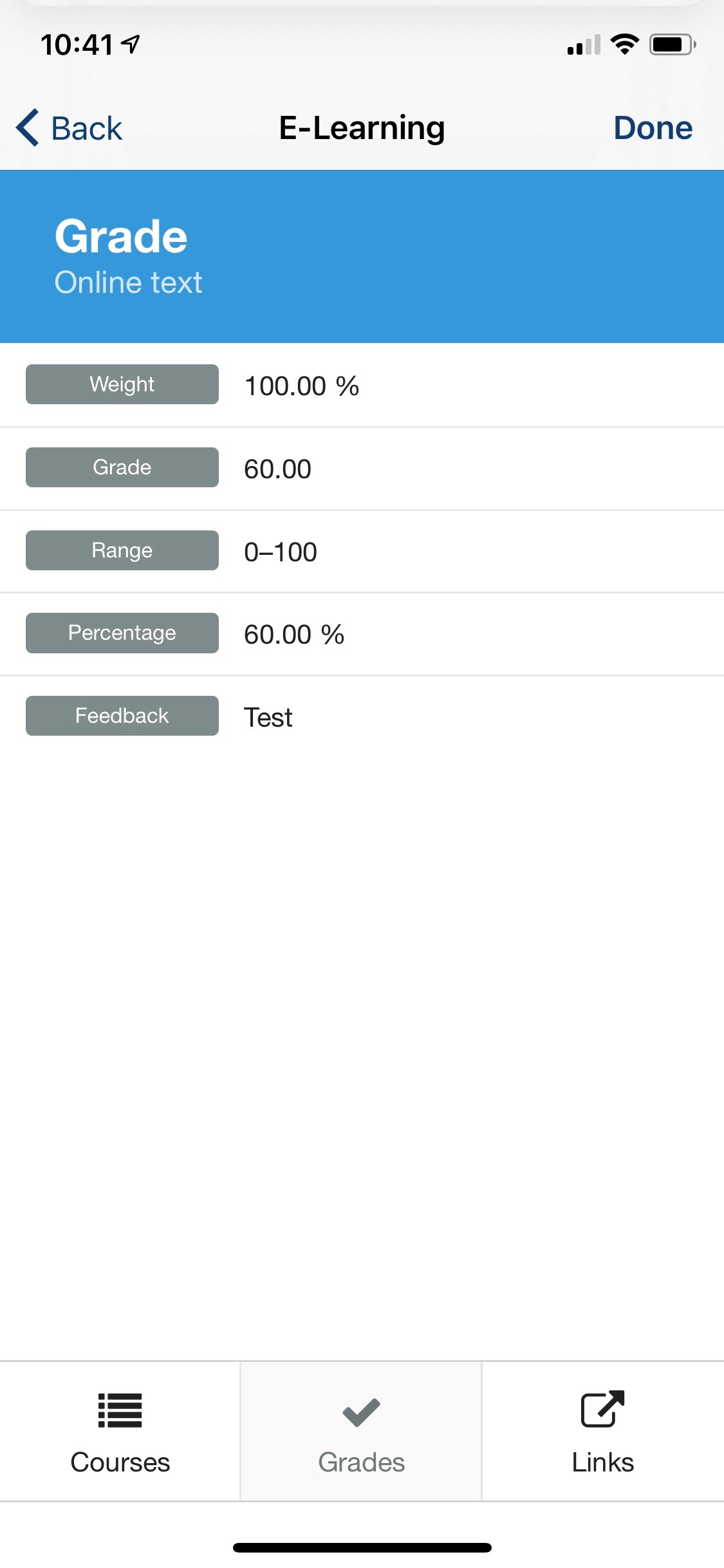
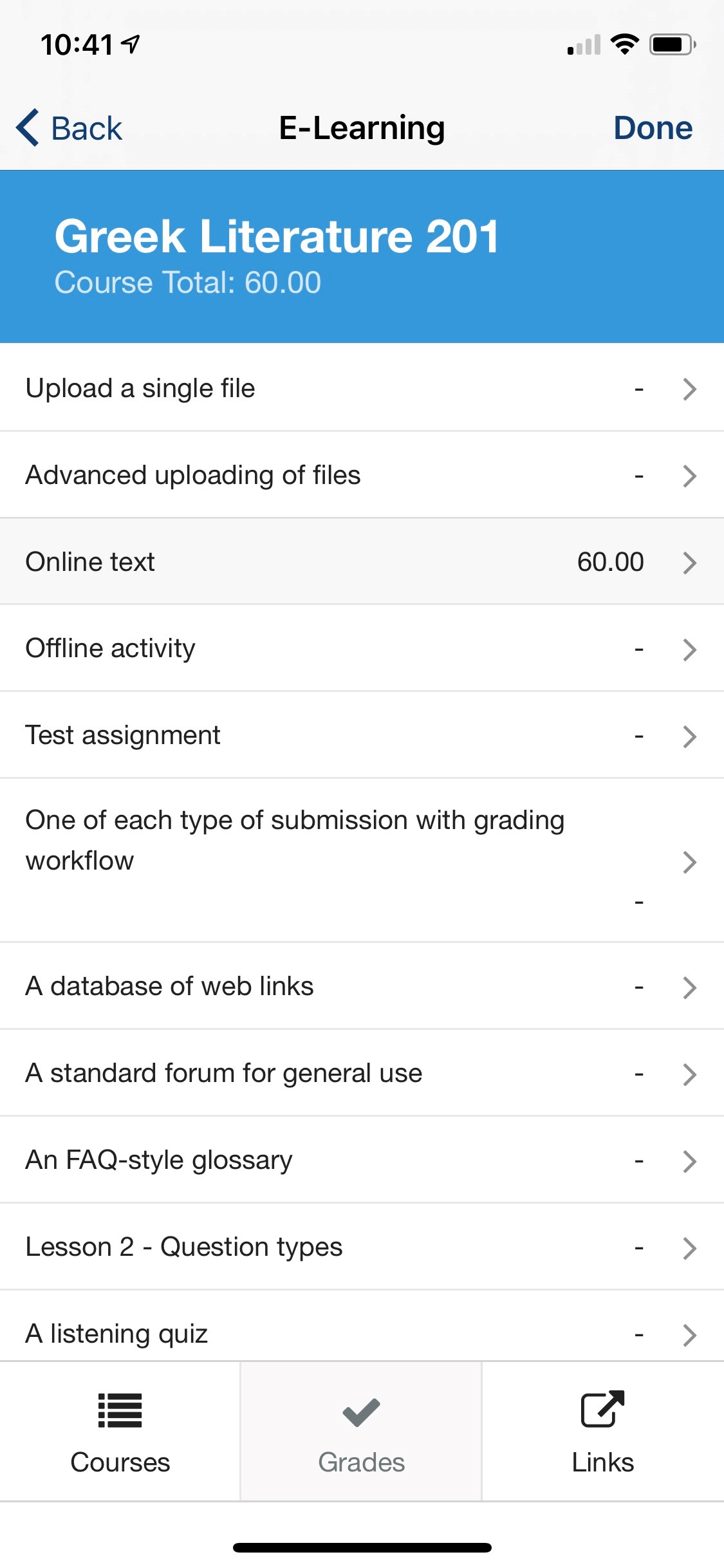
The following is an overview of the Moodle product integration user interface for a reference when configuring it.
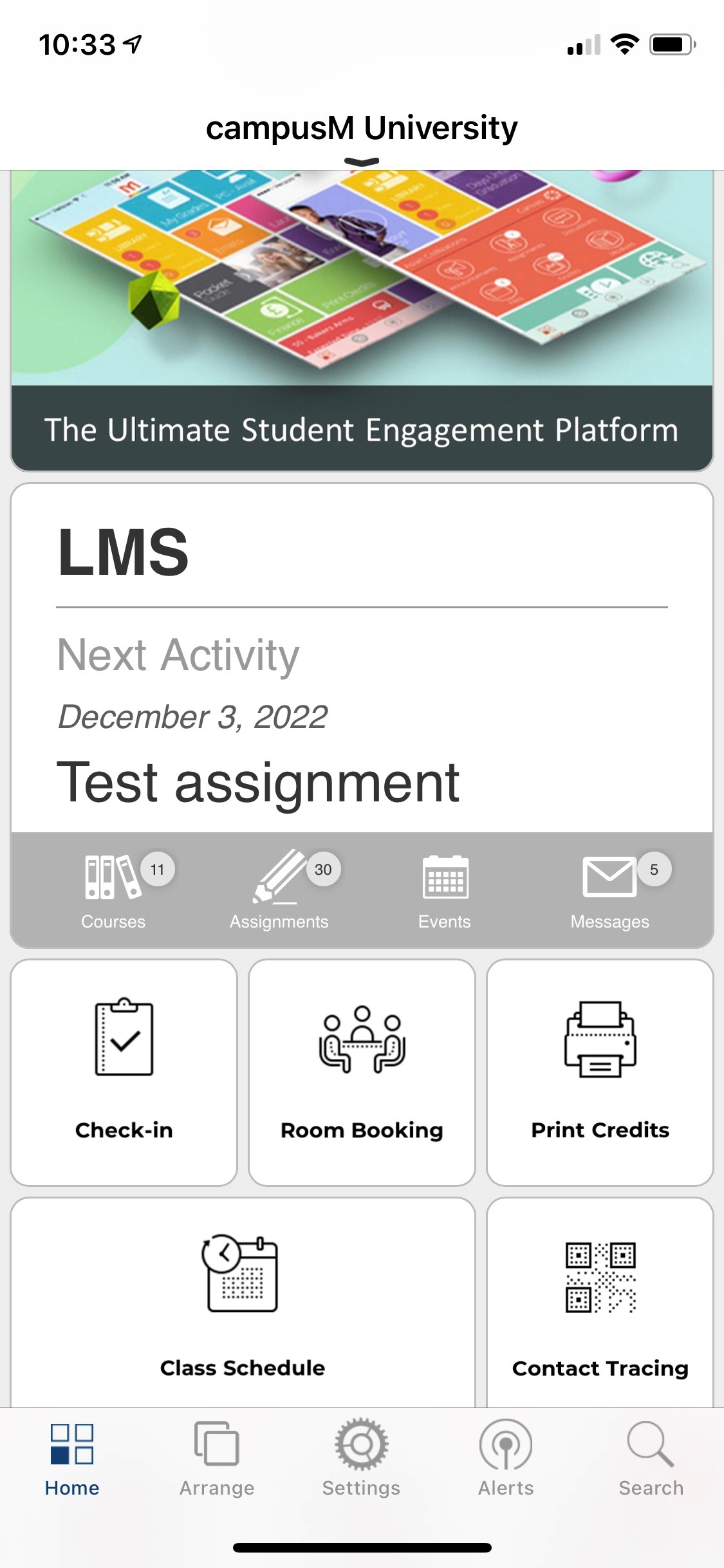
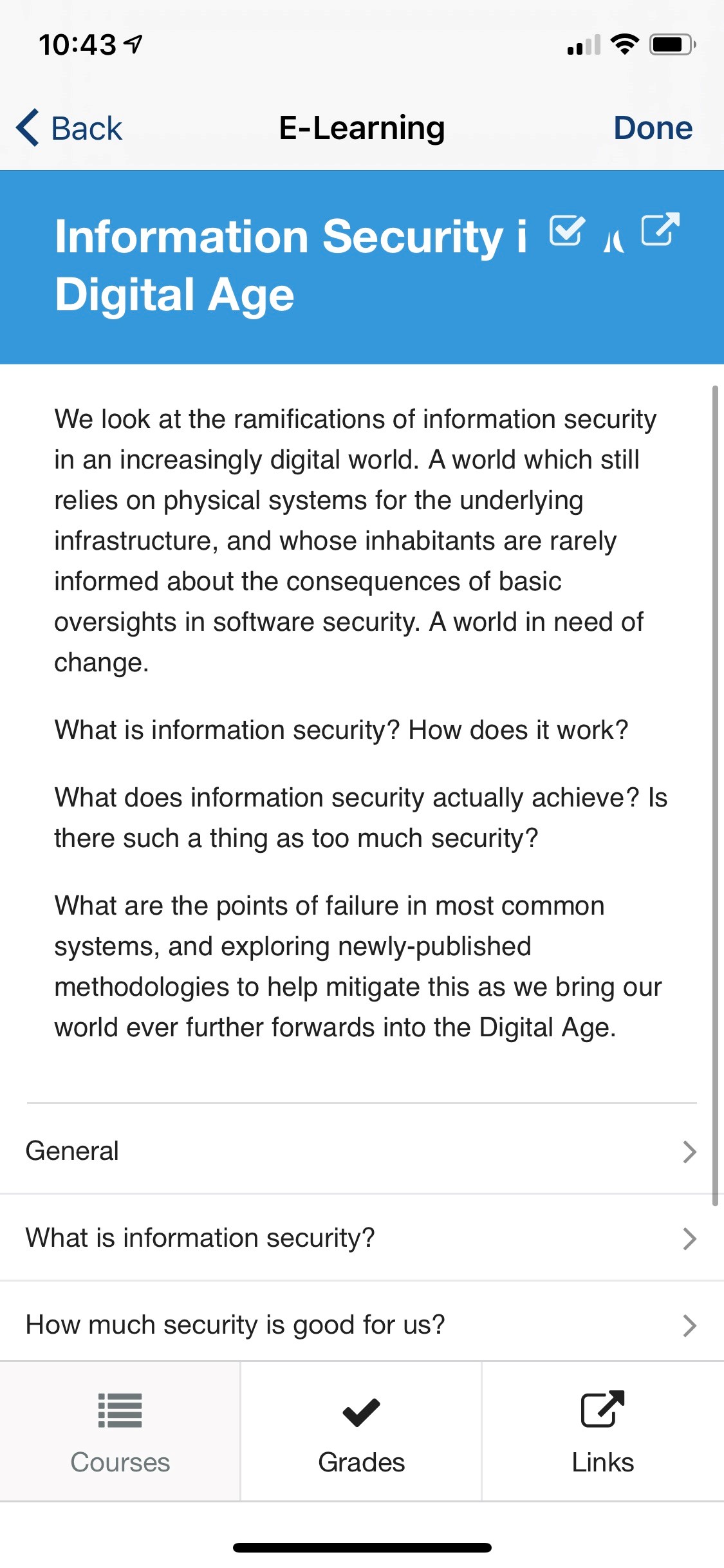
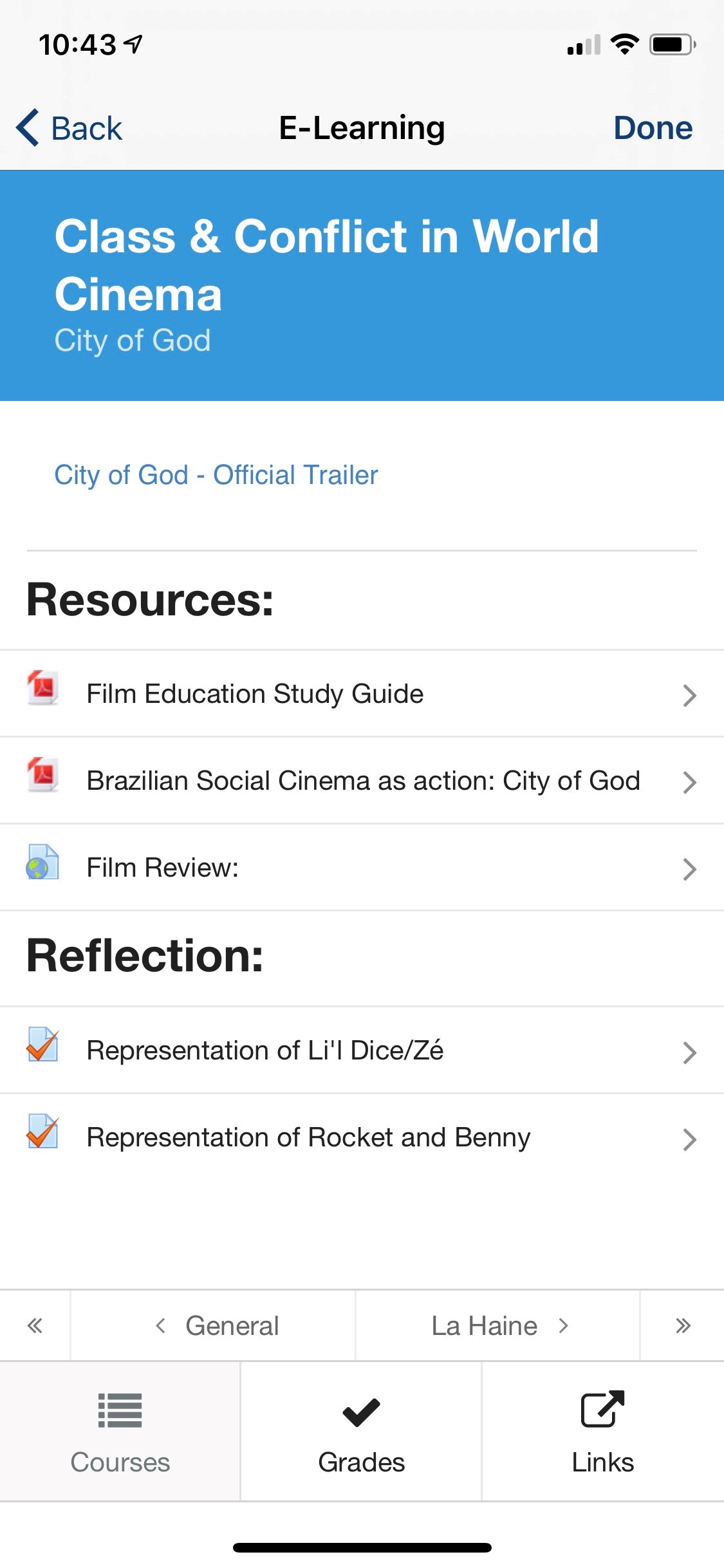
| The following is an example of the Moodle Live Tile that appears on your campusM homepage | A summary of the course | Resources for the course |
|
|
|
| Assignment Status | Help with Assignment | Forum |
|
 \ \ |
|
| Grades | Options | |
|
|
Technical Overview
The following section describes technical information for the Moodle product integration.
Supported Versions
Moodle 3.7 and later
Prerequisites
- Moodle URL must be publicly available and open to all.
- implement the following procedure in Moodle configuration to use the Moodle product integration:
- Enable the REST protocol:
- Go to the Web services overview page (Site administration > Plugins > Web services > Overview).
- Select the Enable protocols link.
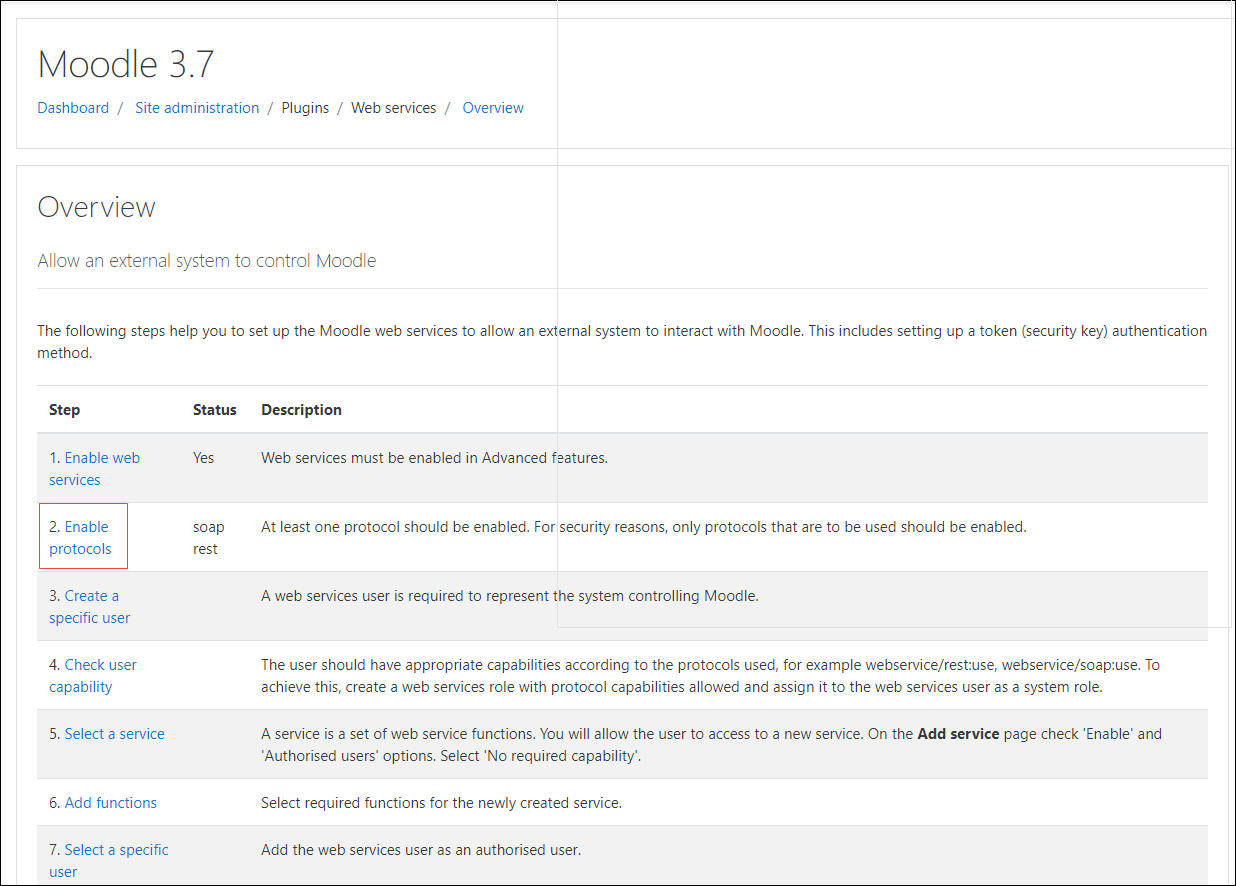
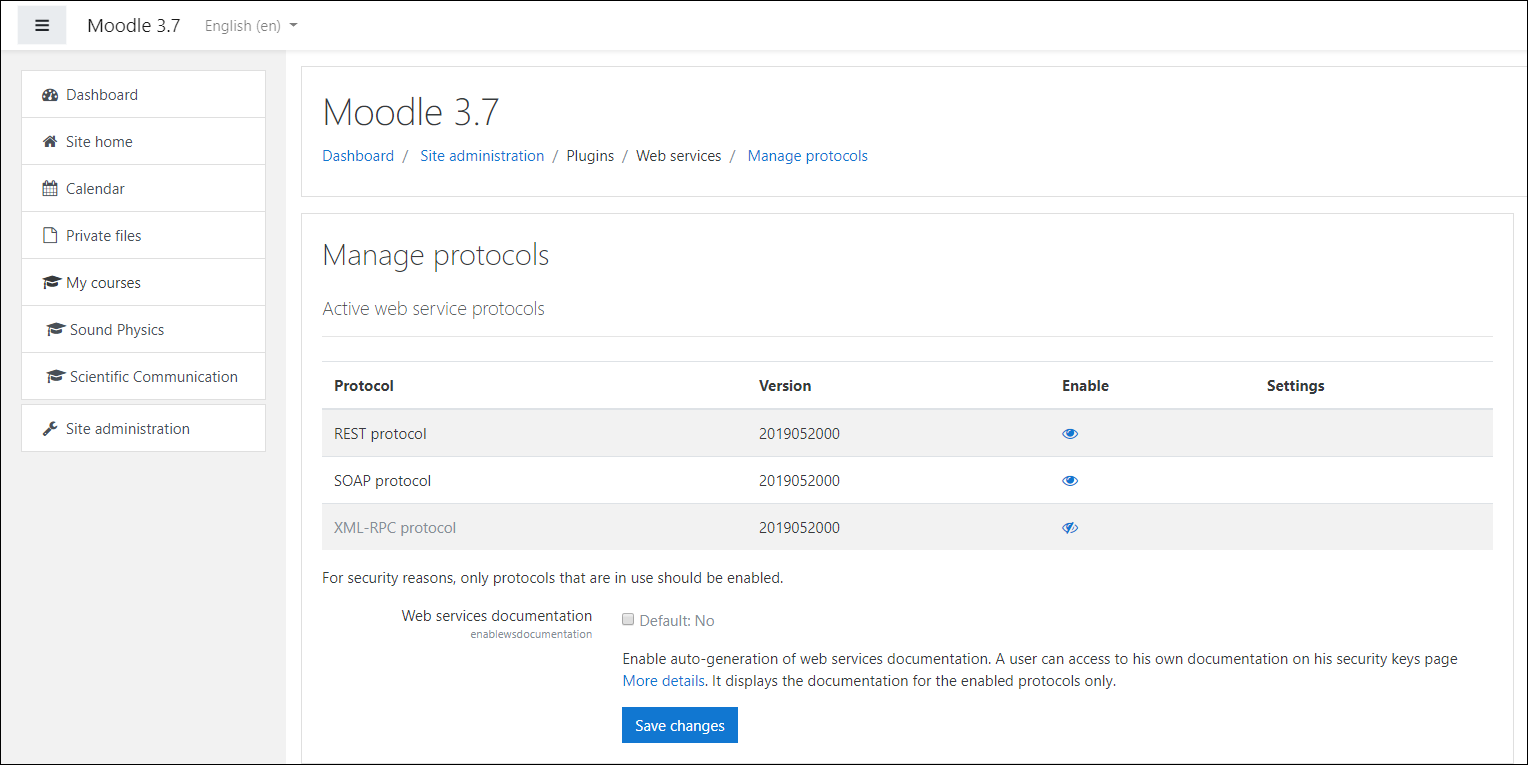
- Enable the REST protocol.
- Confirm that Moodle is configured to work with Moodle mobile:
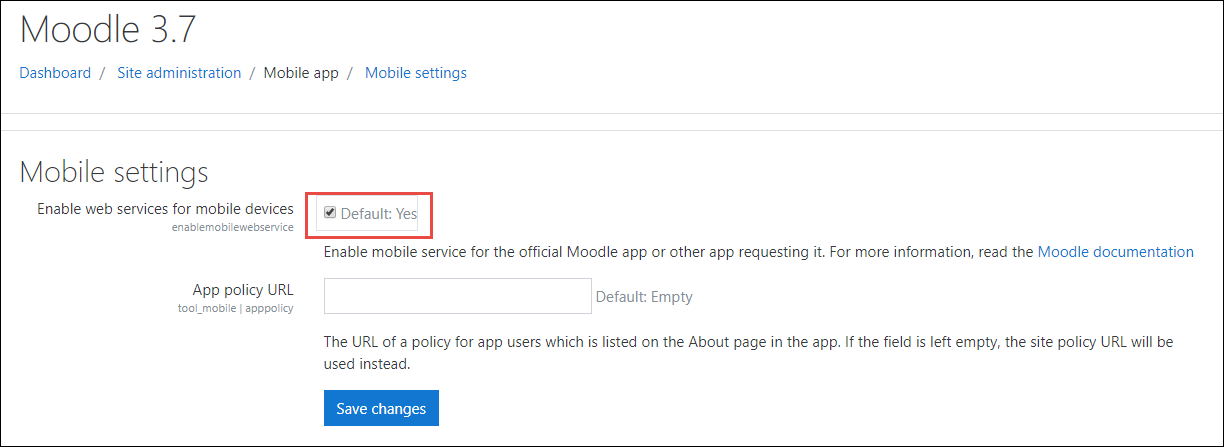
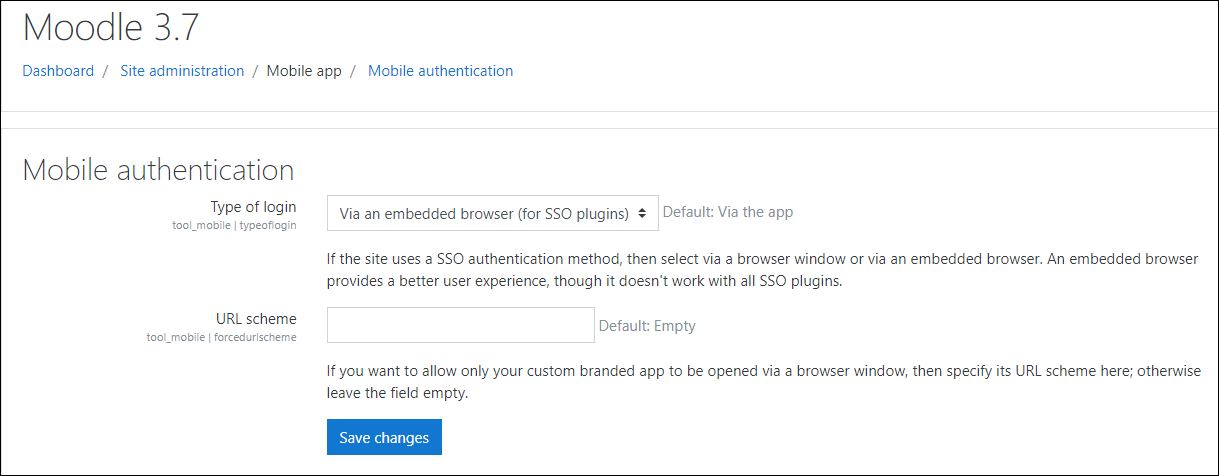
- For the Type of Login field, select Via an embedded browser (for SSO plugins). Ensure the URL scheme field is empty.
Technical Flow Diagram
The following is the technical flow diagram for the Moodle product integration:
To configure the Moodle product integration, select Add Product Integration from the Product Integrations main menu option.
Configuration
To configure the Moodle product integration, select Add Product Integration from the Product Integrations main menu option. Select LMS/VLE > Moodle.
The following table describes the configuration options available on this page.
| Configuration Option | Description | Mandatory | Data Type | Default | Example |
|---|---|---|---|---|---|
| Enable Product Integration | Select to enable the product integration on the user's campusM app. | No | Check box | Yes | |
| Product Integration Description | A description of the product integration for internal use. | Yes | Description | - | |
| Screen Title | The title that appears in the top header of the service. | No | String | Moodle | |
| General | |||||
| Default Locale | Enter a default location. | No | String | en-gb | |
| Time Format | Enter the time format to be used in the service. | No | Drop-down List | LT | |
| Date Format (short) | Enter the short date format to be used in the service. | No | Drop-down List | ll | |
| Date Format (long) | Enter the long date format to be used in the service. | No | Drop-down List | LL | |
| DateTime Format (short) | Enter the short date/time format to be used in the service. | No | Drop-down List | llll | |
| DateTime Format (long) | Enter the long date/time format to be used in the service. | No | Drop-down List | LLLL | |
|
Moodle Links
|
|||||
|
Global Link Behavior
|
Internal links are opened within the app, whereas external links are opened in the default browser app on the user's device.
|
No
|
Drop-down List
|
Legacy (all external except for specific Moodle resources)
|
|
|
Use Global Behavior For Links View
|
Forces the Links View, if enabled, to respect the setting above. By default, the Links View opens all links externally.
|
No
|
Checkbox
|
Unchecked
|
|
| Look and Feel | |||||
| Primary Theme Color | Select a color for the main elements on the page. | No | Color Picker | #444444 | |
| Secondary Theme Color | Select a color for the secondary elements on the page. | No | Color Picker | #6f8ea4 | |
| Moodle Server | |||||
| Base URL of Moodle Instance | The base URL of the Moodle instance. | Yes | URL | https://myDomain.com | |
| Login Timeout | The number of minutes for the user login until timeout. | No | Number | 2 | |
| Token Expiry | Configuration to handle customizing token lifetimes. | ||||
| Enable Custom Token Expiry | Enables support for custom access token lifetimes. Note that all access tokens are removed when you log out of the campusM app. | No | Checkbox | Unchecked | |
| Custom Token Expiry LIfetime | The length of time, in the number of units set by Custom Token Expiry Unit, to store the token for before refreshing it. | No | Integer | 1 | |
| Custom Token Expiry Unit | No | Drop-down List | Week(s) | ||
| Text/Labels | Text and labels for the authentication flow | ||||
| Text - "Redirecting..." | No | String | Redirecting... | ||
| Text - "This page should automatically redirect you to the login screen. Click the button below to go there now." | No | String | This page should automatically redirect you to the login screen. Click the button below to go there now. | ||
| Text - "Login" | No | String | Login | ||
| Text - "Oops, something went wrong" | No | String | Oops, something went wrong | ||
| Text - "Retry" | No | String | Retry | ||
| Moodle Web | |||||
| Enable Moodle Web | Select to enable a link to Moodle from the campusM web application. As currently the Moodle product integration is supported for native devices and not for web, it is possible to use this as a fallback. | No | Checkbox | No | |
| URL for link-out when using web | Your institution’s Moodle URL. | No | URL | https://myDomain.com | |
| Text / Labels | |||||
| Error Message | The error message text. | No | String | An error has occurred. Please try again later. | |
| Grade Title | No | String | Grade | ||
| Grade Weight | No | String | Weight | ||
| Grade | No | String | Grade | ||
| Grade Range | No | String | Range | ||
| Grade Percentage | No | String | Percentage | ||
| Grade Feedback | No | String | Feedback | ||
| Submission Status Label | No | String | Submission status | ||
| Assignment Submission Open Message | No | String | This assignment accepts submissions from | ||
| Submissions Status Submitted | No | String | Submitted for grading | ||
| Submissions Status No Attempt | No | String | No attempt | ||
| Grading Status Label | No | String | Grading status | ||
| Grading Status Not Graded | No | String | Not graded | ||
| Grading Status Not Marked | No | String | Not marked | ||
| Grading Status Release | No | String | Released | ||
| Due Date Label | No | String | Due Date | ||
| Time Remaining Label | No | String | Time Remaining | ||
| Assignment Overdue Message | No | String | Assignment is overdue time ended | ||
| Submissions Heading | No | String | Submissions | ||
| Feedback Heading | No | String | Feedback | ||
| Feedback Grade Label | No | String | Grade | ||
| Feedback Graded On Label | No | String | Graded on | ||
|
Service Content Note: There is a known issue if too many views are enabled, the text on the navigation bar becomes unreadable. |
|||||
| Categories | |||||
| Category Allow list | |||||
|
Enable Category Allow list
|
When enabled, this removes every category and its related content from the product integration, except the categories listed below. If the list is empty, everything is removed.
|
No
|
Checkbox
|
Unchecked
|
|
|
Approved Categories
|
Any values entered here must exactly match a valid category name (not description).
|
No
|
List
|
||
|
Enable Categories View
|
Organizes the course list by the category they're assigned to.
|
No
|
Checkbox
|
Unchecked
|
|
| Categories Page Title | No | String | Course Categories | ||
|
Sort Categories
|
Sorts the displayed categories. The default sort order is provided by Moodle.
|
No
|
Drop-down List
|
Moodle Sort Order
|
|
|
Display Description
|
Display the category description if returned by Moodle.
|
No
|
Checkbox
|
Unchecked
|
|
|
Text - "Unnamed Category"
|
Displayed if any category has no name returned by Moodle.
|
No
|
String
|
Unnamed Category
|
|
| Displayed if no categories are returned by Moodle. | No | String | No categories to show | ||
| Courses Content | |||||
| Courses Page Title | The title at the top of the Courses page. | No | String | Courses | |
| Courses Navigation Menu Label | The label of the Courses Navigation Menu link. | No | String | Courses | |
| Text - "Unnamed Course" | Displayed if any course has no name returned by Moodle. | No | String | Unnamed Course | |
| Enable Grades View | Select to enable Grades View for end-users. | No | Checkbox | Not checked | |
| Grades Page Title | The title at the top of the Grades page. | No | String | Grades | |
| Grades Content | |||||
| Grades Navigation Menu Label | The label of the Grades Navigation Menu link. | No | String | Grades | |
| Courses Navigation Menu Label | The label of the Grades Navigation Menu link. | No | String | Courses | |
|
Enable Assignments View?
|
Enables the Assignments View inside the product integration.
|
No
|
Checkbox
|
||
|
Assignments Content
|
|||||
|
Assignments Page Title
|
No
|
String
|
Assignments
|
||
|
Assignments Navigation Menu Label
|
No
|
String
|
Assignments
|
||
|
Text - "No Assignment Name Given"
|
No
|
String
|
No Assignment Name Given
|
||
|
Enable Events View?
|
Enables the Events View inside the product integration.
|
No
|
Checkbox
|
||
|
Events Content
|
|||||
|
Events Page Title
|
No
|
String
|
Events
|
||
|
Events Navigation Menu Label
|
No
|
String
|
Events
|
||
|
Events Error Message
|
No
|
String
|
An error has occurred while trying to view your events.
|
||
|
Text - "No Event Name Given"
|
No
|
String
|
No Event Name Given
|
||
|
Text - "No additional details provided"
|
No
|
String
|
No additional details provided
|
||
|
Text - "Description"
|
No
|
String
|
Description
|
||
|
Text - "Start Time"
|
No
|
String
|
Start Time
|
||
|
Text - "Duration"
|
No
|
String
|
Duration
|
||
|
Suffix For Duration (In Minutes)
|
No
|
String
|
minutes
|
||
|
Enable Messages View?
|
No
|
Checkbox
|
Unchecked
|
||
|
Messages Content
|
|||||
|
Default Tab To Display
|
The default list to show - read or unread messages.
|
No
|
Drop-down List
|
Unread Messages
|
|
|
Messages Page Title
|
No
|
String
|
Messages
|
||
|
Messages Navigation Menu Label
|
No
|
String
|
Messages
|
||
|
Text - "Unread"
|
No
|
String
|
Unread
|
||
|
Text - "Read"
|
No
|
String
|
Read
|
||
|
Text - "No unread messages."
|
No
|
String
|
No unread messages.
|
||
|
Text - "No read messages."
|
No
|
String
|
No read messages.
|
||
|
Messages Error Text
|
No
|
String
|
Error fetching messages, please try again later.
|
||
|
Message Details
|
|||||
|
Message Detail Header Prefix
|
No
|
String
|
From:
|
||
|
Text - "Mark as Read"
|
No
|
String
|
Mark as Read
|
||
|
Text - "Sent At"
|
No
|
String
|
Sent At
|
||
|
Text - "Read At"
|
No
|
String
|
Read At
|
||
|
Label Width (in pixels)
|
Has a minimum of 75 pixels.
|
No
|
Integer
|
125
|
|
| Links Content | |||||
| Links Page Title | The title at the top of the Links page. | No | String | Links | |
| Links Navigation Menu Label | The label of the Links Navigation Menu link. | No | String | Links | |
| Links List | Enter links to appear on the Links page. | No | Array | ||
| Link Text | The text to display. | No | String | Moodle web app | |
| Link | The URL to link out to. | No | URI | https://myDomain.com | |
| Add Item | Select to add a new link to the Links List. | No | Button | ||
| Live Title | |||||
| Enabled | Enable the Moodle live tile. | No | Checkbox | Unchecked | |
| Enable Live Tile Deep Linking | Enables the widgets on the navigation bar to link to their respective content. Courses link to the Categories View if enabled, and the course list otherwise. | No | Checkbox | Unchecked | |
| Date Type to Use for Upcoming Assignments | Set the date type to be used for upcoming assignments. | No | Drop-down List | Cut Off Date | |
| Include Assignments That Do Not Have Deadline Dates Set | Enable the option to include assignments that do not have a deadline date set. | No | Checkbox | Checked | |
| Prioritize Live Tile Items | |||||
|
Priority
|
This ordered list prioritizes the items that appear on the live tile. The item at the top of the list appears first, left-to-right, while the last item appears last.
|
No
|
Ordered List
|
|
|
|
Icon Bar Up to a maximum of four widgets are displayed on the icon bar, in order of the Prioritize Live Tile Items list. |
|||||
| Courses | |||||
| Enabled | Enable the Courses link in the icon bar. | No | Checkbox | Checked | |
| Label | The Courses label in the icon bar. | No | String | Courses | |
| Filter By Start And End Dates | If enabled, excludes any courses that have not started yet, or have already ended. | No | Checkbox | Checked | |
| Assignments | |||||
| Enabled | Enable the Assignments link in the icon bar. | No | Checkbox | Checked | |
| Label | The Assignments label in the icon bar. | No | String | Assignments | |
| Events | |||||
| Enabled | Enable the Events link in the icon bar. | No | Checkbox | ||
| Label | The Events label in the icon bar. | No | String | Events | |
| How Many Days | How many days to look into the future for events. | No | Number | 7 | |
| Messages | |||||
| Enabled | Enable the Messages link in the icon bar. | No | Checkbox | Checked | |
| Label | The Messages label in the icon bar. | No | String | Message | |
| Message Types | Indicate the message type: Conversations, Notifications, or both. | No | Drop-down List | Both | |
| Forum Posts | |||||
| Enabled | Enable the unread Forum Posts counter in the icon bar. | No | Checkbox | Unchecked | |
| Label | The Forum Posts label in the icon bar. | No | String | Forum Posts | |
| Next Activity | |||||
| Label - "Next Activity" | The label of the link to move to the next activity. | No | String | Next Activity | |
| Label - "No Activity Due" | The label of the message that no activity is due. | No | String | No Activities Due | |
| Activities to Include | Select the activities to include. | No | List of checkboxes | All checked | |
| Caching | For performance and offline support | ||||
| Max Age | The number of hours that cached content can be presented to the user. | No | Number | 720 | |
| Time to Live | The number of minutes that cached data is used before a refetch is attempted. | No | Number | 10 | |
Page tags: article:topiccontent:Documentationproduct:campusmlang:englishcommunity:training_materials
