
Creazione manuale di una Linea d'ordine (POL)
This page gives instructions for creating PO lines (physical, electronic and digital) and initiating the next stage in their processing. For editing PO lines see Editing PO Line Information. For the overall purchasing workflow including the steps required for creating orders (whether using EOD, ordering manually, etc.), see Purchasing Workflow. For instructions on creating service subscription PO lines without inventory see Creating Service Subscription PO Lines Without Inventory. For an overview of working with acquisitions in Alma, including links to relevant sections such as Invoicing, Renewals, Configuration, etc., see Introduction to Acquisitions.
- Operatore Acquisti
- Gestore Acquisti
To manually create a purchase order (PO) line (the first step in the Purchasing Workflow) for physical, electronic, or digital resources, you search for the resource in the bibliographic record (see Searching in Alma) and then create the PO line based on it. For an explanation of the physical and electronic purchase types that can be created from your search results, see Explanation of Purchase Types Workflow and Inventory.
Normally, when you create a PO line for a physical item or electronic resource, Alma automatically creates new inventory for the purchased resources. Alternatively, you can choose not to create new inventory for the manually created PO line, if, for example, you earlier created the inventory manually (see Assign Inventory Manually). È possibile creare manualmente una riga di ordine di acquisto per un servizio (come l'accesso a un sito web o un abbonamento a un programma per computer), con o senza aggiungere l'inventario. Un acquisto può riguardare una copia di un'opera o di un portfolio, oppure una copia senza titoli che è indicizzata nell'istituzione, nella comunità o nella Network Zone.
For more information, watch:Creating Orders(3:56 min).
For electronic resources, a new purchase order can be either a main PO line- the first PO line linked to the inventory - or an additional PO line- for example, a PO line to upgrade the number of concurrent users who can access a resource, or a PO line to add new titles to an existing collection. Una riga principale dell'ordine di acquisto crea l'inventario per la risorsa. Quando si tenta di eliminare una riga principale dell'ordine di acquisto, Alma tenta di eliminare l'Inventory. L'eliminazione di una riga aggiuntiva dell'ordine d'acquisto non influisce sull'inventario.
Creating a PO Line
The procedure for creating a PO line for physical, electronic, and digital material is the same, except for specific PO line information unique to each material type (noted below).
Every PO line is built upon a bibliographic record. Thus, before you can create a PO line for an item (e.g., a physical book or an electronic portfolio), ensure a repository record exists for it. If a bibliographic record does not exist, you must create it before you can create a PO line for it; see Working with Bibliographic Records.
Deve inoltre esistere una copia dell'inventario ed essere collegata a una riga dell'ordine di acquisto prima che la riga dell'ordine di acquisto possa essere pacchettizzata in un ordine di acquisto (PO). Per default, quando si crea una riga PO (una riga PO principale, per le risorse elettroniche), Alma crea automaticamente una nuova copia dell'inventario e la associa alla riga PO. È possibile impedire ad Alma di creare una nuova copia dell'inventario quando si creano molti tipi di righe PO. Questa funzione è utile quando si desidera aggiungere l'inventario in un secondo momento o collegare l'inventario esistente alla riga dell'ordine di acquisto, ad esempio se:
- Hai migrato molti record di Inventory e vuoi creare le Linee d'ordine (POL) per essi. For information on adding PO lines after migration see Best Practice Toolkit: Adding PO Lines After Implementation.
- Desidera cambiare fornitore per un Ordine permanente.
- You create PO lines for bibliographic records – that is, something in the repository (a title, an item, a portfolio, and so forth). If the entity is not yet in the repository, you must first create a bibliographic record for it and add it to the repository; see Working with Bibliographic Records.
- È necessario aggiungere una copia dell'inventario alla riga dell'ordine di acquisto prima che possa essere inviata per la creazione del pacchetto.
- Il Proprietario della Linea d'ordine si riferisce alla biblioteca che crea la linea PO, mentre la Localizzazione di biblioteca/accesso prevista si riferisce alla biblioteca per cui si effettua l'Ordine.
- Una volta creata una Linea d'ordine (POL) con un determinato tipo di acquisto, il flusso e le implicazioni relative a Inventory/dati sono definitivi e non possono essere modificati. Questo è quindi un passaggio critico nel processo di creazione della Linea d'ordine (POL).
- See also:Acquisitions - How to handle one order to a vendor for both physical and electronic material and link them together.docx
-
Search for the title for which you want to create a PO line; see Searching in Alma.
You may also use Search External Resources (Resources > Cataloging > Search Resources) to locate a title in external systems such as the OCLC or the Library of Congress (see Search External Resources). Dai risultati della Ricerca Risorse Esterne, selezioni Importazione per aprire il record nell'Editor MD. In the MD Editor, select Order(Ctrl+Alt+O) and the PO Line Owner and Type page (see next step) opens.
- In the row actions of the item you want to order, select Order to create a main PO line. Se la copia è una risorsa elettronica e ha già una Linea d'ordine (POL) principale allegata, seleziona Ordine aggiuntivo per creare una Linea d'ordine (POL) aggiuntiva. Si apre la pagina Tipo e proprietario della linea d'ordine.
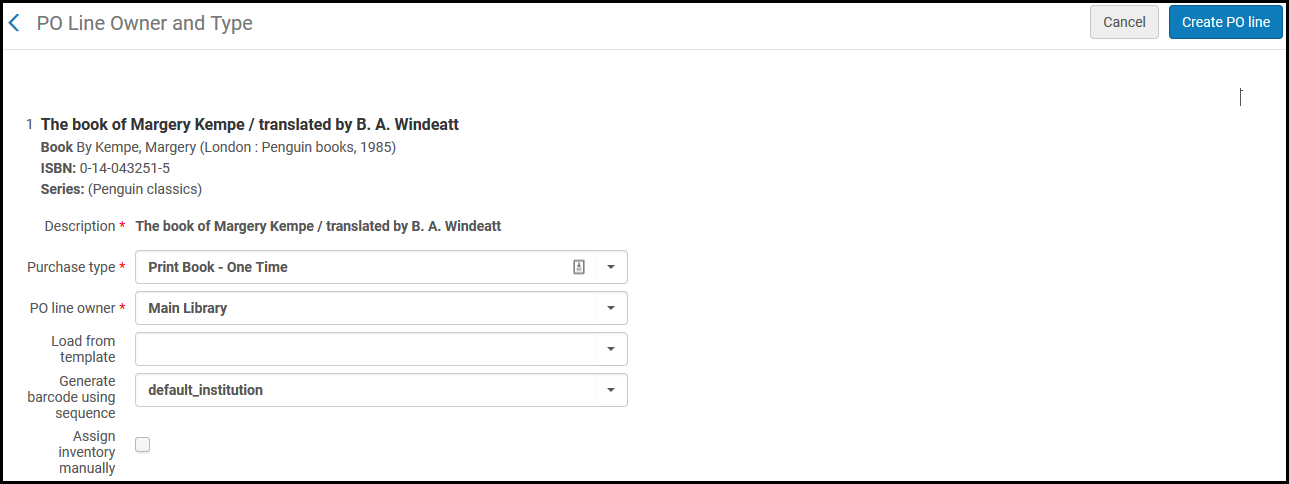 Proprietario della linea d'ordine e tipo paginaThis is also the page that opens when you select the Order icon in the MD Editor.
-
Complete the fields on the PO Line Owner and Type page , as follows:
Campo Descrizione Tipo di linea POSelezioni il tipo di acquisto per la riga dell'ordine di acquisto. Selezioni una delle seguenti per aprire una lista di opzioni:-
Recommended – Lists recommended types, which depend on the item you selected to get to this page.
-
Other – Lists all enabled purchase types (except for electronic collections and portfolios), regardless of what item you selected in the inventory to get to this page. Note, however, that when you order an item in a particular format, this does not necessarily mean that any vendor actually has the item in that format; if they do not, they may reject your order.
For an explanation of each type and how an administrator can enable/disable these types, see Enabling/Disabling PO Line Types. Also see Explanation of Purchase Types Workflow and Inventory.I tipi digitali non sono abilitati di default. In order to enable them, see the row for enabling digital manual orders in the Digital Manual Order table. Digital PO lines are created with no inventory(both One Time and Continuous), and you need to manually add the representation to the PO line. For more information see Digital Manual Orders.Proprietario Linea POSeleziona la biblioteca che sarà proprietaria della Linea d'ordine (POL). This may be different from the library/location for which you are ordering the resource (see Ordered Items Section (Physical Resources Only) and Ordered Portfolios Section (Electronic Resources Only), below).This list is defined by a system administrator; see Adding/Editing Institution Libraries. Nell'elenco compaiono solo le opzioni pertinenti al tuo ruolo di operatore Acquisti/Responsabile Acquisti.Create multiple portfoliosThis option appears when the title that you have selected to order has multiple 856 $u entries (URLs) in the bibliographic record, and you have selected an electronic PO line type.Quando selezioni questa opzione, appare una sezione Lista portafogli dove puoi scegliere specificamente quali portafogli Ordine (dagli URL mostrati nella sezione Lista portafogli). È possibile selezionare uno o tutti i portafogli nella sezione Elenco portafogli. I portafogli che selezionate saranno associati alla stessa riga PO.The following images show an example of a bibliographic record with multiple 856 $u entries for which multiple portfolios are ordered in one PO line by selecting this option:.png "Electronic Resource (Title/Bibliographic Record) with Multiple 856 $ Entries") Electronic Resource (Title/Bibliographic Record) with Multiple 856 $ Entries
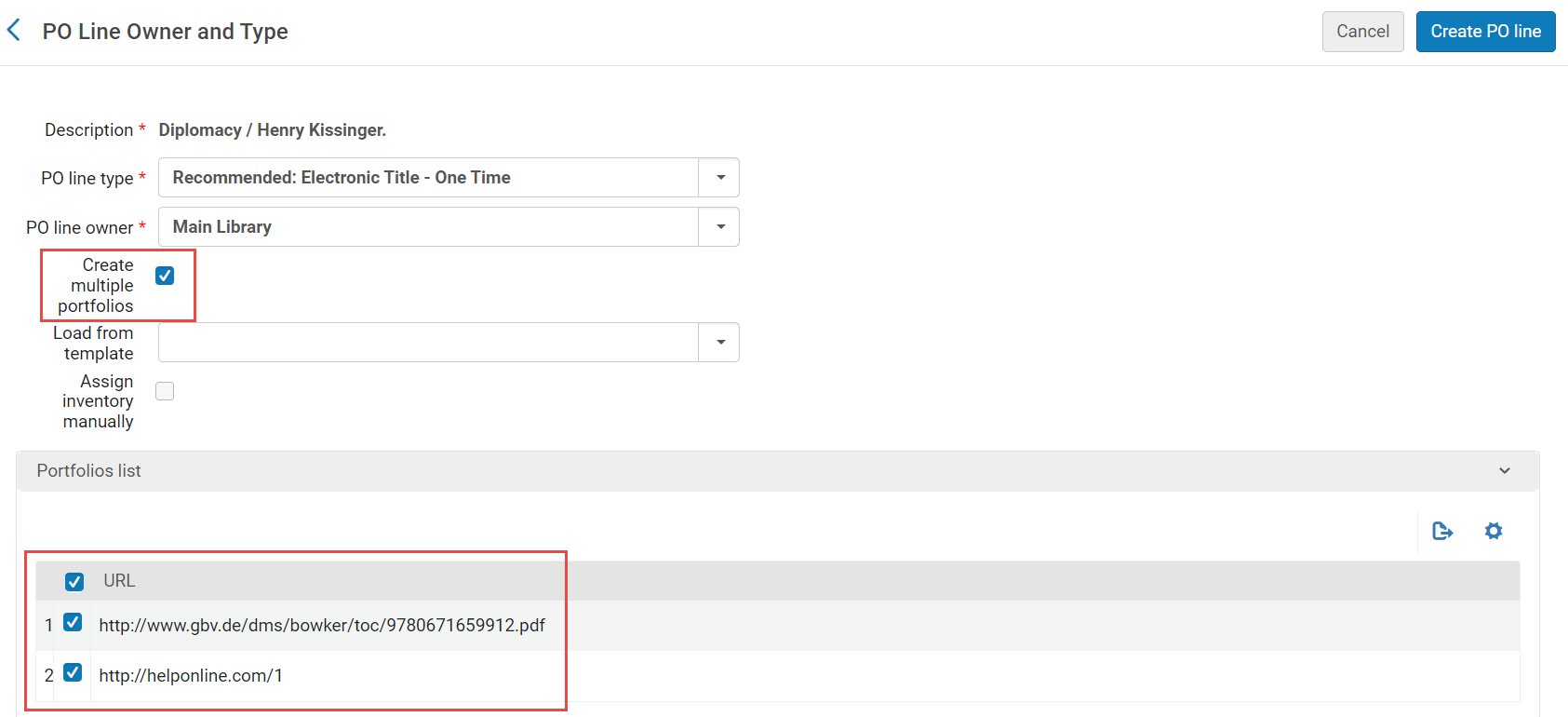 Crea più portafogli opzione selezionata e la sezione Lista portafogli con più portafogli selezionati
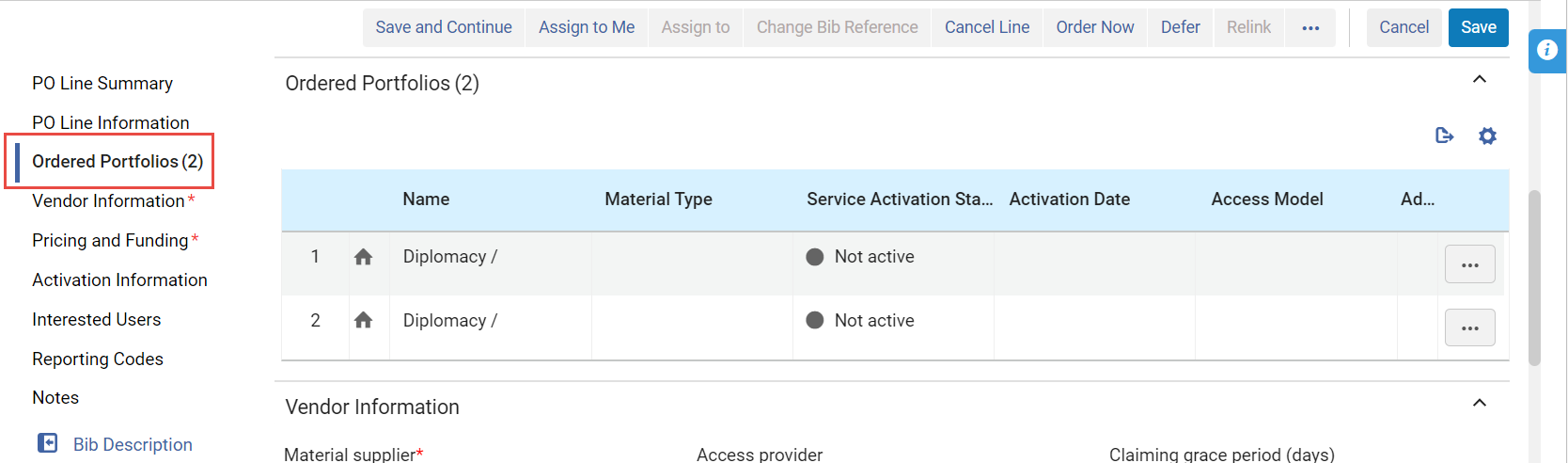 Portafogli multipli (associati a una Linea d'ordine (POL)) creati per la Linea d'ordine (POL)If you do not select Create multiple portfolios, and there are multiple 856 $u entries in the bibliographic record from which you are ordering, Alma randomly chooses one of the 856 $u entries for which to create a PO line.Load from TemplateFacoltativamente, selezioni un template da cui caricare la riga dell'ordine di acquisto.Templates are created when you select Save as Template in the Details pane of a PO line. For more information, see Creating and Managing PO Line Templates.Il template deve corrispondere al tipo di Linea d'ordine (POL).When loading a template that was saved with the Update Net Price according to item quantity field not checked, this field will be un-checked in the created PO line, even if the po_line_quantity_updated_with_items_number customer parameter is true.Generate barcode using sequenceWhen Alma is configured to automatically generate barcodes (see Configuring Barcode Generation), and you select a one-time print PO line type and a library as the PO line owner, the Generate barcode using sequence field appears.Questo campo appare per qualsiasi riga fisica di ordine di acquisto che crea copia dell'inventario. These are types enabled on the PO Line Type mapping table (see Enabling/Disabling PO Line Types) with Continuity=One-Time and Inventory Format=Physical.If you want Alma to automatically generate a barcode for the item, specify the sequence you want Alma to use when it generates the barcode by selecting one of the barcode-sequence profiles that appears in the dropdown list of available profiles (see Configuring Barcode Generation). The list includes all institution-level barcode-sequence profiles, and all library-level barcode-sequence profiles that are defined in Alma for the PO line owner.Se selezioni un profilo, dopo aver creato la Linea d'ordine (POL), Alma crea una copia con un codice a barre generato automaticamente. Se non selezioni alcuna sequenza, la copia viene comunque creata, ma non gli viene assegnato alcun codice a barre.
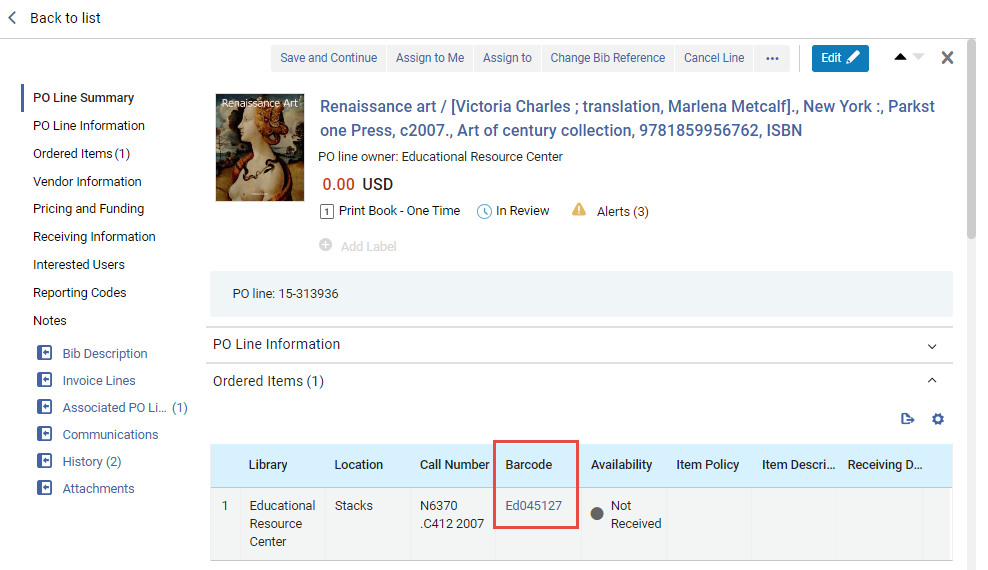 Codice a barre generato automaticamente per una copiaPer gli Ordini creati tramite uno dei seguenti metodi, Alma utilizza il default a livello di istituzione o quello a livello di biblioteca configurata per la generazione automatica di codici a barre, a seconda delle informazioni della biblioteca fornite nell'Ordine:
-
EOD
-
Da un'API (Ordine in tempo reale)
-
Approvazione di una richiesta di acquisto
-
Ricevere nuove copie dall'Ordine in continuazione
Assign inventory manuallySelezioni questo campo per impedire ad Alma di creare automaticamente una copia dell'inventario per la nuova riga dell'ordine di acquisto.This checkbox does not appear if you are creating a PO line for a standing order (except for Physical - Standing Order Non Monograph), a PO line of type service (for example Access Service - Subscription, Database Service - One Time, etc.), or the options Digital - Non Archiving or Physical - Archiving(both of which imply an order without inventory).Se si impedisce ad Alma di creare una copia dell'inventario per la riga dell'ordine di acquisto, la riga dell'ordine di acquisto viene creata, ma non viene creato un nuovo inventario. Per informazioni su come allegare manualmente l'inventario alla riga dell'ordine di acquisto dopo che la riga è stata creata, vedere:-
For physical inventory:Adding Inventory to an Item, below. Nota che devi aggiungere manualmente Inventory alla Linea d'ordine (POL) prima che possa procedere alla Creazione del pacchetto.
-
For electronic inventory:Adding Inventory to a PO Line for an Electronic Resource, below.
-
- Selezionare Crea riga PO.
Se hai selezionato Assegna Inventory manualmente, appare una finestra di dialogo di conferma che ti chiede di confermare che la Linea d'ordine (POL) verrà creata ma l'Inventory non verrà creato. Seleziona Conferma per continuare.
The PO line is created, and opens in the Details pane in full-page view and in Edit mode, with its workflow step set to In Review. La sezione Riepilogo riga ordine di acquisto visualizza le informazioni di base sulla riga ordine di acquisto, tra cui il proprietario, il costo (in questa fase, 0,00), il tipo, la fase del flusso di lavoro e il numero. If there are any alerts for the PO line, an Alerts icon (
 ) and link appear, with the number of alerts indicated. Seleziona il link per vedere gli Alert. (For a complete list of the alerts that may appear in a PO line, with explanations of their meanings, see Configuring Purchasing Review Rules.) Additional details about the PO line appear in the other sections, below the PO Line Summary section. Most of the fields in these sections are blank at this stage, unless the PO line was created from a template; the blank fields should be filled in as appropriate, as explained below.
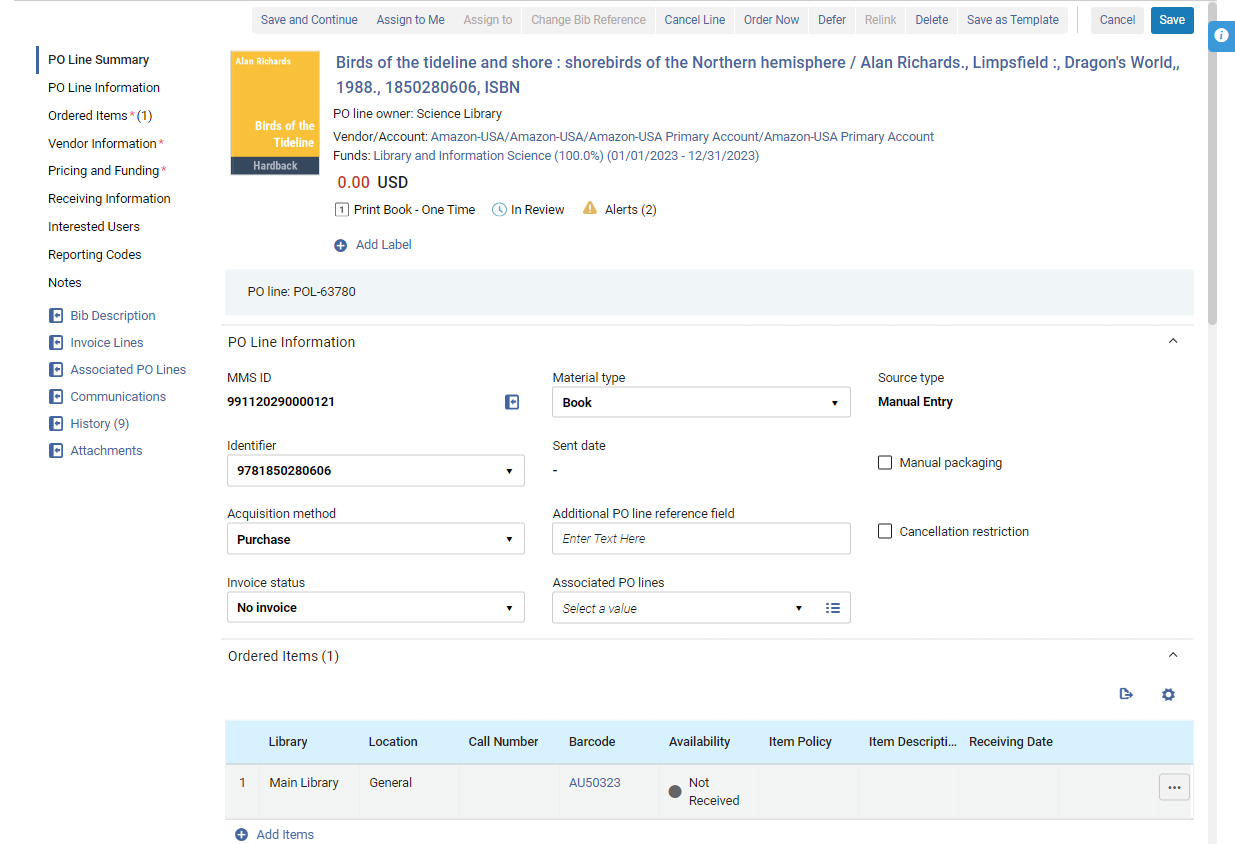 Linea d'ordine (POL) appena creata (creata da un template)
Adding Information to the New PO Line
Una volta creata una nuova riga PO come spiegato sopra, Lei può iniziare a inserire ulteriori informazioni al riguardo nella riga PO. Questa operazione si esegue nel riquadro Dettagli , che si apre automaticamente quando la riga dell'ordine di acquisto viene creata per la prima volta, ma può essere aperto anche in qualsiasi momento successivo selezionando la riga dell'ordine di acquisto nella lista delle attività. For additional information about opening PO lines from the task list, see Managing PO Lines.
Quando viene creata una nuova riga di ordine di acquisto, il riquadro Dettagli si apre in modalità Modifica, così Lei può iniziare immediatamente a inserire le informazioni nei vari campi. In futuro, se si apre la riga PO dalla lista delle attività, verrà aperta in modalità visualizzazione. In order to edit it, you must make sure it is not assigned to another user (i.e., it is either assigned to you or unassigned), and then select Edit( in the task list or
 at the top of the Details pane) to switch to Edit mode. For additional information, see New Layout 2022.
Each of the sections in the Details pane, and the fields they contain, are described below. Inserisca le informazioni della linea PO nelle varie sezioni, secondo necessità. When you have finished, select Save to save the information, or Save and Continue to save your changes and send the PO line to the next workflow step. For additional information, see Initiating the Processing of the New PO Line, below.
Quando si crea manualmente una nuova riga PO in Alma, per l'Utente che termina il flusso selezionando Ordina ora, Salva o Salva e continua, Alma passerà alla Lista con la POL specifica. Questo comportamento si applicherà solo alle linee d'ordine (POL) appena create. Per le linee PO esistenti, quando l'Utente modifica e seleziona una delle tre azioni sopra indicate, la pagina rimarrà invariata.
PO Line Summary Section
The only change you can make directly in the PO Line Summary section is to add labels to, or or remove labels from, the PO line (see Managing Labels in the Details Pane). However, some changes you make in other sections automatically update the information in this section when you select Save or Save and Continue; for example, if you select a vendor or a fund, or enter a price for the item, this information is added to the PO Line Summary section. Quando la Linea d'ordine (POL) viene pacchetto in un Ordine (PO), il numero dell'Ordine (PO) viene aggiunto a questa sezione, accanto al numero della Linea d'ordine (POL).
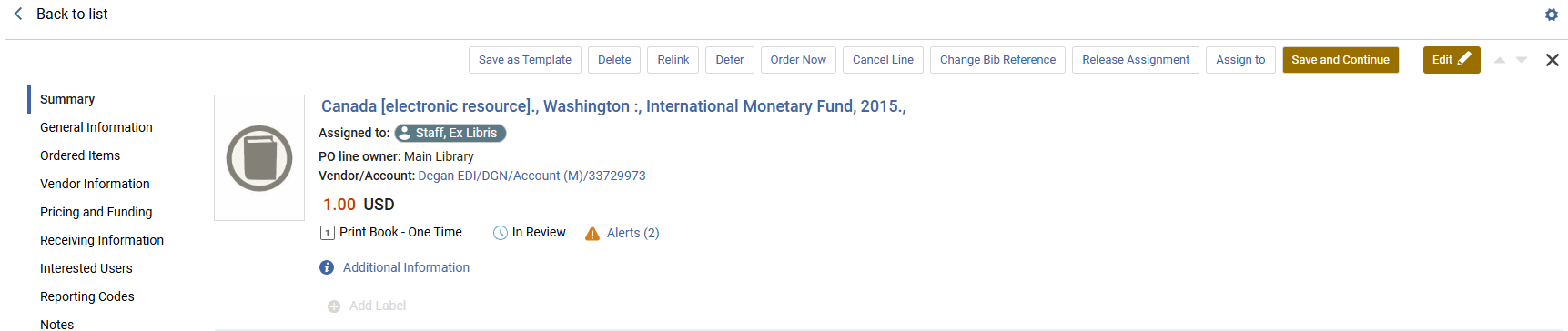
La sezione Riepilogo Linea d'ordine (POL) contiene le seguenti informazioni:
| Campo | Descrizione |
|---|---|
| Descrizione della copia |
Il nome della copia ordinata, i nomi degli autori e le informazioni sulla pubblicazione. (New for February 2026) Select the description to view the PO line's related institution record in a sliding panel. |
| Assegnato a | Se la riga PO è assegnata a un utente, viene visualizzato il nome dell'utente. |
| Proprietario Linea PO | The library that owns the PO line (see PO line owner, above) |
| Fornitore/Account |
Il Fornitore e l'Account del fornitore della Linea d'ordine (POL) Only shown when a vendor has been selected (see Vendor Information Section, below) and the PO line has been saved. Select the vendor information to open the Vendor Details page (see Managing Vendors) in a sliding panel. |
| Fondi |
The funds associated with the the PO line, the proportion of the price that is to be covered by each fund, and the fiscal period defined for each fund Only shown when at least one fund has been selected (see Pricing and Funding Section, below) and the PO line has been saved. Select the name of a fund to open its fund record (see Managing Funds and Ledgers) in a sliding panel, with the Transactions tab selected and showing all the transactions related to this PO line that have already taken place. |
| Prezzo | Il prezzo della copia e della valuta |
| Tipo di linea PO | The Purchase type (see PO line type above) |
| Fase del flusso di lavoro | The current workflow step of the PO line (see Searching for PO Lines) |
| Avvisi |
Se gli Alert sono collegati alla riga PO, in questa sezione appare un'icona Alert con il numero di Alert tra parentesi. Posiziona il cursore del mouse sull'icona per visualizzare gli Alert in un suggerimento. Seleziona l'icona per aprire gli avvisi in un pannello scorrevole. Gli avvisi più comuni generati da Alma sono i seguenti. You can see the complete list of alerts in Configuring Purchasing Review Rules.
|
| Informazioni aggiuntive |
Link a informazioni aggiuntive, tra cui:
|
| Aggiungi etichetta | Per aggiungere un'etichetta alla Linea d'ordine (POL), selezionare Aggiungi etichetta. For additional information, see New Layout 2022. |
| Linea PO | Il numero di riga del PO |
| PO |
L'ordine di acquisto in cui è inclusa la riga PO e lo stato dell'ordine di acquisto. Only shown when the PO line has been packaged into a PO; see Packaging PO Lines into a PO. |
Sezione informazioni sulla linea PO
La sezione delle informazioni sulla Linea d'ordine (POL) contiene informazioni generale sulla Linea d'ordine (POL), alcune delle quali puoi aggiungere o modificare.
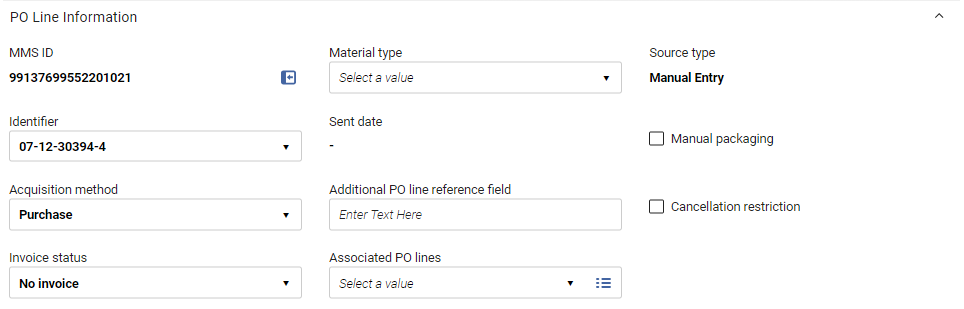
Fields in the PO Line Information Section
La sezione Informazioni sulla linea PO contiene il seguente campo:
| Campo | Descrizione |
|---|---|
| ID MMS |
The Metadata Management System ID - the internal Alma record ID - of the item To open the bibliographic record, select the |
| Identificativo |
By default, this field is populated by the first identifier listed in the bibliographic/imported record's ISBN/ISSN (020 or 022) field, and all 020 and 022 values in the record appear in the dropdown list. You can also manually enter any text in the field. If the ISBN number is 13 digits and the display_isbn_13_in_predefined_result parameter is enabled, all 13 digits are displayed. Se il parametro è disabilitato, l'identificativo visualizzerà 10 cifre. See Configuring Other Settings. |
| Metodo di acquisizione |
Il tipo di Metodo di acquisto per la Linea d'ordine (POL). For details on the available acquisition methods, see Acquisition Methods below. A seconda della configurazione del sistema, quando si seleziona il Metodo di acquisto per una Linea d'ordine (POL), potresti avere la possibilità di scegliere se inviare una comunicazione d'Ordine al Fornitore o meno. Se possibile, entrambe le opzioni appaiono nella Lista a discesa.
Lista a discesa del Metodo di acquisto con opzioni per inviare o meno una comunicazione d'Ordine
|
| Status della fattura | Questo campo è impostato di default su No Fattura e non deve essere modificato. Alma aggiorna automaticamente questo campo come richiesto.
Quando arriva una Fattura e la Linea di fattura è associata alla Linea d'ordine (POL):
Questo influisce sul flusso della Linea d'ordine (POL) come segue: Se una Linea d'ordine (POL) Singolo è impostata su Completamente Fattura e le copie vengono Ricevere/Attiva, la Linea d'ordine (POL) viene chiusa. Se la Linea d'ordine (POL) è impostata su Parzialmente fatturata, rimane nello Stato in attesa di Fattura fino a quando non viene modificata (manualmente o ricevendo una nuova Fattura) in Completamente fatturata. Lo stato della Fattura è impostato su Fattura Completa quando la copia ordinata è uguale o inferiore alla copia della Fattura in tutte le Linee di fattura correlate. Quando una Fattura/Linea di fattura viene eliminata o una riga di ordine di acquisto viene rimossa dalla Linea di fattura, Alma verifica se la riga di ordine di acquisto ha un'altra Linea di fattura correlata e controlla lo stato della riga di ordine di acquisto. Se lo stato è attivo e non ci sono più Linee di fattura correlate, lo stato della Fattura viene impostato su Nessuna Fattura. Eliminando una Fattura si elimina la Spesa e si ricalcola il Disimpegno. Per rimuovere il Disimpegno (quando si rimuove l'unica Fattura associata alla riga dell'ordine di acquisto), impostate manualmente lo Stato Fattura della riga dell'ordine di acquisto su Parzialmente Fattura. See Creating an Invoice From a PO or Manually. |
| Tipo di materiale |
Il tipo di materiale—come una Monografia, una Rivista elettronica o un CD-ROM—che la copia rappresenta. Le opzioni disponibili differiscono a seconda che la copia sia fisica o elettronica. For information on customizing material-type labels, see Configuring Physical Item Material Type Descriptions. Quando il tipo di materiale in una riga di ordine di acquisto viene aggiornato, tutte le copie vengono aggiornate con il tipo di materiale. This field does not appear when creating a digital PO line without inventory. |
| Data invio | La data in cui l'Ordine contenente la Linea d'ordine (POL) è stato inviato al Fornitore |
| Riferimento Linea PO Aggiuntivo |
Un codice di riferimento con cui desidera identificare la riga corrente dell'ordine di acquisto. Può trattarsi di qualsiasi testo libero o informazione che faccia riferimento alla riga PO, ad esempio un identificativo che può essere utilizzato da EOD. «Addizionale » qui si riferisce al riferimento; questo campo non ha nulla a che vedere con il fatto che la riga dell'ordine di acquisto sia una riga principale dell'ordine di acquisto o una riga aggiuntiva dell'ordine di acquisto. |
| Linee PO associate |
A target PO line related to this PO line Immettere una stringa di ricerca (ad esempio, un numero di riga PO) nel campo di testo per eseguire una ricerca Parola chiave per una riga PO oppure utilizzare l'opzione di ricerca a destra del campo per selezionare una riga PO da un Elenco. You can associate the current PO line with one target PO line, which is specified in this field. La relazione definita in questo campo è unidirezionale: questa linea PO è associata alla linea PO target, ma non viceversa. Un caso d'uso per questo campo è se si ordinano serie composte da più parti. It is recommended that you have one main PO line (with fund information) for the subscription and an additional Technical PO line for each item that you are to receive at a different interval, each of which would be associated with the main PO line using this field. The Associated PO lines section lists PO lines that are associated with this one (the reverse relationship), and not the PO line selected in this field. E la riga PO corrente apparirà nella sezione Linee PO associate della riga PO selezionata in questo campo. See Associated PO Lines Section, below. Le associazioni delle linee PO sono solo a scopo informativo e non hanno effetti funzionali. Se si tenta di annullare una riga PO che ha una riga PO associata definita in questo campo, appare un messaggio di avviso. |
| Source type |
L'origine da cui ha avuto origine la Linea d'ordine (POL) corrente. For imported lines, select the link to open the relevant page containing the source details; for example, the MARC Record Simple View page, or the Import Job Details page. (New for February 2026) The Rialto status appears when a PO line was created as part of the Rialto workflow (see Monitoring the Order Status). |
| Creazione pacchetto manuale | Se abilitare la creazione manuale del pacchetto della linea PO in un PO. For details on packaging PO lines, see Packaging PO Lines into a PO |
| Limitazione alla cancellazione | Se visualizzare una nota di restrizione all'annullamento contenente un avviso al momento dell'annullamento di una Linea d'ordine (POL). (To then continue with the cancellation of the PO line, the user must select Confirm.) If you select this option, a Cancellation restriction note field is added to the section, and a Cancellation Restriction icon appears next to the relevant items in the PO line list tab of the purchase order. |
| Nota di limitazione alla cancellazione |
Il testo dell'avviso da visualizzare quando si annulla una riga di ordine di acquisto che ha una restrizione di annullamento Questo campo viene aggiunto alla sezione quando viene selezionata la Limitazione alla cancellazione. |

 beside the number. Il record bibliografico si apre in un pannello scorrevole nella parte superiore della pagina.
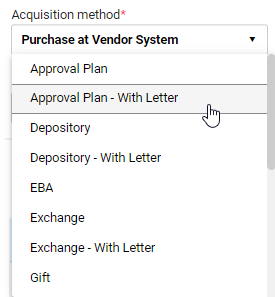
Acquisition Methods
I seguenti metodi di acquisizione sono definiti in Alma e possono essere selezionati per il campo Metodo di acquisizione.
To enable or disable methods, or to configure the default method, see Configuring Acquisition Methods. The configuration settings make it possible to select, for each acquisition method, whether an order letter should be sent to the vendor or not (or that the user should be allowed to choose whether to send an order letter or not for each PO line).
| Metodo di acquisizione | Descrizione |
|---|---|
| Piano di approvazione | Esiste un accordo secondo cui il Fornitore invia all'istituzione tutto ciò che ritiene necessario, in Formato EOD. Tali Linee d'ordine (POL) non vengono inviate al Fornitore, ma vengono pacchettate in ordini di acquisto e contrassegnate come inviate fino a quando non vengono Ricevute/Attivate. Per questo metodo sono obbligatorie le informazioni sui prezzi e sui Fondi.
Il comportamento di questo metodo è identico a quello del metodo Acquisto presso Fornitore System, con l'eccezione della sua visualizzazione in un report. |
| Magazzino | L'istituzione accetta di ospitare le pubblicazioni governative e di renderle disponibili gratuitamente.
|
| EBA | Acquisizioni basate su evidenze: l'istituzione deposita un Credito EBA presso il Fornitore, da utilizzare per futuri acquisti di eBook, e si abbona per un periodo di tempo specificato, senza alcun costo, a una particolare collezione del Fornitore. Verso la fine del periodo di abbonamento, il Fornitore fornisce all'istituzione statistiche che descrivono l'uso dei Titoli nella collezione. L'istituzione utilizza quindi il proprio credito EBA per acquistare l'accesso perpetuo agli eBook della collezione che i suoi utenti hanno utilizzato maggiormente durante il periodo di abbonamento. For additional information, see Real-Time Ordering. |
| Scambio | L'istituzione accetta di scambiare risorse con un'altra istituzione.
For more information on the exchange method, see Suggested Workflow for Acquisitions Exchange Program. |
| dono | The resource is granted as a gift from the vendor to the institution.
|
| Deposito legale | Il Deposito Legale consente che un valore pari a zero per un ordine di acquisto coesista con una notifica al Fornitore, senza richiedere né un Fondo né un prezzo per inviare diverse versioni della riga d'ordine comunicazione. See Working With Legal Deposits. |
| Acquista | L'istituzione acquista la risorsa e, una volta approvato il PO, invia l'Ordine e i rinnovi al Fornitore tramite EDI o email.
For details on managing vendors and vendor accounts, see Managing Vendors. If the parameter po_line_send_notification_to_vendor_on_renewal is set to true on the Mapping Table page for Other Settings (Configuration Menu > Acquisitions > General > Other Settings), a PO Line Renewal Letter (see Configuring Alma Letters) is sent to a vendor when a subscription is renewed (see Configuring Other Settings). |
| Acquista dal Sistema del fornitore | Un acquisto viene gestito tramite un sistema di fornitori esterno. Tali Linee d'ordine (POL) non vengono inviate al Fornitore, ma vengono pacchettate in ordini di acquisto e contrassegnate come inviate fino a quando non vengono Ricevute/Attivate. Per questo metodo sono obbligatorie le informazioni sui prezzi e sui Fondi.
Il comportamento di questo metodo è identico a quello del metodo del Piano di Approvazione, ad eccezione della sua visualizzazione in un report. |
| Tecnico | Rilevante per i servizi di abbonamento Ordine senza inventario o copia che sono migrati da un sistema esterno. Spesso utilizzato per ordini multi-parte in cui si paga una volta sola e si ricevono più risorse.
Se si ordinano pubblicazioni in serie composte da più parti, si consiglia di avere una riga PO principale (con informazioni sul Fondo) per l'abbonamento e una riga PO tecnica aggiuntiva per ogni copia che si riceverà a intervalli diversi. Quindi si associa ogni riga dell'ordine di acquisto tecnico alla riga principale dell'ordine di acquisto. Se si lavora con un Ordine misto di stampa ed elettronico, si consiglia di avere una riga principale PO (con informazioni sul Fondo) per l'inventario elettronico e una riga PO tecnica aggiuntiva per il materiale stampato (in modo da poter ricevere questo materiale). Quindi si associa la riga dell'ordine di acquisto tecnico alla riga principale dell'ordine di acquisto.
|
Ordered Resources Sections
PO lines for resources have a section listing each individual resource included in the PO line. Nota che le Linee d'ordine (POL) per i Servizi non includono una sezione di questo tipo. Il nome della sezione e il suo contenuto dipendono dal tipo di Risorse (bibliografiche) ordinata. For example, if the PO line is for a physical resource, and is for a one-time order, the section is called Ordered Items, whereas if it is for an electronic resource, it is called Ordered Portfolios.
Creazione iniziale
Quando una Linea d'ordine (POL) viene creata per la prima volta, una singola copia appare nella sezione delle Risorse (bibliografiche) ordinate se è stato creato contemporaneamente un Inventory. Se al momento della creazione della Linea d'ordine (POL) non è stato creato alcun Inventory copia, inizialmente nella sezione non viene visualizzata alcuna copia.
Copia associata o holding
È possibile associare una copia o una holding a una riga di ordine di acquisto da quella copia/holding. La riga PO appare quindi nella sezione Copia ordinata/In attesa.
Paginazione
Per copie, portfolio e collezioni ordinate, la paginazione appare per default quando ci sono più di 20 righe.
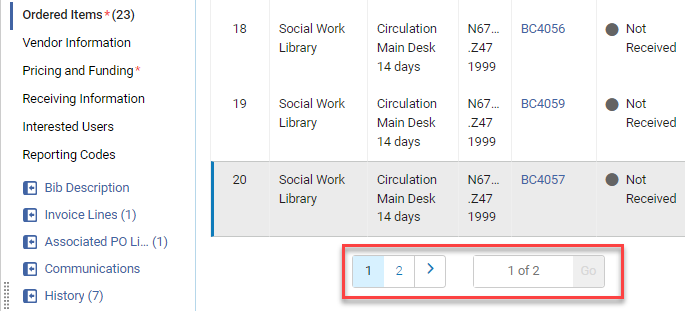
Nel cursore, è possibile modificare il numero di righe necessarie affinché la paginazione appaia.

Il valore selezionato nel cursore viene memorizzato da Alma dopo la disconnessione o l'aggiornamento della pagina.
Sezioni ordinate di copie (solo risorse fisiche)
Per le risorse fisiche, è possibile aggiungere risorse alla lista secondo le necessità. Ad esempio, è possibile aggiungere copie aggiuntive di un libro stampato, eventualmente per biblioteche diverse o con una diversa policy di copia, e per le linee PO continue, è possibile aggiungere ulteriori titoli alla lista. Quando più copie o holdings di una risorsa sono incluse in una riga PO, ogni copia distinta appare in una riga separata in questa sezione.
Le informazioni in queste sezioni non possono essere modificate direttamente. Quando si riceve una copia nella Lista, la disponibilità e la data di ricezione vengono aggiornate automaticamente. You can view additional details about each resource in the PO line, edit some of the information about it, receive the resource,[New for February 2026] place a request for the item, or delete it from the PO line, using the row actions of the resources in the list.
Fields in the Ordered Items Section (One-Time Physical Items)
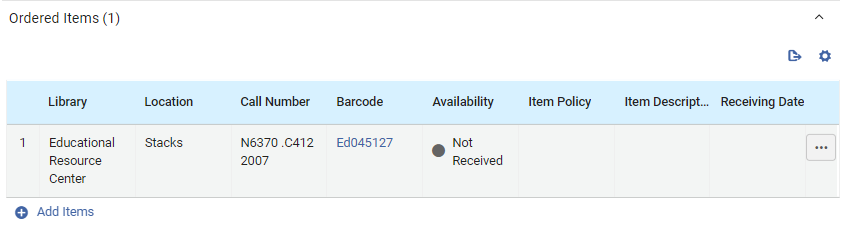
The following information is displayed in the Ordered Items section for each physical item included in a one-time PO line:
| Campo | Descrizione |
|---|---|
| Biblioteca |
La biblioteca per la quale si sta ordinando la copia This may be different from the PO-line owner specified when the new PO line was created (see PO line owner above). |
| Localizzazione | La localizzazione della biblioteca in cui si intende collocare la copia. (New for February 2026) Select this link to view the holdings record in a sliding panel. |
| numero di collocazione | Il numero di collocazione della copia |
|
Codice a barre |
Il codice a barre che viene assegnato alla copia Seleziona il codice a barre per aprire l’Editor della copia fisica in un pannello scorrevole. You can view and edit information about the item there (see Updating Item-Level Information). |
|
disponibilità |
Se l'articolo è stato già ricevuto o meno Quando la copia viene Ricevere, l'Indicatore (di campo) diventa verde. |
| Policy della copia | The conditions under which patrons can access or borrow the item; for more information, see Updating Item-Level Information |
| Descrizione della copia | System or user-generated description as it appears in the Physical Item Editor page (see Updating Item-Level Information); normally blank for monographs and filled-in for serials. For additional information, see Description (Generate). |
| Data di Rrcezione | Se la copia è stata ricevuta, la data in cui è stata ricevuta |
Fields in the Holdings for Ordered Items Section (Continuous Physical Items)

Le seguenti informazioni sono visualizzate nella sezione Holdings per copie ordinate per ogni copia fisica continua inclusa in una Linea d'ordine (POL):
| Campo | Descrizione |
|---|---|
| Biblioteca |
La biblioteca per la quale si sta ordinando la copia This may be different from the PO-line owner specified when the new PO line was created (see PO line owner above). |
| Localizzazione | La localizzazione della biblioteca in cui si intende collocare la copia. (New for February 2026) Select this link to view the holdings record in a sliding panel. |
| numero di collocazione | Il numero di collocazione della copia |
|
Id copia |
Il numero della copia dell'articolo (copia 1, copia 2 e così via) |
|
Riepilogo |
Informazioni sulle holdings tratte dal suo record bibliografico. |
| Copie ricevute |
Il numero di copie fisiche già ricevute sul totale delle copie incluse nella Linea d'ordine (POL) Seleziona questo link per aprire la pagina Elenco copie in un pannello scorrevole. Ulteriori informazioni su ciascuna copia, inclusi il codice a barre, la localizzazione di biblioteca e la data di ricezione, sono visualizzate lì. Select the barcode of an item in this list to open the item in the Physical Item Editor (see Updating Item-Level Information). |
Modifica delle informazioni sulla copia fisica
The information in the Ordered Items/Holdings for Ordered Items sections cannot be edited directly. Quando la copia viene ricevuta, la disponibilità e la data di ricezione vengono aggiornate automaticamente. You can edit many of the other fields manually, receive the item, or delete it, from the row actions of the item. Può anche modificare la risorsa stessa.
Per istruzioni su come ricevere una copia
-
Nelle azioni di riga della copia, selezioni Modifica. Le informazioni sulla copia si aprono in un pannello a scomparsa.
-
Modifichi il campo come desiderato e selezioni Salva al termine. Le modifiche sono state salvate e il Pannello a scomparsa si chiude. Potrebbe essere necessario aggiornare la pagina Linea d'ordine degli acquisti per vedere le modifiche apportate.
-
In the row actions of the item, select Receive. A dialog appears where you can update the receiving information.
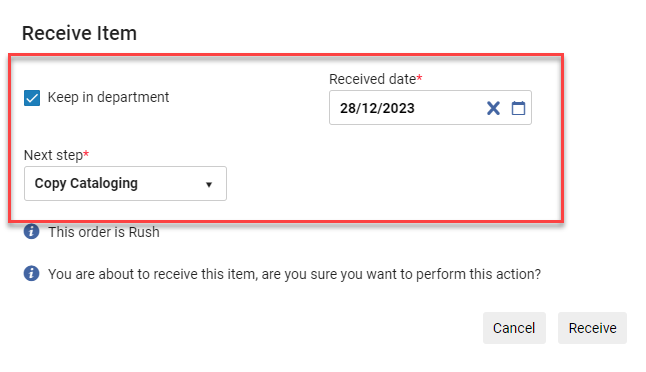 Aggiorna informazioni di ricezione
The department listed under Currently At directly impacts the ability to receive the item from the PO line; an error occurs if the user is not in the correct department. Furthermore, the values shown in the Next step field in the dialogue window correspond to the Currently At department.
See also Receiving Physical Material.
-
In the row actions of the item, select Delete. This performs the same action as Withdraw when receiving physical material (see Receiving Physical Material).
Adding Items or Holdings of a Physical Resource to a PO Line
You can add items to a PO line for physical resources. Se la Linea d'ordine (POL) è per una Risorsa (bibliografica) Fisica Singolo, puoi aggiungere copie aggiuntive della Risorsa (bibliografica) alla Linea d'ordine (POL). Se la Linea d'ordine (POL) è per una Risorse (bibliografiche) Fisica continua, puoi aggiungere ulteriori holdings.
Se la riga dell'ordine di acquisto è stata creata senza inventario, nella sezione delle risorse ordinate non apparirà alcuna copia. Per aggiungere la prima copia, può seguire la procedura seguente. Se una riga di ordine di acquisto per una risorsa è stata creata senza una copia dell'inventario, non può procedere alla Creazione del pacchetto finché l'inventario non viene aggiunto manualmente.
- Per le risorse singole, nella sezione Copie ordinate, seleziona Aggiungi copie. For continuous resources, in the Holdings for Ordered Items section, select Add Holdings. The Add Items or Add Holdings box opens.
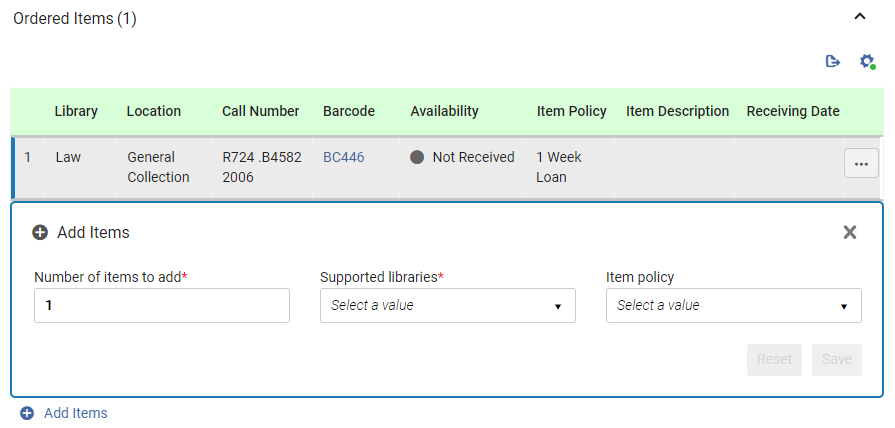
- Under Number of items to add or Number of holdings to create, enter the number of additional copies to add to the PO line for the library and location you will select in the next step.
- Under Supported libraries, select the library and location for which the items are being ordered. The list includes only those locations that can receive items of this type from the PO-line owner specified when the PO line was created (see PO line owner above).For information about creating relationships between libraries to enable the libraries to acquire items for one another, see Configuring Fulfillment Services Between Libraries Within an Institution.
- For one-time orders, select the Item policy – the conditions under which patrons will be able to borrow or access the item (optional).
- Seleziona Salva. The items are added to the PO line, and appear in the list of resources in the Ordered Items or the Holdings for Ordered Items section. (If you added more than one copy, each copy appears in the list in a separate row.)
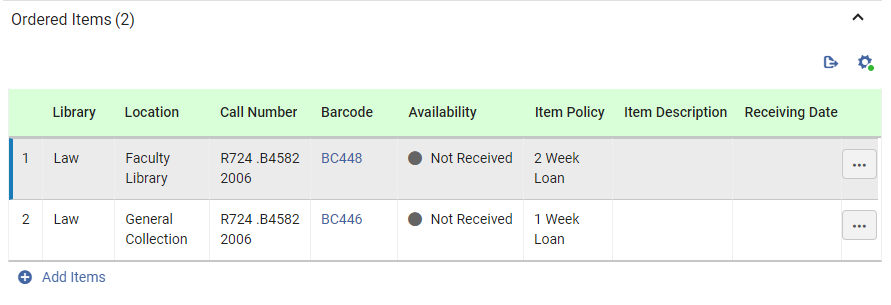
- Per aggiungere copie aggiuntive, ad esempio per una diversa localizzazione di biblioteca o con una diversa politica di copia, selezionare nuovamente Aggiungi copia e immettere i dettagli come spiegato sopra.
Sezione Portafogli Ordinati (Risorse Elettroniche Soltanto)
La sezione Portafogli ordinati della riga PO appare solo per l'ordine delle risorse elettroniche. It displays information about the electronic resource being ordered in the PO line. You can view additional details, edit some of the information, or change the resource being ordered using the row actions of the table.
The Replace Resource function can be used to handle purchases of electronic resources whose distribution is handled by a Network Zone; see Managing PO Lines.
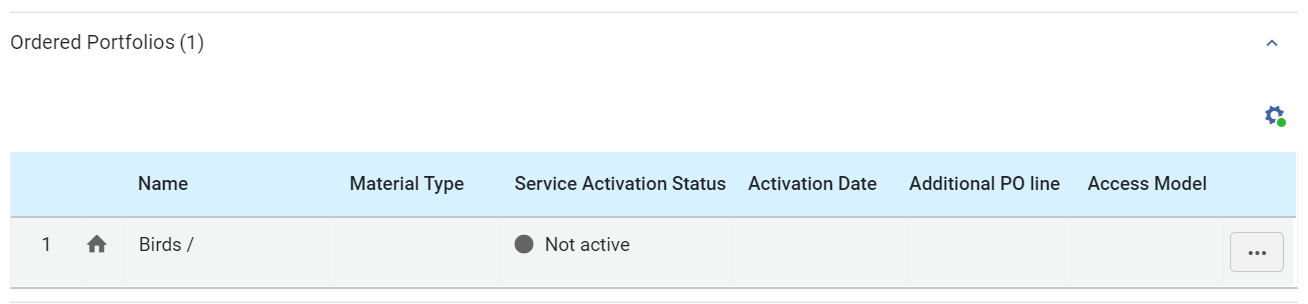
Campi nella sezione Portafogli ordinati
The following information is displayed under Ordered Portfolios for the portfolio of the PO line:
| Campo | Descrizione |
|---|---|
|
Indicatore (di campo) di zona: blu per le Risorse (bibliografiche) disponibili, grigio per quelle non disponibili:
|
|
| Nome |
Il nome del portafoglio |
| Tipo di Materiale | Tipo di risorsa: libro, rivista, dissertazione, ecc. |
| Status attivazione servizio | Indipendentemente dal fatto che il portafoglio sia attivo o meno |
| Data di attivazione | Se il portafoglio è attivo, la data in cui è stato attivato |
| Linea PO Aggiuntiva | Se appare un segno di spunta verde, questa riga dell'ordine di acquisto è una riga PO aggiuntiva per il portafoglio. |
| Accesso Modello | Il modello di accesso definisce quanti utenti finali possono accedere simultaneamente alla risorsa elettronica.
The Access Model column appears for the following types of PO lines:
Può selezionare o modificare il modello di accesso in una delle due localizzazioni di biblioteca:
Il modello di accesso può essere modificato anche dal processo Aggiorna informazioni riga PO. For more information, see Managing Access Models. |
 – Institution Zone
 – Network Zone
 – Community Zone
Modifica informazioni portfolio
"È possibile vista e modificare le informazioni dell'Archivio relative al portafoglio nell'Editor Portfolio elettronico." For information about this editor, see Editing a Portfolio Using the Electronic Portfolio Editor.
- Nella sezione Portafogli ordinati, nelle azioni di riga del portafoglio, selezioni Modifica. L' Editor del portafoglio elettronico si apre in un pannello scorrevole.
- Modifichi le informazioni secondo necessità.
- Seleziona Salva. Le informazioni dell'Archivio sono aggiornate e il Pannello a scomparsa si chiude.
Changing the Portfolio Being Ordered
È possibile modificare il portafoglio in ordine nella Linea d'ordine (POL).
For additional information about this option, see Replacing the Resource Associated with an Electronic PO Line.
- Nella sezione Portafogli ordinati, nelle azioni di riga del portafoglio, selezioni Sostituisci risorsa. The Electronic Portfolios page opens in a sliding panel, with the persistent search bar at the top.A seconda delle impostazioni del sistema, potrebbe esserti richiesto di scegliere se mantenere la Risorsa nell'Archivio o eliminarla. Se ti viene richiesto, scegli una delle opzioni e poi seleziona salva. Anche se scegli di eliminarla, la Risorse (bibliografiche) verrà eliminata dall'Archivio solo se non è associata a nessun altro Inventory.
- In the persistent search bar, search for the portfolio you want order instead of the current portfolio.
- Selezionare la risorsa, quindi selezionare il pulsante Seleziona . Il Pannello a scomparsa si chiude, e il portafoglio selezionato sostituisce quello precedente nella riga della PO.
Adding Inventory to a PO Line for an Electronic Resource
È possibile aggiungere l'inventario a una riga di ordine di acquisto di risorse elettroniche, se necessario. Per farlo, è necessario aggiungere la riga d'ordine (POL) al record del portafoglio. Se ha scelto di non aggiungere l'inventario quando ha creato la riga dell'ordine di acquisto, la sezione Portafogli ordinati è vuota finché non aggiunge manualmente un portafoglio alla riga dell'ordine di acquisto.
- Search for the electronic portfolio that you want to add (see Searching in Alma).
- Select Edit Portfolio. Viene visualizzata la pagina Editor Portfolio Elettronico.
- In the Acquisition tab, in the PO Line field, select the PO line.
- Seleziona Salva. Il portafoglio viene aggiunto alla Linea d'ordine (POL) e appare nella sezione Portafogli ordinati.
Sezione Collezioni ordinate (Risorse elettroniche)
The Ordered Collections section of the PO line appears only for orders of electronic resources. It displays information about the electronic resource being ordered in the PO line. You can view additional details, edit some of the information, or change the resource being ordered using the row actions of the table.
The Replace Resource function can be used to handle purchases of electronic resources whose distribution is handled by a Network Zone; see Managing PO Lines.
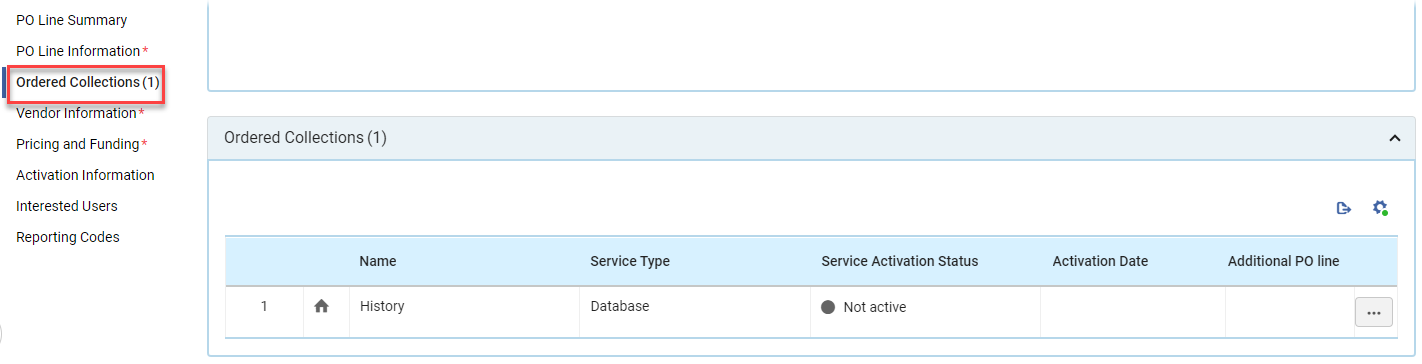
Campi nella sezione Collezioni ordinate
The following information is displayed under Ordered Collections for the collection associated with the PO line:
| Campo | Descrizione |
|---|---|
|
Indicatore (di campo) di zona: blu per le Risorse (bibliografiche) disponibili, grigio per quelle non disponibili:
|
|
| Nome | Nome della collezione |
| Tipo di servizio | Il tipo di servizio: Database, Pacchetto aggregato, selettore pacchetto, ecc. |
| Status attivazione servizio | Se la raccolta è attiva o meno |
| Data di attivazione | Se la raccolta è attiva, la data in cui è stata attivata |
| Linea PO Aggiuntiva | Se appare un segno di spunta verde, questa Linea d'ordine (POL) è una Linea d'ordine (POL) aggiuntiva per la collezione. |
Modifica informazioni collezione
È possibile visualizzare e modificare le informazioni dell'Archivio sulla collezione nell'Editor della collezione Editor elettronica. For information about this editor, see Managing Electronic Resources.
- In the Ordered Collections section, in the row actions of the collection, select Edit. La collezione elettronica Editor si apre in un pannello a scomparsa.
- Modifichi le informazioni secondo necessità.
- Seleziona Salva. Le informazioni dell'Archivio sono aggiornate e il Pannello a scomparsa si chiude.
Changing the Collection Being Ordered
È possibile modificare la collezione ordinata nella Linea d'ordine (POL).
For additional information about this option, see Replacing the Resource Associated with an Electronic PO Line.
- In the Ordered Collections section, in the row actions of the collection, select Replace Resource. The Electronic Collections page opens in a sliding panel, with the persistent search bar at the top.A seconda delle impostazioni del sistema, potrebbe esserti richiesto di scegliere se mantenere la Risorsa nell'Archivio o eliminarla. Se ti viene richiesto, scegli una delle opzioni e poi seleziona salva. Anche se scegli di eliminarla, la Risorse (bibliografiche) verrà eliminata dall'Archivio solo se non è associata a nessun altro Inventory.
- Nella barra di ricerca persistente, cerca la collezione che desidera ordinare anziché la collezione corrente.
- Selezionare la risorsa, quindi selezionare il pulsante Seleziona . Il Pannello a scomparsa si chiude e la raccolta selezionata sostituisce quella precedente nella riga dell'ordine di acquisto.
Adding Inventory to a PO Line for an Electronic Collection
È possibile aggiungere Inventory a una Linea d'ordine (POL) di collezione elettronica secondo necessità. Per fare ciò, è necessario aggiungere la Linea d'ordine (POL) al record della collezione.
- Search for the electronic collection that you want to add (see Searching in Alma).
- Select Edit Collection. Appare la pagina Editor collezione elettronica.
- In the General tab, in the PO Line field, select the PO line number.
- Seleziona Salva. The collection is added to the PO line and appears in the Ordered Collections section.
Sezione delle Rappresentazioni Ordinate (Solo Risorsa Digitale)
La sezione Rappresentazioni ordinate della Linea d'ordine (POL) appare solo per Ordini di Risorsa digitale - Singolo o Ordine in continuazione che vengono evasi fornendo file di cui l'istituzione sarà proprietaria e che memorizzerà nel proprio Archivio. The section displays information about the digital resource being ordered in the PO line. Inizialmente, tutte le Linee d'ordine (POL) digitali vengono create senza Inventory. Per salvare la Linea d'ordine (POL) e continuare a elaborarla, è necessario associarla a una collezione e caricarvi uno o più file.
For additional information about working with digital representations, see Adding Representations and Editing Representation Metadata and Content.
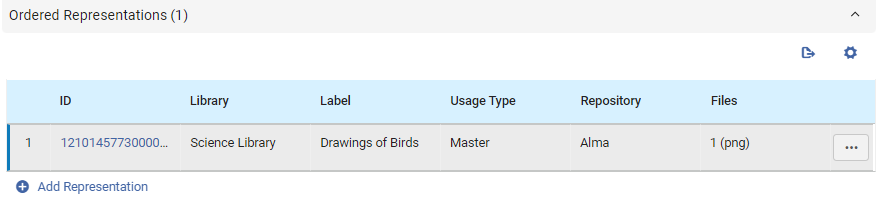
Campi nella sezione Rappresentazioni ordinate
Per ogni rappresentazione nella Linea d'ordine (POL), vengono visualizzate le seguenti informazioni in Rappresentazioni ordinate:
| Campo | Descrizione |
|---|---|
| ID |
Un numero identificativo assegnato alla rappresentazione da Alma |
| Biblioteca |
La biblioteca proprietaria |
| Etichetta | Un'etichetta facoltativa che identifica la rappresentazione; questa etichetta appare nei risultati della ricerca Archivio quando si seleziona View It. |
| Tipo conservazione | Le opzioni sono Derivata, Master o Ausiliaria (la Master è la copia originale, la Derivata è, ad esempio, una copia con una risoluzione inferiore e l'Ausiliaria è una rappresentazione supplementare alla rappresentazione principale, ad esempio un indice). |
| Repository | Dove viene archiviato il file di rappresentazione |
| File | Il nome del file di rappresentazione |
Adding Inventory to a PO Line for a Digital Representation
È necessario aggiungere almeno un file a una riga di ordine d'acquisto digitale. È possibile aggiungere altri file in base alle esigenze. La sezione Rappresentazioni ordinate è vuota finché non si aggiunge manualmente una rappresentazione alla Linea d'ordine (POL). Per default, Alma memorizza i file di rappresentazione nel proprio Archivio. In alternativa, puoi scegliere di memorizzarli in un archivio remoto.
- In the Ordered Representations section, select Add Representation. La pagina dei dettagli della rappresentazione si apre in un pannello a scomparsa. The Title,Library and PO Line are pre-populated as they are inherited from the PO Line.
- Select a Collection with which to associate the representation. Nota che non puoi aggiungere file alla Linea d'ordine (POL) finché non selezioni una collezione in cui includerli.
- Se desideri memorizzare i file di rappresentazione in un Archivio remoto, sotto Dettagli della Rappresentazione, seleziona remoto. Alla pagina è stata aggiunta una sezione Dettagli Rappresentazione Remota. Inserisci le informazioni sull'archivio in questa sezione.
- Compili gli altri campi come richiesto.
- Under File Details, select the representation file. Il file è caricato nell'Archivio.
- Select Save. The representation is attached to the PO line, the sliding panel closes, and the PO line's Details pane is once again fully visible.
- Seleziona Salva e continua. La Linea d'ordine (POL) viene salvata. Depending on the type of PO line, its status (workflow step) is updated in one of the following ways:
- Singola linea PO: La linea PO passa direttamente da In revisione a Chiusa.
- Continuous PO Line: The PO line moves from In Review to either Recurring Renewal(if it is configured for automatic renewal) or Waiting for Manual Renewal(if it is configured for manual renewal). Quando si ricevono ulteriori rappresentazioni per la riga dell'ordine di acquisto, esse devono essere aggiunte manualmente all'Inventario.
Visualizzazione delle informazioni sulla rappresentazione digitale
You can open the Digital Representation Resource Editor from the row of a representation, and view information about the representation. È anche possibile consegnare o scaricare la rappresentazione dalla scheda tab dell'Editor. For information about this editor, see Editing Representation Metadata and Content.
- Nella sezione Rappresentazioni ordinate, nella riga della rappresentazione, selezionare l'ID della rappresentazione. The Digital Representation Resource Editor opens in a sliding panel.
Copie nella sezione solleciti
The Items in Claim section appears in the Details pane when any of the items in the PO line are in claim. You can also receive items, modify the receiving information [New for February 2026] and place a request for the item in this section. Since this section never appears in a newly created PO line, it is documented under Processing Claims.
Sezione Informazioni sul Fornitore
Nella sezione Informazioni Fornitore è possibile inserire informazioni sul fornitore previsto della copia, informazioni di riferimento del fornitore, i termini dell'acquisto e una nota al fornitore.
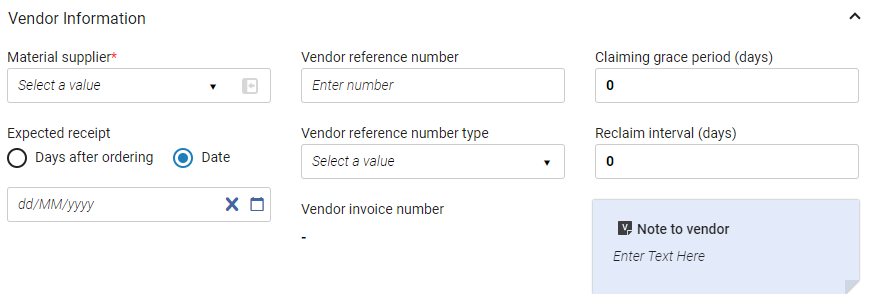
La sezione Informazioni sul fornitore contiene i seguenti campi:
| Campo | Descrizione |
|---|---|
|
Fornitore di materiale (Obbligatorio) |
Il Fornitore che fornisce il materiale ordinato; selezionare dalla Lista di selezione rapida. When a vendor is selected in this field, you can open its Vendor Details page (see Managing Vendors) in a sliding panel, as follows:
|
|
Provider di Accesso (solo per copia elettronica) |
L'Interfaccia del fornitore del materiale ordinato; selezionarla dalla lista di scelta rapida. See Editing Vendor Interface Information. |
| Richiesta del periodo di grazia (giorni) | A grace period (in days) after the expected receipt/activation date, after which the PO line is sent to the claims task list (see Processing Claims). The default value is taken from the Claiming grace period field on the Vendor Account Details page (Acquisitions > Acquisitions Infrastructure > Vendors) for one-time PO lines, and from the Subscription grace period field on the Vendor Account Details page for continuous PO lines. |
| Ricezione/attivazione prevista |
Quando si prevede che l'ordine venga ricevuto (per copie fisiche) o attivato (per articoli elettronici) Seleziona una delle seguenti opzioni, quindi compila il campo sottostante di conseguenza:
This value is used to calculate the claim date (see Processing Claims). Questo campo non appare quando si creano Linee d'ordine (POL) senza Inventory.
Impatto su Primo Get It: When a value is entered in this field, the c.uresolver.getit2.item_list..ACQ.with_expected_date label is invoked in the Primo Get It tab and appears as On order until <date>. Se non viene immesso alcun valore in questo campo, c.UResolver.getit2.item_list..ACQ.with_no_expected_date. L'etichetta viene richiamata nella tab Primo Get It e appare come On Ordine. You can customize the values that appear by using the Discovery Interface Labels Code Table page (see Configuring Labels). Per richiamare le etichette per gli ordini in continuazione, creare un record di holding con un modello di previsione. See Prediction Patterns. |
|
Previsione di attivazione dopo l'ordine (giorni) (solo per copia elettronica) |
Il numero di giorni dopo l'ordine entro i quali è prevista l'attività di Attivazione. When the due date passes, the Notify E-Activation Due letter is sent to the user that is assigned the e-resource activation task and an alert is displayed in the user's list of tasks. For information on creating a default due date, see Configuring Other Settings. For more information, see Managing Electronic Resource Activation.
For more information, see the Activating Electronic Resources video (6:40 mins). |
|
Intervallo Abbonamento (solo per copie fisiche continue) |
L'intervallo di ricezione, in giorni, dell'Ordine in continuazione (ad esempio 30 per mensile, 90 per trimestrale e così via). This value is used to calculate the claim date, unless prediction patterns are in use (see Processing Claims;Prediction Patterns). Quando si utilizzano i modelli di previsione, l'intervallo di abbonamento dovrebbe essere la migliore stima del numero di giorni, rispetto alla data di pubblicazione, in cui il fascicolo arriva internamente. For information on handling items with different receiving intervals, see the explanation for the Technical acquisition method in the Acquisition Methods table. |
| Intervallo di Reclamo (giorni) | Una volta popolato, Alma invierà la comunicazione di reclamo all'intervallo definito dopo l'invio della comunicazione di reclamo iniziale. Se il campo non è popolato, non verrà inviata alcuna comunicazione di recupero. Quando questo campo viene popolato nella pagina Dettagli dell'Account del Fornitore, viene automaticamente copiato in questo campo nella pagina della riga dell'Ordine di Acquisto quando viene selezionato l'Account del Fornitore specifico. Se il valore nel campo Intervallo di recupero (giorni) nella pagina dei dettagli della riga dell'ordine di acquisto viene modificato, tale valore ha la precedenza e diventa il valore effettivo. |
| Numero riferimento fornitore | Un numero identificativo per la Linea d'ordine (POL) in Alma, come fornito dal Fornitore. Serve come punto di corrispondenza per identificare una Linea d'ordine (POL) in Alma.
Quando si comunica con un fornitore EDI, il campo SLI è il punto di corrispondenza del numero di riferimento del fornitore. Il LI campo è il punto di corrispondenza per il numero identificativo della Linea d'ordine (POL). This field is also used as a matching point for Update Inventory import profiles. |
| Tipo di numero riferimento fornitore | Il tipo di Numero di riferimento del fornitore. Le opzioni disponibili sono predefinite da Ex Libris. |
| Numero di fattura del fornitore | Questo campo viene compilato automaticamente quando la Linea d'ordine (POL) è stata caricata da un file EOD. See Importing Records Using an Import Profile. Questo campo non è in uso per altri tipi di Linea d'ordine (POL). |
| Nota al fornitore | Inserisci eventuali note che desideri trasmettere al Fornitore insieme alla Linea d'ordine (POL). |
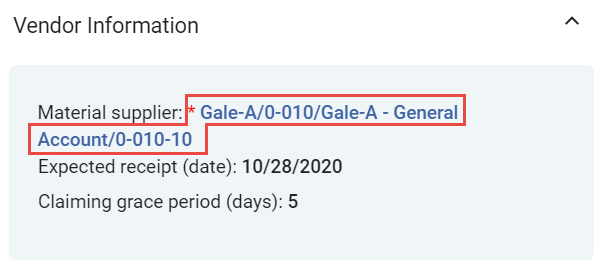
 ).
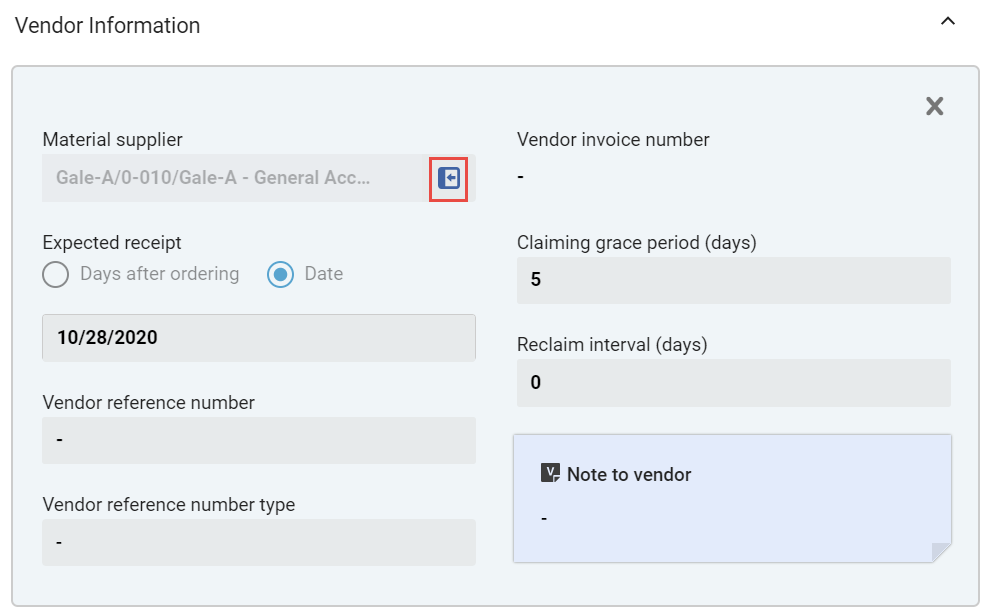
Pricing and Funding Section
La sezione Prezzi e Finanziamenti contiene informazioni sul prezzo della copia ordinata, sul costo totale dell'Ordine e sul Fondo che coprirà l'acquisto.
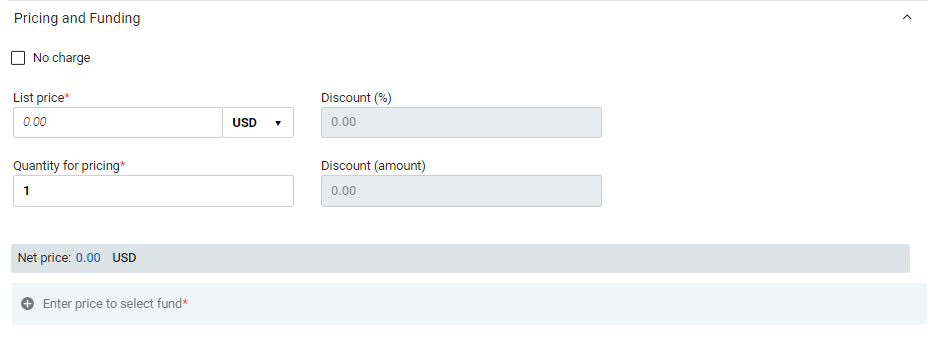
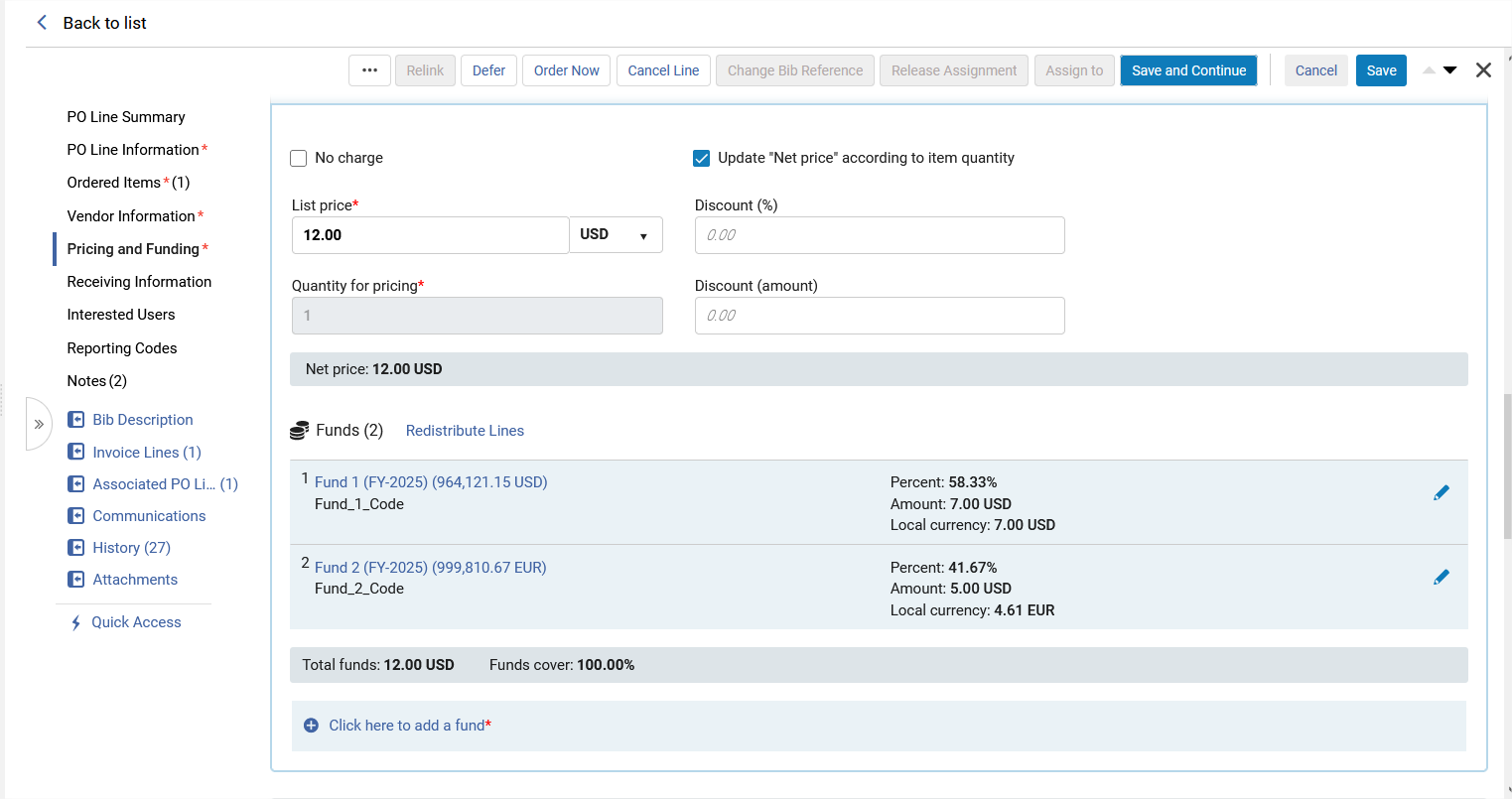
La sezione Prezzi e Finanziamenti contiene il seguente campo:
| Campo | Descrizione |
|---|---|
| Nessun addebito |
If you need to create a PO line without any charge, but the Acquisition method is one that normally requires pricing and funding information, select this checkbox. When this option is selected, the Pricing and Funding section is hidden, and Alma does not allow encumbrances to be created for the order. The following acquisition methods normally require pricing and funding information, and therefore provide the No charge option:EBA,Purchase,Approval Plan, and Purchase at Vendor System. If this option is selected after an order is created and encumbrances are recorded for the PO line, these transactions are deleted. |
| Aggiorna “Prezzo netto” in base alla quantità di copie | (Rilevante solo per le Linee d'ordine (POL) Fisico)
Questo influisce sul numero di copie ordinate nel campo quantità per il prezzo. Quando la casella di spunta è selezionata, l'importo quantità per prezzo viene aggiornato automaticamente quando l'Utente aggiunge o rimuove articoli e, di conseguenza, viene aggiornato anche il campo Prezzo netto. The Update "Net price" according to item quantity checkbox is selected by default when creating new PO lines. To clear this checkbox by default for newly created PO lines, go to Configuration Menu > Acquisitions > Other Settings, customize the po_line_quantity_updated_with_items_number parameter, and set it to False. Per default, questa casella di controllo non è selezionata per le Linee d'ordine (POL) create da EOD, API o Richiesta d'acquisto. |
| List price (Required) | Inserisca il prezzo di listino per una singola copia della copia e selezioni la valuta dal campo a destra di questo campo. Per valori inferiori a 1, immettere uno 0 iniziale. Ad esempio, 0,44 e non .44. |
| Quantità per prezzo | Il numero di articoli da pagare. Indica un numero compreso tra 1 e 100. Il Prezzo totale per la Linea d'ordine (POL) è uguale alla quantità per il calcolo dei prezzi moltiplicata per il prezzo di Lista.
Note that the Quantity for pricing and the Number of items to add(when adding items to the PO line in the Ordered Items section) may be different if you have obtained discounted pricing through a deal such as "buy two items and get a third item at no additional charge." |
| Sconto (%) | L'eventuale sconto da applicare. Alma calcola automaticamente il Prezzo totale per la Linea d'ordine (POL) basandosi sul prezzo di Lista per ogni copia, sullo sconto e sul numero di copie ordinate. Il Prezzo totale della Linea d'ordine (POL) è visualizzato nel campo Prezzo netto.
Questo valore è precompilato se il Fornitore ha una percentuale di sconto sul Conto definita. See Adding a Vendor and Vendor Account. Note that updating the parameters of the vendor account only impacts PO lines created after the change is made; it does not automatically update all existing PO lines from this vendor account. |
| Sconto (importo) | Questo campo consente all'Utente di inserire un importo di sconto specifico che viene calcolato automaticamente e riflesso nel campo Sconto (%).
Alma controlla sempre il campo Sconto (%) nell'Ordine per riflettere il prezzo netto effettivo. Quando un utente compila il campo Sconto (importo), potrebbe verificarsi una differenza di 0,01 tra il prezzo netto e il prezzo di listino. |
| Importo pagato nel periodo finanziario corrente | L'importo totale pagato finora durante l'attuale periodo fiscale. Questo campo viene compilato solo quando si visualizza o si modifica la Linea d'ordine (POL) dopo la sua creazione, e solo per gli ordini di abbonamento. Viene calcolato al volo quando la Linea d'ordine (POL) viene aperta per la modifica e non viene memorizzato in Alma; pertanto non è ricercabile. |
| Clicca qui per aggiungere un fondo |
Select this link to add a fund to the PO line. An Add Fund box opens. it contains the following fields:Fund name,Percent,Amount. Fill in the fields as explained below. Una volta terminato, nella parte inferiore della casella, selezioni Salva. Le informazioni sul Fondo sono aggiunte sotto Fondo. Sebbene l'opzione default sia un Fondo con un'allocazione del 100%, è possibile distribuire il costo di una linea di ordine d'acquisto tra più Fondi. To add additional funds to the PO line, repeat this process for each fund you want to add, stipulating the part of the cost to be covered by each fund in its Percent or Amount fields, as explained below. See also Redistribute Lines, below. Once the funds are added, they are listed under Funds, with information about the cost they are covering. The fund names in the list are links that can be selected to open a sliding panel in which information about transactions related to the PO line for that fund is displayed. Quando la Linea d'ordine (POL) viene salvata, viene creata una Transazione di Impegno per ciascun Fondo in conformità con le informazioni inserite qui. |
| Nome fondo | Seleziona il fondo dalla lista di selezione rapida.
Un Fondo è disponibile per una Linea d'ordine (POL) se serve la biblioteca del Proprietario della Linea d'ordine, è attivo, allocato ed è coperto dal Periodo fiscale corrente, o se le regole del Fondo consentono l'Impegno al di fuori del Periodo fiscale. Il fondo potrebbe non avere necessariamente fondi nel suo saldo al momento dell'ordine. When a fund is selected in this field, select its name to open its fund record (see Managing Funds and Ledgers) in a sliding panel, with the Transactions tab selected and showing all the transactions related to this PO line for this fund. Il link è disponibile sia in modalità vista che in modalità Modifica.
|
| Percentuale | La percentuale del valore del prezzo di Lista ancora disponibile per l'allocazione al Fondo. Quando il campo Importo viene aggiornato, il valore di questo campo si aggiorna di conseguenza. |
| Importo | L'importo del prezzo di Lista ancora disponibile per l'allocazione del Fondo. Quando il valore Percentuale viene aggiornato, il valore di questo campo si aggiorna di conseguenza. |
| Valuta locale | Il valore nel campo Importo, indicato sopra, nella valuta locale (convertito, se necessario) |
| Redistribute Lines | If an amount other than 100% is allocated to funds, select Redistribute Lines to re-allocate the fund amount percentages, based on each fund's relative portion of the current total amount. Ad esempio, se ci sono due Fondi e ciascuno è configurato per coprire l'80% del costo totale della Linea d'ordine (POL), in modo che, insieme, coprano il 160% del costo, Ridistribuisci righe correggerebbe ciascuno per coprire il 50% del totale. In alternativa, se uno dei Fondi è configurato per coprire il 50% e l’altro il 25%, per una copertura totale del 75%, Redistribute Lines correggerebbe il primo al 66,67% e il secondo al 33,33%. |
| Prezzo netto | Mostra il costo totale della Linea d'ordine (POL), basato sulle informazioni nei campi precedenti di questa sezione. |
| Totale fondo | Mostra l'importo totale dei Fondi selezionati. |
| Copertura dei fondi | La percentuale del prezzo netto che il Fondo selezionato copre. |

Sezione Ricezione Informazioni (solo Risorse Fisiche)
La sezione Ricevere Informazioni è dove si aggiungono informazioni sul processo di ricezione alla Linea d'ordine (POL) di una Risorse (bibliografiche) Fisico, affinché l'Utente che riceve la copia sarà consapevole di eventuali requisiti o fascicolo. In questa sezione puoi anche contrassegnare la Risorse (bibliografiche) come veloce.

You can can receive items and modify the receiving information from the Ordered Items section (see Modifying Physical Item Information) and from the Items in Claims section (see Items in Claims Section).
La sezione Informazioni di ricezione contiene il seguente campo:
| Campo | Descrizione |
|---|---|
| Urgenza |
Seleziona questa opzione se desideri rendere veloce l'Ordine di questa copia. The rush icon In addition, the item is marked as Rush( |
| Routing durante la ricezione | Se selezionato, alla Ricezione della Linea d'ordine (POL) appare un messaggio di conferma che informa il bibliotecario che l'Ordine è contrassegnato per l'instradamento e che deve stampa la Lista degli Utenti interessati. For details on receiving physical material, see Receiving Physical Material. |
| Rilegatura durante la ricezione | Se selezionato, alla ricezione della riga dell'ordine di acquisto appare un messaggio di conferma che informa il bibliotecario che l'ordine è contrassegnato per la rilegatura e deve essere inviato per la rilegatura. For details on receiving physical material, see Receiving Physical Material. Also see Binding (Merging) Items. |
| Nota di ricezione |
Enter any information that the person receiving the item should be aware of. Ad esempio, indicare la Localizzazione di biblioteca prevista per l'Ordine copia seriale o permanente per cui non vengono create copie di inventario. The contents of the receiving note is displayed both in the PO line and in the Receive New Material page (Acquisitions > Receiving and Invoicing > Receive; see Receiving Physical Material). La nota è limitata a 4000 caratteri, ma può essere modificata in qualsiasi momento. Durante la migrazione delle righe d'ordine senza inventario, questo campo contiene le informazioni sulla biblioteca/localizzazione di biblioteca per la localizzazione di biblioteca permanente della copia. È possibile inserire più righe di testo per questo campo; tuttavia, si nota che queste righe appariranno come un unico blocco di testo, senza interruzioni di riga. |
 ) in the Receive New Material page (
Sezione Informazioni sull'Attivazione (solo risorse elettroniche)
The Activation Information section is where you add information about the license and access model of an electronic resource. You can also mark the resource as Rush, and add an Activation note for the Activation Operator to see when they are activating the resource, if you wish.
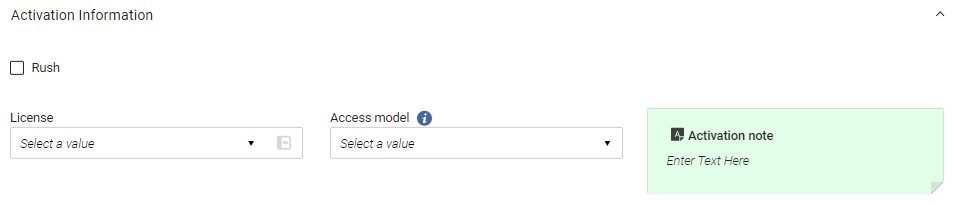
The Activation Information section contains the following fields:
| Campo | Descrizione |
|---|---|
| Urgenza | Seleziona questa opzione se desideri rendere veloce l'Ordine di questa copia. The rush icon  appears in the item's row in PO-line task lists. |
| Licenza | Seleziona una licenza dall'elenco di selezione rapida da associare alla Risorse (bibliografiche), visualizzata nella Lista Inventory. For more information on licenses, see Managing Licenses and Amendments. |
| Modello di Accesso |
Il modello di accesso specifica quanti utenti finali simultanei possono accedere alla risorsa elettronica. Seleziona il modello di accesso corretto per le Risorse (bibliografiche) dalla Lista a discesa. For additional information, see Access Model and Managing Access Models. |
| Nota di attivazione | Inserisci tutte le informazioni di cui il membro del personale che esegue l'Attivazione della Risorse (bibliografiche) deve essere a conoscenza. Non c'è limite alla lunghezza della nota e la nota può essere modificata in qualsiasi momento. Activation notes are displayed in the Electronic Resource Activation Task List page (Resources > Manage Inventory > Manage Electronic Resource Activation; see Activating Electronic Resources and Activation Task List), where electronic resources are activated. |
Informazioni sul rinnovo (solo Ordine in continuazione)
Per Ordine in continuazione come abbonamento, le informazioni di rinnovo dell'Ordine sono configurate nella sezione Informazioni di rinnovo.
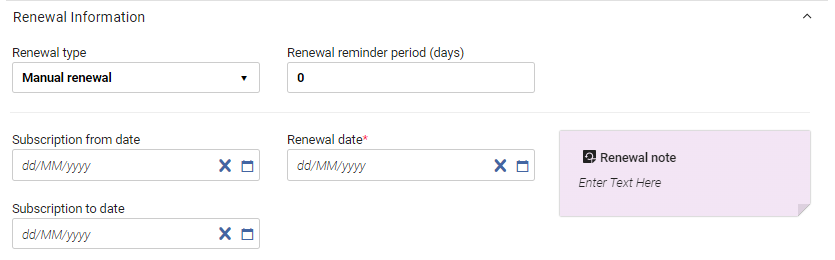
For information about managing renewals, see Processing Renewals.
La sezione Informazioni di rinnovo contiene il seguente campo:
| Campo | Descrizione |
|---|---|
| Tipo di rinnovo |
Selezionare una delle seguenti opzioni: Manual renewal – When the date earmarked by the Renewal reminder period (days) arrives, the PO Line renewal job changes the Workflow Step of the PO line from Recurring Renewal to Waiting for Manual Renewal. "Per rinnovare l'abbonamento, l'operatore deve modificare manualmente la Linea d'ordine (POL) per cambiare la data di rinnovo a una data futura." Automatic renewal – When the renewal date arrives, the PO Line renewal job automatically changes the renewal date to the previous renewal date plus the period of time specified under Renewal cycle. Lo stato della Linea d'ordine (POL) rimane Rinnovo ricorrente. |
|
Periodo (giorni) di promemoria del rinnovo (Solo rinnovi manuali - Obbligatorio) |
For manual renewals, the number of days before the renewal date that the operator wants to be reminded about the renewal (that is, the number of days before the renewal date that the operator wants the renewal to be added to the task list (Acquisitions > Purchase Order Lines > Renew). Ad esempio, se la data di rinnovo è il 10 maggio e il periodo di promemoria di rinnovo è 5, il rinnovo viene aggiunto alla lista delle attività il 5 maggio.
Il numero massimo di giorni che può essere inserito in questo campo è 120. |
| Ciclo di rinnovo | Per i rinnovi automatici, il periodo di tempo dopo il quale deve avvenire ogni rinnovo — ad esempio, 1 anno. |
| Abbonamento dalla data | La data di inizio dell'abbonamento per la linea PO. |
| Data di rinnovo (Obbligatoria) |
La prossima data in cui la Linea d'ordine (POL) deve essere rinnovata:
La data di rinnovo non è obbligatoria per le seguenti modalità di acquisto, poiché non rappresentano un normale flusso di lavoro di acquisto:
|
| Abbonamento fino alla data |
L'ultimo giorno dell'abbonamento:
Questa data indica l'ultimo giorno dell'abbonamento e non deve essere confusa con la data di rinnovo. For example, if you take out a subscription for five years that must be renewed annually (Renewal cycle= one year), the Subscription to date is the last day of the five-year period.
|
Interested Users Section
In the Interested Users section, you manage the users interested in the acquisition. L'utente interessato viene sempre informato delle modifiche apportate alla riga dell'ordine di acquisto. You can configure whether an interested user is also notified when the item is received or activated, renewed, or cancelled, and whether a hold is placed on the item for the user. The notification is sent as an Interested In letter (see Configuring Alma Letters).
When the PO line was created from an approved purchase request, the requester is automatically defined as an interested user. In this case, the requester's notification settings are initially set based on the configuration of the following customer parameters (in Configuration Menu > Acquisitions > General > Other Settings):po_line_hold_item_for_interested_users,po_line_notify_interested_users_upon_cancellation,po_line_notify_interested_users_upon_receiving_activation,po_line_notify_interested_users_upon_renewal. For additional information, see Configuring Other Settings (Acquisitions).
The item's request date is the same as the order date. Se esistono altre richieste per la copia, la priorità delle richieste viene gestita secondo il ruolo, come configurato dall'istituzione. The pickup location is the circulation desk of the item's location, as specified in the PO line.
- The Interested Users section appears only in PO lines that have inventory. I tipi di linea PO definiti con un Tipo di materiale di Generico nella tabella di mappatura dei tipi di linea PO non hanno questa sezione. For information on the PO line type mapping table, see Enabling/Disabling PO Line Types.
- To delete interested users on closed and canceled PO lines, use the po_line_remove_interested_users parameter (see Configuring Other Settings (Acquisitions)). When the weekly PO Line - Delete interested users system job runs, all applicable interested users are removed (see Viewing Scheduled Jobs).
- Seleziona Aggiungi utenti interessati.
- In the box that opens, search for the user, and then select their name. The user is added as an interested user, and a pop-up opens in which you can select various options and see the user's contact information.
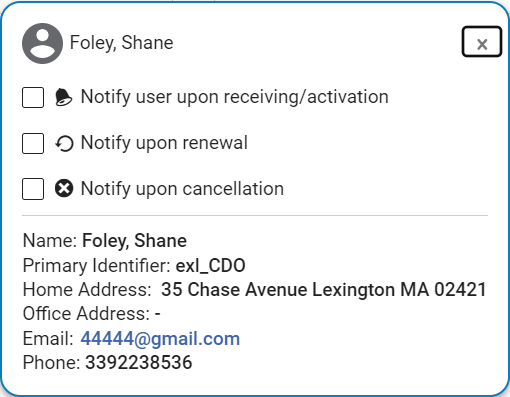
- Nel pop-up, selezioni una o tutte le seguenti opzioni (se disponibili):
- Notifica Utente al momento della Ricezione/Attivazione – Quando selezionato, Alma invia un\'email all\'Utente quando la copia arriva al Servizio ricezione della biblioteca. Un'email viene inviata solo se questa opzione è selezionata e se è configurato un indirizzo email per l'utente.
- Hold item – This option appears only when working with physical items. When selected, Alma will create a hold request when the item leaves the Acquisition Department, but not before. Se la copia è conservata nel reparto (esiste una richiesta di work order per il reparto Acquisizioni), la richiesta di prenotazione verrà creata al termine dell'elaborazione post-ricezione. Quando viene creata la richiesta di prenotazione, il richiedente sarà l'Utente interessato dalla linea PO e il creatore sarà l'operatore ricevente. The item's request date is the same as the PO line's order date. Se esistono altre richieste per la copia, la priorità delle richieste viene gestita secondo il ruolo, come configurato dall'istituzione. The pickup location is the circulation desk of the item's library, as specified in the PO line. Questa biblioteca deve avere un banco di circolazione con uno scaffale per le prenotazioni.
- Notifica a seguito di rinnovo – Questa opzione compare solo per Ordine in continuazione. When selected, Alma sends the Notify Upon Renewal letter to the user when the order is sent to manual renewal. Un'email viene inviata solo se questa opzione è selezionata e se è configurato un indirizzo email per l'utente. Questa opzione è selezionata per default.
- Notify upon cancellation- When selected, Alma sends an email to the user when the order is cancelled. Un'email viene inviata solo se questa opzione è selezionata e se è configurato un indirizzo email per l'utente. Questa opzione è selezionata per default.
- Select Close(
 ) or click outside the box, to close the pop-up. L'Utente è aggiunto come Utente interessato.

To reopen the pop-up in order to view the contact information or change the settings, select the user icon
 .
Sezione codici report
The Reporting Codes section contains fields in which you can select values for additional acquisitions classifications that are defined in your institution. Questi report Codice possono essere utilizzati nelle analisi dei dati di acquisizione. È possibile configurare fino a cinque report Codice per la Sua istituzione:
- 1st reporting code
- 2nd reporting code
- Terzo codice report
- Quarto Codice report
- Quinto Codice report
For additional information, see Configuring Reporting Codes.
Pannello dei dettagli
In the Notes section, you can add, update, or delete notes for the PO line. For details, see New Layout 2022.
Sezione descrizione bib
This section opens in a sliding panel, rather than in the Details pane itself (as indicated by the link icon ). In futuro verrà spostato nel riquadro Dettagli.
La sezione Descrizione Bib contiene informazioni aggiuntive sulla risorsa che si sta ordinando. All fields except Identifier Type are free text and for informational purposes only. Which fields appear depends on the Purchase type that was selected when the PO line was created, as specified in the table below.
La descrizione della riga PO è un'entità creata al momento della creazione della riga PO e non è collegata né influenzata dalle informazioni bibliografiche del record correlato. Ciò significa, ad esempio, che se viene creata una riga PO per un Titolo Introduzione alla Chimica, la descrizione della riga PO Titolo sarà Introduzione alla Chimica. If, at a later point in time, the title is changed to Introduction to Organic Chemistry, the PO line description title will not automatically change. Se desidera che la descrizione della riga PO Titolo venga aggiornata a seguito della modifica di un record bibliografico Titolo, può farlo in uno dei seguenti modi:
- In the row actions of the PO line, select Change Bib Reference.
- In the Bib Description section, select the Reload Bib Data button. You can configure Alma to automatically update the Bib Description (and related PO line description) by enabling the po_line_description_update_upon_bib_change parameter (see Other Settings).
To edit the Bib Description, the PO Line needs to be in View mode (before selecting Edit or after selecting Save).
| Tipi di acquisto | Campi di descrizione BIB |
|---|---|
|
|
|
|
|
|
|
|
|
|
|
|
|
|
Sezione linee fattura
This section opens in a sliding panel, rather than in the Details pane itself (as indicated by the link icon). In futuro verrà spostato nel riquadro Dettagli.
The Invoice Lines section contains information about any invoice lines associated with the PO line, which can be viewed, added, or edited. Quando la Linea d'ordine (POL) viene creata per la prima volta, è, ovviamente, vuota. For information on invoice lines, see Creating an Invoice From a PO or Manually.
- Le opzioni disponibili dipendono dai Suoi privilegi.
- Una riga PO può essere associata a molte linee di fattura, ma una linea di fattura può essere associata a una sola riga PO.
Sezione linee d'ordine associate
This section opens in a sliding panel, rather than in the Details pane itself (as indicated by the link icon). In futuro verrà spostato nel riquadro Dettagli.
The Associated PO Lines section contains information about the PO lines that are associated with the current PO line. Le associazioni delle linee PO sono solo a scopo informativo e non hanno effetti funzionali. Le righe PO possono apparire nella Lista per uno dei seguenti motivi:
- They were associated automatically with this PO line by Alma – for example, other PO lines for the same title.
- They were manually associated with the current PO line in theirAssociated PO line fields in theirPO Line Information sections.
If the current PO line is associated with a target PO line (which is the reverse of the relationship of the PO lines appearing in this section), the target PO line appears in the Associated PO lines field in the PO Line Information section of the current PO line.
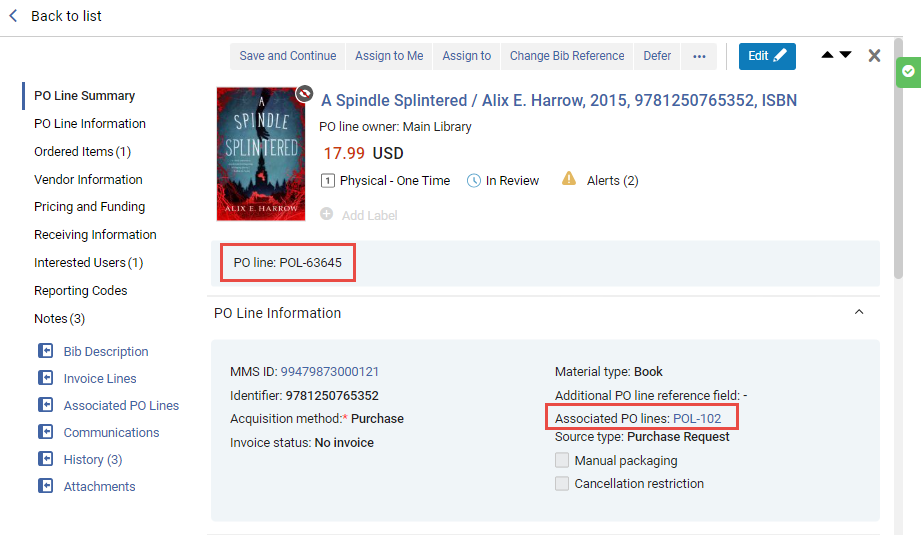
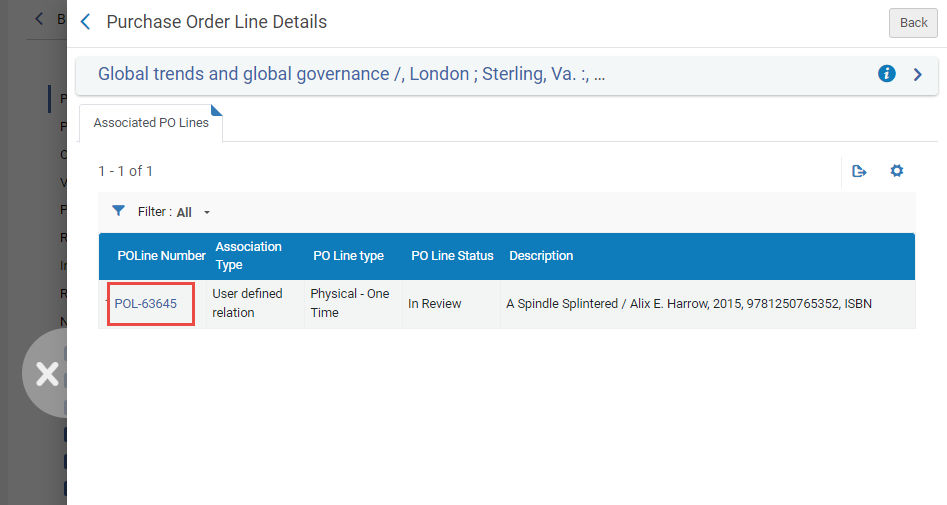
La Lista delle Linee d'ordine (POL) associate può essere filtrata dalla colonna Tipo di associazione. You can select one of the following filter options:
- All- Display all associated PO lines, regardless of the user's scope. Questo è solo a scopo informativo. Si noti che solo quelli che rientrano nell'ambito Utente possono essere gestiti nella lista delle linee PO.
- Same title- Display only those associated PO lines that are for resources with the same title as the resource of this PO line.
- Same Inventory Resource- Display only those associated PO lines that are for the same item (or portfolio or representation) as this PO line.
- User defined relation- Display only those associated PO lines that were manually associated with this PO line by a user.
Comunicazioni con la sezione Fornitore
This section opens in a sliding panel, rather than in the Details pane itself (as indicated by the link icon). In futuro verrà spostato nel riquadro Dettagli.
Nella sezione Comunicazioni puoi avviare una nuova comunicazione con il fornitore oppure, se esiste già una comunicazione, puoi inserire i dettagli della risposta del fornitore e/o seguire la comunicazione con la tua risposta al fornitore. For details on this section, see Managing PO Lines.
Sezione storica
This section opens in a sliding panel, rather than in the Details pane itself (as indicated by the link icon). In futuro verrà spostato nel riquadro Dettagli.
The History section contains a list of the changes that have been made to the fields of the PO line after it was first created and saved. Whenever the existing value of a field is modified or removed, the change appears in the history. Le note o gli allegati aggiunti alla riga dell'ordine di acquisto non sono elencati nella tab.
Sotto Tipo di report, puoi scegliere tra due tipi di Liste:
- PO line changes – Changes to the values of fields, and changes in status (Workflow Step) or assignment.
Integrated with vendor system is seen in the history even if no data/values were changed. Questo campo è rilevante per l'Ordine OASIS dove il fornitore è definito con un sistema integrato. In this case, the Integrate with OASIS button is displayed, and when the user selects it the PO Line is created in the vendor's system and the Integrated with vendor system becomes true.
- Modifiche alle transazioni – Modifiche a un fondo, prezzo, percentuale del fondo o qualsiasi altra cosa che influisca sulla transazione (impegno, spesa, disimpegno). Questi potrebbero essere i risultati di processi di sistema, come un rollover.
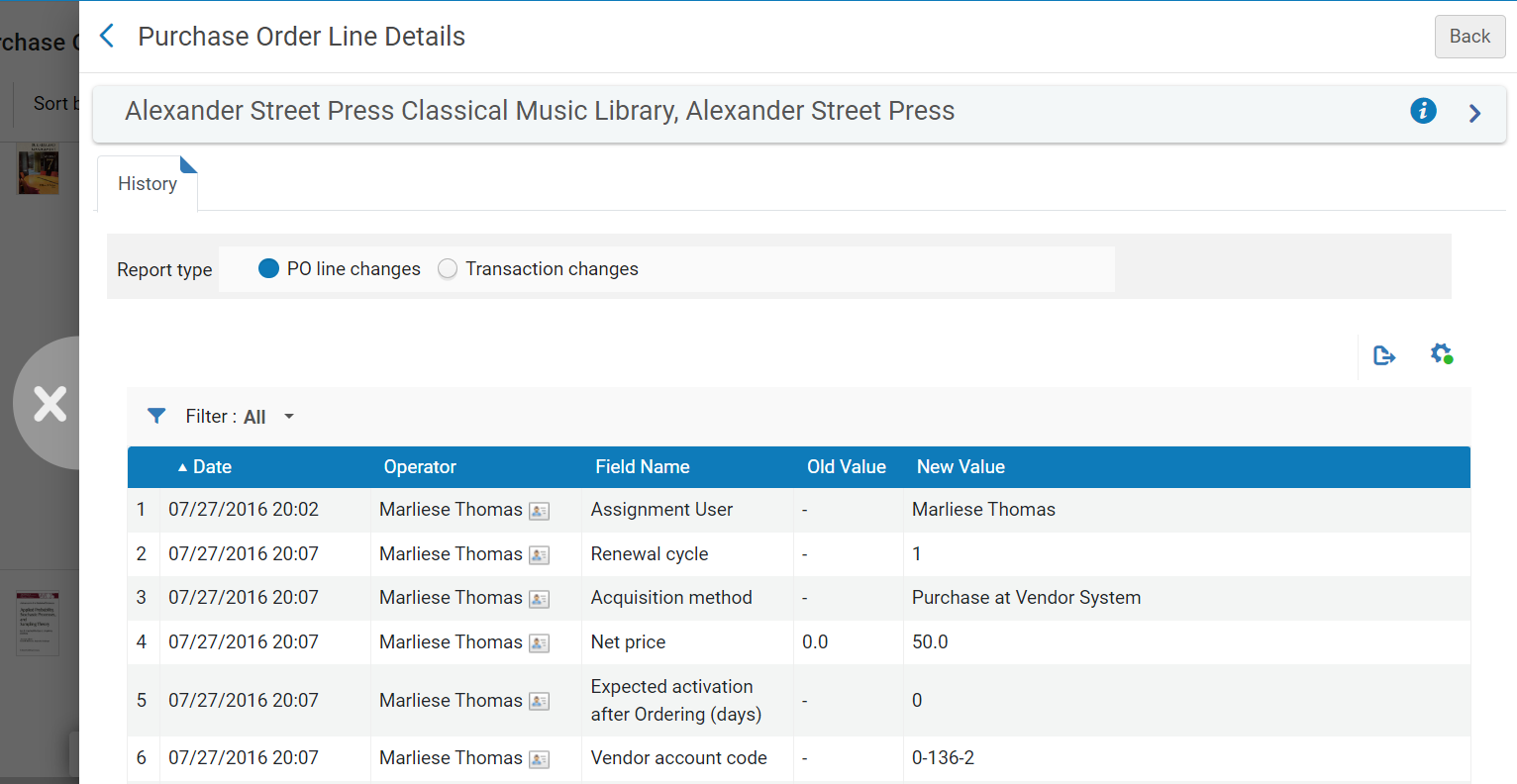
Sezione allegati
This section opens in a sliding panel, rather than in the Details pane itself (as indicated by the link icon). In futuro verrà spostato nel riquadro Dettagli.
In the Attachments section, you can add, update, or delete files related to the PO line. Le dimensioni massime di un allegato sono 25 MB.
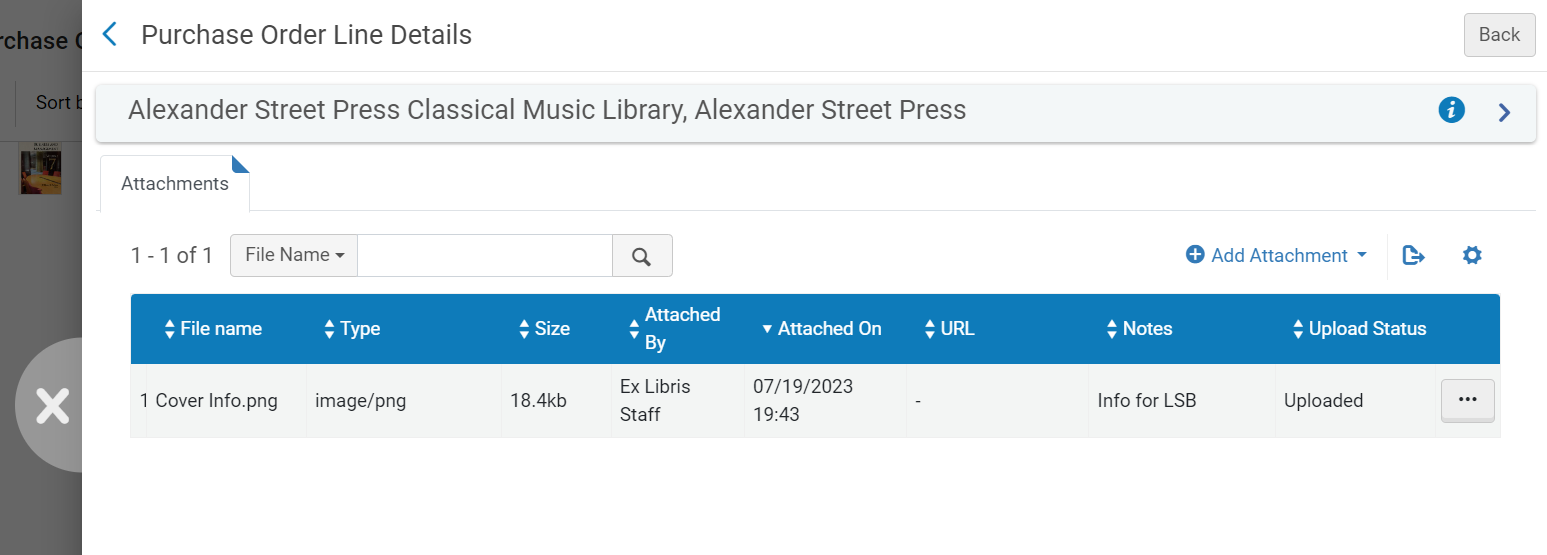
- To add an attachment, select Add Attachment. Browse for a file, add a URL and/or note, if required, and select Add Attachment.
- Per modificare un allegato, selezionare Modifica nel menu Azione della riga.
- To delete an attachment, select Delete in the row actions menu, and then select Confirm in the confirmation dialog box.
- To download a file, select Download in the row actions menu, browse to the download folder, and then select OK.
Continuazione dell'elaborazione della nuova linea PO
Quando avrà finito di inserire tutte le informazioni disponibili sulla riga dell'ordine di acquisto, potrà avviare la fase successiva della sua elaborazione selezionando le opzioni dal menu Azioni. A seconda del tipo di linea PO, alcune o tutte le seguenti opzioni sono disponibili:
Se si salva la riga PO e il record della copia ordinata è breve, potrebbe apparire un avviso e una finestra di dialogo di conferma. See Working with Brief Record Levels for more information about brief records.
- Salva – Le informazioni immesse vengono salvate e la riga dell'ordine di acquisto rimane nella fase corrente del flusso di lavoro (se ha appena creato manualmente la riga dell'ordine di acquisto, questa rimane In revisione). Use this option, if you are unsure if you want the PO line to continue to the following stage of the purchasing workflow, or if you are editing PO lines that are in claim (see Processing Claims) or marked for renewal (see Processing Renewals).
- Salva e continua – le informazioni immesse vengono salvate e la Linea d'ordine (POL) prosegue con la fase successiva del flusso (le regole di revisione non vengono verificate). For more information on the purchasing workflow, see Purchasing Workflow. Se ci sono Alert per la Linea d'ordine (POL), appaiono in una finestra di dialogo di conferma. For a complete list of alerts that may appear in this context, see Configuring Purchasing Review Rules.
When the "PO Line - Packaging" job is enabled, "Manual packaging" is not checked in the PO Line and the PO Line package job configuration is setup (Configuration Menu > Acquisitions > General > Acquisitions Jobs Configuration), selecting Save and Continue changes the PO line status to Auto Packaging.
Afterwards, when the scheduled "PO Line - Packaging" job runs, it checks all of the PO lines in that status and packages them together based on Vendor account, Owner, Currency, Acquisition method, Fund and so forth, into a single PO.
- Assegna a me – assegna la riga dell'ordine di acquisto a te stesso.
- Assign to – Open a dialog box in which you can assign the PO line to another user. (Se non si dispone del Ruolo necessario, non si vedrà questa opzione.)
- Rilascio della release – Per le linee PO che Le sono assegnate, rilasci l’Incarico e lasci la linea PO non assegnata.
- Salva e richiesta valutazione – Le informazioni inserite vengono salvate e viene richiesta una trial. Use this option if the PO line is assigned to you but you do not have the Trial Operator/Trial Manager role. The PO line's status changes to Under Evaluation and the PO line moves to the Manage Trials page with the status Requested, where the Trial Operator/Trial Manager can access it and continue with the evaluation workflow (see Evaluation Workflow). Questa opzione è disponibile solo per le linee PO elettroniche che creano Inventory.
- Salva e avvia la prova – Le informazioni immesse vengono salvate e viene avviata una trial. Utilizzare questa opzione se si dispone del ruolo di operatore di prova/responsabile di prova, la riga dell'ordine di acquisto è assegnata a Lei e si desidera avviare la trial. The PO line's status changes to Under Evaluation and the Trial Details page opens (continue with the evaluation workflow at step 3). Questa opzione è disponibile solo per le linee PO elettroniche che creano Inventory.
- Order now – Initiate the processing of the order for the PO line, by moving the PO line to the purchasing workflow where it is normalized and validated before being packaged (step 4 in the Purchasing workflow) and sent. For more information on packaging PO lines, see Packaging PO Lines into a PO. If you select Order Now, an Order Now Letter is sent to you after the order is sent for processing, and the vendor receives the order as an Order List Letter. For information on these letters, see Configuring Alma Letters.
- Cancel line – The PO line is cancelled (see Canceling PO Lines).
- Differisci – La riga dell'ordine di acquisto è differita e compare nella lista delle attività di revisione differita finché non viene riattivata (spostata al passaggio 2 del normale flusso di acquisto) o annullata. For more information on deferring PO lines, see Deferring PO Lines.
- Integrate with OASIS- For a PO line that has OASIS in the Material Supplier field, you can select this button to automatically send the order to OASIS. See Check Availability and Pricing.
- Relink – Change the bibliographic record to which the PO line is linked (see Relinking PO Lines).
- Request Title –[New for February 2026] Place a request on the title (see Creating a Request from the Institution). The action is visible only for PO lines with the Physical inventory format and with any continuity type .
- Delete – Delete the PO line (see Deleting PO Lines).
- Change Bib Reference – Change the bibliographic record of the PO line. See Changing Bibliographic Reference.
- Salva come template – salva le impostazioni correnti come template. See Creating and Managing PO Line Templates.
- Change Currency – Change the currency of PO lines that were packaged. See Changing Currency in PO Lines.
Page tags: article:topicorderproduct:almacontent:Documentationlang:englishinterested userPO line templatecreate PO linemanually create PO linecommunicate with vendoremail vendorvendor emailvendor responseupload vendor responsePO Line Owner and Typegenerate barcodegenerate barcode using sequenceassign inventory manuallyPO Line SummaryAssociated PO LineClaiming grace periodExpected receipt after orderingexpected activation after orderingExpected receipt dateexpected activation dateE-Activation due after orderingSubscription intervalquantity for pricingadd fund to PO lineacquisition methodinvoice statusReporting CodeAdditional PO line referencerushInvoice Lines tabAssociated PO Lines tabCommunications tabapproval plandepositoryexchangegifttechnicalpurchase at vendor systemInterested Users tabcreate PO line templateedit PO line templatesend email to vendor
